


How to Increase or Disable EWS Throttling in Exchange Online
Throttling can slow your Office 365 migration by affecting your ability to send and receive data from the Office 365 servers through Exchange Web Services (EWS). The throttling process was designed to protect servers by placing limits on how much information can be transferred in a specific period. For your EWS migration, throttling will cause it to be much slower, and if not carefully managed, may result in frequent disconnection and error messages.
How to prevent EWS throttling in Office 365
It’s impossible to fully avoid Exchange Web Services throttling, as throttling occurs in Microsoft’s hands, but there are a few precautions that can be taken:
- Maintain sufficient intervals between multiple migration batches.
- Avoid running heavy concurrent tasks during the migration process.
- Throttling requests to the same mailbox during Office 365 operations.
- Reduce unnecessary mail processing activities in the mailbox during migration.
Steps to increase EWS throttling policy limits in Office 365
Manual management of throttling policies in Exchange Online has been discontinued. Previously, these policies were able to be changed with remote PowerShell, but Microsoft has taken away that ability. Though it is possible to ask Microsoft to briefly increase the EWS throttling for you through the Microsoft 365 admin center or with the support of Microsoft support for assistance.
- Sign in to your Microsoft 365 Admin Center account
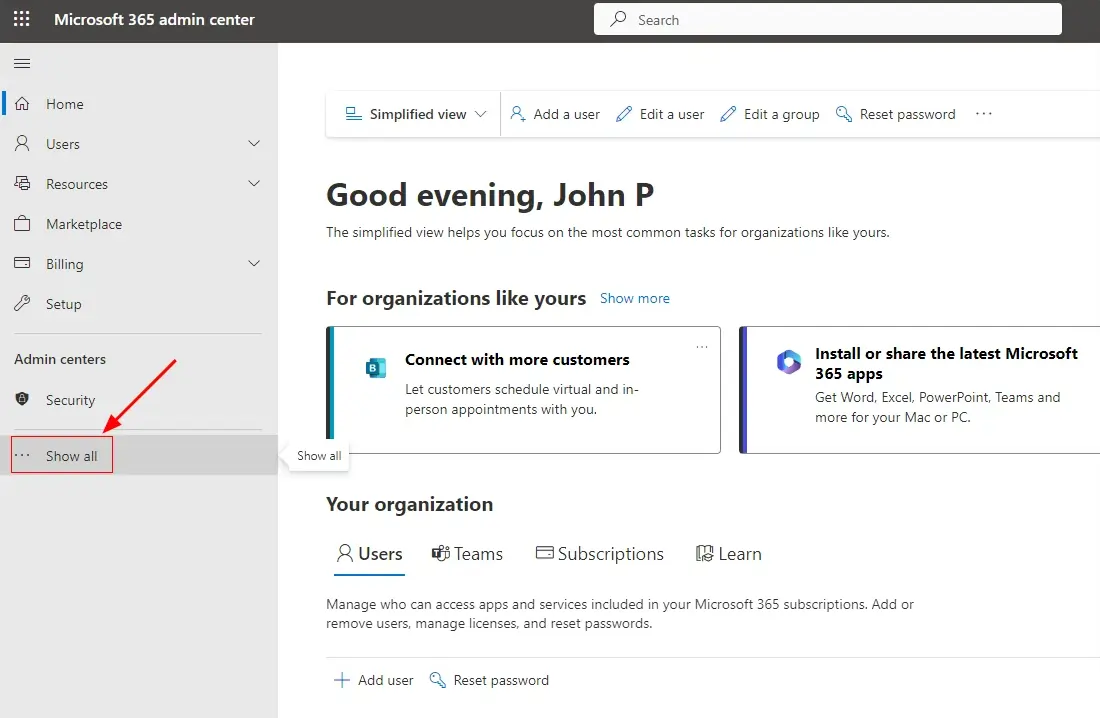
- Click ‘…Show all’ on the left side menu.
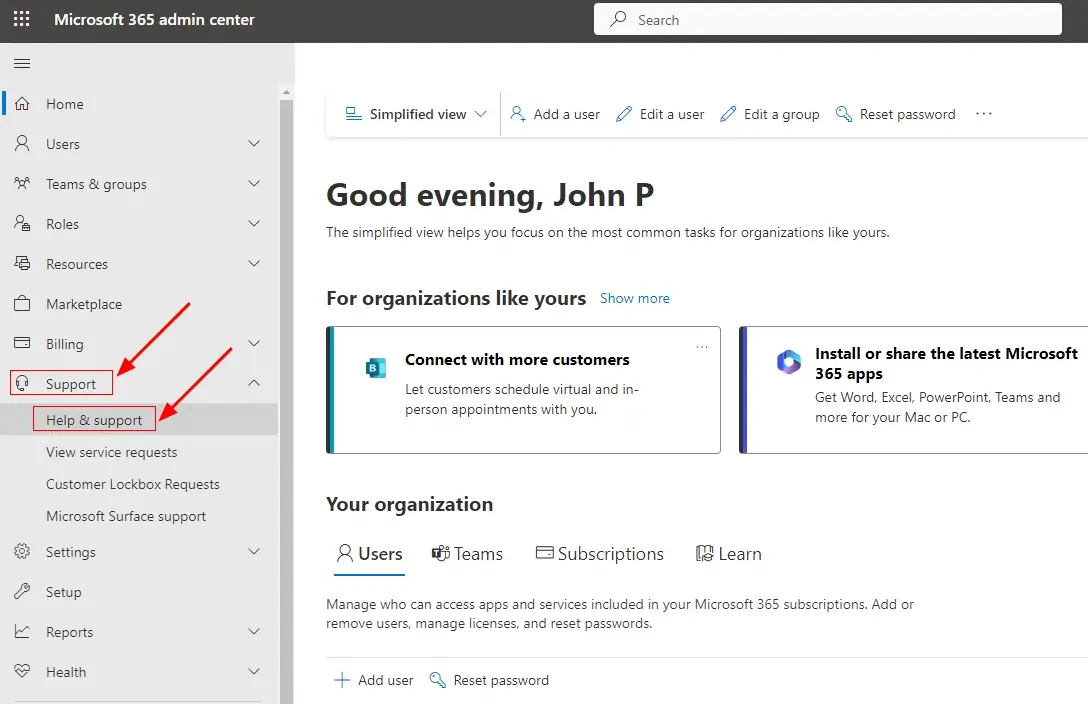
- Navigate to ‘Support’ > ‘Help & support’
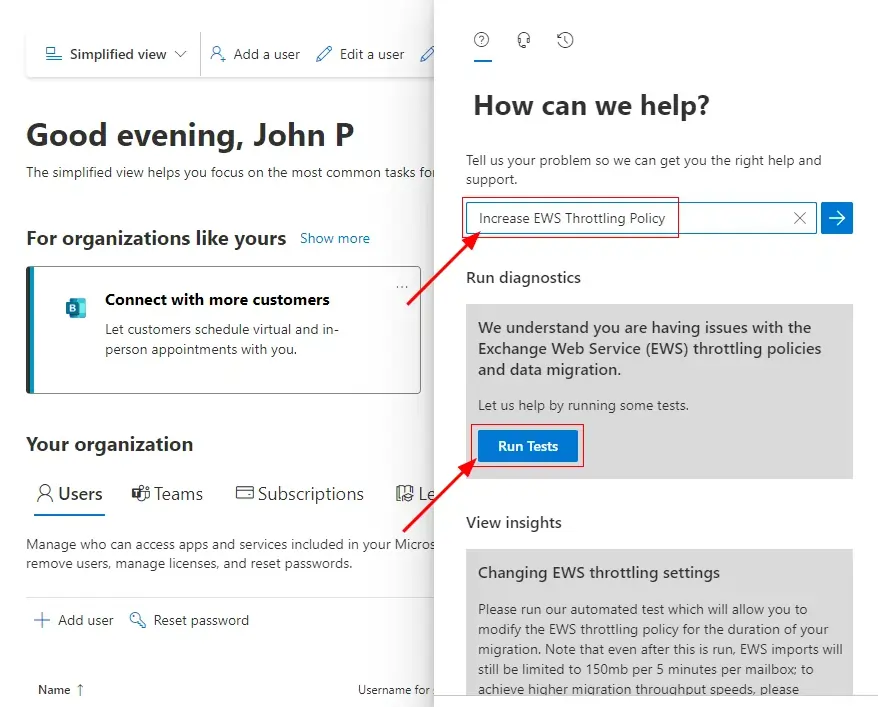
- Type ‘Increase EWS Throttling Policy’ in the search bar, press the Enter key, then click the ‘Run Tests’ button
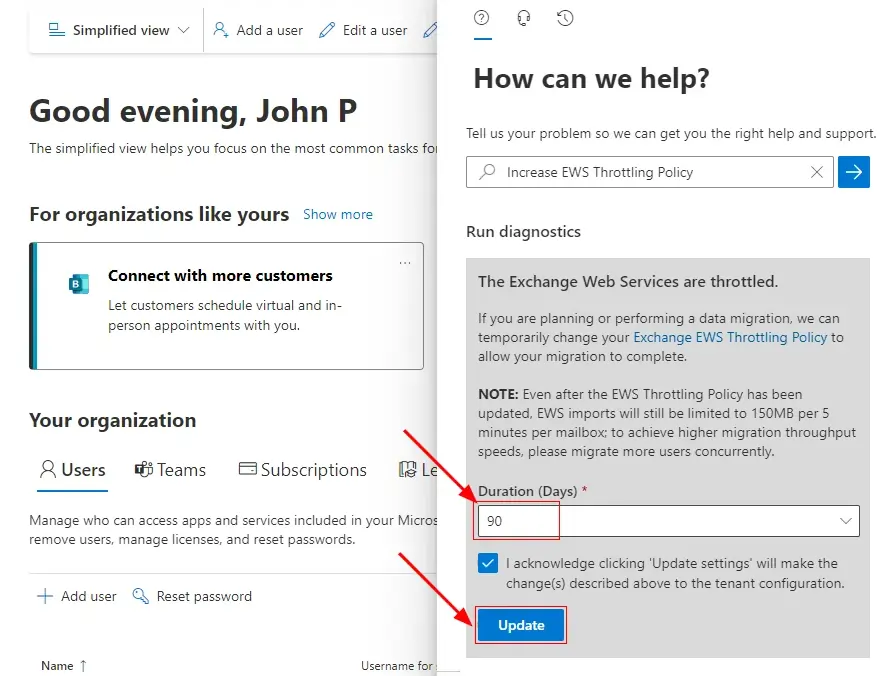
- Wait till the diagnostic test completes. Next, choose either 30, 60, or 90 days to disable the EWS Throttling Policy. Ensure to check the acknowledgement checkbox and then click the ‘Update’ button
- Exchange Web Services (EWS) throttling policy updates have been started. It will be completed within 15 minutes.
- After 15 minutes, perform the test (Step 4) to confirm that the throttling has been disabled.
Signs your Office 365 migration is being throttled
- Migration speed drops sharply partway through a batch, even though earlier batches ran at a normal pace.
- Connections to the source or target mailbox intermittently time out or get rejected.
- The same items are retried more than once before they migrate successfully.
- Large or attachment-heavy mailboxes slow down disproportionately compared to smaller ones.
- Migration logs show repeated delays or retries clustered around the same time in each session.
Frequently Asked Questions
How long does an EWS throttling increase last?
When you request relief through the Microsoft 365 Admin Center's diagnostic tool, you can choose to disable EWS throttling for 30, 60, or 90 days. The update typically completes within 15 minutes of your request.
What should I do if throttling is still affecting migration after requesting an increase?
Wait the full 15 minutes for the update to apply, then re-run the same diagnostic test in the Microsoft 365 Admin Center to confirm the throttling policy has been eased. Since Microsoft uses shared servers, throttling can still occur even after this, particularly if you're migrating a single mailbox at a time. In that case, pause the migration for 30 minutes to an hour, then resume it.
As a best practice, migrate multiple mailboxes together rather than one at a time, EdbMails supports parallel mailbox migration, which spreads the load and reduces how often you'll run into throttling in the first place.
Can I still adjust EWS throttling limits using PowerShell?
No. Microsoft has restricted this capability, so administrators can no longer modify Exchange Online throttling policies directly using remote PowerShell. The only supported options are requesting a temporary increase through the Microsoft 365 Admin Center's diagnostic tools, or contacting Microsoft Support directly.


