


Public Folder migration to Office 365
Public folders are how a lot of organizations share content across teams, and they tend to grow quite large over time. The question that usually comes up: what's the most reliable way to move all of that to Office 365 without breaking things? EdbMails fills that gap well, handling public folders of just about any size or volume.
Limitations of Native migration
Native migration is possible through PowerShell cmdlets and scripts, but it's far from user-friendly. The scripts have to run in a specific order, and the whole process expects a fair bit of technical know-how to see through. Outlook gives you another option for moving public folder data, though you'll bump into size limits and duplicate item problems pretty quickly. Manual approaches end up being slow and labour-intensive either way. EdbMails sidesteps all that by handling public folder migration to Office 365 automatically, with only a handful of clicks needed.
Steps to migrate Public folder to Office 365
- Step 1: Install the EdbMails Office 365 migration tool on your computer
- Step 2: Connect to the source Office 365 server and pick the Public folders
- Step 3: Connect to the target Office 365 server
- Step 4: Map the source Public folders to their target counterparts
- Step 5: Begin the Public folder migration to Office 365
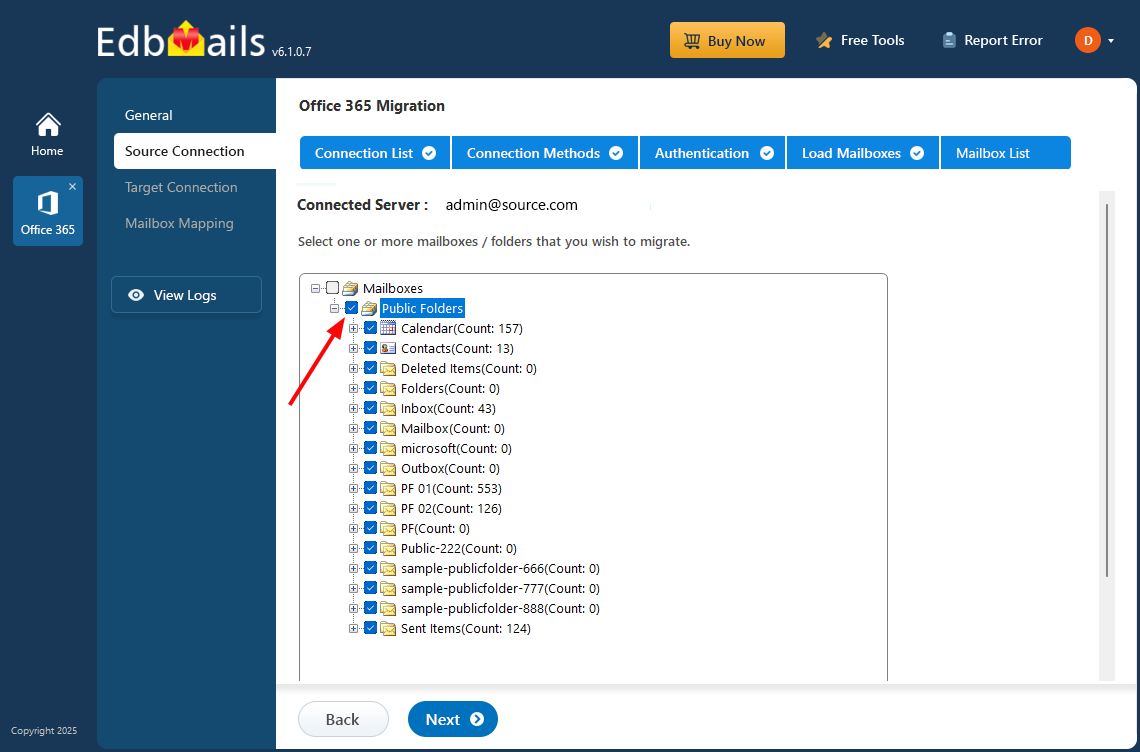
Advantages of EdbMails Public folder Migration
- Move Office 365 Public folders to different target environments such as Exchange or Office 365.
- Migrate Public folders between Exchange servers, or send Public folders to shared mailboxes or Office 365 groups.
- Public folder hierarchy, sub‑folders, and item counts stay intact on the target tenant — end users see the same structure on day one of cutover with no service interruption during the move.
- Granular filtering at the public folder level narrow the migration by date range, sender, subject keyword, or item type before kicking off the run.
- Selective Public folder migration — move only the folders you need.
- No cap on the number of public folders per migration job — the entire hierarchy, however large, moves under a single license allocation.
Public folder size limits in Office 365
Microsoft enforces a few hard ceilings that shape how a public folder migration to Office 365 should be planned. A single tenant can hold up to 1,000 public folder mailboxes, and the hierarchy itself can grow to roughly 1 million folders. Each public folder mailbox is capped at 100 GB in most plans, with the underlying hierarchy size kept inside a 1 TB working ceiling. Items that exceed Microsoft’s per‑message size limit (typically 150 MB) won’t move regardless of the tool. EdbMails reads the source structure ahead of the run and flags folders likely to bump into these limits, so the split across target mailboxes can be planned cleanly instead of discovered mid‑migration.
Mail‑enabled public folders
Mail‑enabled public folders carry attributes that matter long after the migration finishes — primary SMTP address, proxy addresses, alias, display name, and the directory object that lets the folder receive external mail. EdbMails preserves these attributes as part of the public folder migration to Office 365, so existing mail flow to those folders continues to work once cutover happens. Folders that aren’t mail‑enabled on the source stay that way on the target. If a folder needs to become mail‑enabled post‑migration, that’s a one‑line PowerShell change against the target tenant — no re‑migration required.
Public folder permissions preservation
Permissions are usually the part that breaks in a public folder migration done by hand. EdbMails carries the client permission list across for every folder in the hierarchy — Owner, Publishing Editor, Editor, Author, Reviewer, and any custom roles — resolved against the matching user objects on the target tenant. Nested folders inherit the same way they did on the source, so a permission set defined three levels up doesn’t need to be reapplied folder by folder. Default and Anonymous permissions also move across as configured, which matters for folders that rely on Anonymous “Contributor” access for external posting workflows. Mappings between source and target users are handled automatically when UPNs match, with a manual override available for renamed accounts.
Public folder vs. Shared mailbox vs. Microsoft 365 Group
The question that often surfaces partway through a public folder migration is whether the destination should be a public folder at all, or whether the content would be a better fit somewhere else.
Public folder — still the right answer when teams rely on a shared hierarchy in Outlook, when long‑running archives of mail need to stay together, or when a deeply nested folder tree underpins a workflow. Visible in Outlook’s public folder tree, indexed for search, and supports mail‑enabling.
Shared mailbox — a better fit when the content is mostly mail traffic to a single address (support@, info@, sales@) and the team needs to triage as a group. Up to 50 GB without a license attached, which makes it the cheapest destination by far. EdbMails handles public folder to shared mailbox migration directly for teams that want to drop the public folder architecture entirely.
Microsoft 365 Group — the modern choice when the content is collaborative and the team is going to use Teams, SharePoint, and Planner anyway. The shared inbox is paired with a SharePoint site, a OneNote notebook, and a Planner plan out of the box. Less useful for pure email archives, more useful for active project work.
For most environments, the split lands like this: legacy archives and Outlook‑centric workflows stay in public folders, single‑address inboxes move to shared mailboxes, and active collaboration moves to Microsoft 365 Groups. The migration is a good moment to make that call instead of carrying every existing folder forward by default.
Frequently Asked Questions
Does EdbMails support Office 365 Public folder migration?
Yes. You can move Public folders between Office 365 servers. EdbMails also lets you migrate an Office 365 Public folder into shared mailboxes or any other mailbox type.
How do I migrate the Office 365 Public folder to a shared mailbox?
Click here for the steps to migrate Office 365 Public folder to a shared mailbox.
Does EdbMails create duplicate items during consecutive Public folder to Office 365 migrations?
Duplicates aren't a concern here. The tool keeps a record of what was migrated on previous runs, and any item already at the destination gets passed over. Re-running the migration five times against the same target produces the same result as running it once. The incremental migration logic handles all of that without manual setup.
Does EdbMails delete or modify items in the source Public folder during migration?
Source items stay exactly as they are. The migration is one-direction — pull from source, push to target — and there's no write-back to the source tenant at any point. Read more on secure Office 365 migration.
Can I use my source Public folder during or after the migration to Office 365?
That's fine — go ahead and use it. End users won't notice the migration is running. Anything they add to the source folder during the migration window will get picked up the next time you run an incremental pass.
Can I migrate Public folders within the same domain in the same forest?
Not possible. Exchange doesn't let two Public folder hierarchies share the same domain inside one forest, and that limitation carries over to any migration tool. For details on what Exchange will and won't allow here, see the Public folder to Exchange guide.
Can I migrate Public folders in a hybrid environment?
No. Microsoft's hybrid deployment design doesn't allow Public folders to exist on both on-premises Exchange and Exchange Online at the same time — they have to live on one side. So hybrid Public folder migration isn't a supported scenario.

