EdbMails EDB Recovery and Migration software
  • Products
    EdbMails
    All-in-one Recovery and Migration
    Explore our products
    • EDB recovery and Migration
    • OST, PST, MBOX, NSF, EML, MSG
    • Office 365, Exchange Migration
    • SharePoint, OneDrive & Teams
    • G Suite Migration
    • IMAP Migration
    • Duplicate Remover
    • Windows Data Recovery
    • Backup Solutions

    EDB Recovery and Migration

    EdbMails lets you recover corrupted, damaged, and offline Exchange EDB files, convert EDB mailboxes to PST format, and directly migrate mailbox data to Office 365 and live Exchange Server.

    EDB to PST
    Recover corrupted, damaged, offline EDB files and convert Exchange EDB mailboxes to PST file format
    Public Folder to Exchange
    Migrate public folders from an Exchange offline EDB file to live Exchange Server
    EDB to Live Exchange Migration
    Directly migrate offline Exchange database (EDB) files to live Exchange server
    Archive Mailbox to Office 365
    Migrate archive mailboxes from offline EDB files directly to Office 365
    EDB to Office 365 Migration
    Directly migrate offline Exchange database (EDB) files to Office 365
    Public Folder to Office 365
    Migrate public folders from an offline Exchange EDB file to Office 365

    OST, PST, MBOX, NSF, EML, MSG Export and Migration

    EdbMails lets you to recover OST and PST files, export OST, PST, MBOX, NSF, EML, and MSG files to PST files, and directly migrate OST, PST, MBOX, and NSF mailbox data to Office 365 and live Exchange Server.

    OST Recovery and Migration
    Recover offline OST files, convert OST to PST, and migrate OST to Office 365 and Exchange Server
    PST Recovery and Migration
    Recover Outlook PST files , Export PST to PST, migrate PST to Office 365 and Exchange Server
    MBOX Export and Migration
    Export MBOX to PST, migrate MBOX to Office 365 and Exchange Server
    NSF Export and Migration
    Export NSF to PST, migrate NSF to Office 365 and Exchange Server
    EML to PST Export
    Convert EML files to Outlook PST files
    PST to MSG Export
    Convert Outlook PST file to MSG file format
    MSG to PST Export
    Export MSG files to Outlook PST files

    Office 365, Exchange Migration

    EdbMails lets you securely migrate mailboxes across Microsoft 365, Exchange, Google Workspace (G Suite), and IMAP-supported servers such as Outlook, Gmail, Zimbra, Zoho Mail, and cPanel, ensuring zero downtime.

    Office 365 Migration
    Migrate between Office 365 tenants, Office 365 to Exchange, Office 365 to PST, PST files to Office 365.
    Exchange Migration
    Migrate between any Exchange Servers, Exchange to Office 365, Exchange to PST, PST files to Exchange.
    Tenant to Tenant Migration
    Migrate Mailboxes, Public Folders, Archive Mailboxes between Office 365 Tenants.
    Exchange to Office 365
    Migrate Mailboxes, Public Folders, Archive Mailboxes from live Exchange server to Office 365.
    Office 365 to IMAP
    Migrate Office 365 to IMAP, Office 365 to Gmail, Office 365 to Outlook, Office 365 to Zoho etc.
    Exchange to IMAP
    Migrate from live Exchange Server to IMAP servers such as Gmail, Outlook, and Zoho Mail.
    Public Folder to Office 365
    Migrate Public Folders between Office 365 tenants with complete folder hierarchy and mailbox data integrity.
    Exchange to PST
    Export live Exchange Server mailboxes, public folders, and archive mailboxes to Outlook PST files.

    SharePoint, OneDrive & Microsoft Teams Migration

    EdbMails lets you migrate SharePoint sites, OneDrive data, Microsoft Teams, teams, channels, chats, permissions, and documents between Microsoft 365 tenants while maintaining the existing folder structure and data integrity.

    SharePoint Online Migration
    Migrate documents, lists, files and folders from SharePoint sites.
    OneDrive for Business Migration
    Migrate documents, lists, files, folders, private chats from OneDrive.
    Microsoft Teams Migration
    Migrate Teams, chats, channels, documents, files and folders etc.

    Google Workspace / G Suite Migration

    EdbMails G Suite Migration Tool lets you easily migrate emails, calendars, contacts, tasks, and more from G Suite to Office 365, Exchange Server, and IMAP servers using a Google Admin account without requiring individual user credentials.

    G Suite Migration
    Migrate emails, calendars, contacts, tasks from G Suite to Office 365, G Suite to Exchange, G Suite to IMAP Servers
    G Suite to Office 365
    Migrate emails, calendars, contacts, tasks from Google Workspace / G Suite to Office 365
    G Suite to Exchange Server
    Migrate emails, calendars, contacts, tasks from Google Workspace / G Suite to on-Premise Exchange Server
    G Suite to IMAP
    Migrate emails, calendars, contacts, tasks from Google Workspace / G Suite to IMAP, Outlook, Zimbra, Zoho etc.

    IMAP Migration

    EdbMails IMAP Migration tool lets you easily migrate emails from IMAP servers such as Outlook, Gmail, Zoho Mail, Zimbra, cPanel, and more. Supports IMAP to IMAP, Office 365, Exchange Server, PST, and bulk PST to IMAP migration.

    IMAP Email Backup & Migration
    Backup and migrate emails from IMAP servers to PST, Office 365, and On-Premises Exchange Server
    IMAP to Office 365
    Migrate emails, folders, and attachments from IMAP servers to Office 365
    IMAP to Exchange
    Migrate emails, folders, and attachments from IMAP servers to on-premises Exchange Server
    IMAP to PST
    Export emails, folders, and attachments from IMAP servers to Outlook PST files for backup
    PST to IMAP
    Migrate emails, folders, and attachments from bulk PST files to IMAP servers

    Duplicate Remover

    EdbMails Duplicate Remover lets you easily remove duplicate items from Office 365 and Exchange Server, and from IMAP, Outlook, Gmail, Zimbra, Zoho Mail, etc., ensuring a clean and organized mailbox.

    Remove Duplicates
    Easily clean up your Office 365, Exchange, Outlook and IMAP accounts by removing duplicate emails.
    Remove Duplicates from Office 365
    Remove duplicate emails, calendars, contacts, journal tasks, etc. from Office 365.
    Remove Duplicates from Exchange Server
    Remove duplicate emails, calendars, contacts, journal tasks, etc. from live Exchange Server.
    Remove Duplicates from IMAP, Outlook
    Remove duplicate emails, attachments from IMAP, Outlook, Gmail, Zimbra, Zoho Mail etc.

    Exchange, SharePoint, OneDrive, Teams and Office 365 Backup

    EdbMails enables secure, automated backup and recovery for Microsoft 365 services including Exchange Online, SharePoint, OneDrive, Teams, and Live Exchange Server with complete data protection and restore flexibility.

    Office 365 Backup
    Incremental, Granular, Encrypted and Compressed Office 365 Mailboxes Backup
    Exchange Server Backup
    Incremental, Granular, Encrypted and Compressed Exchange Mailboxes Backup
    SharePoint, OneDrive & Teams Backup
    Backup Online site collections, Team sites, Office 365 groups, all documents etc.

    Windows Data Recovery

    EdbMails Windows Data Recovery Software lets you recover permanently deleted data, including photos, videos, documents, and archived files, from partitions on hard drives, SSDs, USB drives, SD cards, and external storage devices.

    Windows Data Recovery
    Recover and restore permanently deleted data from hard drives, SSDs, USB drives, SD cards, and etc.
    Whitepaper
    Request a Demo
    Sign Up
  • Features
  • FAQ
  • Pricing
  • Download
  • Support
  • Sign in
User’s Manual
Office 365 Migration

User Manual

User Manual

  • Office 365 Migration Overview
  • Initial setup
  • System Requirements
  • Migration Scenarios
  • Software Setup
    • EdbMails Installation Process
    • Upgrading the Software
    • How to uninstall
    • Reinstallation
  • Understanding the Application
    • Software's Main Components
    • Understanding the Migration
  • FAQ
    • General
    • Migration Free Trial / Demo
    • Migration License
    • Before Migration
    • Migration - Steps
    • After Migration
  • Videos
    • Office 365 to Office 365
    • Office 365 to Exchange
    • Office 365 to IMAP
    • Office 365 to PST
    • Public Folder to Office 365
    • Archive Mailbox to Office 365
    • Public Folder to Exchange
    • Archive Mailbox to Exchange
    • Restore Bulk PST files to Office 365
    • Automatically Create Office 365
    • Export Office 365 user to CSV file
  • Screenshots
    • Office 365 to Office 365
    • Office 365 to Exchange
    • Office 365 to PST
    • Office 365 to IMAP
  • How it works?
    • Office 365 to Office 365
    • Office 365 to Exchange
    • Office 365 to IMAP
    • Office 365 to PST
    • Public Folder to Office 365
    • Public Folder to Exchange
    • Public Folder to Shared Mailbox
    • Archive Mailbox to Office 365
    • Archive Mailbox to Exchange
    • Office 365 to Hosted Exchange
    • Multiple PST to Office 365
    • Office 365 to Gmail Migration
    • Office 365 Shared mailbox to Exchange
    • Office 365 Public folders to PST
    • Office 365 archive mailbox to PST
    • Office 365 Shared mailbox to PST
    • Office 365 shared mailbox to Public folder
    • Office 365 Archive mailbox to Shared mailbox
    • Office 365 Shared mailbox to Archive mailbox
    • Office 365 to Zoho migration
    • Office 365 group mailbox to shared mailbox
    • Shared mailbox to Office 365 Groups mailbox
    • Office 365 Groups mailbox to Regular mailbox
  • Connect to source Office 365
  • Connect to target Office 365
  • Modern Authentication Using OAuth 2.0
    • Microsoft 365 modern authentication
    • Automatic Registration
    • Manual Registration
  • Connect to Exchange server
  • Knowledge Base
    • Migrate between Office 365 tenants
    • Migrate Office 365 mailbox
    • Public folder migration
    • Office 365 to Exchange Migration
    • Office 365 Migration with same Domain
    • Office 365 Group Migration
    • Selective Mailbox Migration
    • Migration to Exchange 2007, 2010, 2013, 2016 and 2019
    • User-Defined Mailbox/Folder Mapping
    • Export Office 365 users to CSV
    • GoDaddy to Microsoft 365 migration
    • Rackspace to Office 365 migration
    • Office 365 migration methods
    • Office 365 migration checklist
    • Migrate Shared mailbox to Office 365
    • Office 365 migration best practices
    • Office 365 migration challenges
    • Convert shared mailbox to regular mailbox
    • Office 365 to Exchange 2019 migration
    • Office 365 multiple mailbox migration
    • Office 365 Server to Server Migration
    • Cross-Tenant Office 365 migration
    • EWS throttling in Exchange Online
    • Office 365 migration common use cases and solutions
    • Language settings on Office 365 Server
    • Office 365 to iCloud migration
    • Office 365 to Yahoo Mail migration
    • Microsoft 365 sign-in issue
    • Batch create Outlook profiles Intune
  • Set Office 365 Impersonation rights
    • Using PowerShell commands
    • Using Office 365 GUI
  • Migration Types
    • Cutover Migration
    • Staged Migration
  • Set Exchange Server Impersonation rights
  • Map the Mailboxes
  • Migration Walkthrough
    • Office 365 tenant to tenant migration
    • Office 365 to Exchange migration
    • Office 365 to PST Export
  • Multifactor Authentication
    • Enable MFA in Office 365
    • Create App password for MFA
    • Disable Security Defaults
  1. Home
  2. Product
  3. How to migrate from Microsoft 365 to Gmail?
Download Buy Now

Office 365 to Gmail Migration

Migrating your Office 365 to Gmail, you benefit from various services like enhanced collaboration tools, easy-to-use interface, integration of Google services etc leading to high productivity, low cost and a more streamlined workflow.

EdbMails Office 365 migration tool makes the transition process easy. It supports concurrent mailbox migration, allowing for the simultaneous transfer of multiple mailboxes, which makes the migration faster as the mailboxes will be migrated all at the same time. It will easily migrate the bulk of data while maintaining the original folder structure.
Office 365 to Gmail migration

EdbMails offers advanced filter options too. Based on your requirements, like dates, senders, recipients, attachment types and many others, you can specify and filter the migration.

The sections below cover the key reasons for migrating from Office 365 to Gmail, pre-migration requirements, a step-by-step migration walkthrough, post-migration tasks, and the specific benefits EdbMails provides throughout the process

Reasons to Migrate from Microsoft 365 to Gmail

Here are some of the most common reasons organizations and individuals consider moving from Office 365 to Gmail

  1. Preference for a Simpler, Personal Email Environment: The Office 365 mailbox is designed for corporate users. However, Gmail is intended for individual or home users. Therefore, a few corporate users are considering migrating their Microsoft 365 email to Gmail for external access. EdbMails Office 365 migration software helps migrate your Microsoft 365 emails precisely while preserving their original folder structure.
  2. Cost Advantages and Free Storage Availability: Microsoft 365 is a subscription-based service, while Gmail offers 15GB of free cloud storage. The price difference sometimes encourages the user to think of migrating their Office 365 email to a Gmail account. EdbMails helps users to perform this migration as it efficiently handles the large email volume with reduced cost.
  3. Ease of Use and Minimal Technical Complexity: The Gmail interface is fairly simple to understand, whereas the capabilities in Office 365 can appear more technical to less technical users. The EdbMails Office 365 migration software can simplify the migration process and enable users to access Microsoft 365 emails in Gmail.
  4. Improved Google services integration and mobility: Besides, its Google services integration, mobility and simple collaboration services make it a worthy choice for organisations to shift from Office 365. EdbMails helps in a smooth migration by correctly migrating all required data.

Professional Software to Migrate Emails from Office 365 to Gmail

EdbMails takes the manual work out of migrating Office 365 emails to Gmail. The interface is straightforward, with no extra software installations or complex setup — just a direct, secure path from Microsoft 365 to Gmail that gets the job done quickly.

Every business runs differently, and EdbMails accounts for that. Large enterprise rollouts, small team migrations, cutover or staged — the software handles them all. Incremental migration, concurrent mailbox migration, automatic mailbox mapping, and automatic throttling management are all part of the package — covering the scenarios that tend to slow Office 365 to Gmail migrations down or cause data issues mid-transfer.

  1. Pre-Migration Configuration for Microsoft 365 to Gmail Migration

    Before commencing the migration from Microsoft 365 to an IMAP server, a few things need to be sorted out on both ends:

    For the source Microsoft 365 server:

    • A global admin account with an active mailbox is required for Auto Registration of the EdbMails application on Entra ID (Azure Active Directory). For the Manual Registration method, either a global admin account or a user account with full access rights will work.
    • Internet bandwidth needs to be adequate for the Office 365 to Gmail migration

        Check the details on network planning and performance factors and migration best practices for Office 365 before starting.

    For the target Gmail server:

    • Have the Gmail account email address and app password ready before starting.

        Follow these steps to generate an app password for the Gmail account.

    • If you are migrating a number of mailboxes, then download a sample CSV from the EdbMails IMAP login window, populate the CSV with the email address, password, Gmail hostname and port number. Then save the CSV.
  2. Office 365 to Gmail migration: Step-by-step procedure

    EdbMails helps you easily migrate your Office 365 mailboxes to Gmail through simple and interactive features. In order to initiate the Office 365 mailbox migration and also securely migrate the data from Office 365 to Gmail, please follow the steps below.

    1. Step 1: Download and Install EdbMails software

      • Download and install the EdbMails application on your computer having Windows Operating system.

         Click here to know the system requirements to migrate Office 365 to Gmail account
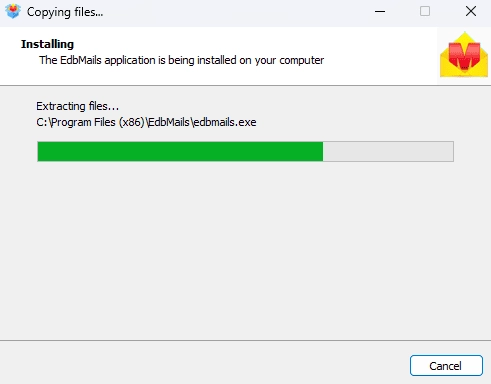
        EdbMails software installation

      • Launch the EdbMails application.
      • Enter your email address and password, then click ‘Login’. If you have not created an account yet, select ‘Start Your Free Trial’ to continue with the trial version.

         Note: The Free Trial gives full access to all features and also migrates up to 30 items per folder across all mailboxes. An Office 365 Migration License is needed to migrate everything.

         Click here to purchase the license directly from the EdbMails website.

        Once the purchase goes through, close EdbMails and reopen it. Log in back with the same email address and password used during the license purchase — the license activates on its own from there.
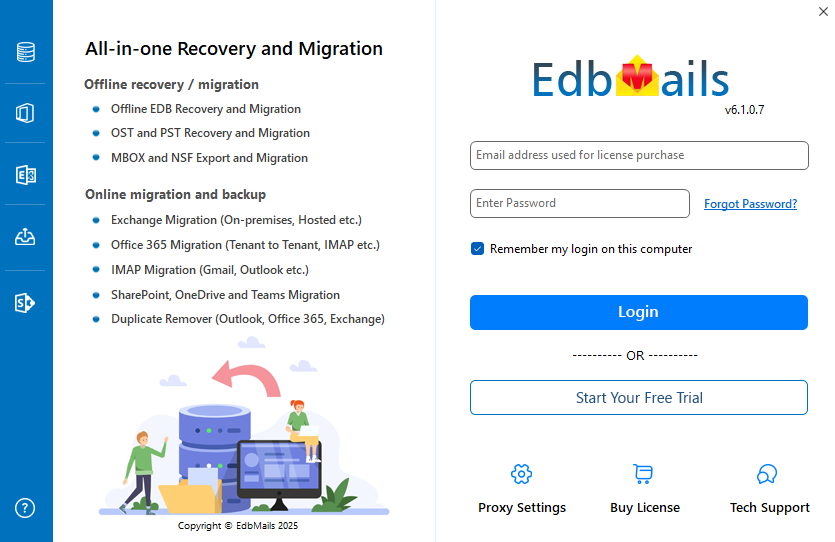
         Launch EdbMails software

      • Choose 'Office 365 Migration' option from the products list.
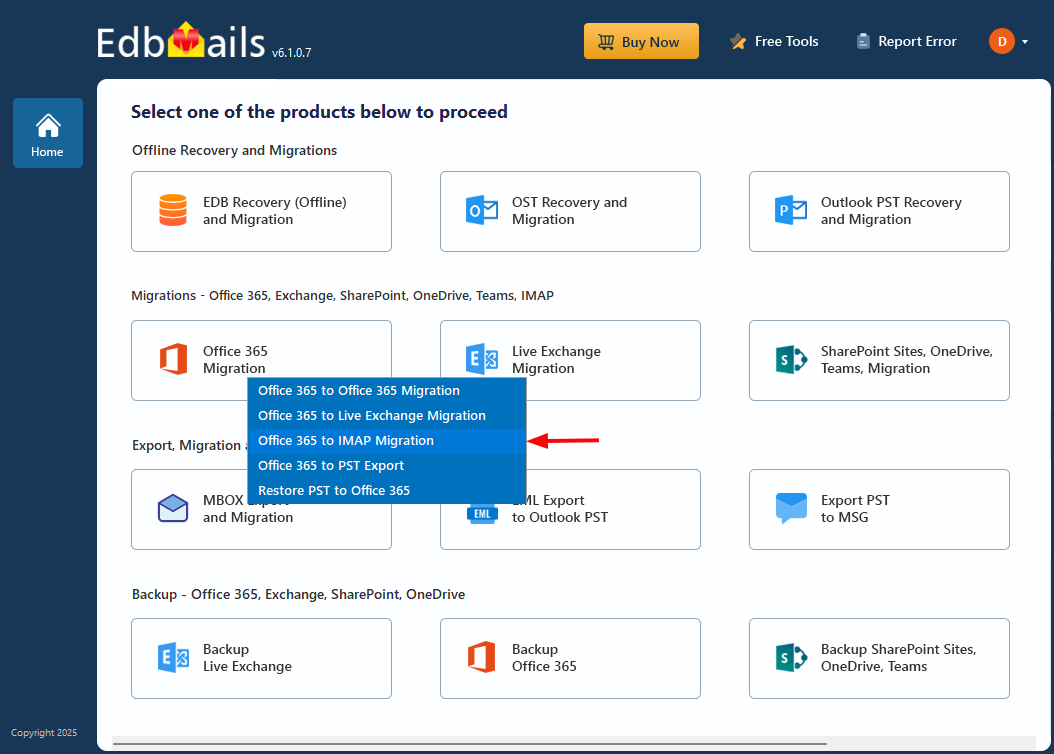
        Select the Office 365 migration option

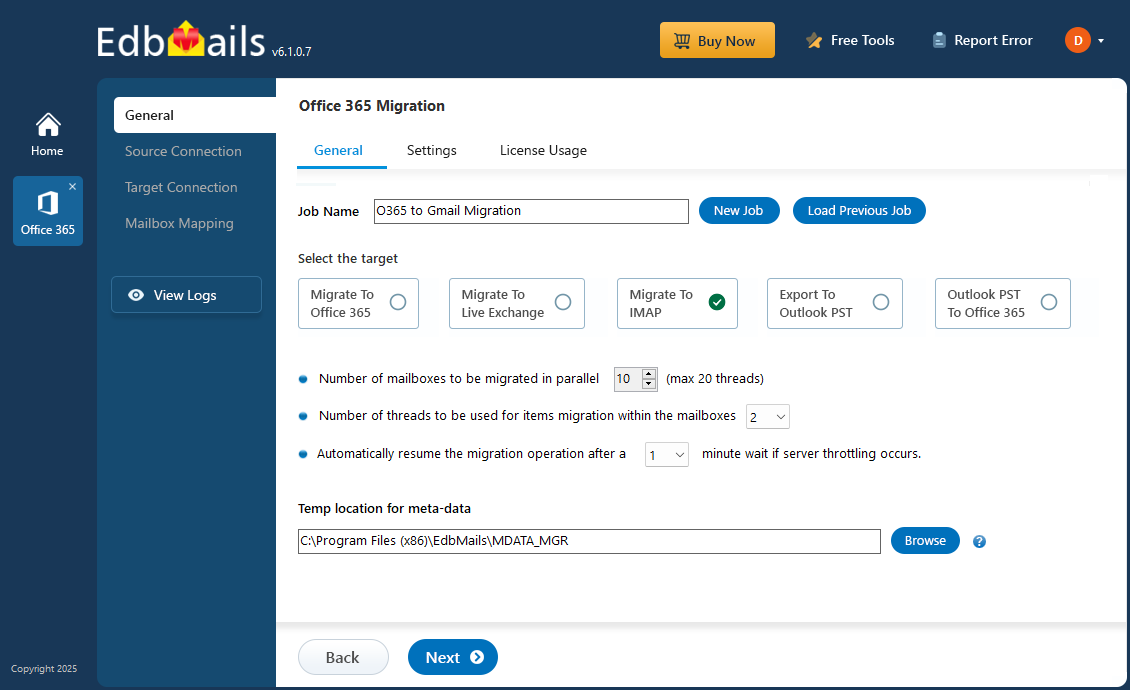
      • Select ‘Office 365 to IMAP Migration’ option

        Select the Office 365 migration option

      • Keep the default job name or click the ‘New Job’ button to enter a name of your choice, then click ‘Next’ to continue.
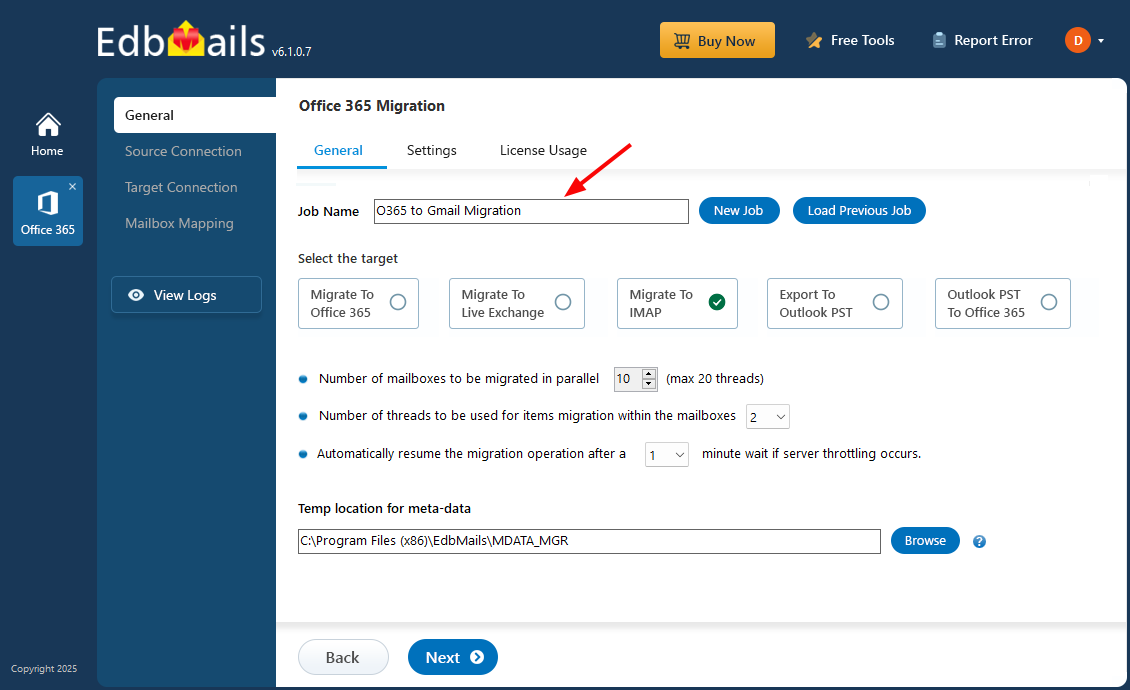
        Enter Office 365 to Gmail migration job name

    2. Step 2: Connect to Source Office 365 Server

      • To connect to the source Office 365, click 'Add New Connection' for a fresh setup, or select an existing connection from the list and choose 'Connect to Existing' to proceed.
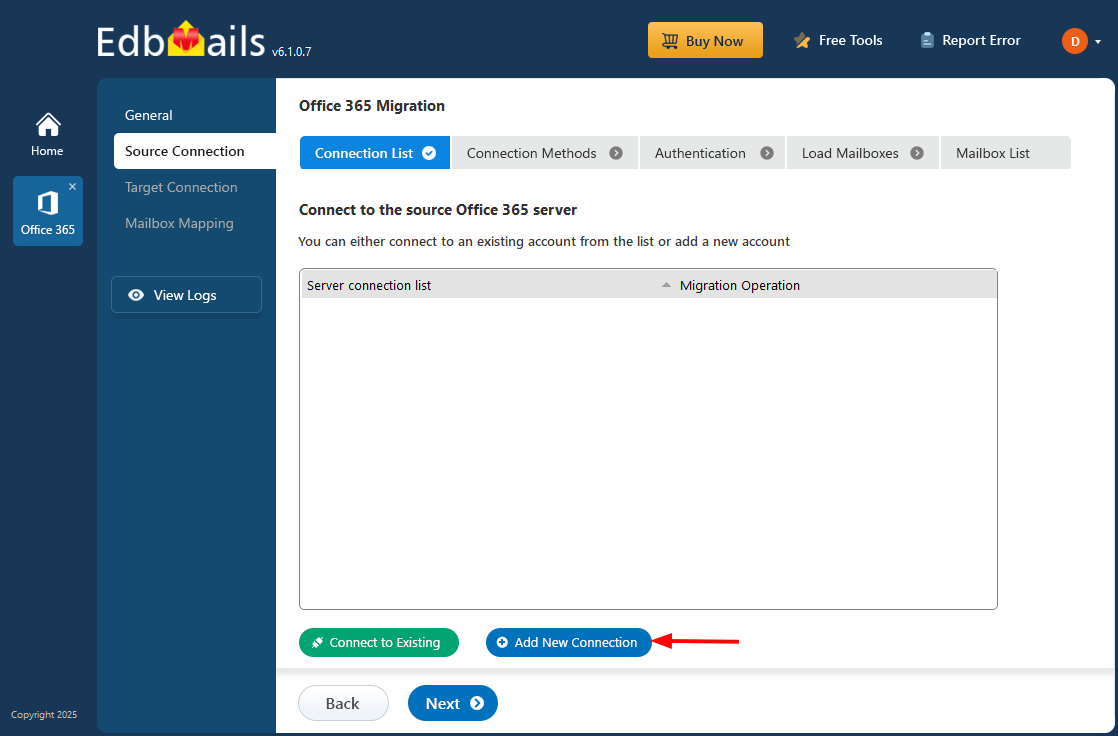
        Click add new connection

      • Select the necessary connection options and click ‘Next’ to proceed.
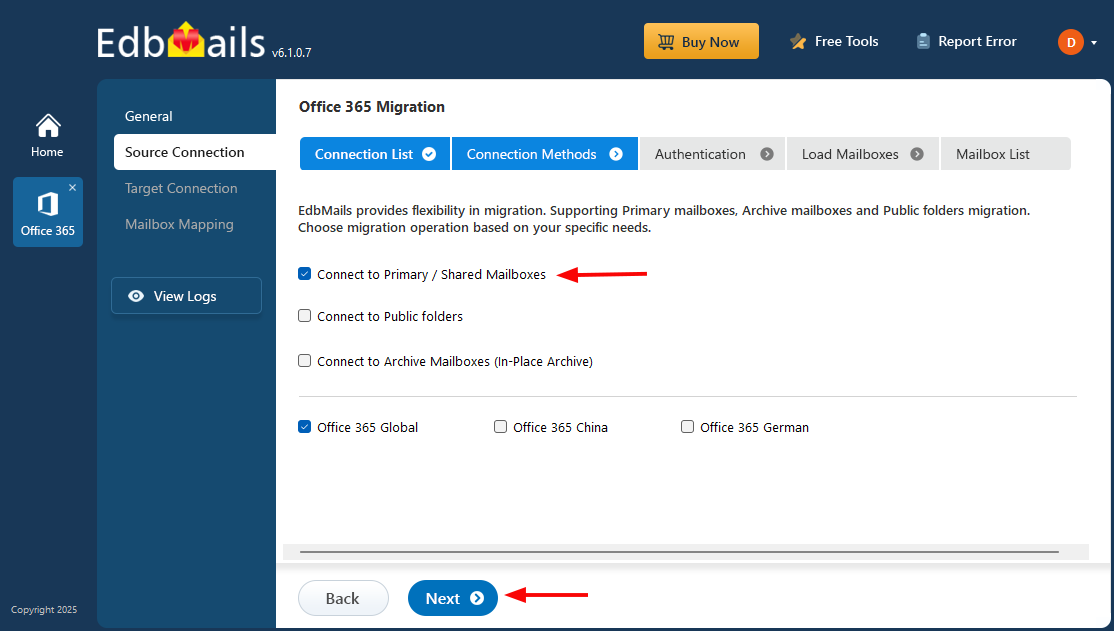
        Select the required connection option

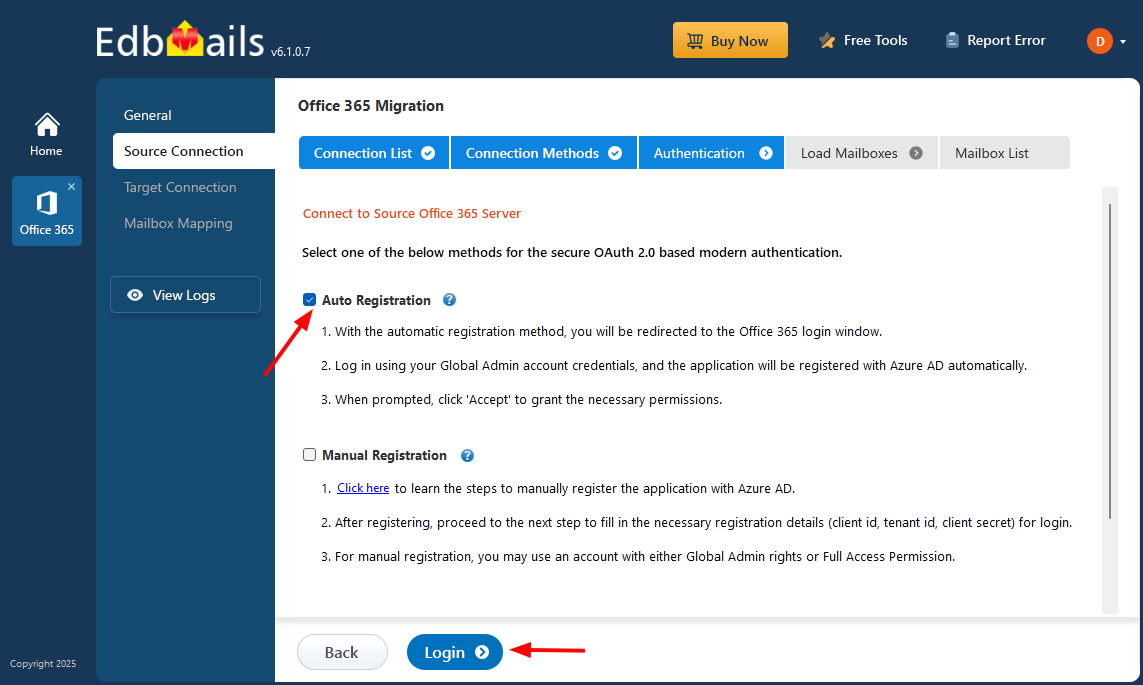
      • Choose the required Authentication method and click the ‘Login’ button to proceed.

        Connect to the source Office 365 server

      • Log in on the Microsoft sign-in page using a global admin account that has an associated mailbox.
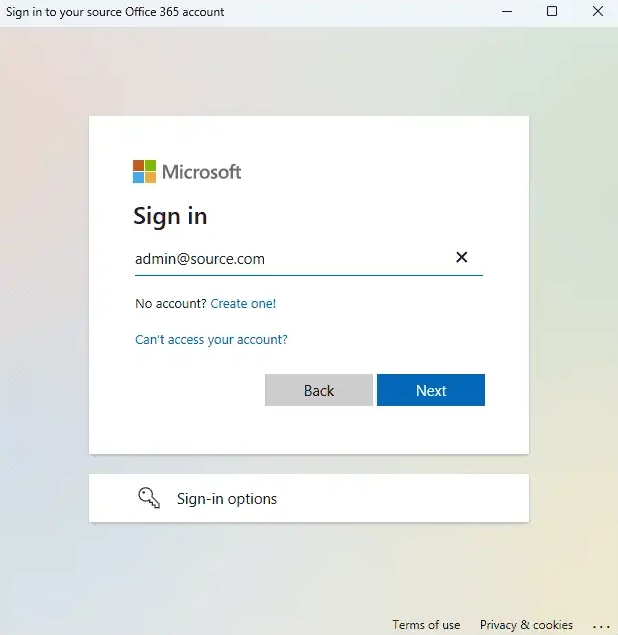
        Microsoft sign-in

      • After completing authentication, choose a way to load the mailboxes. If you have more than 100 mailboxes, you may use a CSV file to load the mailboxes, as the application may not list all mailboxes due to limitations of the Microsoft API.
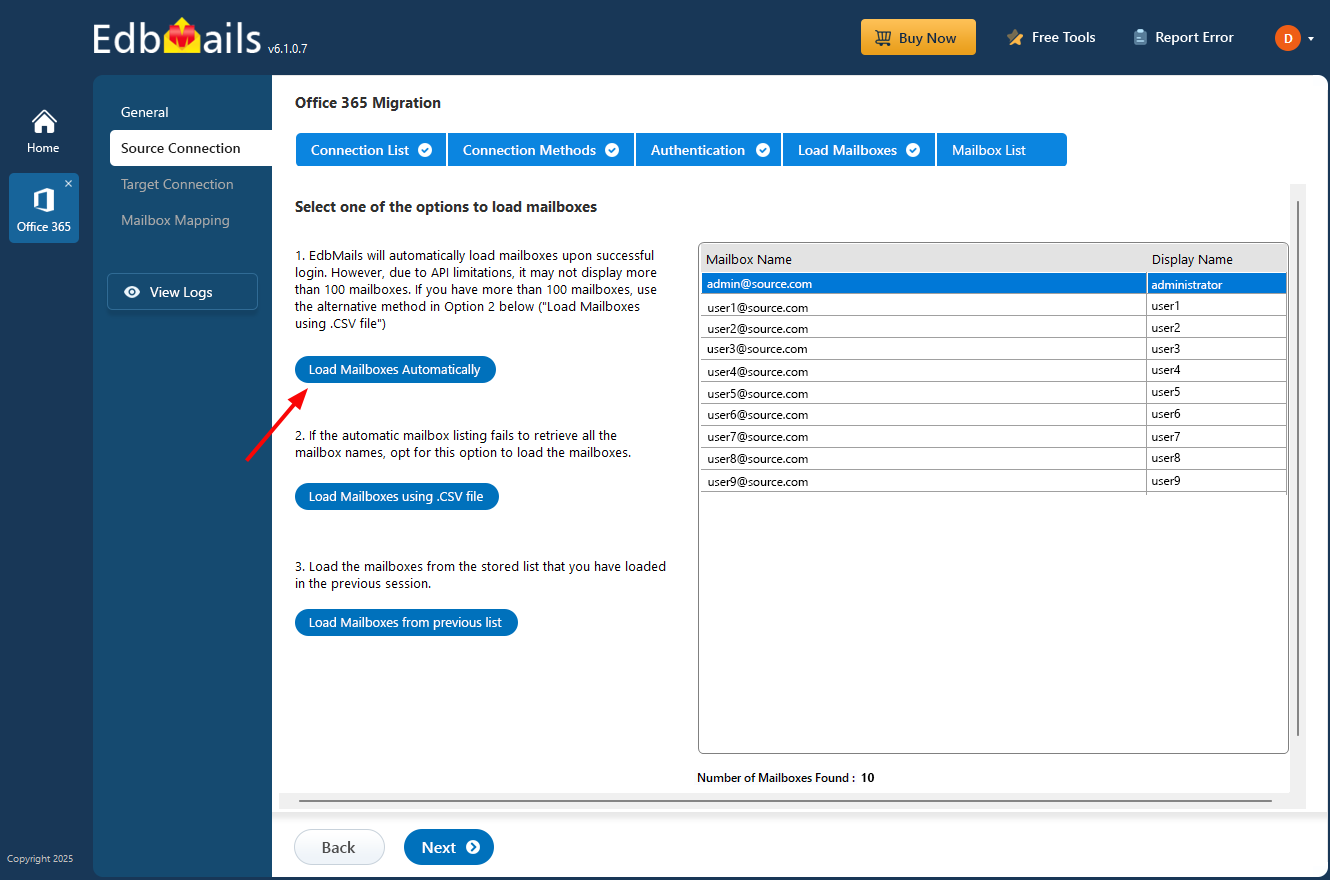
        Select the option to load the mailboxes

    3. Step 3: Select the mailboxes

      • Choose the mailboxes and folders from the left pane of the main migration window.
      • Click 'Next' to establish a connection with the target Gmail server.
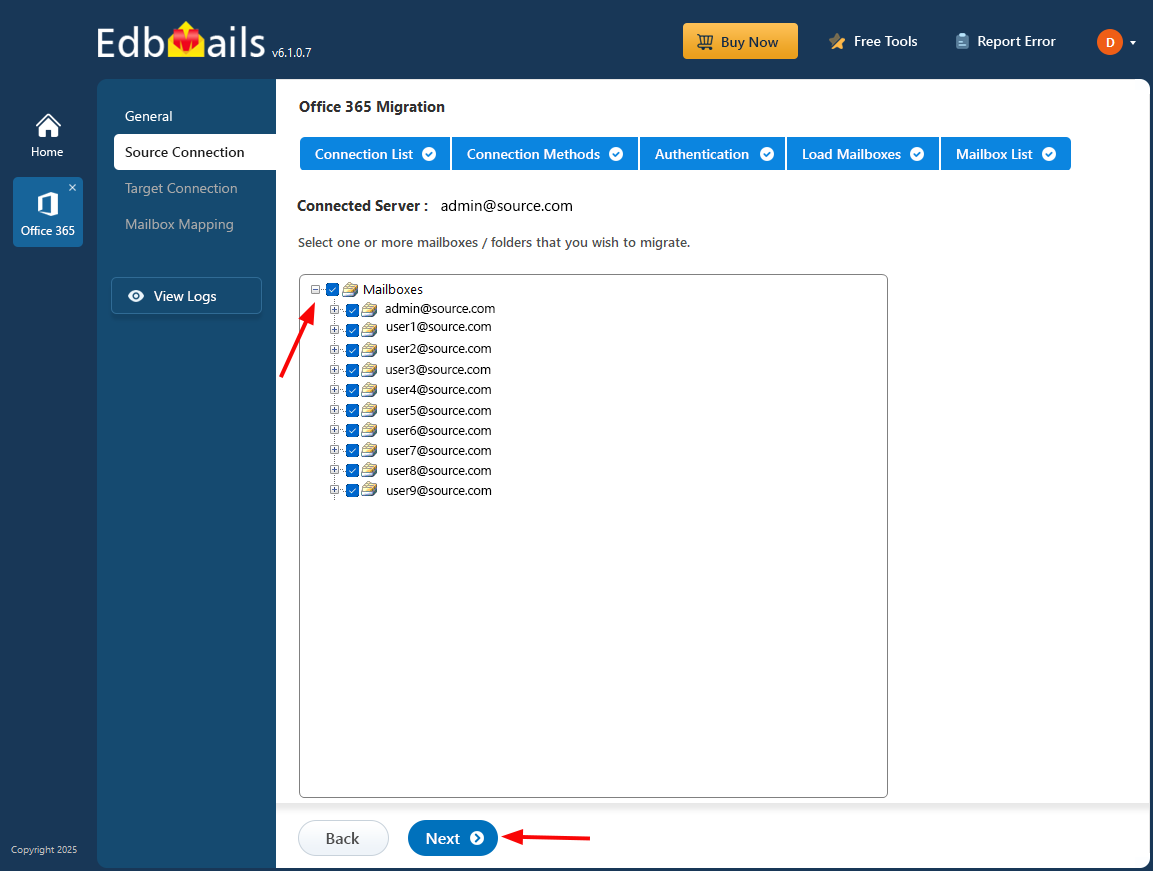
        Select the Office 365 mailboxes

    4. Step 4: Connect to the Target Gmail Server

      • Select the required protocol, like 'Connect to IMAP' or 'Connect to POP3.' For a single user, choose 'Single User / Account Migration.'
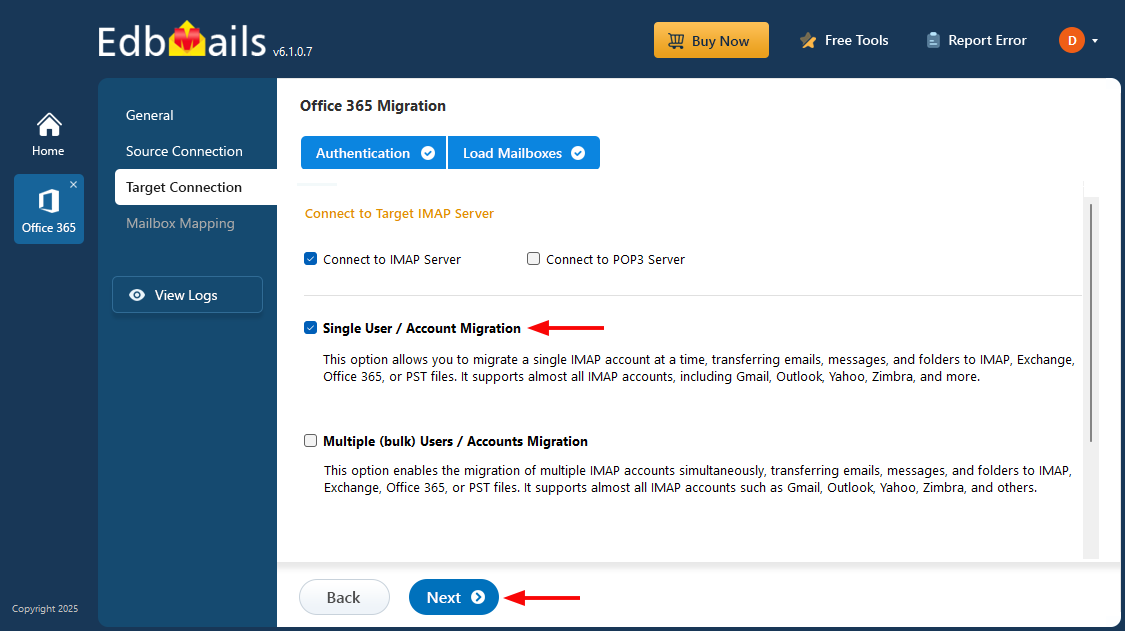
        Choose ‘Single user and account migration’ option

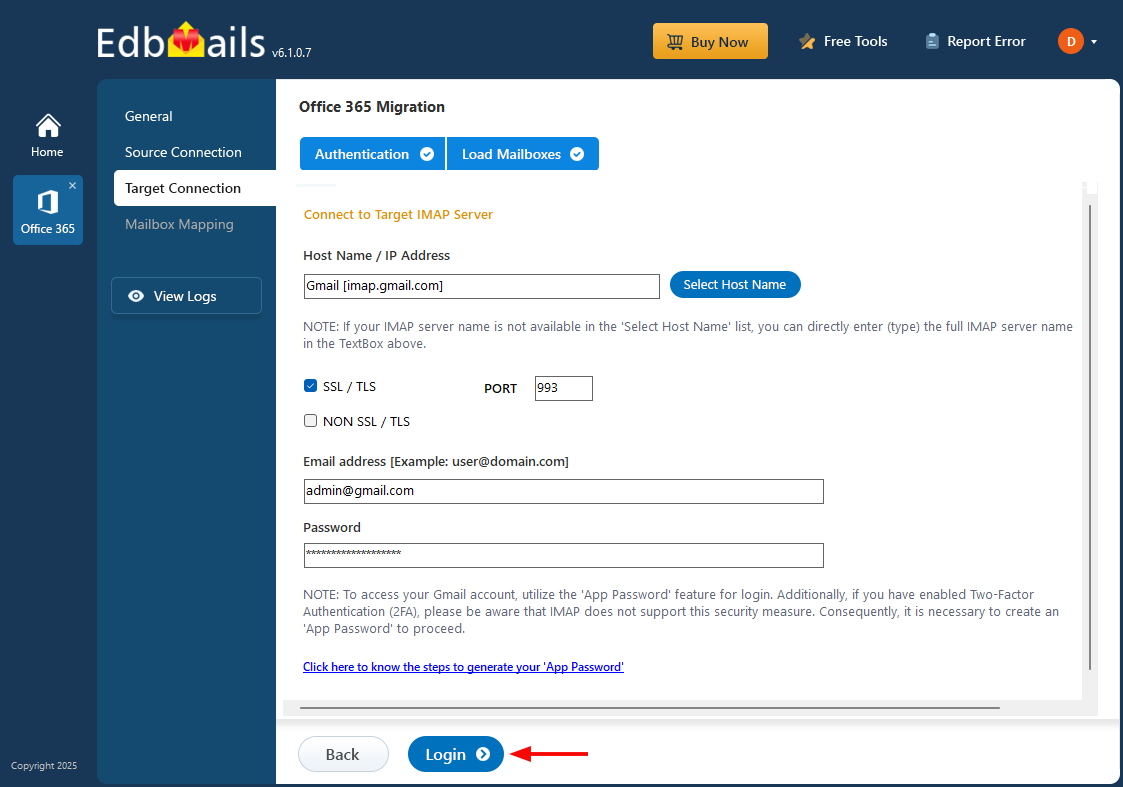
      • Select ‘Gmail [imap.gmail.com]’ as host name from the list or type it in manually. Enter the email address and password for the target account. For Gmail, make sure an app password is created and used instead of the regular account password.
      • Finally, click the ‘Login’ button.

        Connect to single user account

      • Once the mailboxes are loaded, click ‘Next’ to proceed.
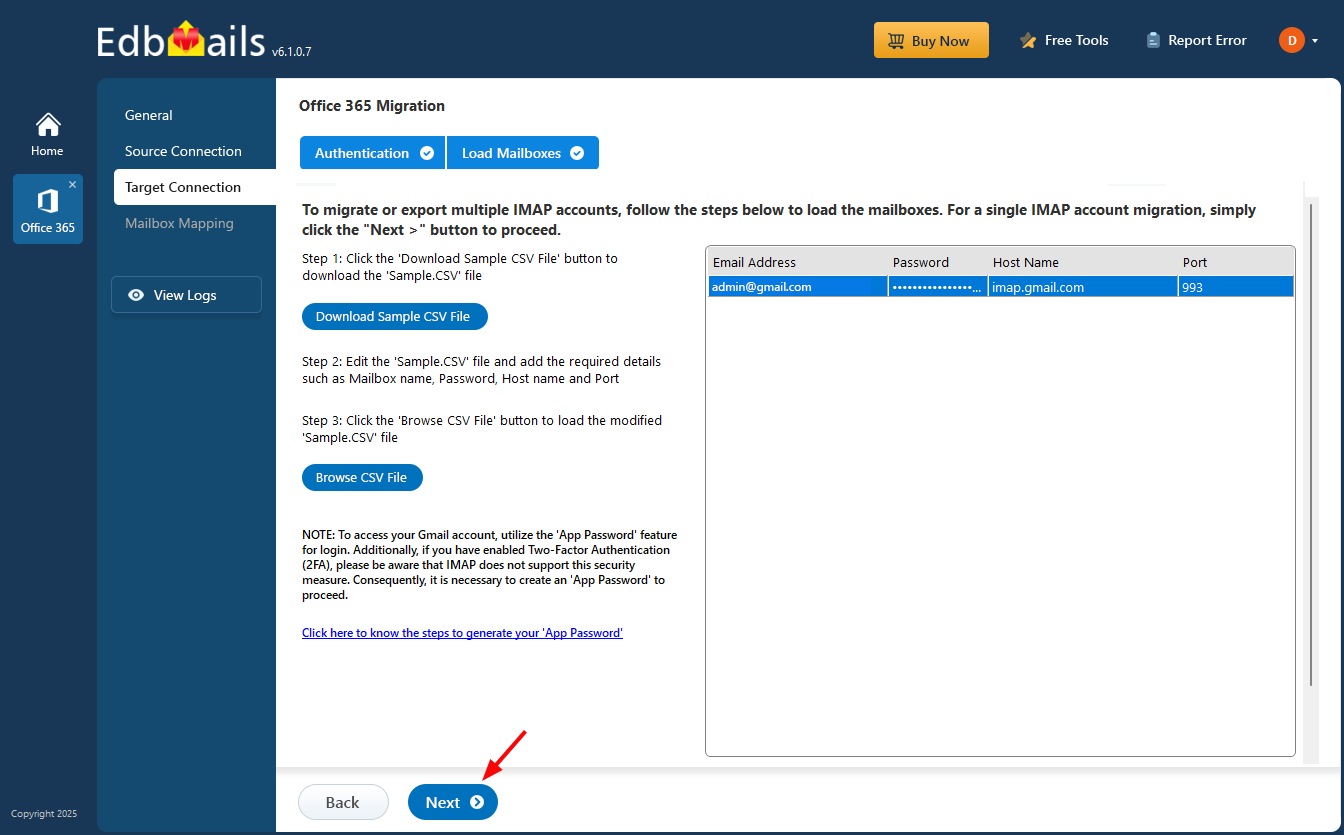
        Load Gmail mailboxes

      • To migrate multiple mailboxes, select 'Multiple (Bulk) Users/Accounts Migration,' and click 'Next' to continue.
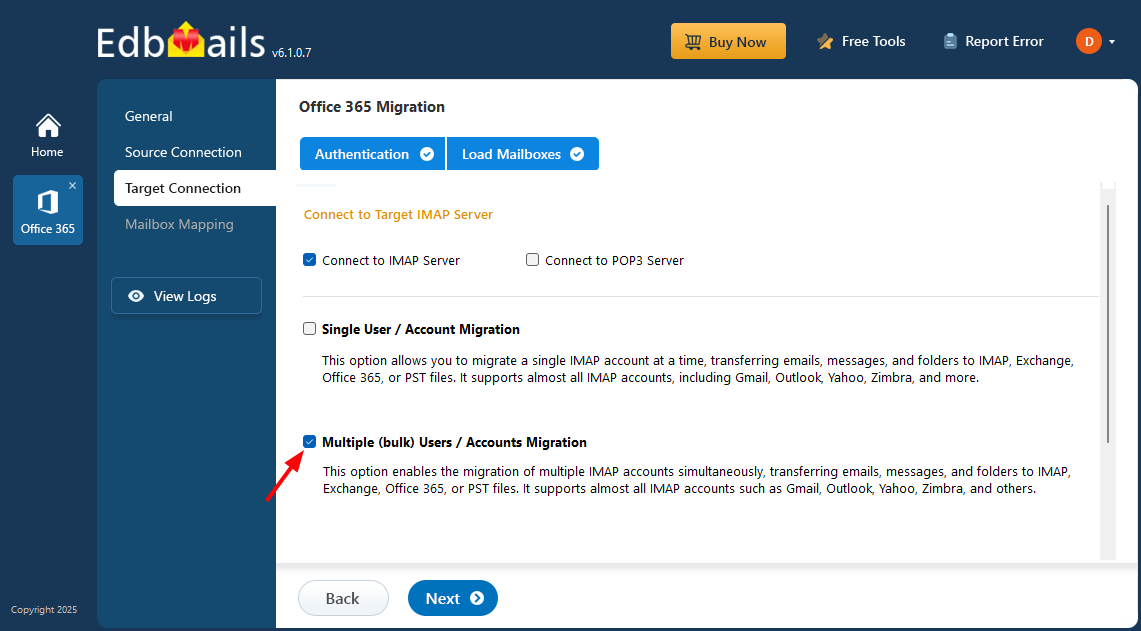
        Login to multiple IMAP servers

      • Click on ‘IMAP Migration CSV File.’
      • You will receive a prompt to download the sample .csv file. Pick the destination folder to store it.
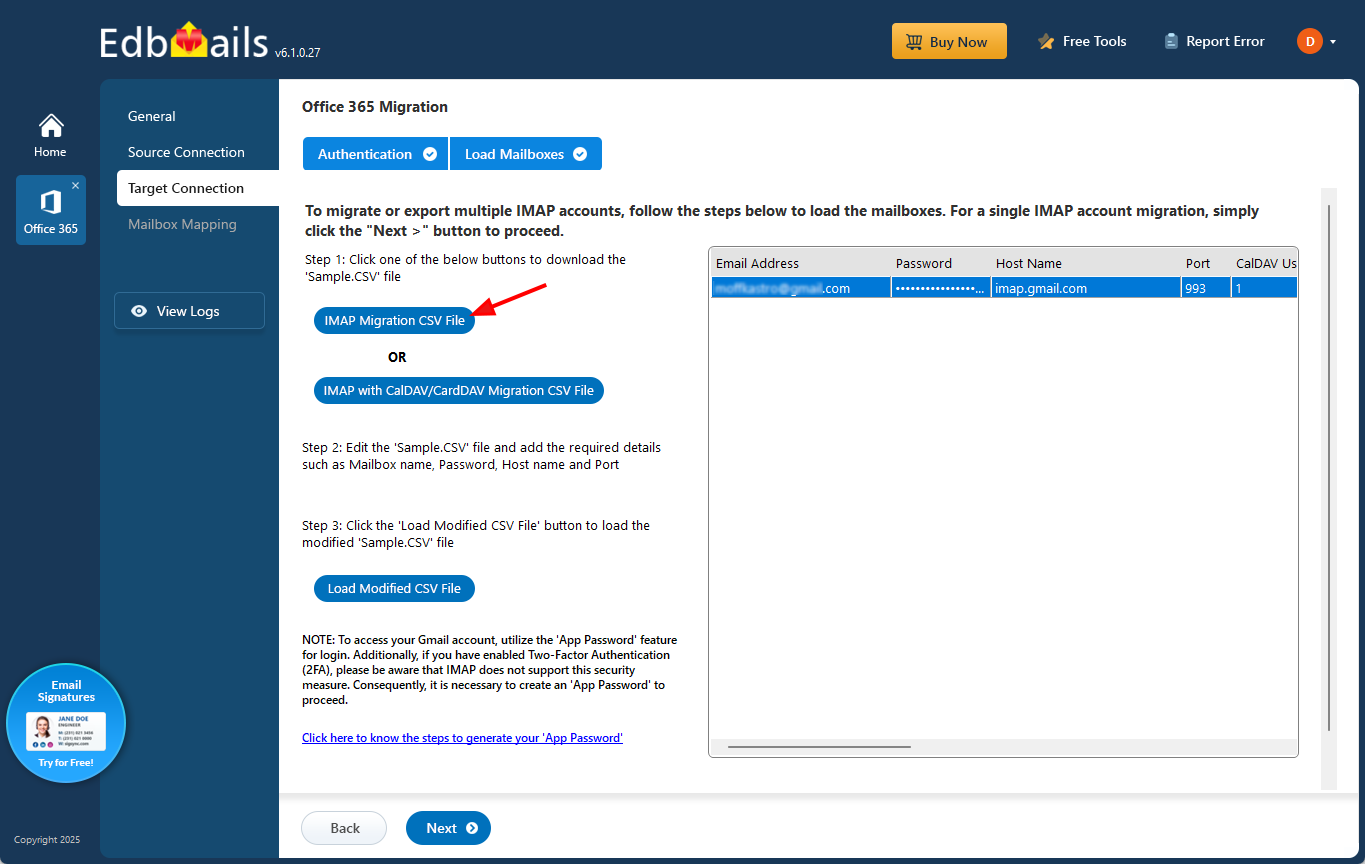
        IMAP migration CSV file

      • Open the downloaded CSV file and fill in the required fields such as email address, password, host name, and port number. Any fields not relevant to the email migration can be left as 'NA'. Once everything's filled in, save and close the file.

        Office 365 to Gmail CSV file

      • Click ‘Load Modified CSV File’ to choose your updated CSV.
      • Review the listed mailboxes and continue by selecting ‘Next’.
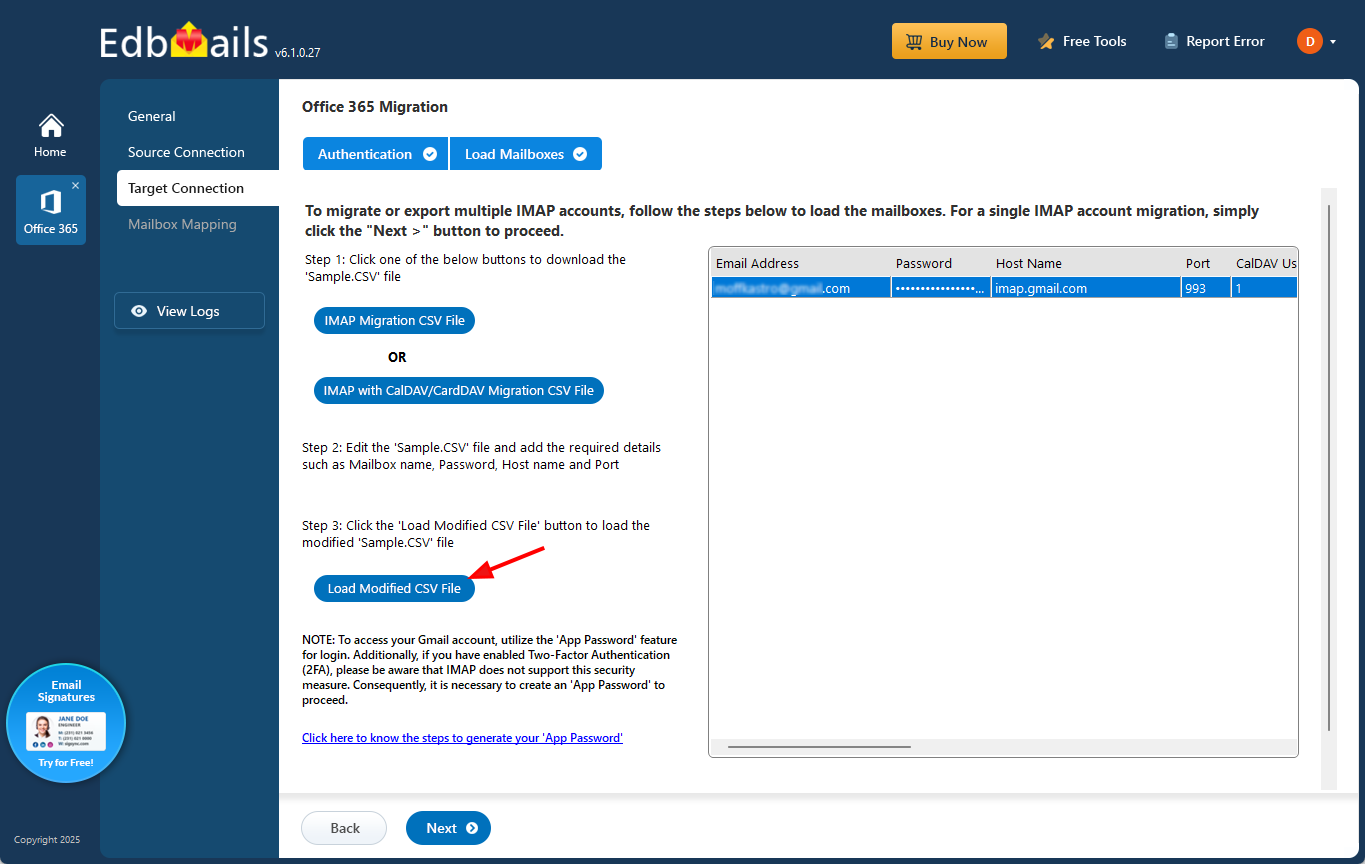
        Load CSV file

    5. Step 5: Source and target server mailbox mapping

      • Choose the required option to map the mailboxes
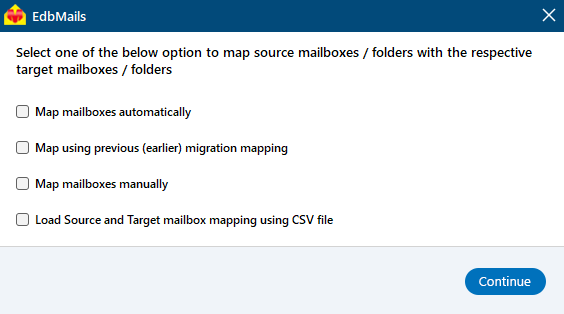
        Select mailbox mapping option

      • EdbMails automatically maps mailboxes from the source Office 365 server to the target Gmail server. You can also manually map mailboxes and folders, align source folders with the corresponding folders on the target server, or use a CSV file for mailbox and folder mapping.
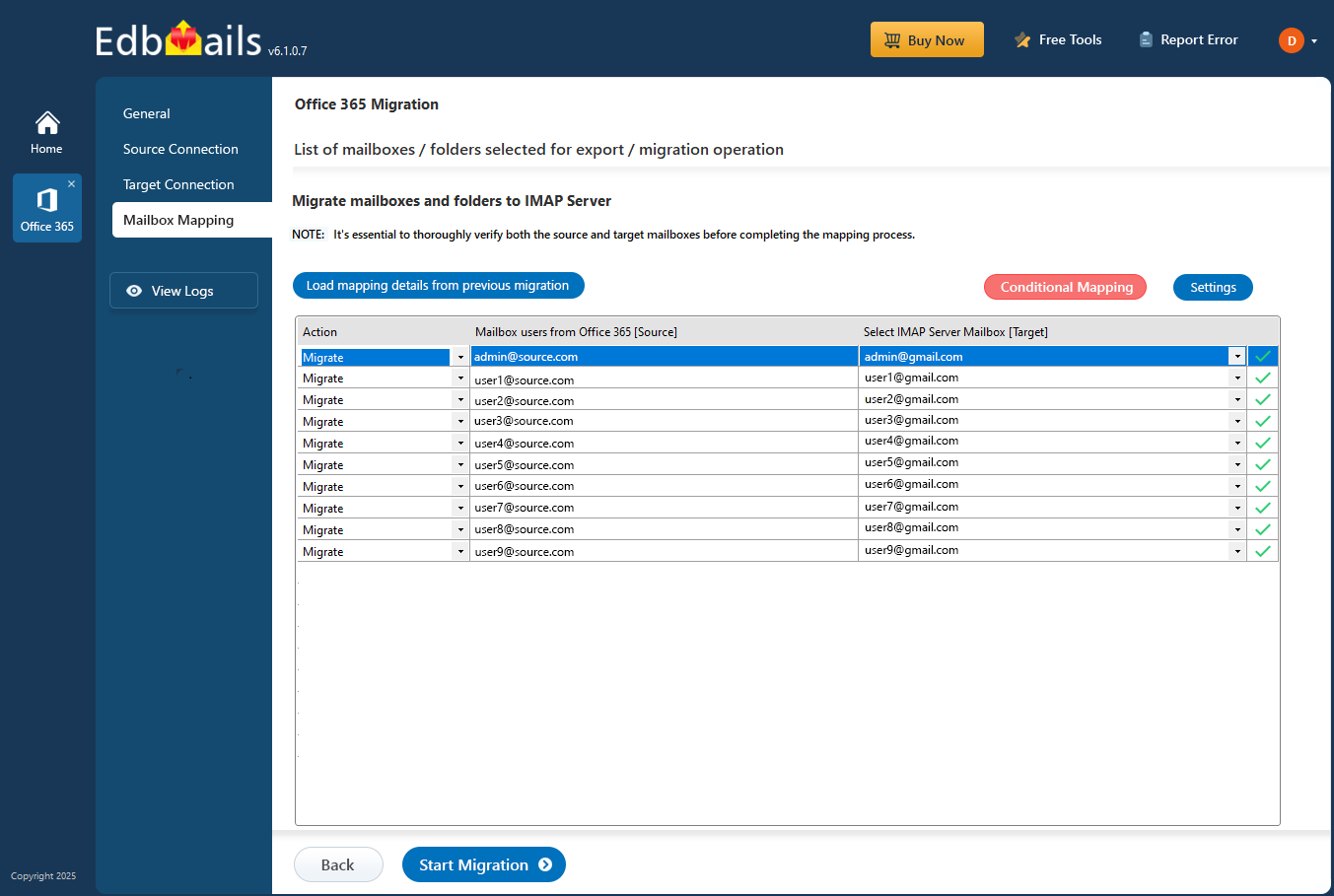
        Office 365 to Gmail mailbox mapping

    6. Step 6: Start Migration From Office 365 to Gmail

      • Once the mailboxes are mapped, click the ‘Start Migration’ button to begin the migration process.
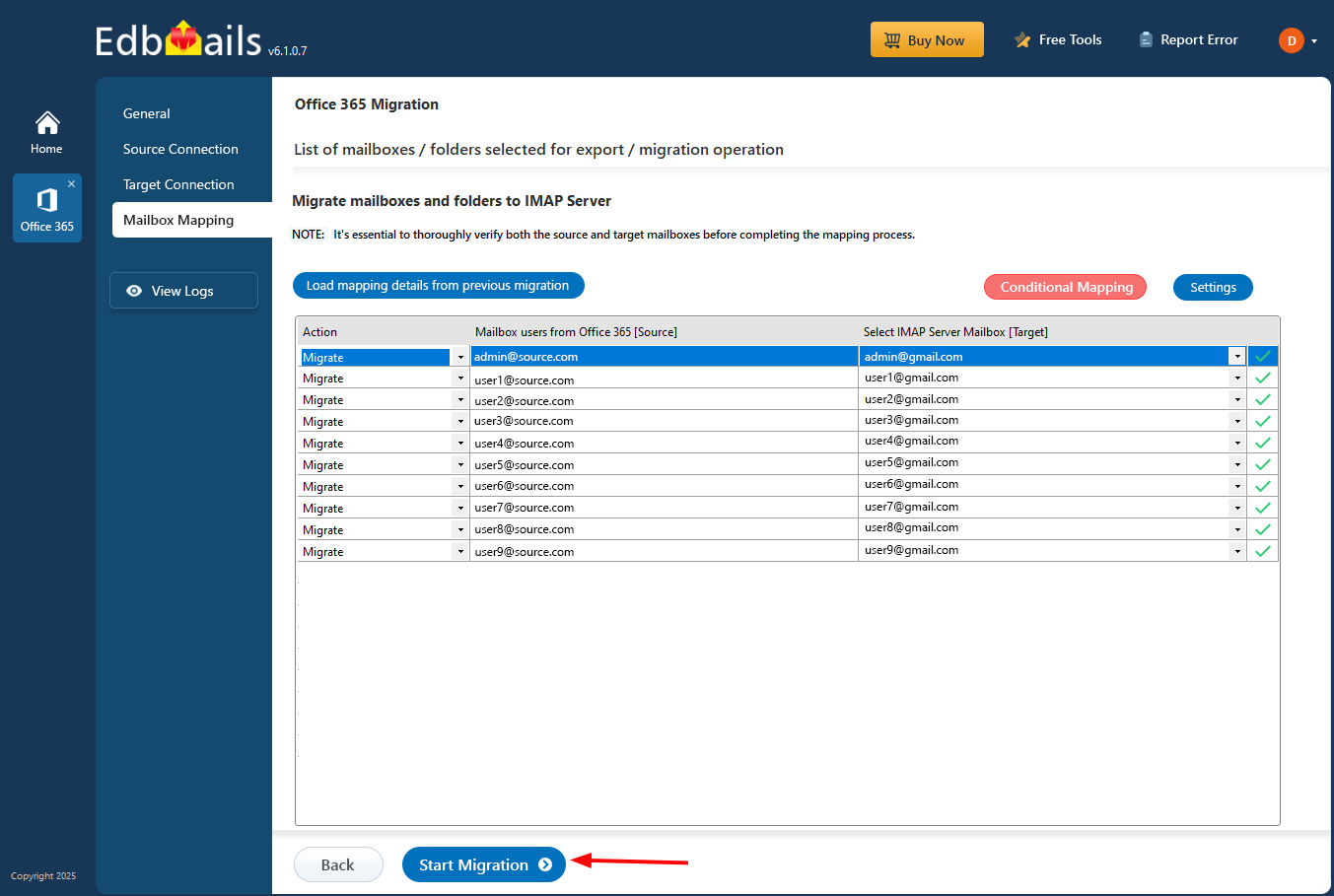
        Start Office 365 to Gmail migration

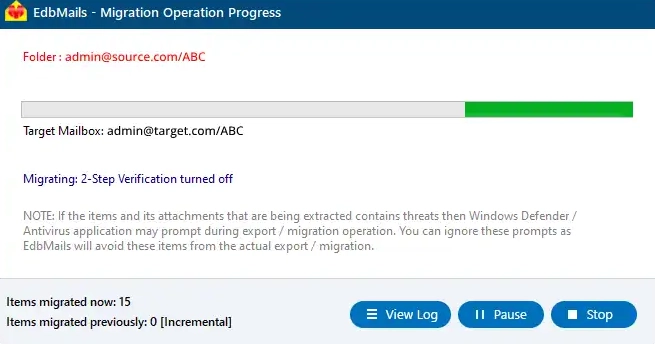
      • You can monitor the migration status using the progress bar. Once the migration is complete, you will be prompted to review the migration report.
      • Click the ‘View Log’ button to view the migration report, which shows the total number of emails, folders, and mailbox items successfully migrated.
        Office 365 to Gmail migration progress

  3. Office 365 to Gmail Post-Migration Configuration

    After completing the migration, update your MX records to direct incoming emails to the new server.

Benefits of EdbMails to Migrate Emails from Office 365 to Gmail

  1. EdbMails facilitates a simultaneous migration of Office 365 mailboxes to Gmail from multiple sources.
  2. EdbMails Office 365 to Gmail migration software supports selective migration of Microsoft 365 emails using criteria like message sent/received date, cc, bcc, from, subject, and read/unread status.
  3. EdbMails has an incremental migration capability; that is, it only migrates new and modified items during sequential migrations. This saves redundant items on the destination server and also uses the internet bandwidth and time effectively.
  4. The software provides automatic mailbox mapping to assist you in matching the source and destination mailboxes.
  5. There is no restriction on the file size while migrating Office 365 emails to a Gmail account using EdbMails.
  6. EdbMails ensures zero downtime while migrating Office 365 to Gmail. This is the main feature of EdbMails and also an advantage as the users can continue working and thus, this tool is suitable for a high availability system.

Frequently Asked Questions

  1. How to migrate Microsoft 365 emails to Gmail Account?

    Follow the below steps to migrate Microsoft 365 mailbox to Gmail

    • Step 1: Download and install EdbMails application
    • Step 2: Connect to Microsoft 365 server
    • Step 3: Select the Microsoft 365 mailboxes
    • Step 4: Connect to Gmail Account
    • Step 5: Choose option to map Microsoft 365 and Gmail mailboxes
    • Step 6: Start Microsoft 365 to Gmail migration
  2. Can EdbMails software migrate Office 365 emails to Gmail while including attachments?

    Yes, EdbMails migrates complete Office 365 emails along with attachments.

  3. Does EdbMails software retain all email properties throughout the migration process of Office 365 to Gmail?

    Yes, EdbMails upholds the email components and attributes while migrating Office 365 365 emails to Gmail.

  4. Is it possible to migrate from Office 365 to G Suite?

    Yes, EdbMails supports Office 365 to G Suite migration.

  5. Which license should I choose to migrate Office 365 to Gmail?

    For migrating emails from Office 365 to a Gmail account, you'll need an Office 365 migration license.

     Click here for Office 365 to Gmail migration pricing details


Additional resources:

  • Create app password on Gmail
  • Office 365 to IMAP migration
  • EdbMails Office 365 migration software
  • EdbMails Office 365 migration features
  • Office 365 migration guide
lady image


 In this manual

IntroductionMigration ReasonsPre-Migration ConfigurationMigration StepsPost Migration ConfigurationBenefits of EdbMailsFAQs

Office 365 Migration

100 Mailboxes $299 Only

Buy Now

Need help?

24/7 Customer support

Contact us on Live chat

Personalized Demo

Book a personalized demo

Still need help?

Email us / Call us

© 2026 Shifttocloud Inc. Privacy Policy | Terms of Use | GDPR | Security | Press Releases

hidden msg
Live Chat

Hi, May I help you?

Hide Chat Now