


Office 365 Public Folder to Shared Mailbox Migration
Office 365 Public Folders are migrated to Shared Mailbox in order to enhance ease of mail management and improve accessibility. Public Folders are useful for sharing information, but as your organization expands it becomes hard to manage and control Public Folders. Shared Mailboxes will manage shared email and resources while potentially reducing costs.
The EdbMails Office 365 Migration Software allows the successful migration of emails, contacts and calendar items with folders hierarchy and other metadata. It provides incremental migration, which means no duplicate items will be created during the process, also the software provides automatic mailbox mapping and throttling management for efficient mailbox transfer. It can easily migrate large size of data with no corruption or data loss.
The given steps explain how to execute the EdbMails migration process. It involves four stages: preparation phase - requirement analysis and environmental setup, pre-migration phase - permission configurations and sufficient storage, migration phase - transferring Public Folders to Shared Mailboxes by using the features in EdbMails and post-migration phase - data verification, mailbox optimization and troubleshooting.
Following the steps will help you execute the migration using EdbMails and ensure the accuracy of the data.
Office 365 Public folder to Shared mailbox : Pre-migration Activities
- Ensure that you have a global admin account for the automatic registration method to connect to the source and target Office 365 servers.
- Ensure that you meet the network and bandwidth requirements for the migration. See network and migration planning, performance factors and best practices for Office 365 Public migration
- Prepare your target Office 365 tenant. See tenant roadmap for Microsoft 365.
- Ensure to set admin permissions for source public folders
- Create Shared mailboxes on the target Office 365 tenant and set the required permissions
- If you have a custom email domain from your hosting provider to which you want to migrate and receive emails, you must add the custom domain and verify it on the target Office 365.
- Configure Office 365 to send and receive large messages
Follow the steps to increase the message size on Office 365 to 150MB.
Steps to migrate Office 365 Public folder to Shared mailbox
Step 1: Download and install EdbMails Office 365 migration softwareDownload EdbMails and install the application on any computer.
See a detailed list of EdbMails system requirements for Office 365 migration.
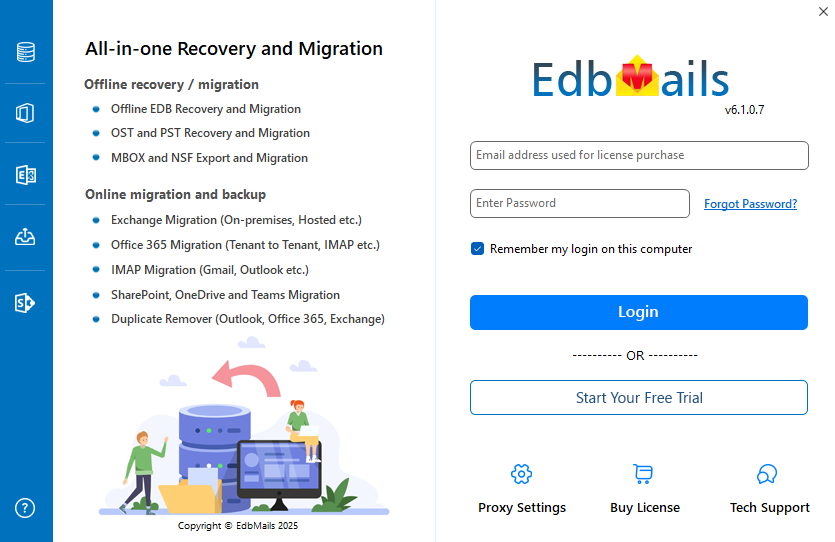
- Launch the application and click ‘Login’ or ‘Start Your Free Trial’
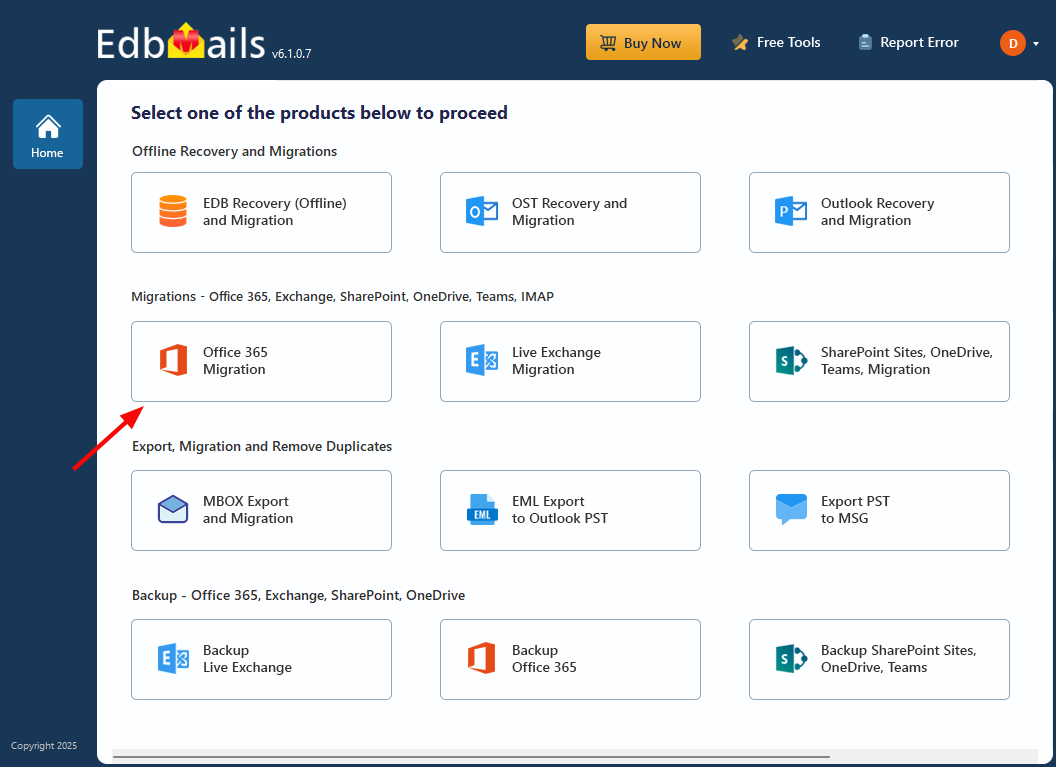
- Select the ‘Office 365 Migration’ operation
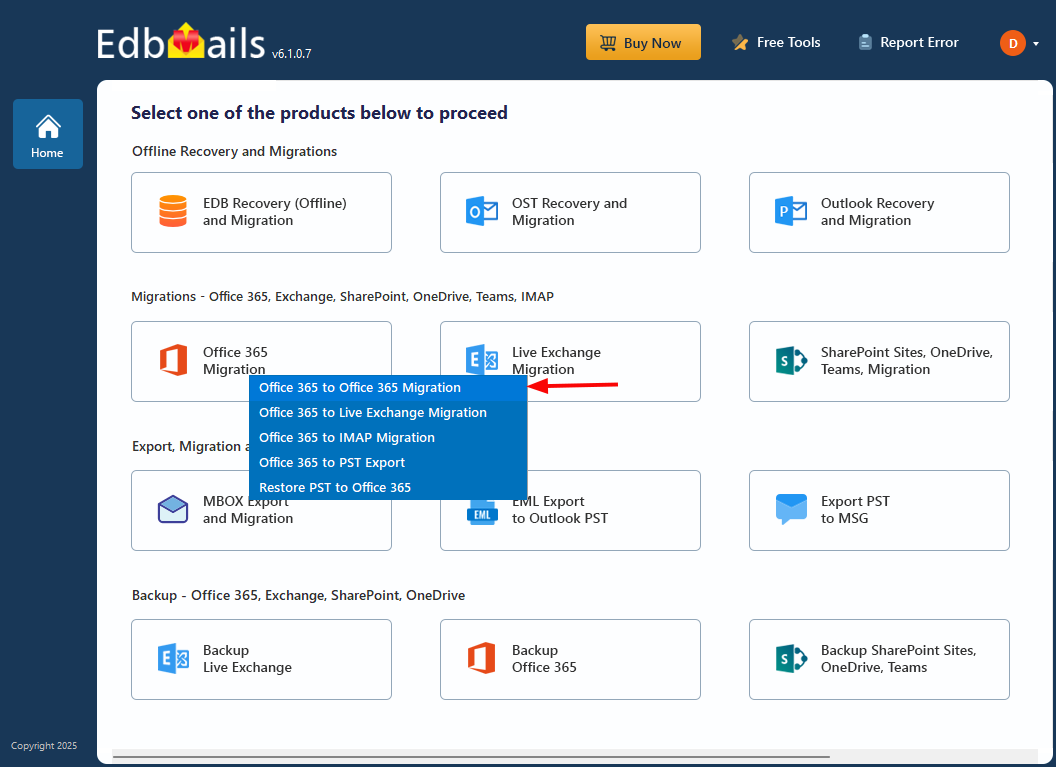
- Choose the ‘Office 365 to Office 365 Migration’ option.
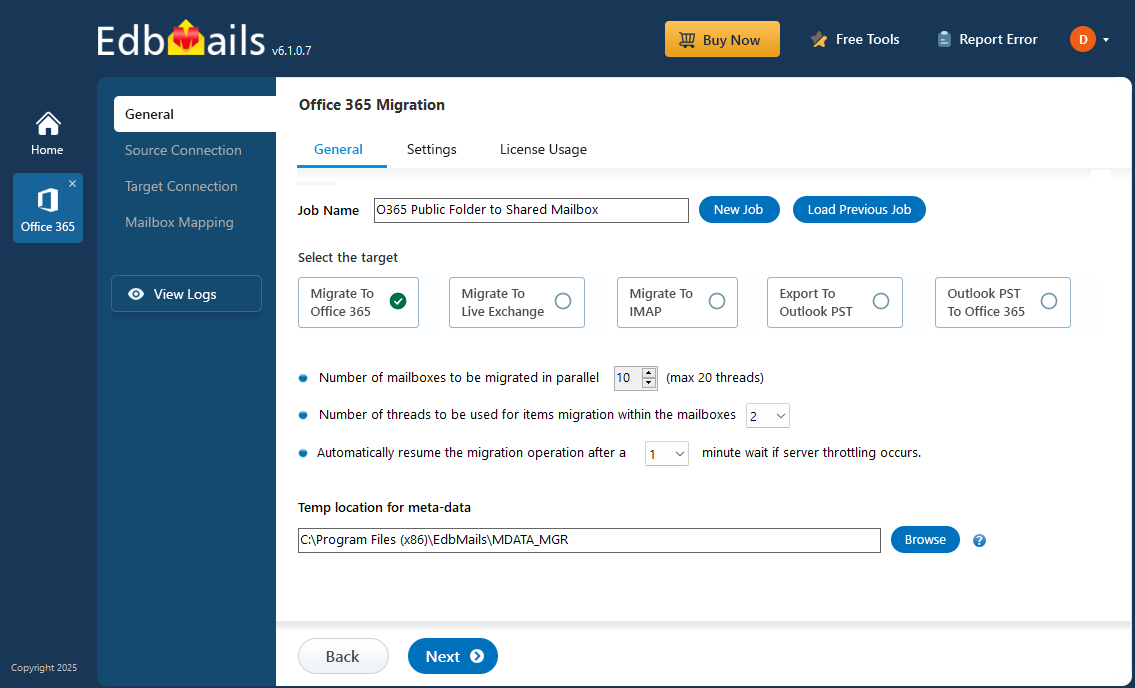
- Keep the default job name, or click ‘New Job’ to change.
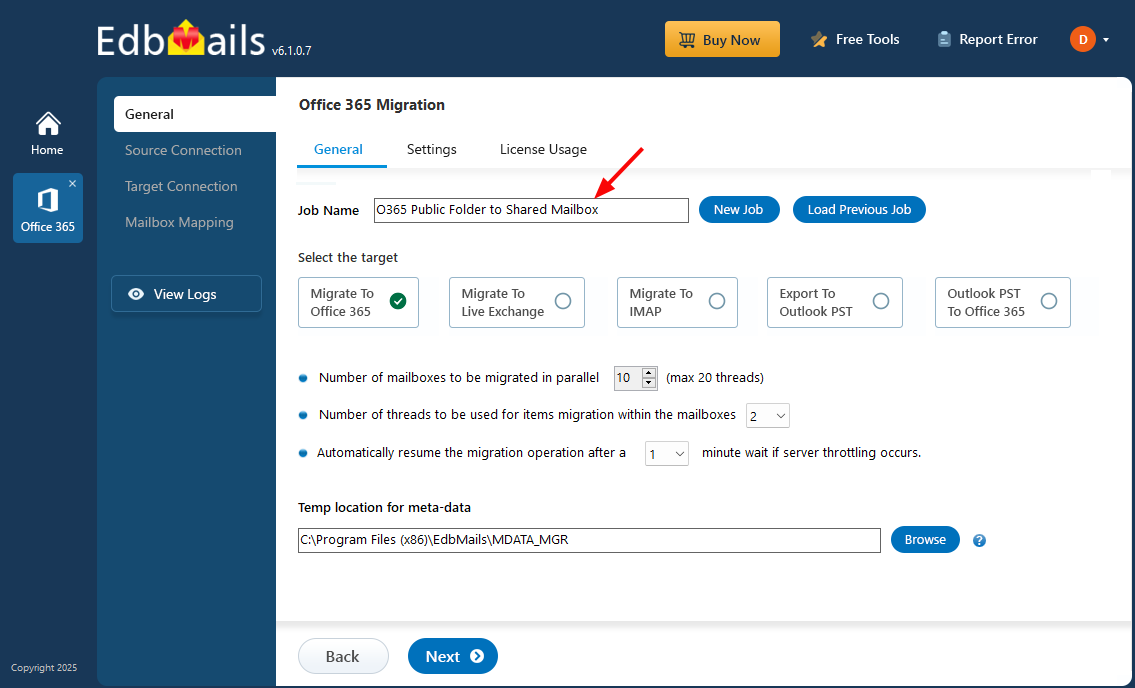
Step 2: Connect to the source Office 365 server
- To set up a new connection to the source Office 365, click the ‘Add New Connection’ button. If you prefer using a previously established connection, simply choose it from the list and click ‘Connect to Existing’ to continue.
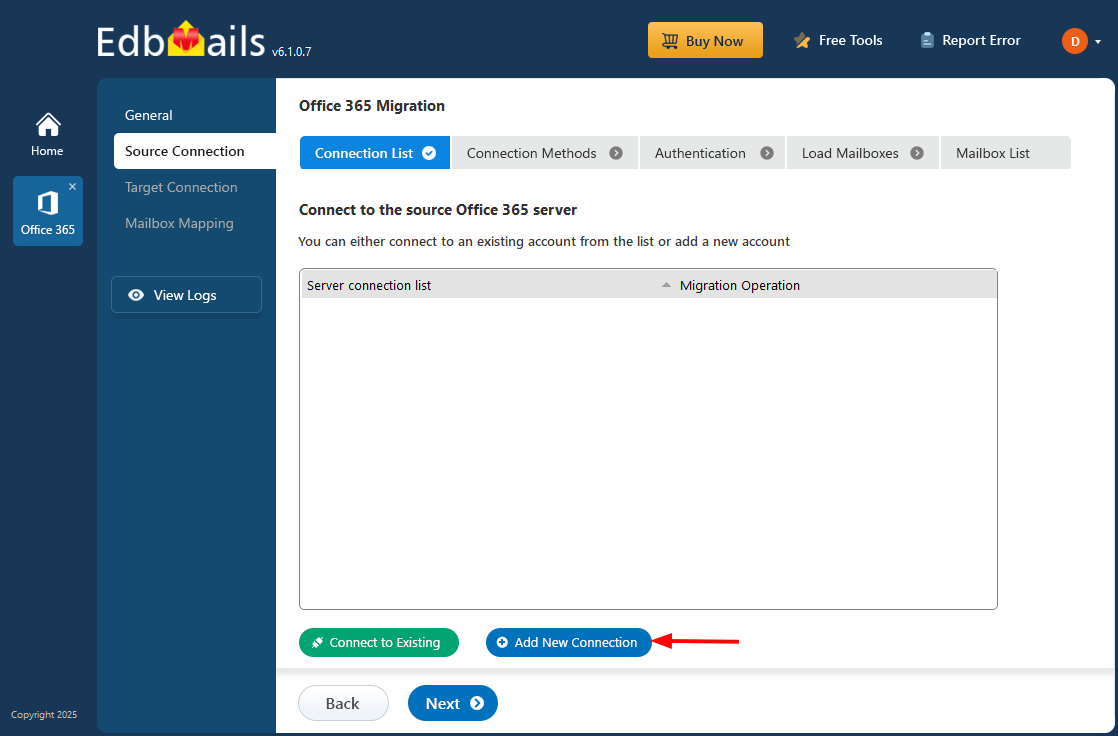
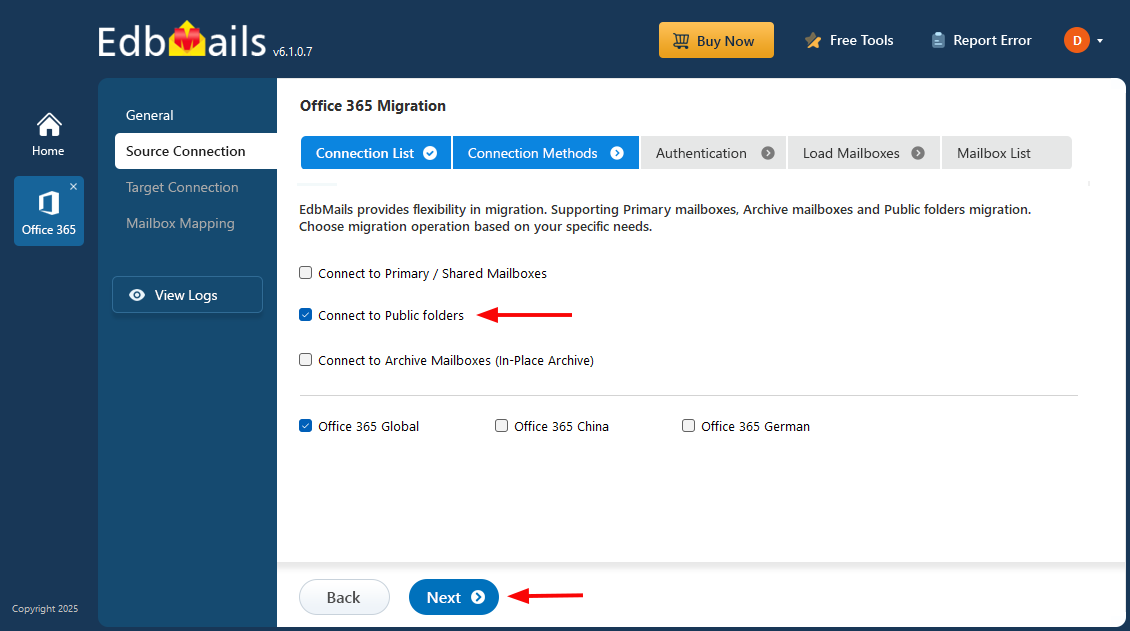
- Select ‘Connect to Public Folders’ and then click ‘Next’ to continue.
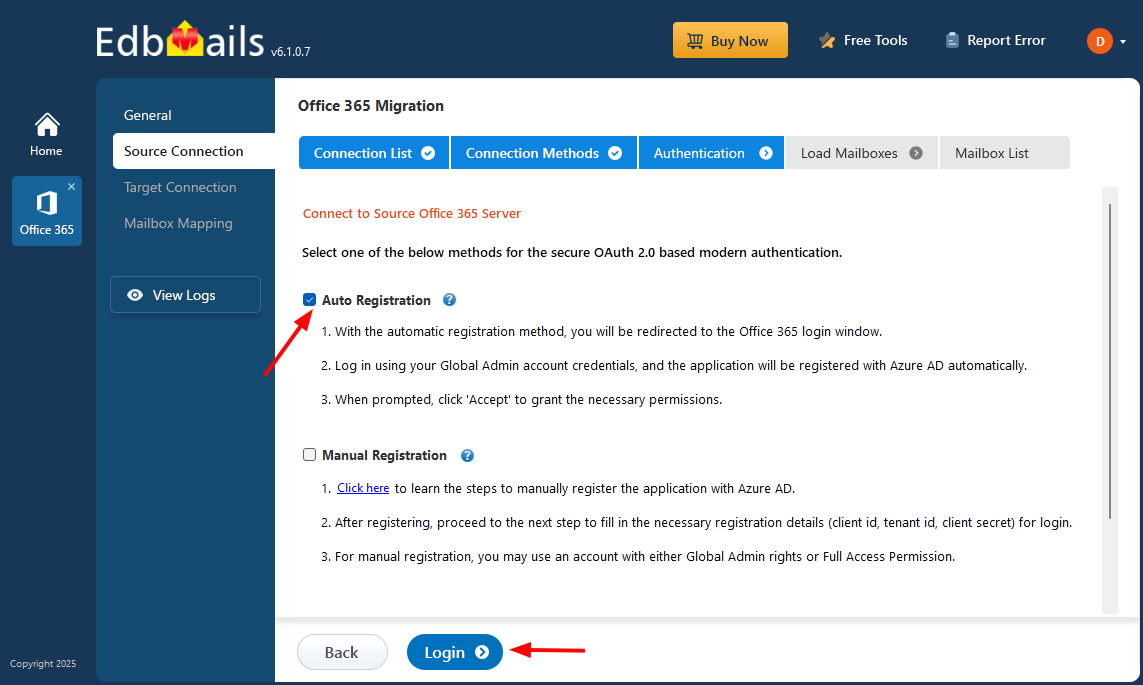
- Select one of the methods for secure OAuth 2.0 authentication and click ‘Login’ to continue.
- Sign in on the Microsoft authentication page using a global admin account
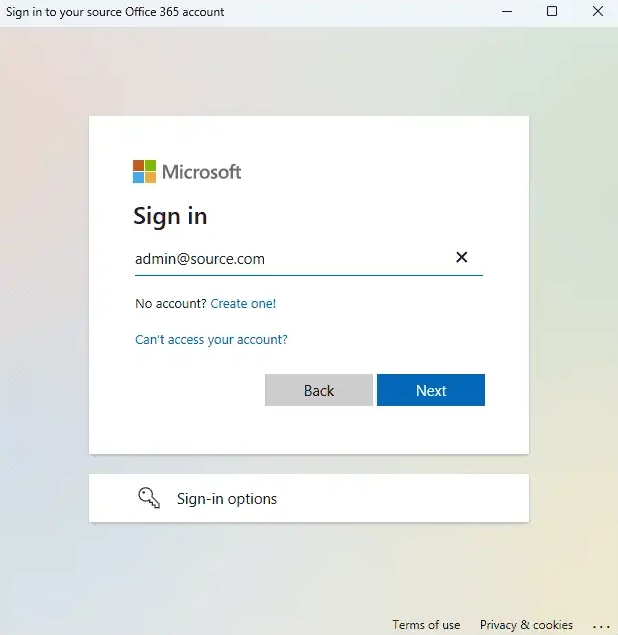
- After successful authentication, choose a method to load the public folders and click ‘Next’ to continue.
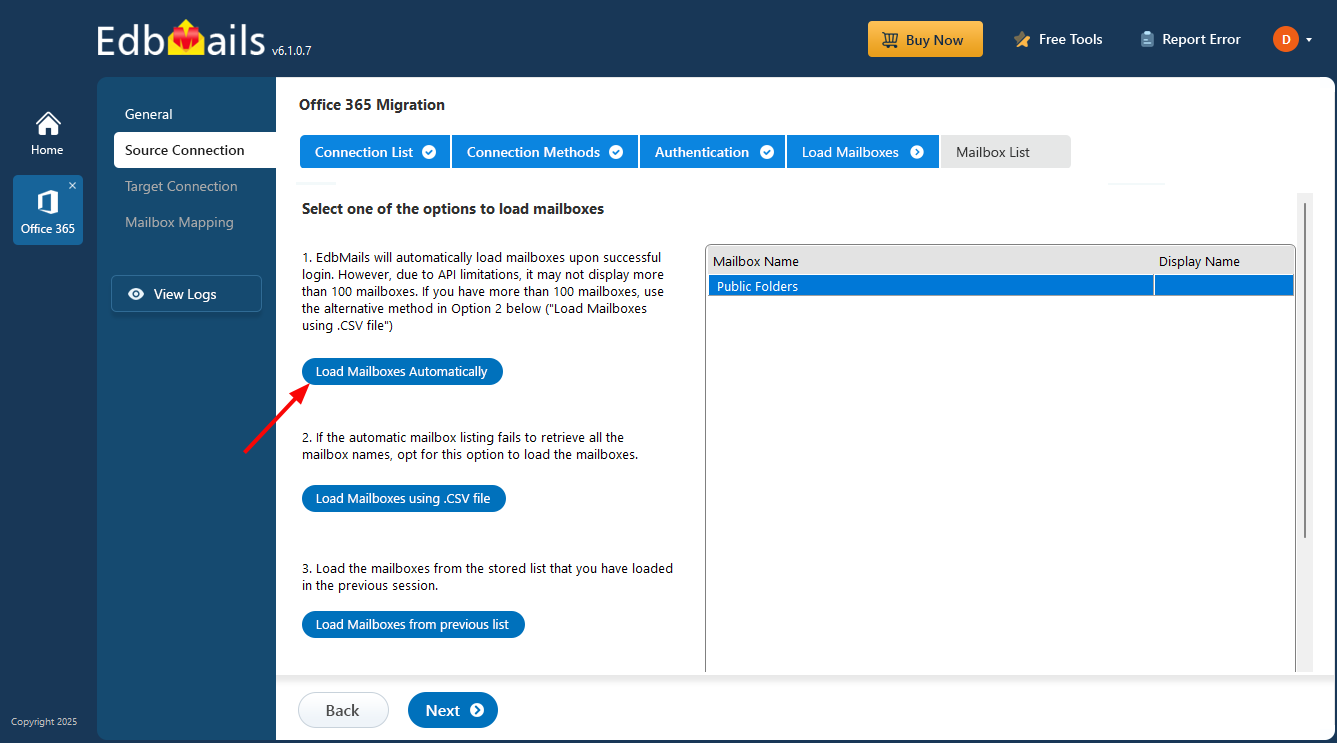
Step 3: Select Public folders
- Select the public folders you wish to migrate and click ‘Next’ to establish the connection with the target server.
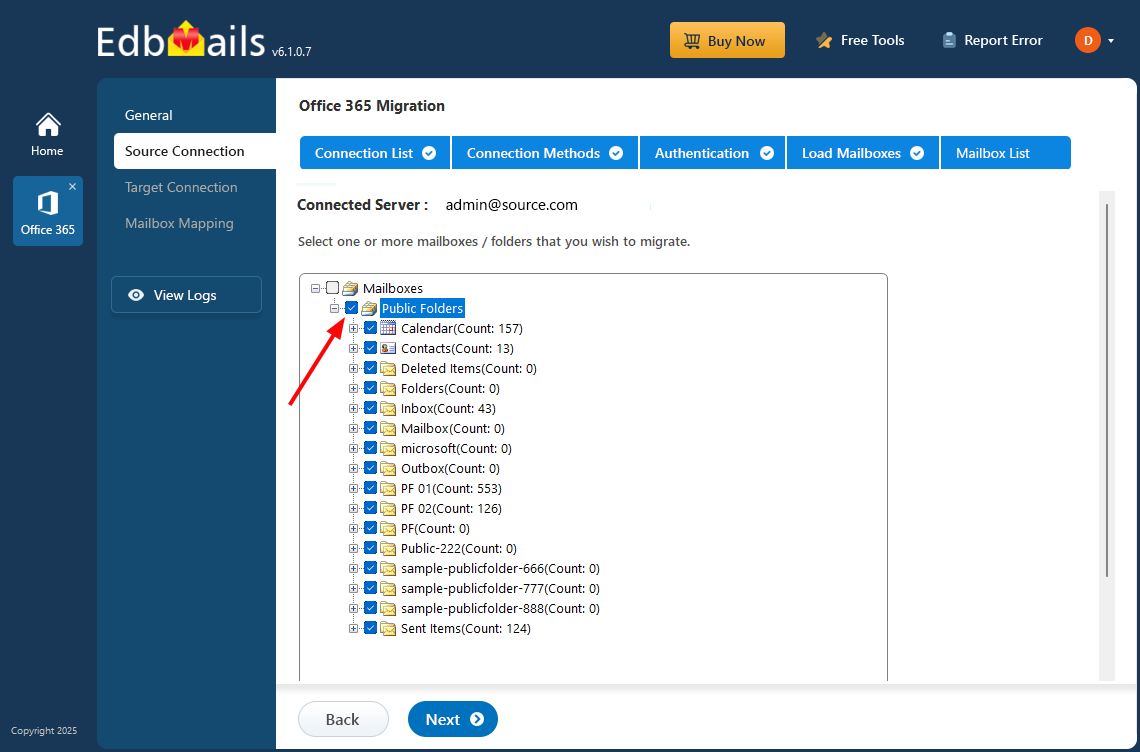
Tip: If this is the first time you’re migrating with EdbMails, the migration is a full migration. On subsequent migrations from the same source to the target, the migration is incremental.
Step 4: Connect to target Office 365 server
- Click ‘Add New Connection’ to set up a new connection to the target Office 365 account. To use an existing connection, select it from the list and click ‘Connect to Existing’ to continue.
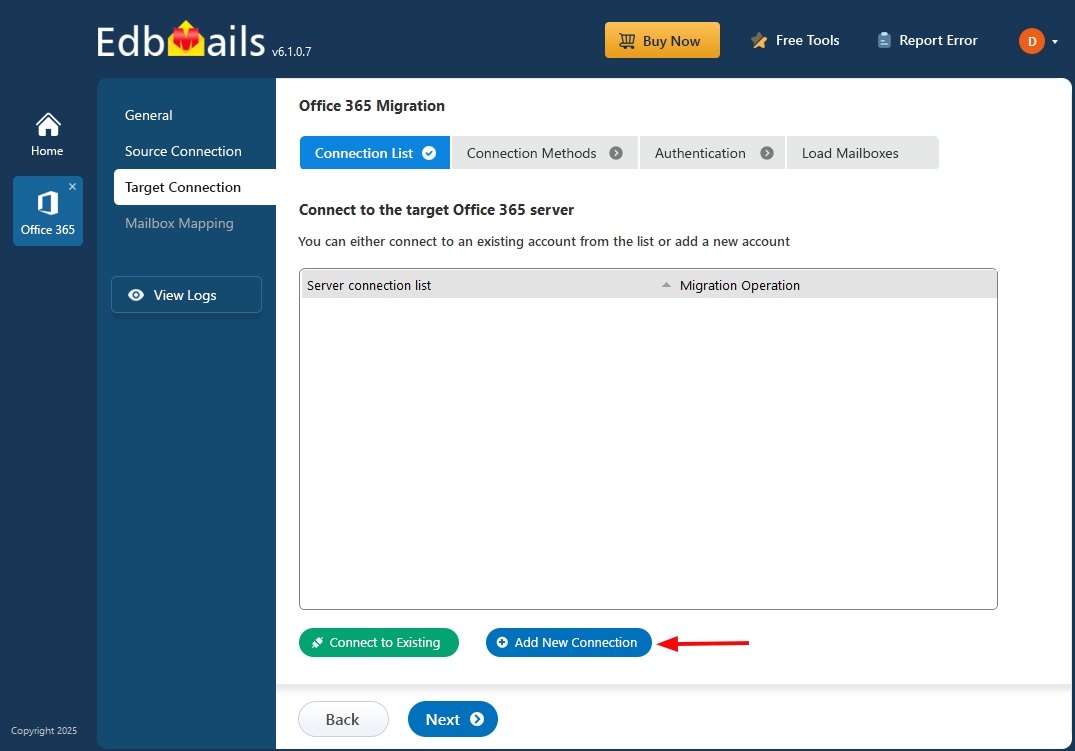
- Select ‘Connect to Primary / Shared Mailboxes’ option.
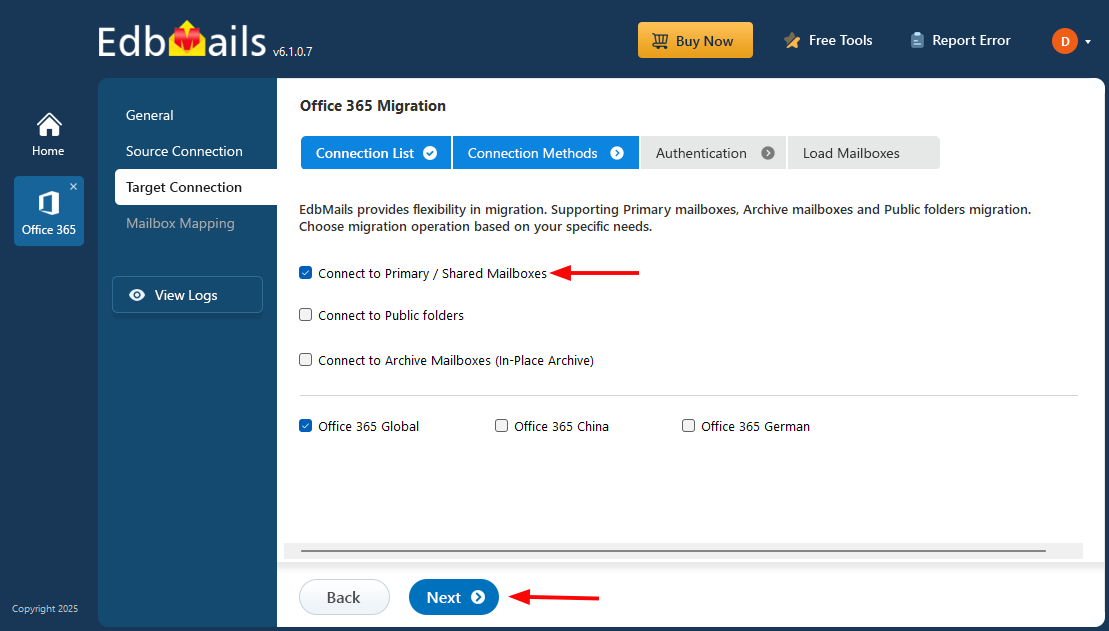
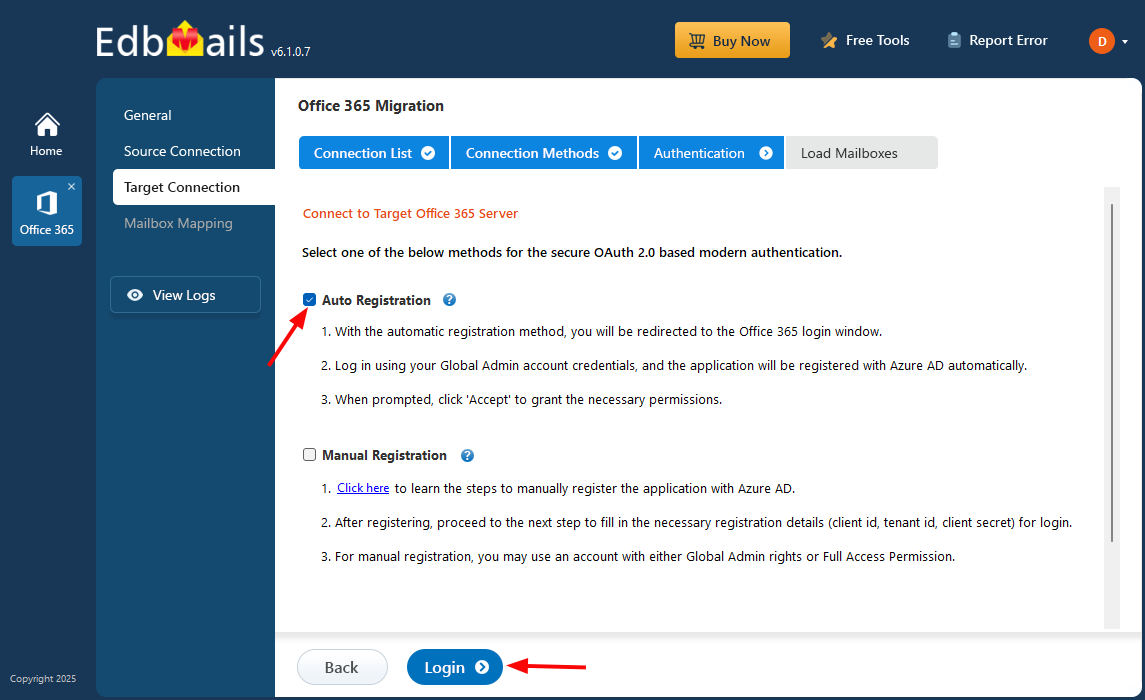
- Select the authentication method.
- Click the ‘Login’ button to continue and authenticate with Microsoft sign-in page
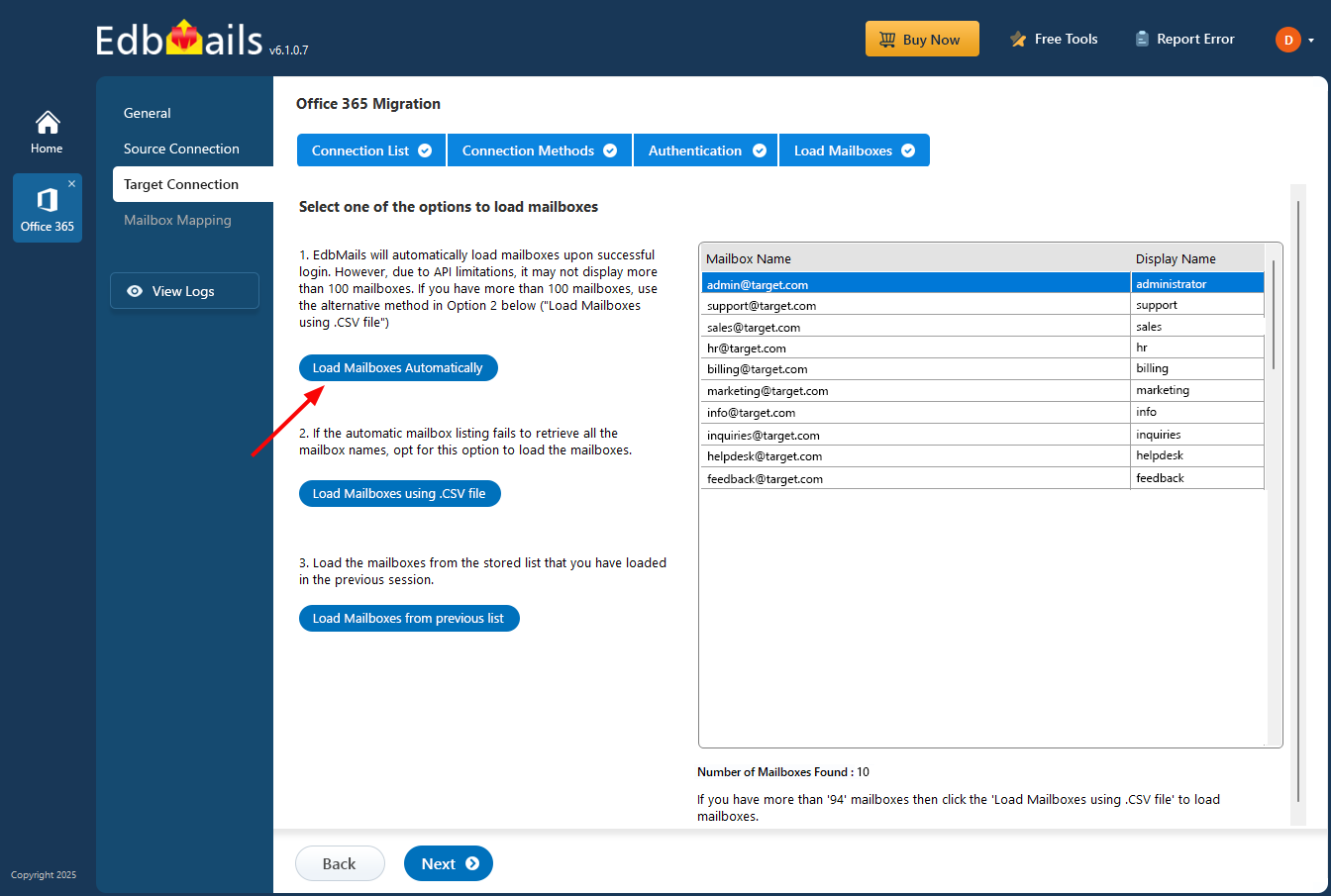
- Choose a method to load the shared mailboxes. You can also load the shared mailboxes using CSV file
See how to load mailbox / shared mailboxes using a CSV file.
Step 5: Map Public folder to Shared mailboxes
- Before mapping, ensure to create shared mailboxes on your target Office 365 servers and assign the required permissions. Choose the required option to map your public folder to shared mailboxes
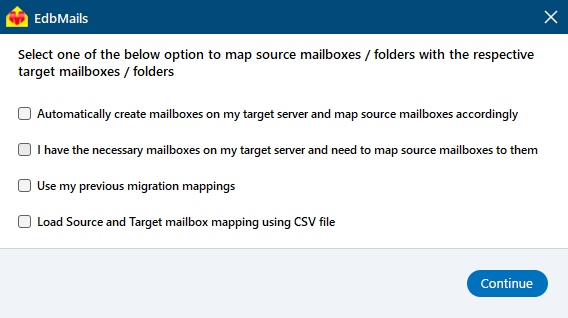
Click here to know about user-defined mailboxes / folders mapping
- Map your source public folder to the required shared mailboxes on the target server.
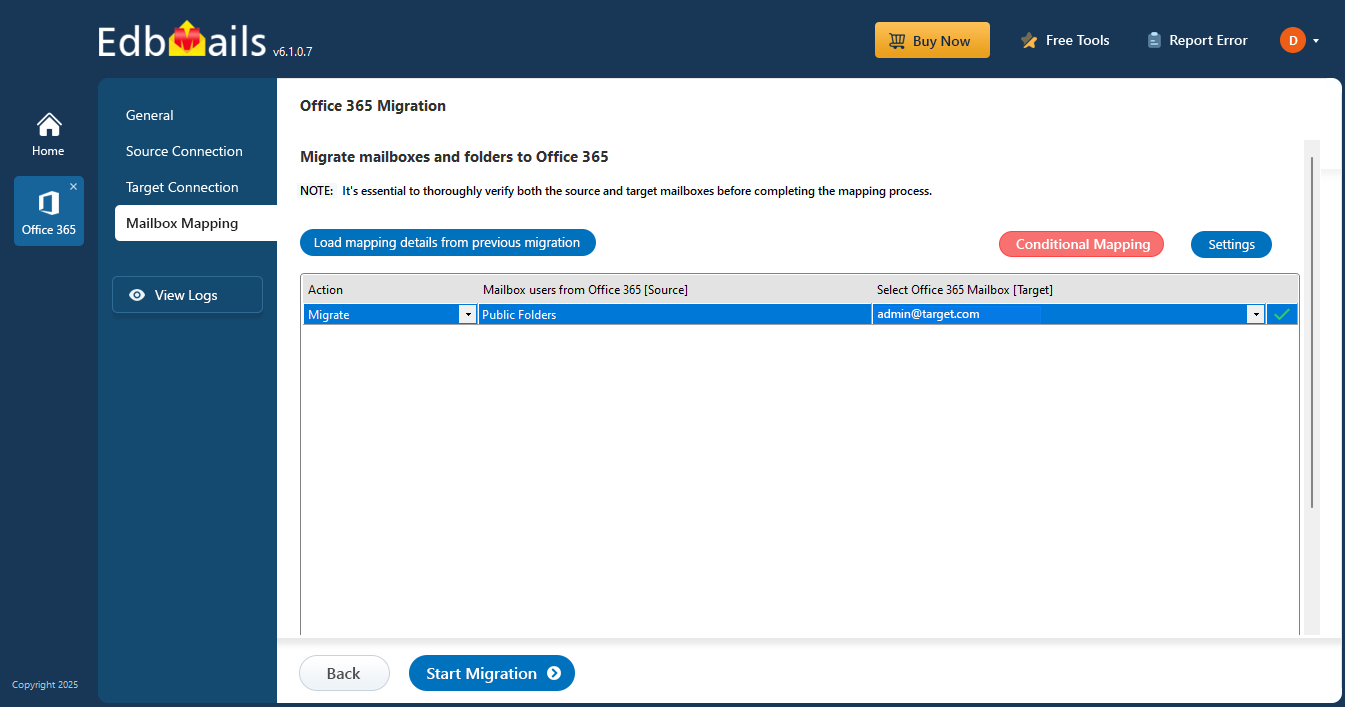
Step 6: Start Office 365 public folder to Shared mailbox migration
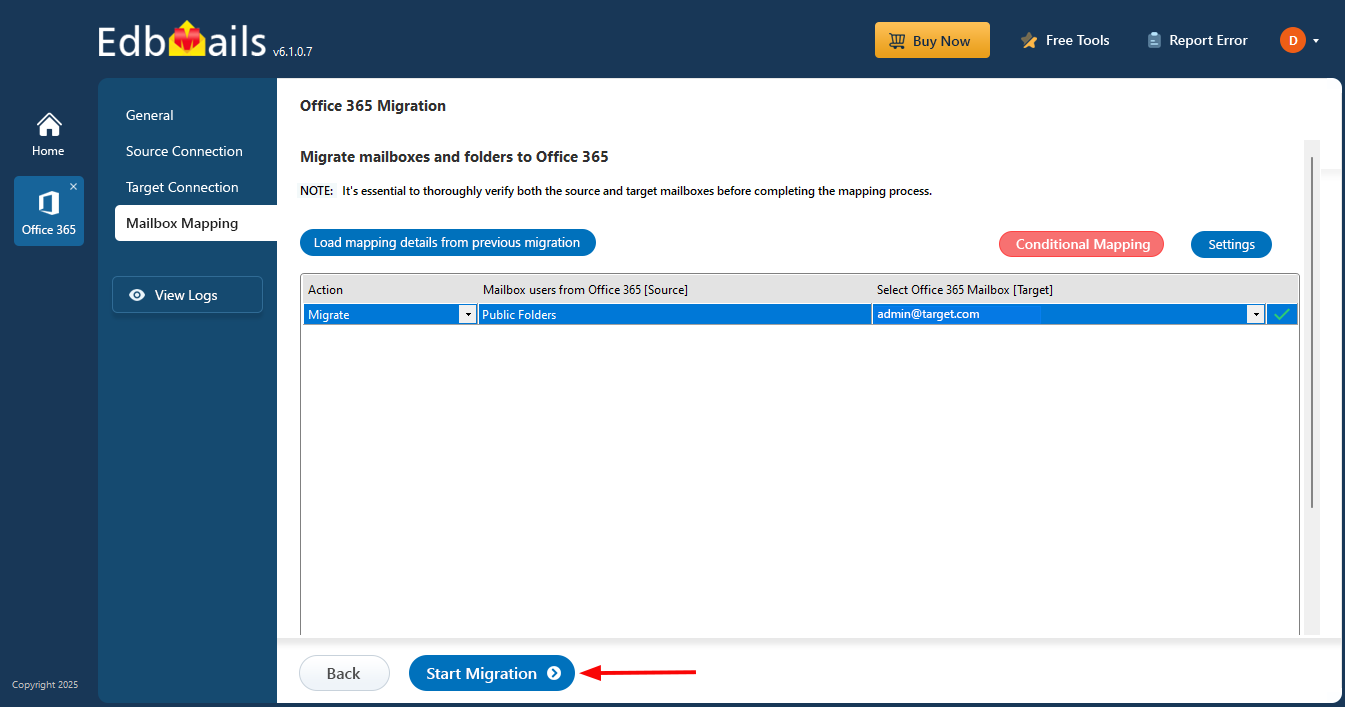
- After completing the mapping, click the ‘Start Migration’ button to initiate the migration process.
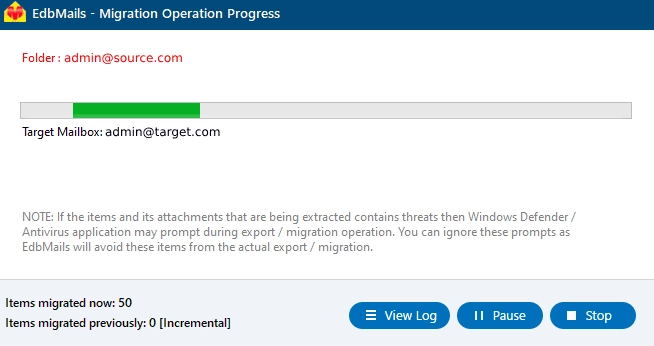
- Once the migration is complete, a message will appear to review the migration status. Click the ‘View Log’ button to check the migration report. Log in to your target server to verify the migrated items.
Office 365 public folder to Shared mailbox post-migration tasks
- Step 1: Update the MX records to point to Office 365
Start by adding your current domain to Office 365. If you haven't updated DNS records before, change the MX records to ensure emails can flow into Office 365 and be received properly. Also, configure the Autodiscover record to enable Outlook to connect easily to the migrated mailboxes.
- Step 2: Clear the Auto-Complete list in Outlook
- Step 3: Create a new Outlook profile after migration
- Ensure each user has the latest Outlook version installed to avoid compatibility issues.
- Set up Outlook profiles for each user in your domain if they experience connectivity problems with Office 365 mailboxes.
- Configure Outlook with the new server settings, including server address, username, and password.
- Test email functionality to confirm that users can send and receive emails successfully.
- Step 4: Remove the old Office 365 subscription plan
Once the migration is complete and you have confirmed the integrity of the migrated mailbox data, proceed to remove the Office 365 subscription plan from the source tenant, along with any associated domains.
- Step 1: Update the MX records to point to Office 365
Office 365 public folder to Shared mailbox migration troubleshooting
See Office 365 migration troubleshooting guide and Public folder troubleshooting for possible solutions related to migration errors. For more information on EdbMails Office 365 migration, see frequently asked questions (FAQs)
See solutions if you are not able to migrate Public folders due to insufficient permissions.
Benefits of EdbMails for Public folder to Shared mailbox migration
EdbMails Office 365 migration software automates the migration of Public folders to Shared mailboxes. Compared to the manual methods, EdbMails graphical user interface enables you to select and migrate folders, mailboxes and mail items easily without requiring PowerShell scripts or technical expertise.
- Easily perform Exchange online cross tenant migration without requiring technical expertise.
- EdbMails maintains zero downtime during the Office 365 Public folder to Shared mailbox migration
- The application preserves and replicates the source public folder structure on the target shared mailboxes.
- EdbMails is compatible with all Windows OS and Windows Server.
- Its incremental migration feature avoids duplicate items during subsequent migrations to the target server.
- EdbMails provides automated features such as mailbox/folder mapping, setting impersonation rights, which reduces the manual efforts.
- Migrate Public folders to Office 365 without size limitations.
- EdbMails is highly secure and uses modern authentication with TLS encryption for migration.
- Free trial to test the software functionality and free 24x7 technical support.


