EdbMails EDB Recovery and Migration software
  • Products
    EdbMails
    All-in-one Recovery and Migration
    Explore our products
    • EDB recovery and Migration
    • OST, PST, MBOX, NSF, EML, MSG
    • Office 365, Exchange Migration
    • SharePoint, OneDrive & Teams
    • G Suite Migration
    • IMAP Migration
    • Duplicate Remover
    • Windows Data Recovery
    • Backup Solutions

    EDB Recovery and Migration

    EdbMails lets you recover corrupted, damaged, and offline Exchange EDB files, convert EDB mailboxes to PST format, and directly migrate mailbox data to Office 365 and live Exchange Server.

    EDB to PST
    Recover corrupted, damaged, offline EDB files and convert Exchange EDB mailboxes to PST file format
    Public Folder to Exchange
    Migrate public folders from an Exchange offline EDB file to live Exchange Server
    EDB to Live Exchange Migration
    Directly migrate offline Exchange database (EDB) files to live Exchange server
    Archive Mailbox to Office 365
    Migrate archive mailboxes from offline EDB files directly to Office 365
    EDB to Office 365 Migration
    Directly migrate offline Exchange database (EDB) files to Office 365
    Public Folder to Office 365
    Migrate public folders from an offline Exchange EDB file to Office 365

    OST, PST, MBOX, NSF, EML, MSG Export and Migration

    EdbMails lets you to recover OST and PST files, export OST, PST, MBOX, NSF, EML, and MSG files to PST files, and directly migrate OST, PST, MBOX, and NSF mailbox data to Office 365 and live Exchange Server.

    OST Recovery and Migration
    Recover offline OST files, convert OST to PST, and migrate OST to Office 365 and Exchange Server
    PST Recovery and Migration
    Recover Outlook PST files , Export PST to PST, migrate PST to Office 365 and Exchange Server
    MBOX Export and Migration
    Export MBOX to PST, migrate MBOX to Office 365 and Exchange Server
    NSF Export and Migration
    Export NSF to PST, migrate NSF to Office 365 and Exchange Server
    EML to PST Export
    Convert EML files to Outlook PST files
    PST to MSG Export
    Convert Outlook PST file to MSG file format
    MSG to PST Export
    Export MSG files to Outlook PST files

    Office 365, Exchange Migration

    EdbMails lets you securely migrate mailboxes across Microsoft 365, Exchange, Google Workspace (G Suite), and IMAP-supported servers such as Outlook, Gmail, Zimbra, Zoho Mail, and cPanel, ensuring zero downtime.

    Office 365 Migration
    Migrate between Office 365 tenants, Office 365 to Exchange, Office 365 to PST, PST files to Office 365.
    Exchange Migration
    Migrate between any Exchange Servers, Exchange to Office 365, Exchange to PST, PST files to Exchange.
    Tenant to Tenant Migration
    Migrate Mailboxes, Public Folders, Archive Mailboxes between Office 365 Tenants.
    Exchange to Office 365
    Migrate Mailboxes, Public Folders, Archive Mailboxes from live Exchange server to Office 365.
    Office 365 to IMAP
    Migrate Office 365 to IMAP, Office 365 to Gmail, Office 365 to Outlook, Office 365 to Zoho etc.
    Exchange to IMAP
    Migrate from live Exchange Server to IMAP servers such as Gmail, Outlook, and Zoho Mail.
    Public Folder to Office 365
    Migrate Public Folders between Office 365 tenants with complete folder hierarchy and mailbox data integrity.
    Exchange to PST
    Export live Exchange Server mailboxes, public folders, and archive mailboxes to Outlook PST files.

    SharePoint, OneDrive & Microsoft Teams Migration

    EdbMails lets you migrate SharePoint sites, OneDrive data, Microsoft Teams, teams, channels, chats, permissions, and documents between Microsoft 365 tenants while maintaining the existing folder structure and data integrity.

    SharePoint Online Migration
    Migrate documents, lists, files and folders from SharePoint sites.
    OneDrive for Business Migration
    Migrate documents, lists, files, folders, private chats from OneDrive.
    Microsoft Teams Migration
    Migrate Teams, chats, channels, documents, files and folders etc.

    Google Workspace / G Suite Migration

    EdbMails G Suite Migration Tool lets you easily migrate emails, calendars, contacts, tasks, and more from G Suite to Office 365, Exchange Server, and IMAP servers using a Google Admin account without requiring individual user credentials.

    G Suite Migration
    Migrate emails, calendars, contacts, tasks from G Suite to Office 365, G Suite to Exchange, G Suite to IMAP Servers
    G Suite to Office 365
    Migrate emails, calendars, contacts, tasks from Google Workspace / G Suite to Office 365
    G Suite to Exchange Server
    Migrate emails, calendars, contacts, tasks from Google Workspace / G Suite to on-Premise Exchange Server
    G Suite to IMAP
    Migrate emails, calendars, contacts, tasks from Google Workspace / G Suite to IMAP, Outlook, Zimbra, Zoho etc.

    IMAP Migration

    EdbMails IMAP Migration tool lets you easily migrate emails from IMAP servers such as Outlook, Gmail, Zoho Mail, Zimbra, cPanel, and more. Supports IMAP to IMAP, Office 365, Exchange Server, PST, and bulk PST to IMAP migration.

    IMAP Email Backup & Migration
    Backup and migrate emails from IMAP servers to PST, Office 365, and On-Premises Exchange Server
    IMAP to Office 365
    Migrate emails, folders, and attachments from IMAP servers to Office 365
    IMAP to Exchange
    Migrate emails, folders, and attachments from IMAP servers to on-premises Exchange Server
    IMAP to PST
    Export emails, folders, and attachments from IMAP servers to Outlook PST files for backup
    PST to IMAP
    Migrate emails, folders, and attachments from bulk PST files to IMAP servers

    Duplicate Remover

    EdbMails Duplicate Remover lets you easily remove duplicate items from Office 365 and Exchange Server, and from IMAP, Outlook, Gmail, Zimbra, Zoho Mail, etc., ensuring a clean and organized mailbox.

    Remove Duplicates
    Easily clean up your Office 365, Exchange, Outlook and IMAP accounts by removing duplicate emails.
    Remove Duplicates from Office 365
    Remove duplicate emails, calendars, contacts, journal tasks, etc. from Office 365.
    Remove Duplicates from Exchange Server
    Remove duplicate emails, calendars, contacts, journal tasks, etc. from live Exchange Server.
    Remove Duplicates from IMAP, Outlook
    Remove duplicate emails, attachments from IMAP, Outlook, Gmail, Zimbra, Zoho Mail etc.

    Exchange, SharePoint, OneDrive, Teams and Office 365 Backup

    EdbMails enables secure, automated backup and recovery for Microsoft 365 services including Exchange Online, SharePoint, OneDrive, Teams, and Live Exchange Server with complete data protection and restore flexibility.

    Office 365 Backup
    Incremental, Granular, Encrypted and Compressed Office 365 Mailboxes Backup
    Exchange Server Backup
    Incremental, Granular, Encrypted and Compressed Exchange Mailboxes Backup
    SharePoint, OneDrive & Teams Backup
    Backup Online site collections, Team sites, Office 365 groups, all documents etc.

    Windows Data Recovery

    EdbMails Windows Data Recovery Software lets you recover permanently deleted data, including photos, videos, documents, and archived files, from partitions on hard drives, SSDs, USB drives, SD cards, and external storage devices.

    Windows Data Recovery
    Recover and restore permanently deleted data from hard drives, SSDs, USB drives, SD cards, and etc.
    Whitepaper
    Request a Demo
    Sign Up
  • Features
  • FAQ
  • Pricing
  • Download
  • Support
  • Sign in
User’s Manual
Office 365 Migration

User Manual

User Manual

  • Office 365 Migration Overview
  • Initial setup
  • System Requirements
  • Migration Scenarios
  • Software Setup
    • EdbMails Installation Process
    • Upgrading the Software
    • How to uninstall
    • Reinstallation
  • Understanding the Application
    • Software's Main Components
    • Understanding the Migration
  • FAQ
    • General
    • Migration Free Trial / Demo
    • Migration License
    • Before Migration
    • Migration - Steps
    • After Migration
  • Videos
    • Office 365 to Office 365
    • Office 365 to Exchange
    • Office 365 to IMAP
    • Office 365 to PST
    • Public Folder to Office 365
    • Archive Mailbox to Office 365
    • Public Folder to Exchange
    • Archive Mailbox to Exchange
    • Restore Bulk PST files to Office 365
    • Automatically Create Office 365
    • Export Office 365 user to CSV file
  • Screenshots
    • Office 365 to Office 365
    • Office 365 to Exchange
    • Office 365 to PST
    • Office 365 to IMAP
  • How it works?
    • Office 365 to Office 365
    • Office 365 to Exchange
    • Office 365 to IMAP
    • Office 365 to PST
    • Public Folder to Office 365
    • Public Folder to Exchange
    • Public Folder to Shared Mailbox
    • Archive Mailbox to Office 365
    • Archive Mailbox to Exchange
    • Office 365 to Hosted Exchange
    • Multiple PST to Office 365
    • Office 365 to Gmail Migration
    • Office 365 Shared mailbox to Exchange
    • Office 365 Public folders to PST
    • Office 365 archive mailbox to PST
    • Office 365 Shared mailbox to PST
    • Office 365 shared mailbox to Public folder
    • Office 365 Archive mailbox to Shared mailbox
    • Office 365 Shared mailbox to Archive mailbox
    • Office 365 to Zoho migration
    • Office 365 group mailbox to shared mailbox
    • Shared mailbox to Office 365 Groups mailbox
    • Office 365 Groups mailbox to Regular mailbox
  • Connect to source Office 365
  • Connect to target Office 365
  • Modern Authentication Using OAuth 2.0
    • Microsoft 365 modern authentication
    • Automatic Registration
    • Manual Registration
  • Connect to Exchange server
  • Knowledge Base
    • Migrate between Office 365 tenants
    • Migrate Office 365 mailbox
    • Public folder migration
    • Office 365 to Exchange Migration
    • Office 365 Migration with same Domain
    • Office 365 Group Migration
    • Selective Mailbox Migration
    • Migration to Exchange 2007, 2010, 2013, 2016 and 2019
    • User-Defined Mailbox/Folder Mapping
    • Export Office 365 users to CSV
    • GoDaddy to Microsoft 365 migration
    • Rackspace to Office 365 migration
    • Office 365 migration methods
    • Office 365 migration checklist
    • Migrate Shared mailbox to Office 365
    • Office 365 migration best practices
    • Office 365 migration challenges
    • Convert shared mailbox to regular mailbox
    • Office 365 to Exchange 2019 migration
    • Office 365 multiple mailbox migration
    • Office 365 Server to Server Migration
    • Cross-Tenant Office 365 migration
    • EWS throttling in Exchange Online
    • Office 365 migration common use cases and solutions
    • Language settings on Office 365 Server
    • Office 365 to iCloud migration
    • Office 365 to Yahoo Mail migration
    • Microsoft 365 sign-in issue
    • Batch create Outlook profiles Intune
  • Set Office 365 Impersonation rights
    • Using PowerShell commands
    • Using Office 365 GUI
  • Migration Types
    • Cutover Migration
    • Staged Migration
  • Set Exchange Server Impersonation rights
  • Map the Mailboxes
  • Migration Walkthrough
    • Office 365 tenant to tenant migration
    • Office 365 to Exchange migration
    • Office 365 to PST Export
  • Multifactor Authentication
    • Enable MFA in Office 365
    • Create App password for MFA
    • Disable Security Defaults
  1. Home
  2. Product
  3. How to Migrate Mailboxes to Office 365 — 5 Methods | EdbMails
Download Buy Now

Multiple ways to migrate mailboxes to Office 365

Moving email to Office 365 pays off. Better remote access, room to scale, and often a cheaper monthly bill once you stop running Exchange in a closet somewhere. But the migration itself isn't one-size-fits-all. There are five different paths to get a mailbox across, and picking the wrong one will cost you a weekend. Industry surveys put it bluntly — around 50% of email migration projects miss their original timeline, and the most common reason is choosing a method that doesn't fit the source environment. Read this before you start clicking around in the admin center.

Migrate mailboxes to Office 365

Common migration methods for Office 365

Cutover migration

Pick a date, flip the switch. Everyone moves at once. Clean break from the old system. Works best when you've got fewer than 200 mailboxes and can afford a single weekend where everyone's on the new tenant by Monday.

Staged migration

Staged is batches. Move 50 users this week, 50 next week, until you're done. Slower, but you stay in control — and if something breaks in batch one, batches two through five aren't already in the middle of their own moves when you realize.

IMAP migration

Source is Gmail, Zoho, or Zimbra? IMAP works. The catch worth flagging up front: IMAP pulls email and only email. Calendars and contacts won't come along. People forget this and get blindsided on cutover day. Plan a separate export-import for those — usually CSV for contacts, ICS for calendars.

PST file import

Got PST files sitting around? Old archives, ex-employees, exports from a dead server? This is how you get them into Office 365 mailboxes — straight import, folder hierarchy intact, all item properties (flags, categories, read/unread state) preserved.

EdbMails as your migration partner

Four methods, and the question is what runs them. The tool you pick really does change the experience. EdbMails was built for the cases that come up in actual migrations — the ones with the awkward Exchange version, the regional office on a slow link, the ex-employee whose PST nobody can find — not the textbook ones. Here's where it pays for itself:

Supports diverse source environments

Exchange (2007 through Subscription Edition). Hosted Exchange (Rackspace, GoDaddy, Intermedia, the lot). IMAP-capable servers (Gmail, Zimbra, Zoho, IceWarp, cPanel, and everything else that speaks the protocol). PST files of any size. Doesn't matter what your source is — if it holds mailbox data, the workflow connects to it.

User-friendly software interface

The UI doesn't try to be clever. No PowerShell scripting required. Most admins can run their first migration without PowerShell and without sitting through training first. The wizard-driven workflow walks you through source connection, target connection, mapping, and execution in a linear flow that's hard to get wrong.

Robust Features

Incremental migration that catches the deltas without producing duplicates. Automatic mailbox mapping that pairs source to target by display name, first/last, and email. Granular filters for date range, sender, recipient, attachment name, and read/unread status. Concurrent runs up to 20 mailboxes at a time. The features that actually matter when you're running a job that takes 14 hours and don't want to babysit it.

Get the method right and the rest is mostly waiting around for progress bars to fill.

  1. Migrate a mailbox to Office 365 from Exchange Online

    Tenant-to-tenant. You're moving everything from one Office 365 organization to another — mailboxes, calendars, contacts, tasks, public folders, shared mailboxes, permissions, SharePoint, OneDrive content. The usual reason is an M&A, an acquisition, or someone in leadership deciding to reshuffle how the tenants are structured. Either way, data sits on one side and needs to be on the other by Monday.

    One thing worth knowing before you start. Microsoft caps a single EWS connection at roughly 0.2–0.5 GB per hour. On a 50 GB mailbox, that's nearly a full day per mailbox on one connection. The way around it is concurrency — running multiple mailboxes in parallel — which EdbMails handles by default.

    Steps to migrate a mailbox between Office 365 tenants

    • Step 1: Download and install EdbMails

      • Download the installer. Run it. Standard Windows install.
      • Walk through the prompts until setup wraps.
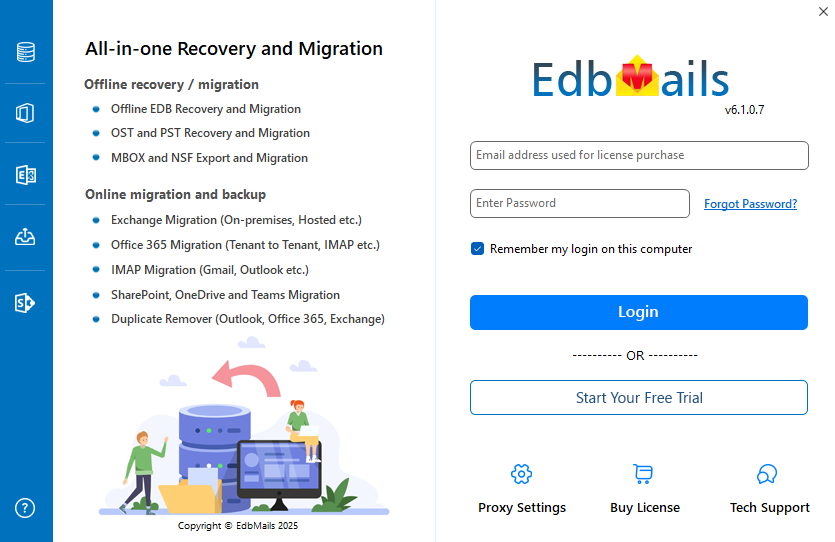
      • Launch the app. Click Login if you've already bought, or Start Your Free Trial if you're testing first.

        Login to EdbMails application

    • Step 2: Choose Office 365 migration

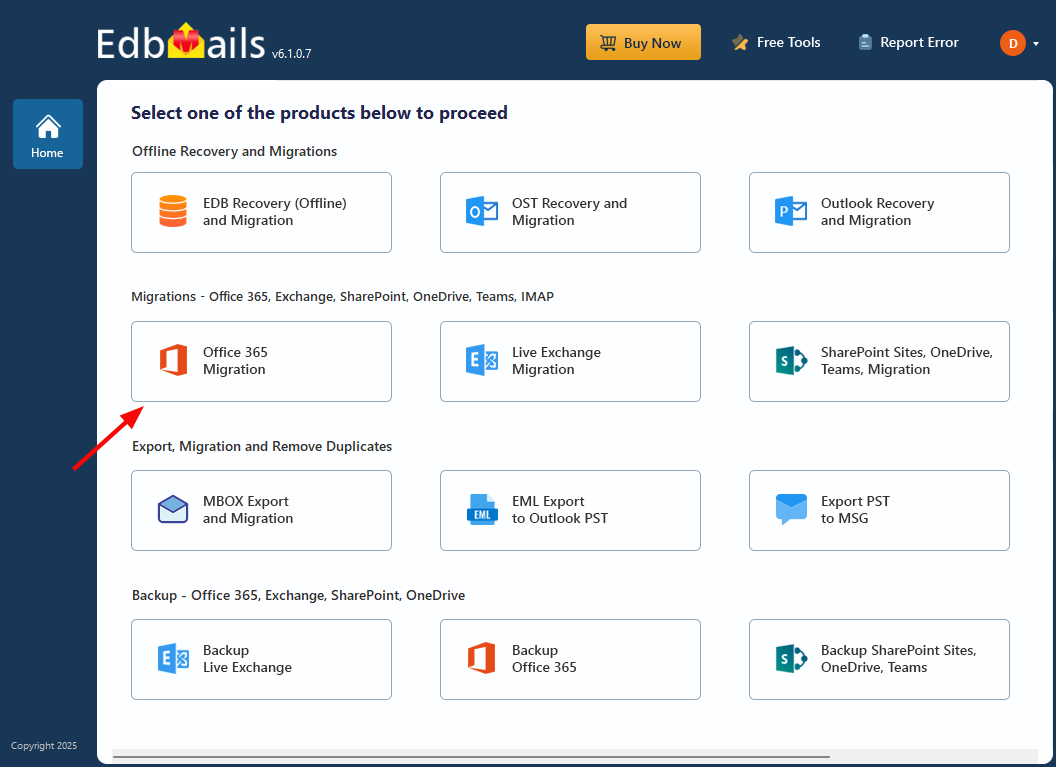
      • Main screen → Office 365 Migration.

        Select Office 365 migration option

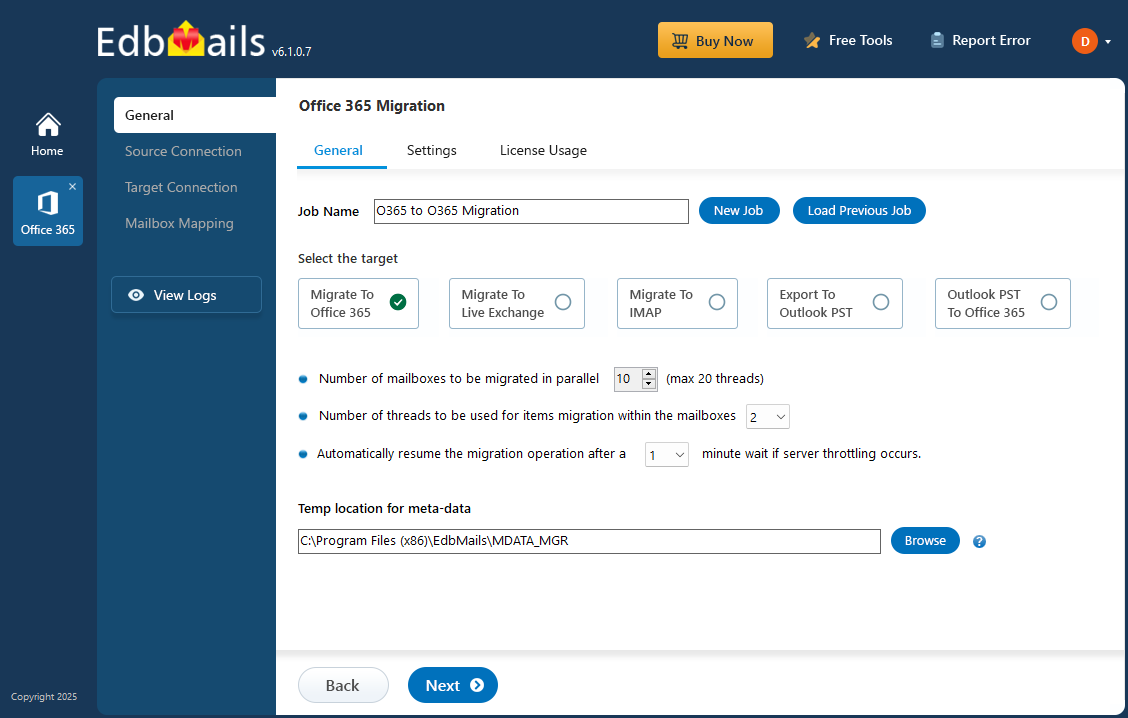
      • Then Office 365 to Office 365 Migration.
      • Job name is optional. Default works fine, or rename it if you'd rather.
    • Step 3: Connect the source Office 365 tenant

      • Fresh connection? Add New Connection. Already got one saved? Pick it and click Connect to Existing.
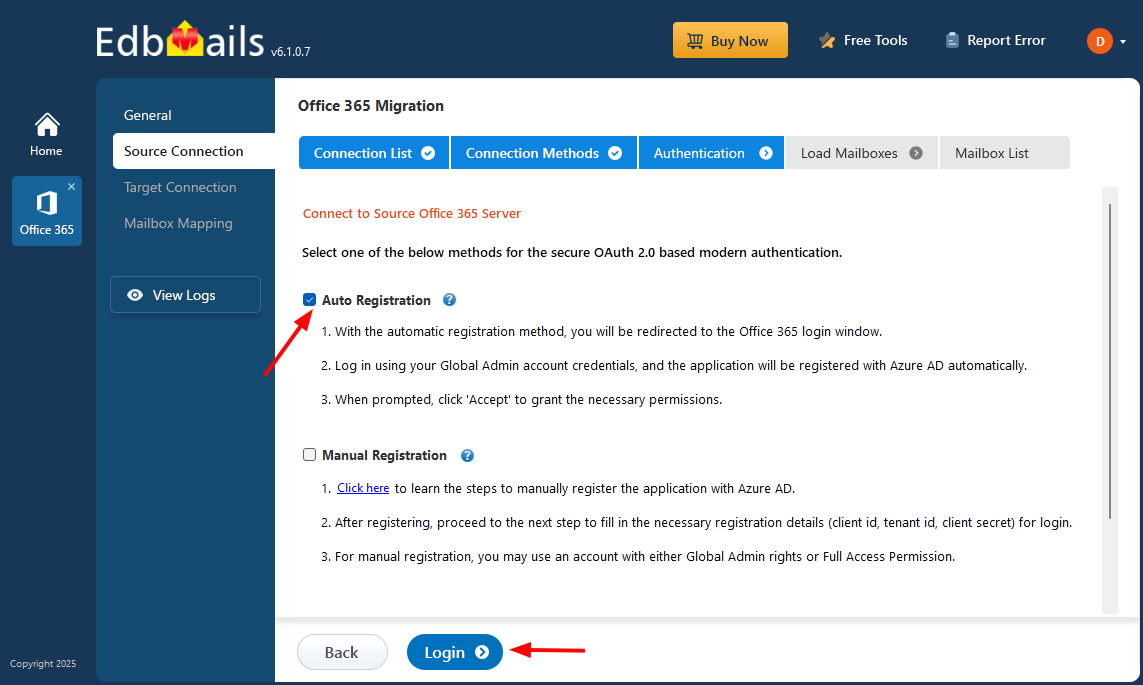
      • OAuth 2.0 is what you want. Click Login. Microsoft's sign-in page takes over.

        Connect to the source Office 365 server

      • Pick how to load the mailbox list. Check the boxes for what you're migrating. Next.

        Select Office 365 mailboxes

    • Step 4: Connect target Office 365

      • Same routine. Add New Connection for fresh, or pick a saved one and Connect to Existing.
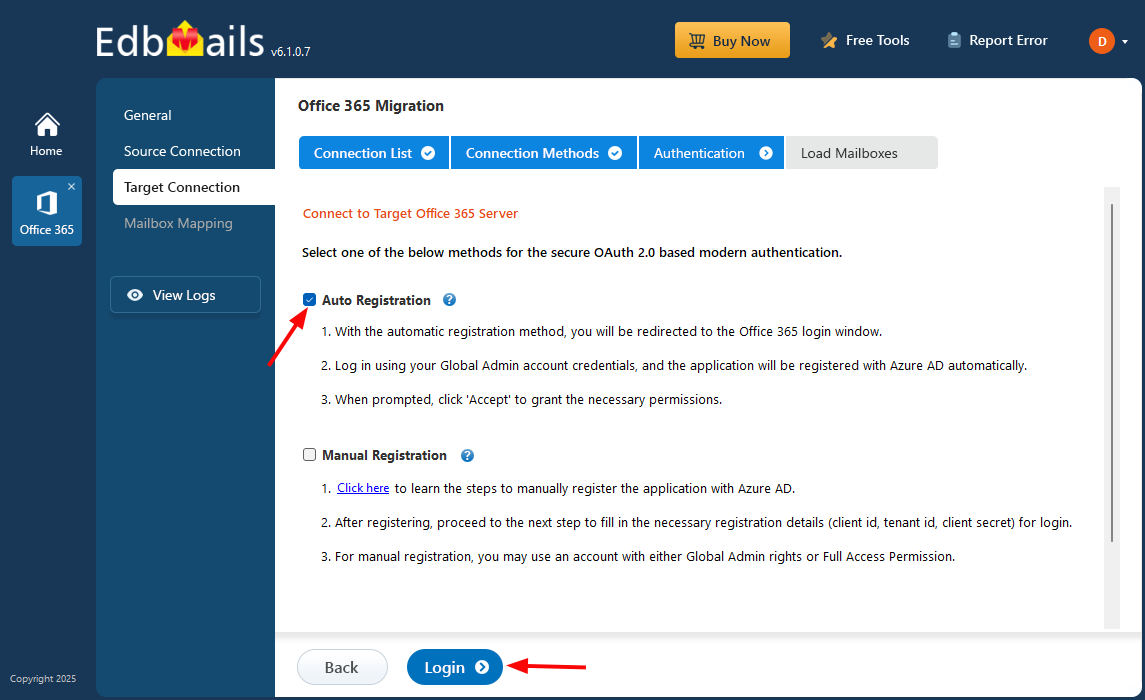
      • Connection method, then Login. Microsoft sign-in again.

        Connect to target Office 365 server

      • Load up the target mailboxes however suits you.
    • Step 5: Map source and target mailboxes

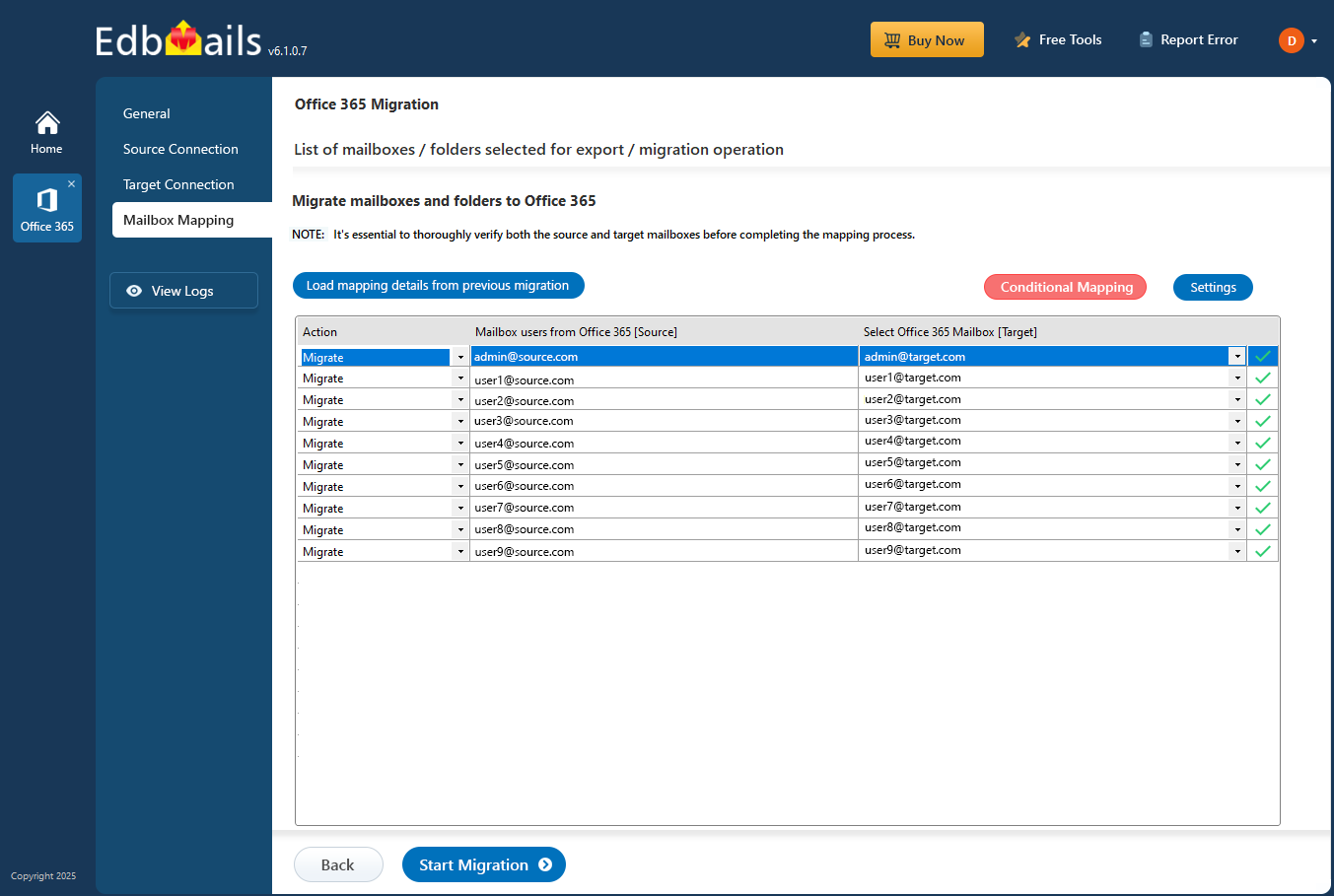
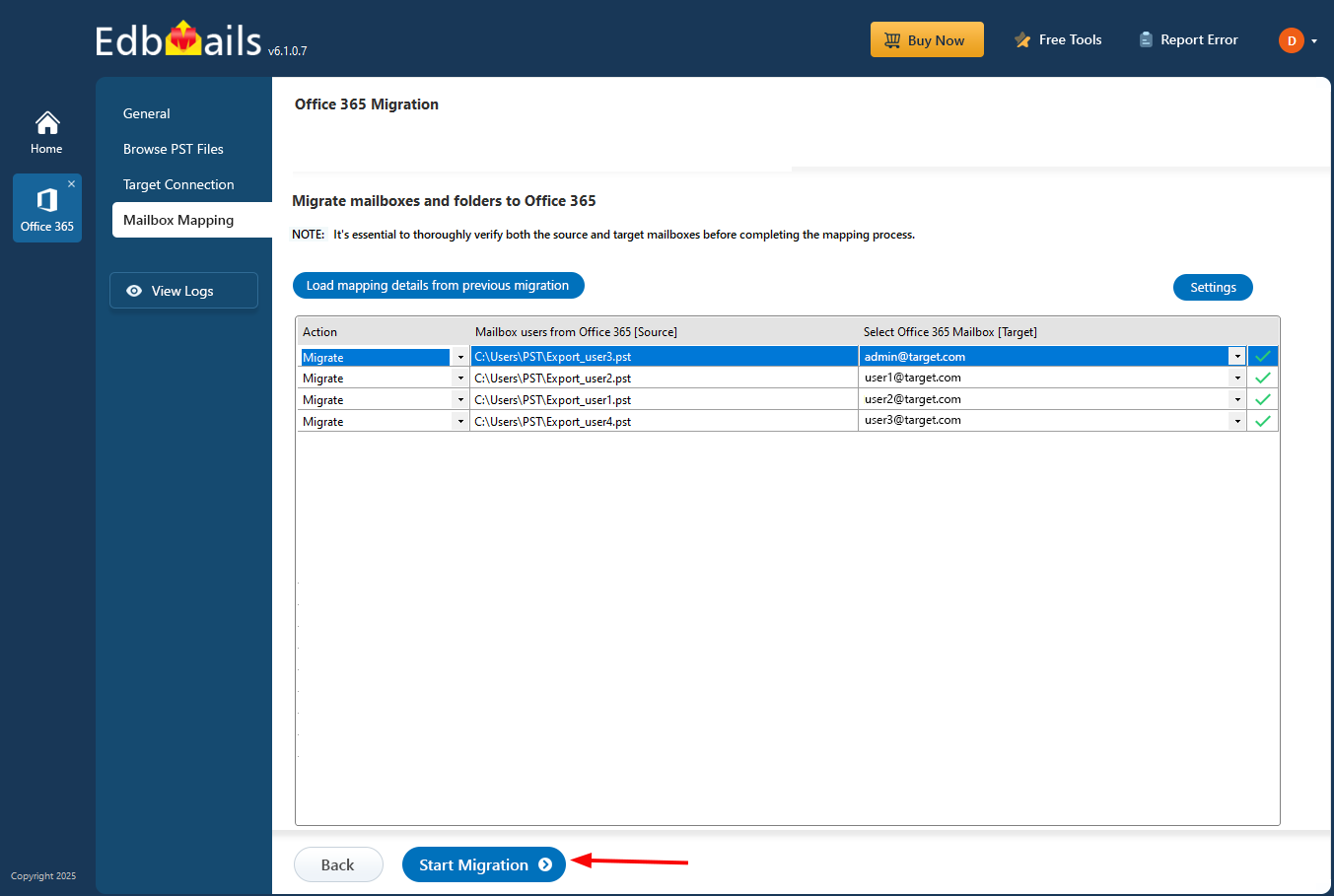
      • Auto-mapping kicks in. EdbMails matches source mailboxes to target ones by display name, first/last name, and email address.
      • Override anything that doesn't look right. Manual mapping handles the edge cases — people who changed their last name, mailbox consolidation where two source mailboxes go to one target, test mailboxes you want to point somewhere specific.

        Tenant to tenant mailbox mapping

    • Step 6: Start the migration

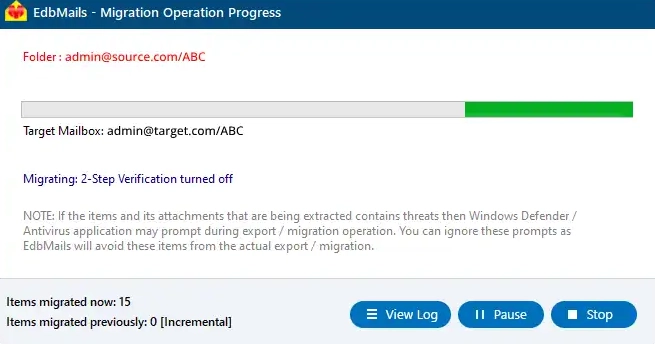
      • Hit Start Migration. Off it goes.
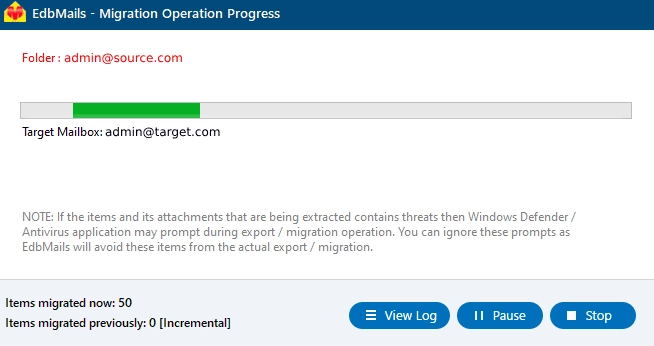
      • Watch the progress bars. Pause if you need to, resume when ready. Logs come out at the end so you can verify item counts.

        Microsoft 365 to Microsoft 365 tenant migration progress

    Need the full walkthrough with planning, prerequisites, and post-migration cutover? The Office 365 to Office 365 migration guide covers the project end-to-end.

  2. Migrate a mailbox to Office 365 from Exchange Server

    Still running Exchange on-prem? Plenty of teams are, and the move to Office 365 keeps creeping up the IT priority list. Exchange to Office 365 handles the transfer cleanly — emails, contacts, calendars, tasks. They all land on the other side without losing anything along the way. Supported source versions: Exchange 2007, 2010, 2013, 2016, 2019, and Small Business Server 2011. No hybrid deployment required — direct path from on-prem to cloud.

    Steps to migrate a mailbox from on-premises Exchange

    • Step 1: Install and launch EdbMails

      • Get EdbMails installed on a Windows machine.
      • Launch the app. Click Login or Start Your Free Trial.
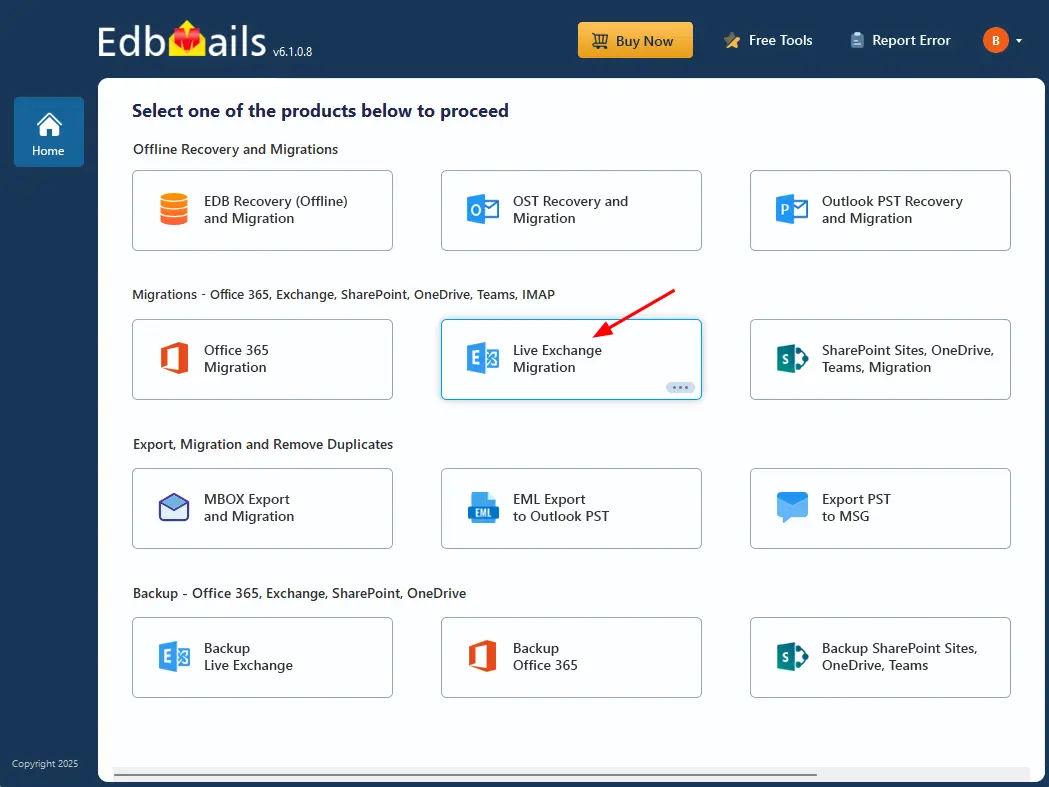
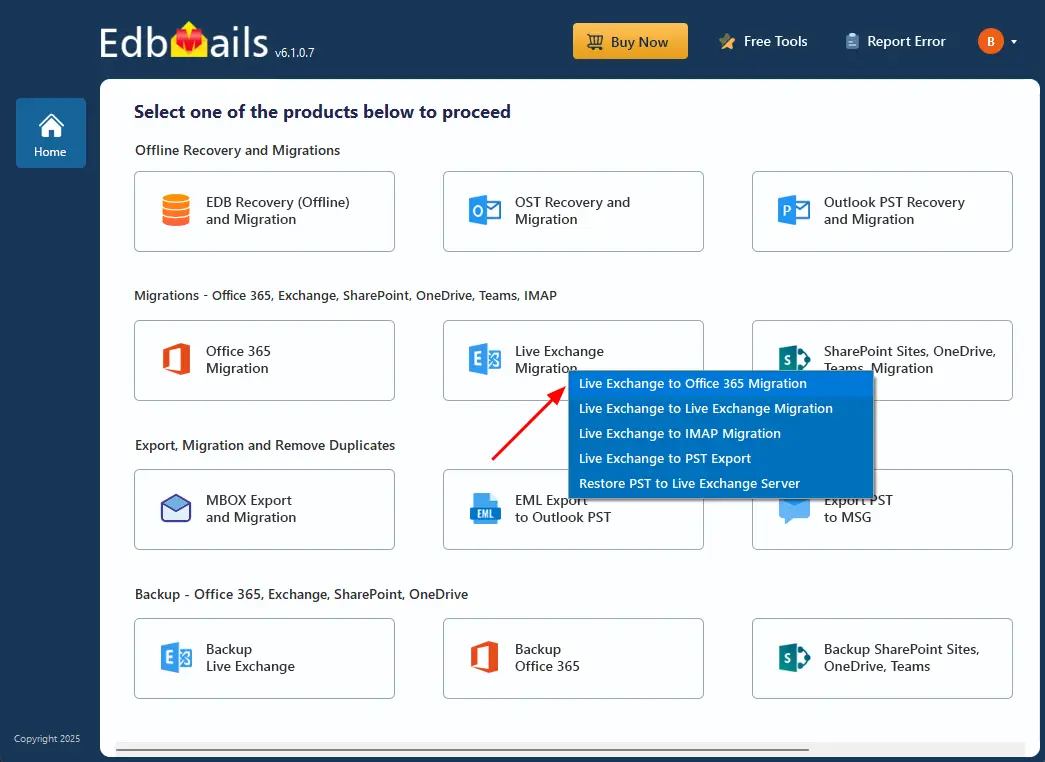
      • Pick Live Exchange Migration → Live Exchange to Office 365 Migration.

        Select Live Exchange migration option

    • Step 2: Connect the source Exchange server

      • Brand new connection? Add New Connection. Got one saved? Connect to Existing.
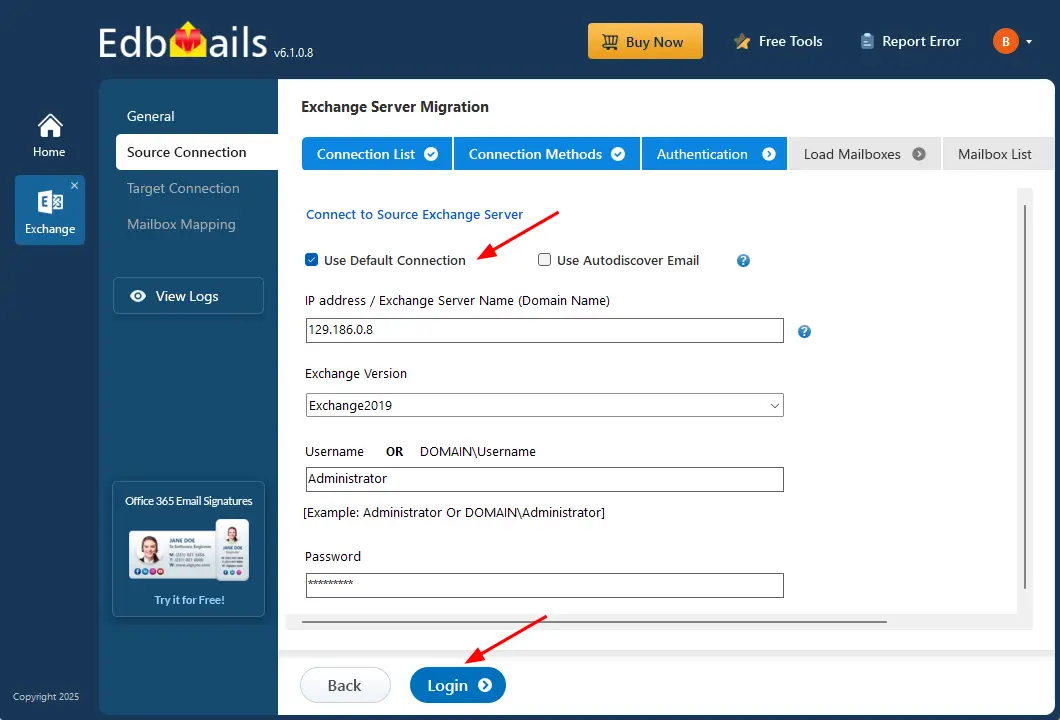
      • Drop in the connection details. Sign in.

        Login to the source Exchange server

      • Mailbox loading: auto-detect or CSV. Your call. Tick what you're migrating. Next.

        Select the mailboxes

    • Step 3: Connect target Office 365

      • Add New Connection on the target side, or Connect to Existing for saved.
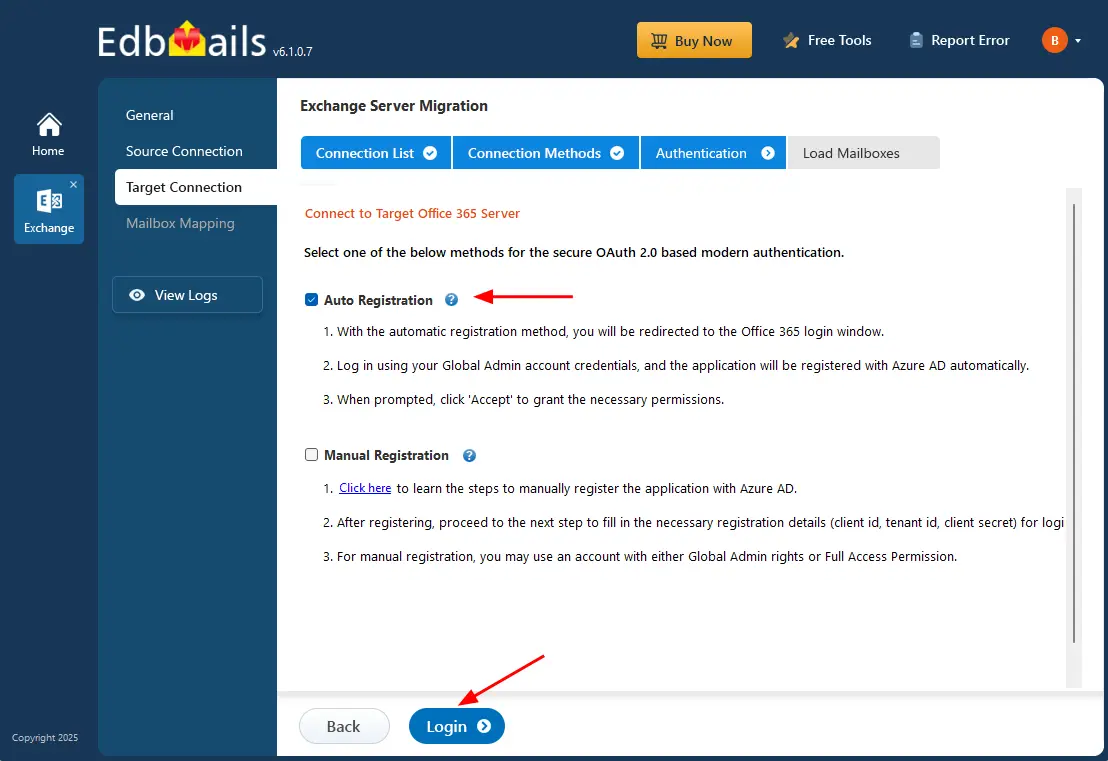
      • Authentication method. Hit Login. Sign in at Microsoft's page.

        Connect to the target Office 365 server

      • Auto-load or CSV-load the mailboxes. Next.
    • Step 4: Map Exchange to Office 365 mailboxes

      • Target mailboxes get created automatically. License assignment happens at the same time.
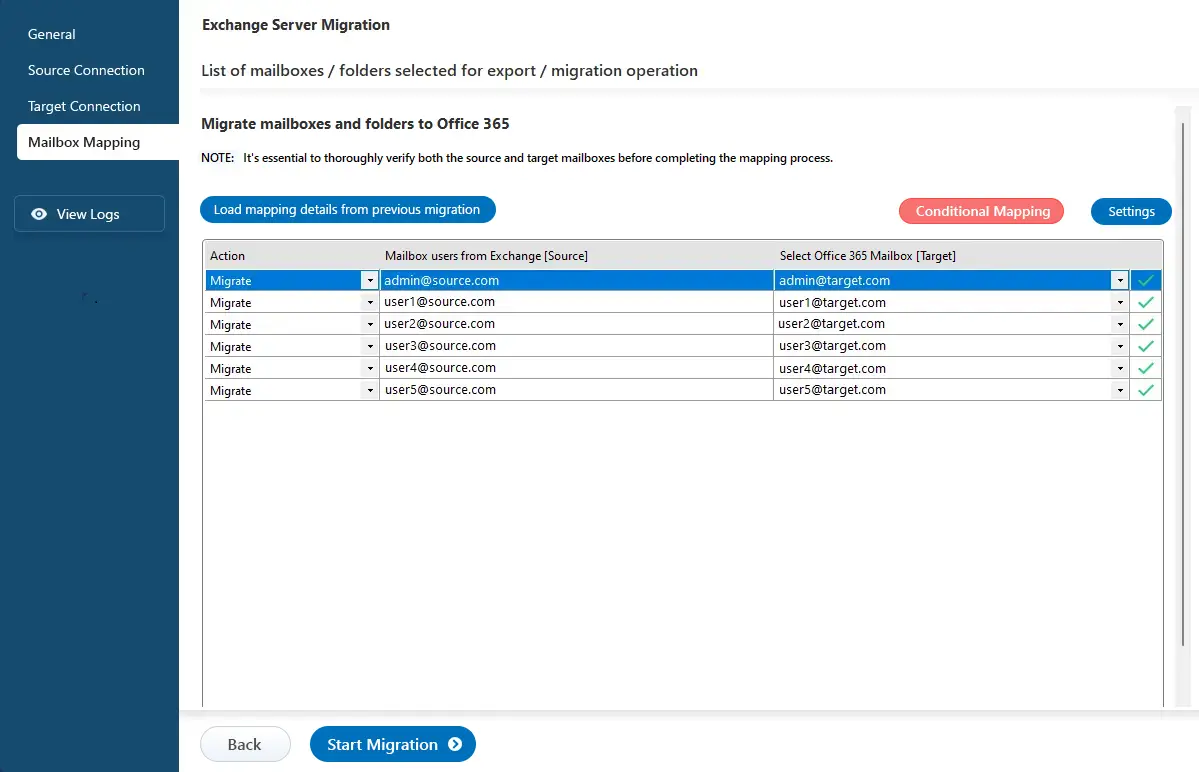
      • Mapping's automatic. Override manually if you've got naming quirks the auto-matcher won't handle.

        Map Exchange to Office 365 mailboxes

    • Step 5: Start the migration

      • Hit Start Migration. You're off.
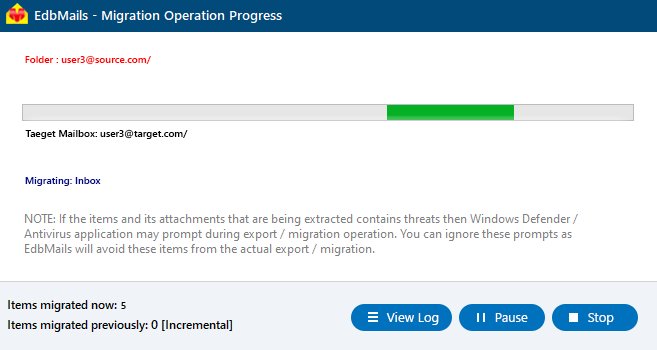
      • Watch the live progress. When it wraps, the migration report shows you everything.
      • Hop over to the target Office 365 and verify the data landed where you expected it to.

        Start the Exchange to Office 365 migration

  3. Migrate a mailbox to Office 365 from hosted Exchange

    On hosted Exchange — Rackspace, GoDaddy, Intermedia, that crowd? You probably already know why you're leaving. The control just isn't there. Office 365 gets you the features and the admin access hosted providers never quite let you have. Hosted Exchange to Office 365 means bringing the mailboxes across with everything intact — emails, contacts, calendars, tasks. All of it.

    Steps to move hosted Exchange to Office 365

    • Step 1: Install and launch EdbMails

      • Install on your Windows box. Standard.
      • Open it up. Login or Start Your Free Trial to hit the dashboard.
      • Main screen → Live Exchange Migration → Hosted Exchange to Office 365 Migration.

        Select Live Exchange to Office 365 migration

      • Default job name's fine. Or New Job for a custom one.
    • Step 2: Connect the source hosted Exchange server

      • New connection? Add New Connection. Reusing one? Pick from the list and Connect to Existing.
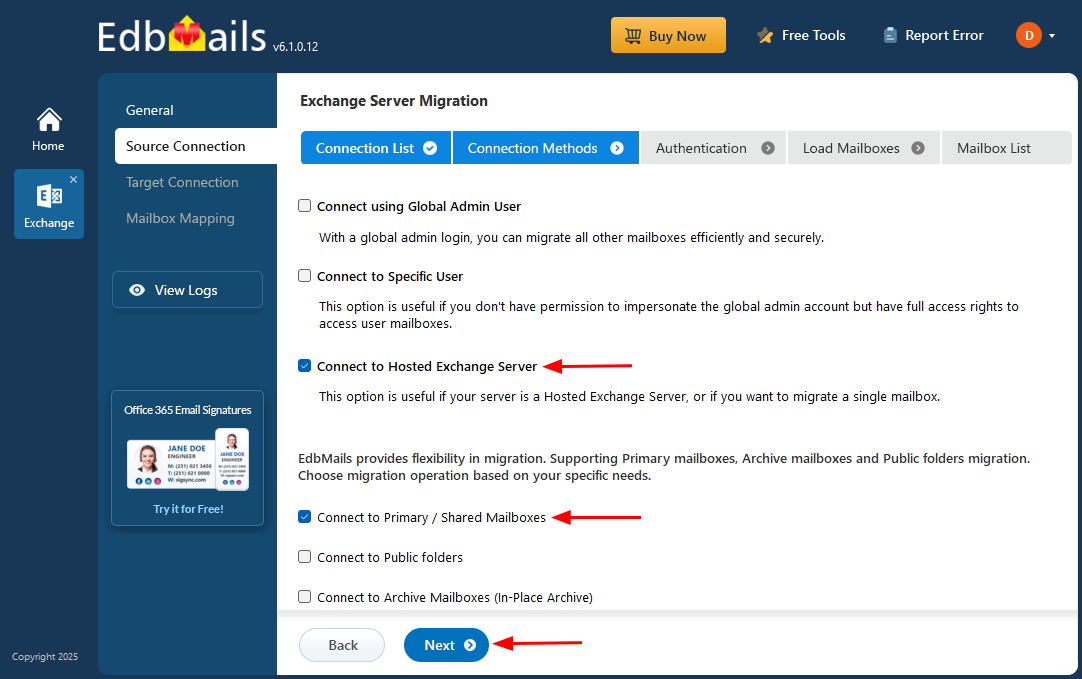
      • Choose Connect to Hosted Exchange server. Next.

        Select Connect to Hosted Exchange server option

      • Two ways to actually connect, depending on what your hosted provider exposes:
        • Autodiscover Email – easy path. Email and password, the provider's Autodiscover handles the rest.
        • Default Connection – manual path. Drop in the server's FQDN or IP directly.
      • Moving multiple mailboxes? Use the Full Access permission option, then Next. Saves you signing in for every mailbox.

        Select Multiple user migration using ‘Full Access’ Permission

      • Punch in the source hosted Exchange credentials. Login.
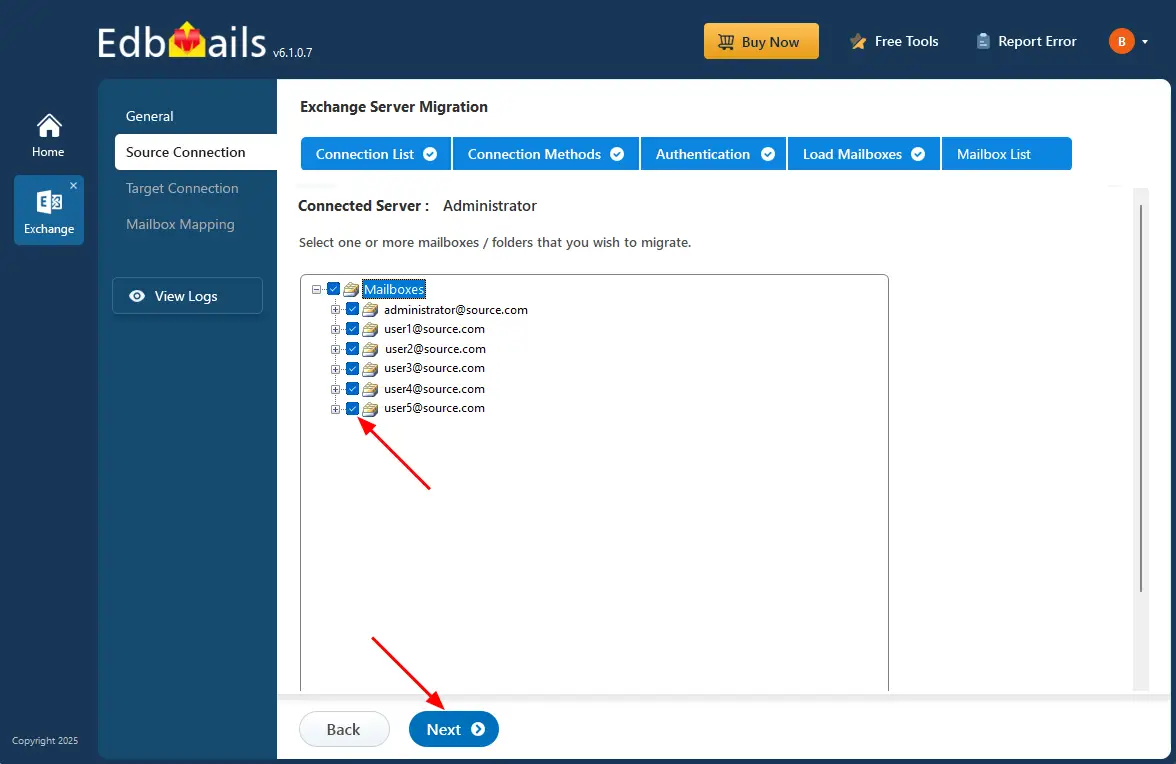
      • Load mailboxes — auto-load or CSV. Tick the ones you want. Next.

        Select the mailboxes

    • Step 3: Connect target Office 365

      • Target Office 365 next. Add New Connection for fresh, or Connect to Existing if you've got a saved one.
      • OAuth is the way. Login. Microsoft handles the sign-in.

        Connect to target Office 365 server

      • Auto-load or CSV-load for target mailboxes. Next.
    • Step 4: Map hosted Exchange to Office 365 mailboxes

      • Auto-mapping does its thing. Source mailboxes get paired up with their targets.
      • Need manual control for specific mailboxes or folders? It's there.

        Hosted Exchange to Office 365 mailbox mapping

    • Step 5: Start the migration

      • Hit Start Migration. Mailboxes start moving from hosted Exchange to Office 365.
      • Live progress updates run while it goes.
      • When it's done, View Logs for the full migration report.
      • Log into Office 365 and check that everything's there. Mailboxes and folders both.

        Hosted Exchange to Office 365 migration progress

  4. Migrate a mailbox to Office 365 from an IMAP server

    Whatever your source server is, if it speaks IMAP you can get the email into Office 365 without too much pain. The IMAP protocol handles the actual transfer. EdbMails handles Gmail to Office 365 this way. Also IceWarp, Zoho, Zimbra, cPanel, and a long list of others.

    The native IMAP migration in the Microsoft 365 admin center works for small projects. For anything bigger, or anything that needs batch retries, granular filtering, or auto-reconnect on network drops, the EdbMails workflow handles it more reliably.

    Worth flagging one more time before the steps: IMAP moves email only. Calendars and contacts need a separate export-import path. Plan that work alongside the IMAP migration, not after it.

    Steps to migrate a mailbox from an IMAP-enabled server

    • Step 1: Download and install EdbMails for IMAP migration

      • Get EdbMails onto a Windows box.
      • Glance at the system requirements first if you're unsure about resources.
      • Sign in with email and password, or Start Your Free Trial for trial mode.
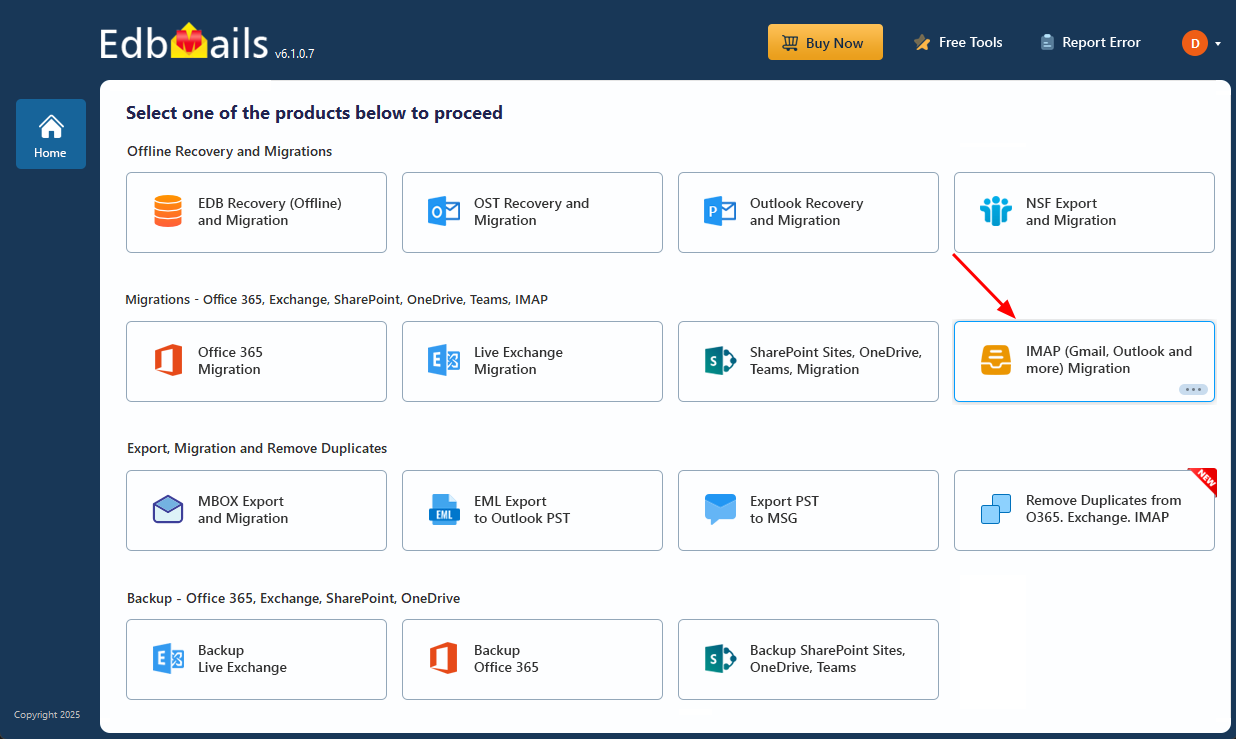
      • Pick IMAP (Gmail, Outlook & more) Migration.

        Select IMAP migration option

      • Then IMAP to Office 365 Migration from the menu.
      • Default job name or New Job. Up to you.
    • Step 2: Connect the source IMAP server

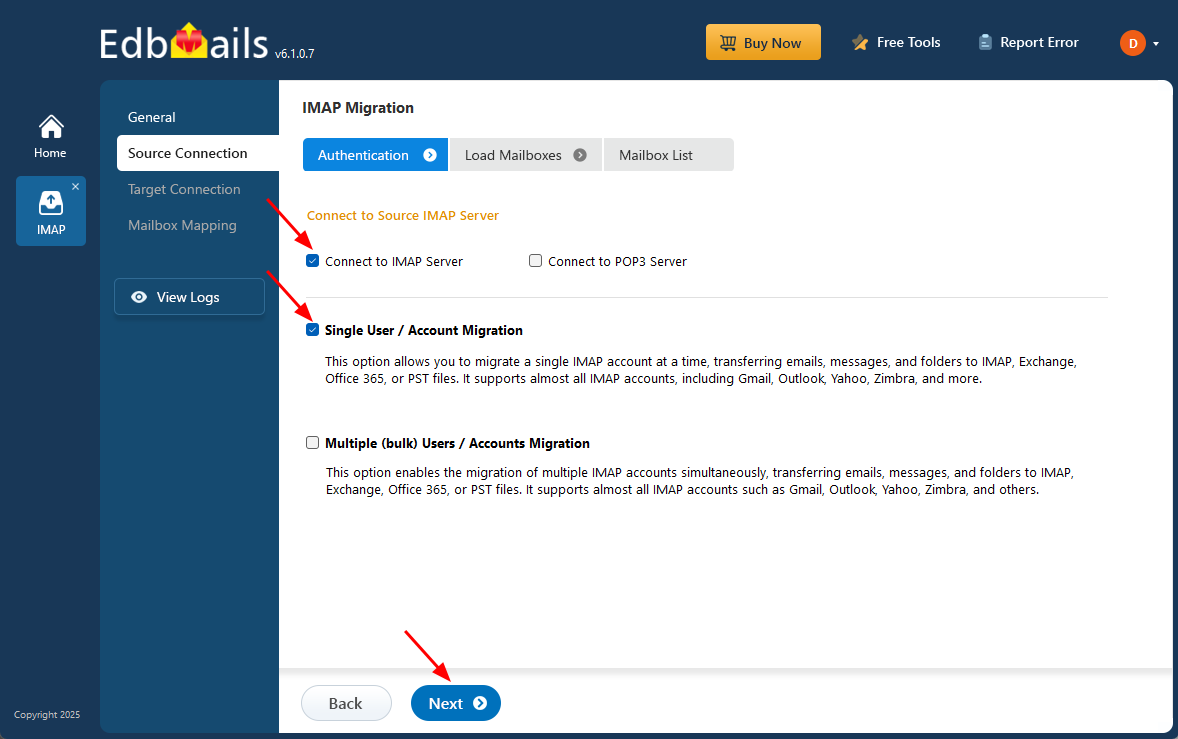
      Single mailbox? Pick Single User / Account Migration:

      • IMAP or POP3, depending on your source. Connect to IMAP Server or Connect to POP3 Server.

        Connect to single user account

      • Server details, email address, password. For Gmail you'll need an App Password — Google's 2FA breaks regular passwords for this kind of thing.
      • Hit Login.

      Bulk migration instead? Pick Multiple (Bulk) Users/Accounts Migration:

      • Grab the sample CSV: Download Sample CSV File.
      • Fill in email, password, host, port for each account. Save. Close.
      • Back in the app, Browse CSV File, pick your CSV, verify the mailbox list looks right, then Next.

        Browse CSV file

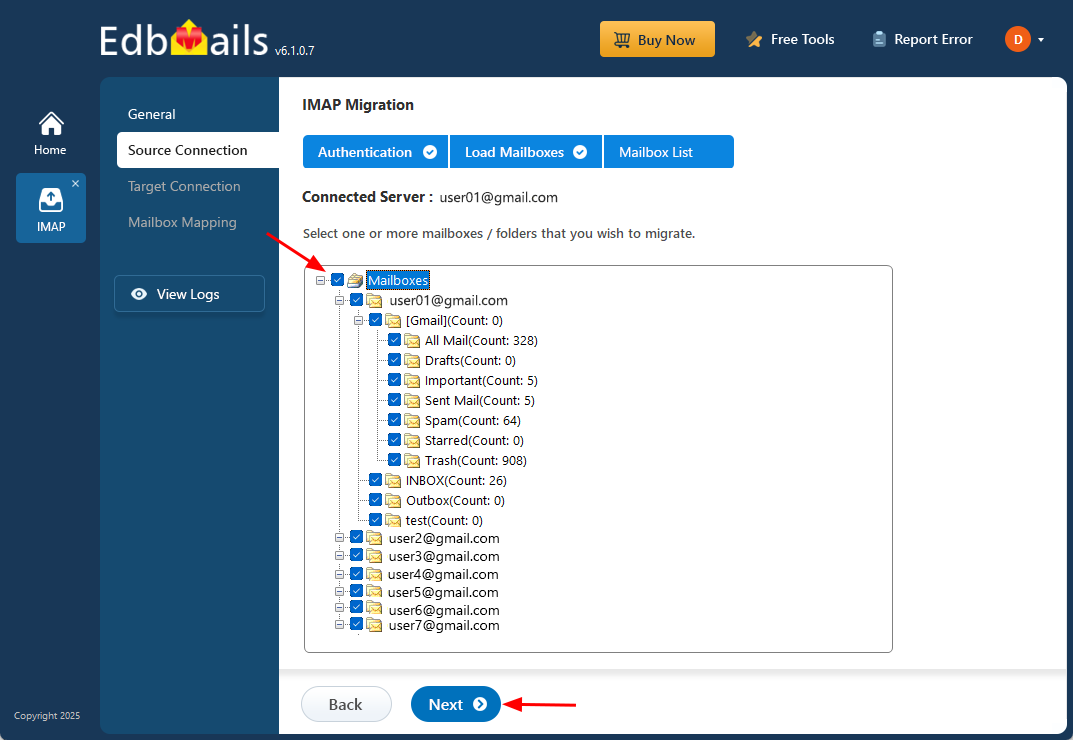
    • Step 3: Select source IMAP mailboxes

      • Pick mailboxes or folders. Next.

        Select the source IMAP server mailboxes

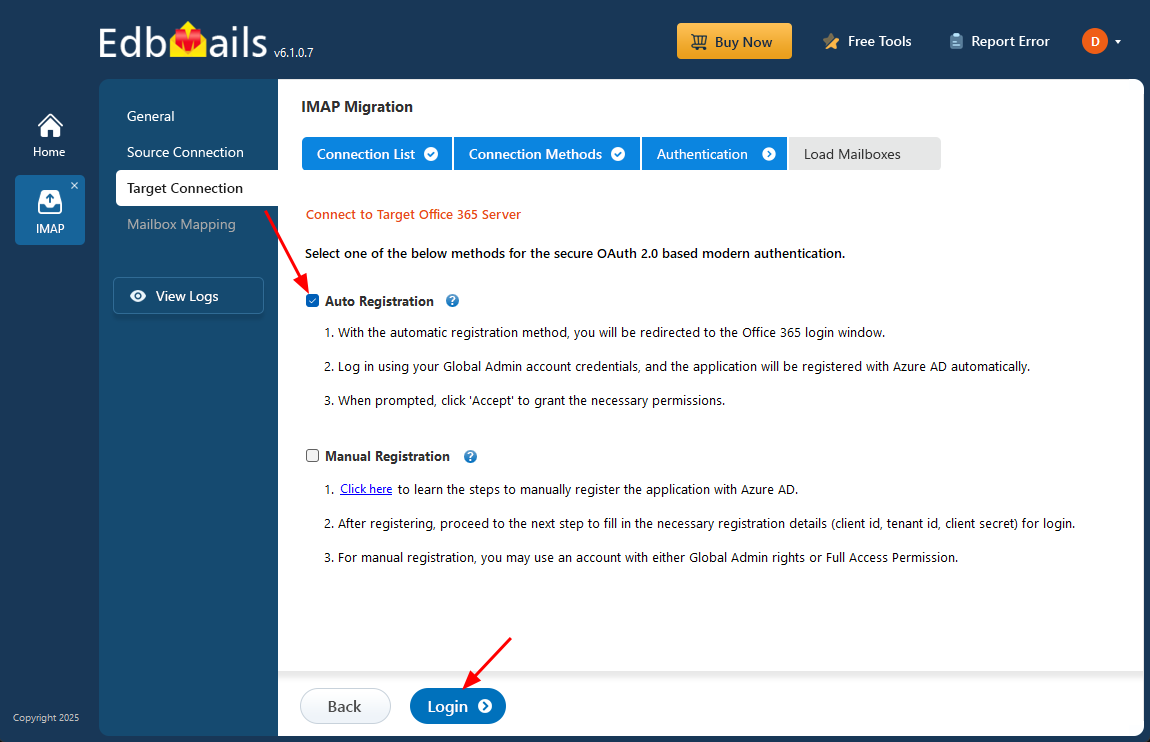
    • Step 4: Connect target Office 365

      • Office 365 target side. Add New Connection for new, or grab a saved one and click Connect to Existing.
      • Connection options, then Next.
      • OAuth 2.0. Login. Microsoft handles the sign-in.

        Connect to target Office 365 server

      • Pick a method to load the mailboxes.
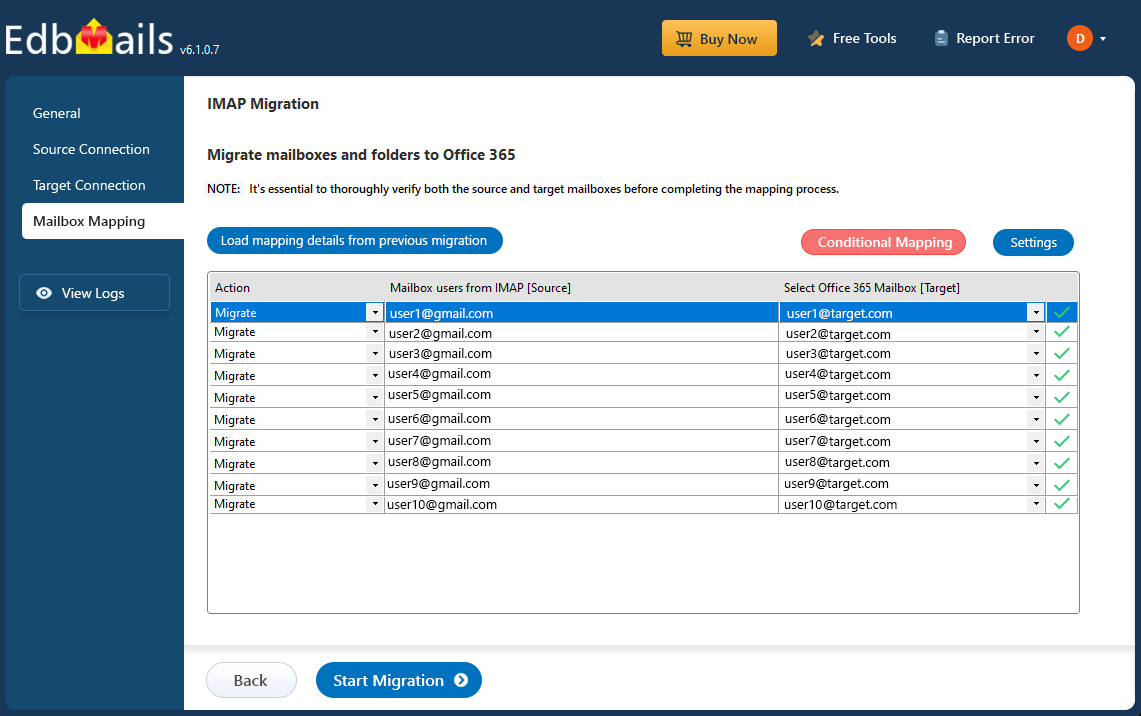
    • Step 5: Map source and target mailboxes

      • Pick a mapping option.
      • EdbMails handles mailbox and folder mapping. Creates target mailboxes in Office 365 if they don't exist yet.

        IMAP to Office 365 mailboxes mapping

    • Step 6: Start the IMAP migration

      • Hit Start Migration.
      • Watch progress live.
      • When it's done, View Log pulls up the report with mailbox-by-mailbox status and per-folder item counts.

        Start IMAP to Office 365 migration progress

  5. Migrate a mailbox to Office 365 from an Outlook PST file

    PST imports are usually the cleanup work. Old archives, mail from someone who left, backups from a system that's already gone. PST to Office 365 takes Outlook PSTs and writes them straight into Office 365 mailboxes. Everything goes — emails, contacts, calendars, tasks, the lot. Folder hierarchy stays put. Data lands in the cloud and stays usable.

    Steps to move PST files into Office 365 mailboxes

    • Step 1: Install EdbMails

      • Get EdbMails installed. Eyeball the system requirements first if you're processing big PSTs. They can chew through RAM.

         Refer to the system requirements for importing multiple PST files to Office 365.

    • Step 2: Launch and choose the migration type

      • Open the app. Email and password to sign in, or Start Your Free Trial.
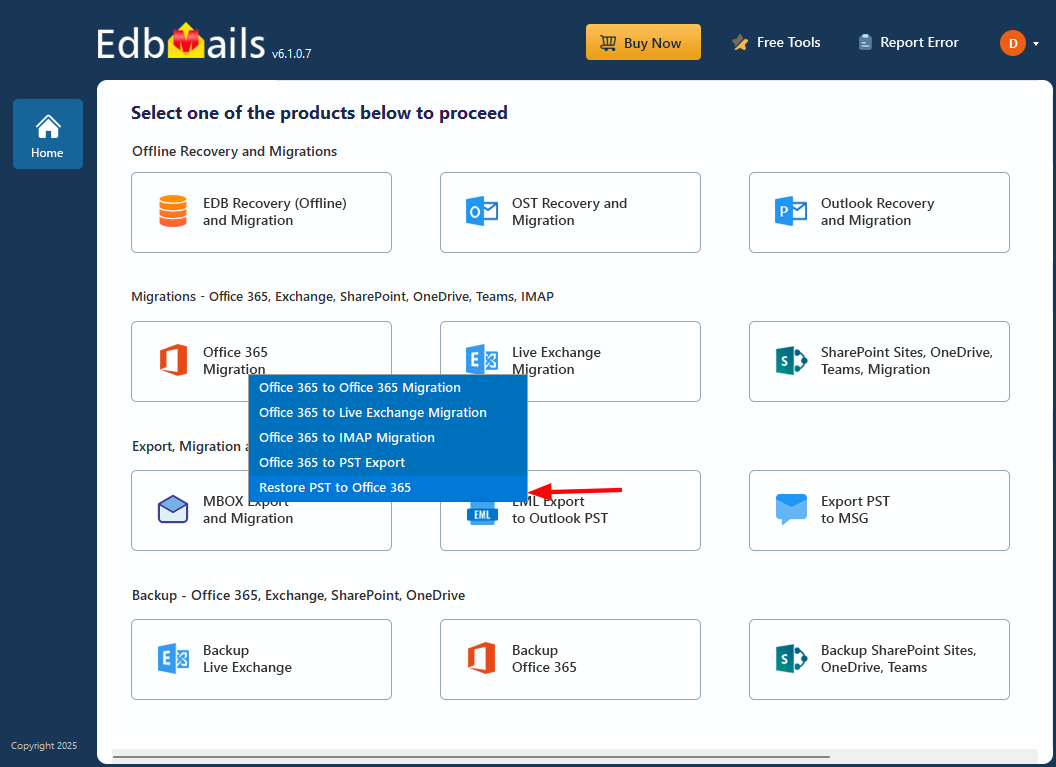
      • Dashboard → Office 365 Migration
      • Then Restore PST to Office 365.

        Choose Restore PST to Office 365 migration option

      • Default job name or New Job. Whatever you prefer.
    • Step 3: Add multiple PST files

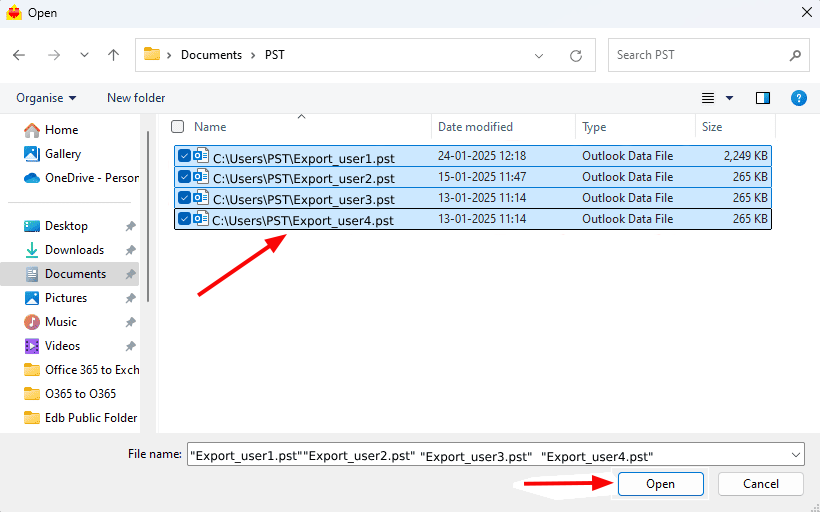
      • Hit Add File(s). Browse to where your PSTs live. Select them all.

        Select the multiple PST files

      • Verify the list. Make sure you didn't miss any.
      • Optional: turn on the setting that creates a target folder named after each source PST. Handy when multiple archives land in one mailbox and you need to keep them straight.
      • Next when you're done.
    • Step 4: Connect target Office 365

      • Target side. Add New Connection or Connect to Existing if you've got one stored.
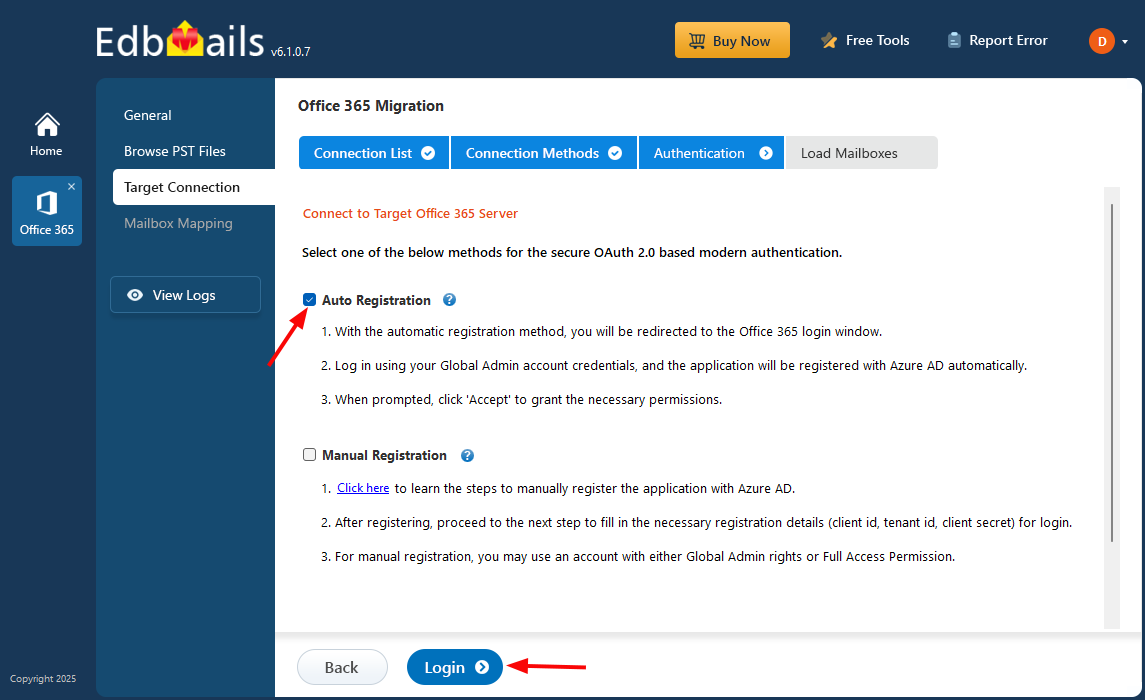
      • Connection method, then Next.

        Connect to target Office 365 server

      • Microsoft sign-in page does its thing.
      • Once you're in, choose how the mailboxes load. Manually or CSV.
    • Step 5: Map PSTs to Office 365 mailboxes

      • Choose a mapping option that works.
      • Auto-mapping pairs up your PST files with target Office 365 mailboxes by name.
      • Manual override is there if the names don't line up cleanly.

        PST to Office 365 mailbox mapping

    • Step 6: Start the PST import

      • Hit Start Restore.
      • Success message pops at the end.
      • Open View Log for the full report.

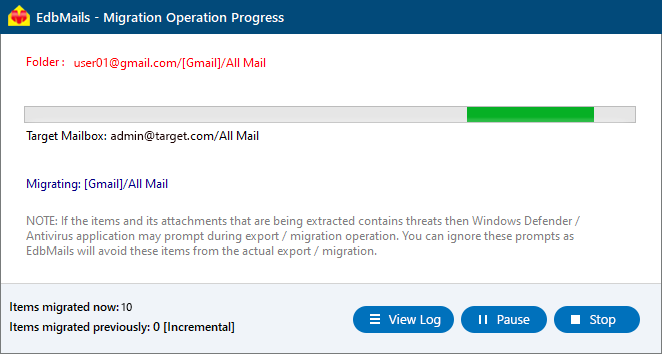
        PST to Office 365 migration progress

Why EdbMails works well for moving mailboxes to Office 365

  1. Incremental migration

    First run is the full one. Every run after that? Only new items get moved. Some people call it delta. Some call it incremental copy. Either way, no duplicates land on the target server because anything already migrated gets skipped. This matters a lot more than vendors usually let on. Real migrations rarely happen in one pass — you seed weeks ahead, then run a final delta on cutover day. Without proper delta handling, you're either re-migrating everything (and ending up with duplicates) or trying to script which items to skip yourself.

  2. Safe and secure migration

    Server-to-server, direct. Your data doesn't get parked in some intermediate storage bucket. No third-party servers in the middle. No data loss on either end. Credentials aren't held anywhere — they go through Microsoft's own sign-in flow. Everything runs inside your environment, which means you stay in control the whole time. Worth noting: EdbMails is ISO 27001:2013 certified and GDPR-compliant, and authentication uses OAuth 2.0 modern auth with TLS encryption on the wire.

  3. Scalable and high-performance migration

    Single folder. Whole tenant. Ten thousand mailboxes. Scale doesn't really matter. Multithreading handles the parallel jobs, and Office 365 throttling management deals with the rate limits Microsoft imposes on the back end. Up to 20 mailboxes can run concurrently. The log shows you everything that happened, mailbox by mailbox, so you can verify it actually finished cleanly.

  4. Multilingual support

    Mailboxes in Japanese? Arabic? French? German? Doesn't matter. Every Unicode character moves across cleanly, including all the non-English scripts and any weird symbols sitting in folder names. Your mailbox structure on the target looks exactly like it did on the source. This sounds basic but a lot of cheaper tools just butcher non-ASCII content.

  5. Cost-effective solution

    Pricing comes in around 50% less than the bigger names in this space. You get the features without paying enterprise tax for them. Lifetime licenses are an option. Per-mailbox pricing means you don't pay for users you didn't migrate. Works out well for small businesses and for large rollouts both.

  6. Zero downtime

    Users keep working. The migration runs in the background. Nobody loses access to their email while it's happening. When you eventually cut over DNS and point everyone at the new tenant, it's just a switch. Not a service outage. Hard to overstate how much this matters when your CFO is one of the mailboxes being moved. The full zero-downtime model page covers how the source/target parallel access works in detail.

Frequently Asked Questions (FAQ)

  1. What are the steps to migrate Office 365 mailboxes?

    Step 1 : Download and install EdbMails.

    Step 2 : Sign in with your credentials, or click Start Your Free Trial.

    Step 3 : Pick the Office 365 Migration option matching your source.

    Step 4 : Connect to the source server.

    Step 5 : Tick the mailboxes and click Migrate to Office 365.

    Step 6 : Connect to the target Office 365 server.

    Step 7 : Pick the mailbox mapping option and start the migration.

  2. Why pick EdbMails for moving mailboxes to Office 365?

    Honestly? Two reasons. First, the UI doesn't fight you. Emails, contacts, calendars, the whole lot — transfer cleanly from Exchange, Office 365, PSTs, or IMAP sources without anyone needing to write a PowerShell script. Second, security isn't an afterthought. Modern auth and OAuth handle the sign-in, TLS handles the wire, and your credentials never touch EdbMails servers. Add in delta migration, concurrent mailbox runs, and automatic mailbox mapping, and you've got a setup that doesn't get in the way of your day job.

  3. What are the prerequisites for migrating mailboxes to Office 365 with EdbMails?

    Five things, none of them surprising:

    1. EdbMails application installed — software downloaded and installed on a Windows machine. Done.
    2. Source and target environment access — admin access on both ends. Source server (Exchange, Office 365, hosted Exchange, or IMAP), target Office 365.
    3. Valid credentials — working creds for both sides. For Office 365, a global admin account that also has its own mailbox attached.
    4. Network connectivity — solid internet between your migration machine and both endpoints. Flaky WiFi will hurt.
    5. System requirements — your machine meets the EdbMails spec for the version you're on.
  4. Can I migrate from an on-premises Exchange server to Office 365?

    Yes. Direct path. Source Exchange (2007, 2010, 2013, 2016, 2019, or Small Business Server 2011) straight to Office 365. No hybrid setup needed.

  5. Does EdbMails support cross-tenant mailbox migrations?

    Yep. Tenant A to Tenant B works fine. Common during mergers and acquisitions. There's a dedicated cross-tenant migration page that covers the M&A scenario in detail.

  6. Can I try EdbMails before paying for it?

    Yes. Free trial covers every feature. Limit during the trial is 30 items per folder per mailbox, which is plenty to verify the workflow before you put money down. Click Start Your Free Trial in the app to get going.

  7. How is data security handled during the migration?

    During the migration process, EdbMails ensures data security through robust measures such as:

    1. Encryption TLS on the wire. Standard, but worth confirming.
    2. Authentication OAuth 2.0 modern auth. You sign in on Microsoft's actual page. EdbMails never sees the password.
    3. No data retention Once the job's done, EdbMails doesn't keep a copy of anything. Nothing to leak later.

    Full security write-up lives on the secure migration page.

  8. Can I perform a staged migration with EdbMails?

    Yes. Staged migration is supported. Move mailboxes in batches instead of all at once. Works well for larger rollouts where you'd rather not move everyone on the same Friday.

  9. What types of data can be migrated to Office 365?

    Everything you'd expect. Emails, contacts, calendars, tasks, journals, notes — across primary mailboxes, shared mailboxes, public folders, and archives. Item properties come with the items, so flags, categories, read/unread states — all that metadata stays attached on the target side.

  10. Does EdbMails support delta migration?

    Yes. Incremental delta migration is built in. Subsequent runs only move what's new or what changed since last time. Saves a ton of bandwidth, and saves you from waiting hours when you really just need to catch up on the last 24 hours of new mail before cutover.

  11. Does EdbMails handle large mailboxes during migration?

    Yes. No caps from EdbMails. Microsoft does enforce its own limits at the Office 365 end — typically 100 GB per mailbox depending on the plan, and 150 MB per individual message. But the tool itself won't choke on big mailboxes.

  12. Can I migrate Office 365 shared mailboxes and public folders?

    Yes on both. Shared mailboxes go to wherever you want them. Same with public folders. You can also push public folders straight into shared mailboxes — more teams are doing this lately because public folders under 50 GB cost less when they're shared mailboxes instead.

  13. Can I migrate only the data from last year?

    Sure. Set a start date and end date on the message-received filter. You can also slice by sender, recipient, attachment name, or whether messages are read or unread. Lots of ways to scope the data down to what you actually need.

  14. How does EdbMails license Office 365 mailbox migrations?

    Per source mailbox. One unique email address equals one license. Re-running the same mailbox during delta or staged work doesn't burn extra licenses. The pricing page has the actual numbers.

  15. Can I migrate from other email servers like Gmail or Zimbra to Office 365?

    Yes. Anything that speaks IMAP works as a source. Gmail, Zimbra, Yahoo, and a long list of others. Office 365 is the target.

  16. What support is available during the migration process?

    24/7. Live chat, email, phone. Remote sessions are available too if something gets weird and you'd rather have someone watch over your shoulder.

  17. How can I verify the migration was successful?

    Check the log report. It shows item counts per folder per mailbox, source vs target. Spot-check a few of the bigger mailboxes in Outlook. If the counts match and OWA shows the folders you'd expect, you're good.

  18. Does EdbMails migrate calendar items and contacts?

    Yes. All of it. Emails, calendars, contacts, tasks, notes, journals. Nothing gets left behind on the source side. The one exception is IMAP source migrations — IMAP only carries email, so calendars and contacts from IMAP sources need a separate export-import path.

  19. Can I pause and resume the migration process?

    Yes. Pause and resume works at any point. Stop it whenever, pick it up later. No state gets lost. Comes in handy when you realize you need to free up bandwidth at 4 PM for a Teams call.

  20. What if there's intermittent internet during migration?

    Pauses on its own when the connection drops. Picks back up when it's back. No duplicates, nothing lost. This one used to be a real headache with older tools. Worth it just for this feature alone if your office has flaky WiFi.

  21. Are there any post-migration steps I need to follow?

    Four things, in order:

    • Redirect emails and check Outlook profiles: point user accounts at the new Office 365 environment. Open Outlook on a few of them and verify every folder reads This Folder Is Up To Date.
    • Assign licenses get licenses onto every migrated mailbox fast. You have 30 days before Microsoft disables anything unlicensed. Don't push your luck on this one.
    • Configure Autodiscover DNS records: Autodiscover in the new target tenant. Without this, Outlook and mobile clients fight you. With it, they just work.
    • Decommission the source environment: last step. Only after you've verified the migration finished cleanly, every mailbox has a license, and users are actually working from the new tenant. Make sure nothing on the source still needs to sync. Then shut it down.
  22. Does EdbMails migrate mailbox and folder permissions during migration?

    Yes. Mailbox-level permissions (Send As, Send on Behalf, Full Access) and folder-level permissions carry across as-is. Public folder permissions migrate with the folders. One edge case: permissions referencing user accounts not included in the migration scope need manual reconfiguration on the target side.

Download
Buy Now

 In this manual

IntroductionMigration methodsExchange online to Office 365Exchange server to Office 365From Hosted Exchange ServerIMAP server to Office 365Outlook PST to Office 365EdbMails BenefitsFAQs

Office 365 Migration

100 Mailboxes $299 Only

Buy Now

Need help?

24/7 Customer support

Contact us on Live chat

Personalized Demo

Book a personalized demo

Still need help?

Email us / Call us

© 2026 Shifttocloud Inc. Privacy Policy | Terms of Use | GDPR | Security | Press Releases

hidden msg
Live Chat

Hi, May I help you?

Hide Chat Now