


Export Office 365 users to CSV file
Exporting a list of Office 365 users to a CSV file is useful for reporting, license audits, third-party integrations, and generating the mailbox list needed to load mailboxes into the EdbMails Office 365 Migration tool, since the Microsoft API allows only 100 mailboxes to be listed automatically. This guide walks through exporting the full list of active users using the Microsoft 365 Admin Center.
1. Sign in to the Microsoft 365 Admin Center:
- Browse to https://admin.microsoft.com and sign in with your Global admin credentials.
2. Navigate to the Active Users Section:
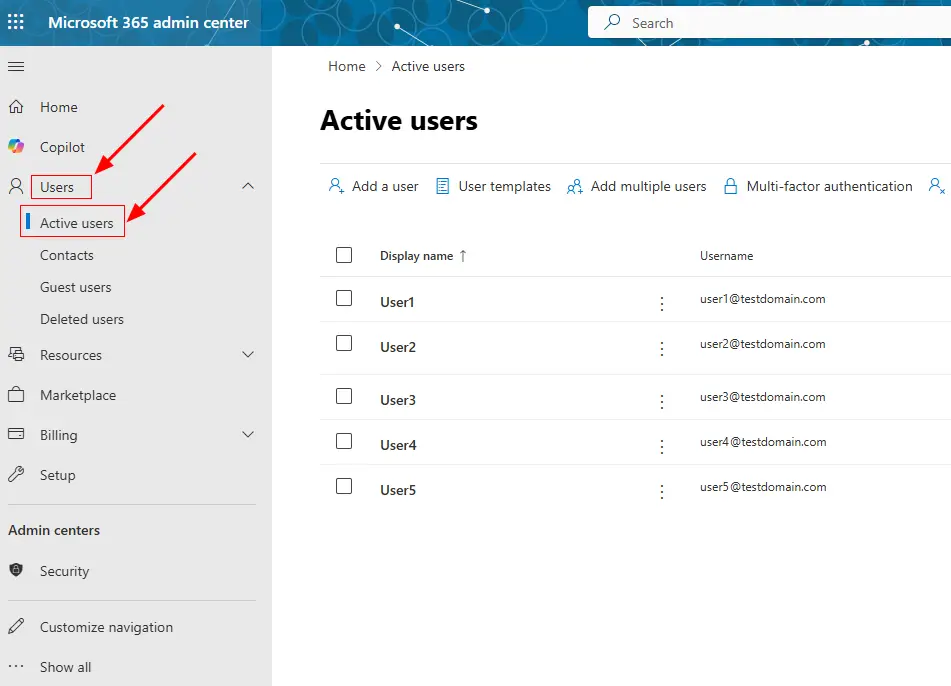
- In the Admin Center, go to the ‘Users’ section on the left panel.
- Click on ‘Active users’.
3. Export Active Users:
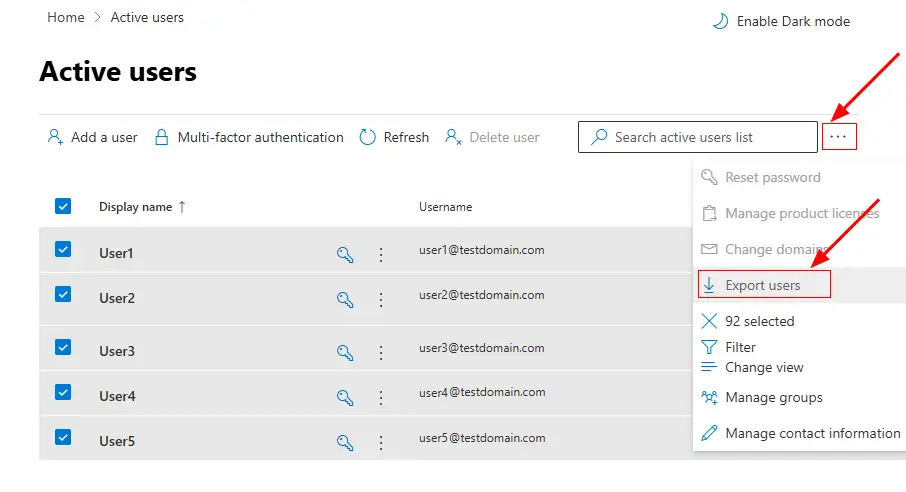
- At the top of the Active Users page, click ‘More Actions (Three dots)’.
- Click on ‘Export users’ and proceed.
4. Download the CSV:
- The list of active users will be downloaded as a CSV file containing details like name, email, and other user attributes.
Frequently Asked Questions
What admin role do I need to export Office 365 users?
What's included in the exported CSV?
Can I export only specific users instead of the full list?
What if the Export option isn't showing up?

