


Office 365 Archive mailbox to Shared mailbox using EdbMails
Effective management of email storage space within an Office 365 environment is important for the sake of compliance, and general company productivity. It is generally good practice to promote and utilize the method of transforming an archive mailbox into a shared mailbox. Archive mailboxes provide users with additional storage beyond their primary mailbox, enabling them to manage larger volumes of email. However, where business needs change (such as when a person leaves the organization or a department wants a joint access to old emails), it may be efficient to move the archive data into a shared mailbox. The benefit of shared mailboxes is that multiple users are able to access the emails without needing their own license and it's very cost effective. The migration not only takes care of message retention, but also provides easy access to all essential information for an organisation. However, it should be taken into consideration that Microsoft does not have a tool or direct method to implement the migration without encountering complexities.
In order to perform this operation accurately and easily you have to make use of automated migration tool like EdbMails Office 365 migration software which makes the process hassle-free. One important feature is that EdbMails is providing delta migration. This enables to move only the newly added or changed items after the full migration. By using this function no duplicates will occur in the mail box and it increases the efficiency of the system. In addition, its concurrent migration capability allows transferring numerous mailboxes simultaneously thus enhancing its total migration time and without any downtime. This other feature of mailbox auto-mapping has the benefit of automatically mapping source mailboxes to their target mailboxes, eliminating some manual work. The EdbMails offers 24/7 free technical support throughout the entire migration process, thus eradicating all issues and queries that might rise on the part of the administrators as well as the users.
Top reasons for Office 365 Archive mailbox to Shared mailbox migration
- Improved accessibility and collaboration
Archive mailboxes are created for individual users; hence, they can only be accessed by a single individual. Migration to the shared mailbox helps the multiple team members access the same archive emails which results in smooth collaboration and communication of team members. EdbMails streamlines the entire process by automated migration features.
- Streamlined data management
The data management of mails related to individual accounts is becoming increasingly difficult. By migrating your archives into shared mailbox, you have a consolidation of data, making it easy for all the members of the team to access essential mails. Efficient EdbMails' mapping and migration assures safe transfer of data.
- Cost-effective solution
The Office 365 archive mailbox requires a license per user. Shared mailboxes do not requires a license, and provide a cost effective way for organizations to retain and retrieve large amounts of email data.
- Simplified compliance and retention
Shared mailboxes help with retention policies and compliance. This means legal, auditing and eDiscovery are simplified and have a central place for accessing previous emails to comply with regulations.
- Enhanced continuity after employee departures
An employee leaves the company. Their old emails might be required. Transferring the old emails into a shared mailbox allows other staff members access, enabling continued work or a requirement of compliance.
- Improved accessibility and collaboration
Office 365 Archive mailbox to Shared mailbox migration Planning
- Ensure that you create and enable the In-Place Archiving in Office 365 before you migrate.
- By default, the Archives have 100GB of storage when you enable them and the auto-expanding adds additional storage (unlimited archiving) when the threshold is reached. This limit is expandable up to 1.5TB per mailbox.
- Verify if your Exchange online mailbox license allows the archiving feature.
- See the list of auto-expanding archiving restrictions and consider the following points for all users.
- If you would like to learn more about archiving, see how the auto-expanding archiving works.
- Unlimited archiving is a premium feature that requires Exchange online plan 2 or Exchange online archiving license.
- Perform a test migration to the target before you start the actual one.
Pre migration activities for Office 365 Archive mailbox to Shared mailbox migration
- To use Auto Registration authentication method, make sure you have a global admin account that has an active mailbox linked to your Entra ID (Azure Active Directory). If you prefer Manual Registration Manual Registration, you can proceed using either a global admin or any user account that has full acce, you can proceed using either a global admin or any user account that has full access permissions.
- Prepare your target Office 365 tenant. See tenant roadmap for Microsoft 365.
- Create Shared mailboxes on the target Office 365 tenant and set the required permissions
Steps to migrate Office 365 Archive mailbox to Shared mailbox
Step 1: Download and install EdbMails Office 365 migration software
- Download and install the EdbMails application on your computer running on Windows OS.
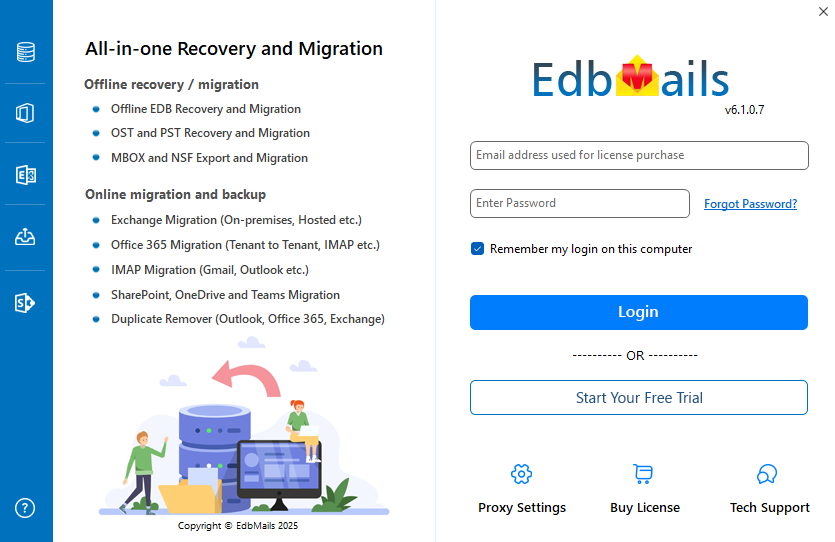
- Start the application and enter the required details and click the ‘Login’ button or click the ‘Start Your Free Trial’ button to continue.
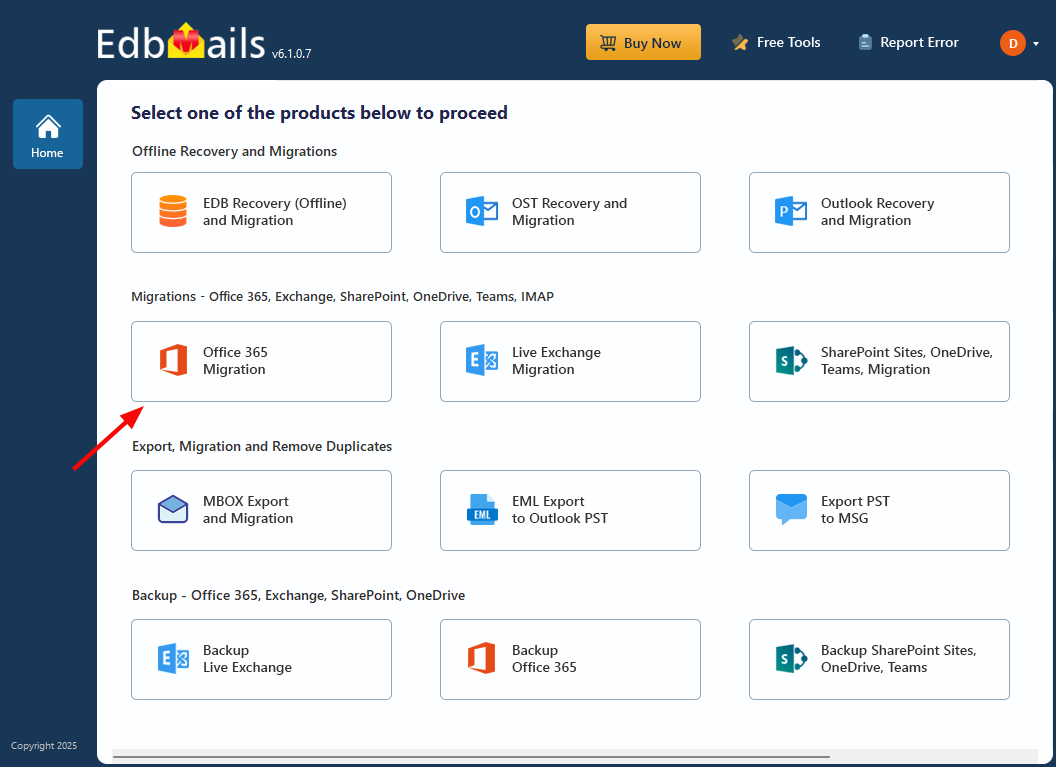
- Select the ‘Office 365 Migration’ product from the products list.
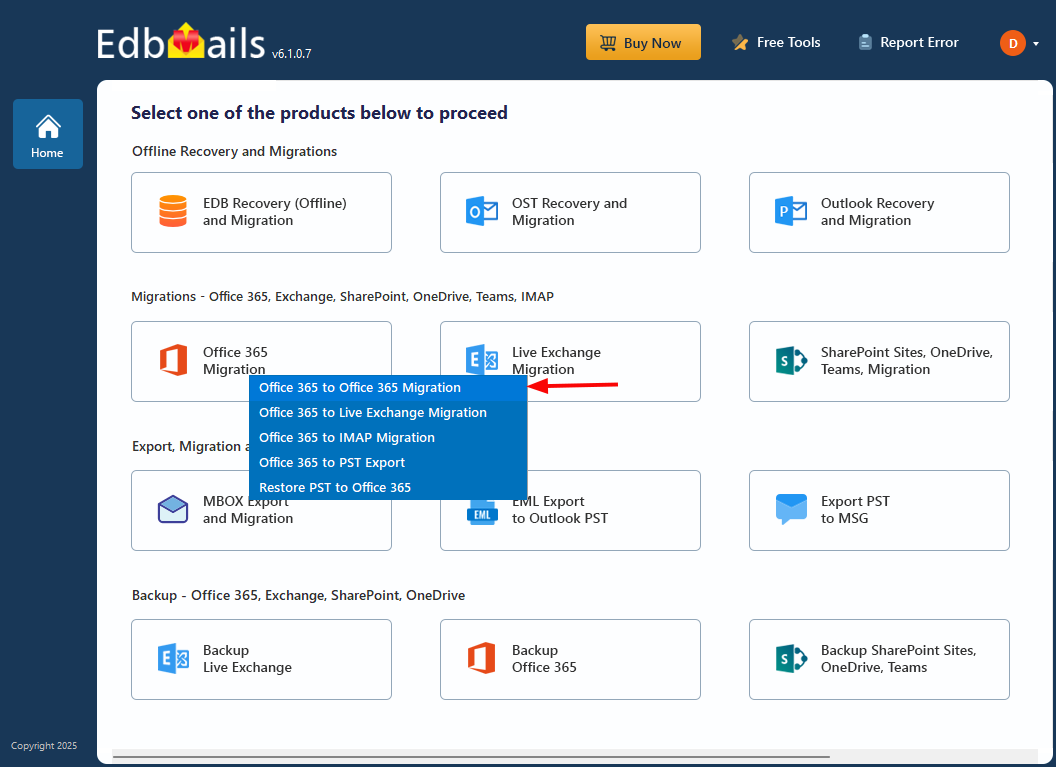
- Choose the ‘Office 365 to Office 365 Migration’ option.
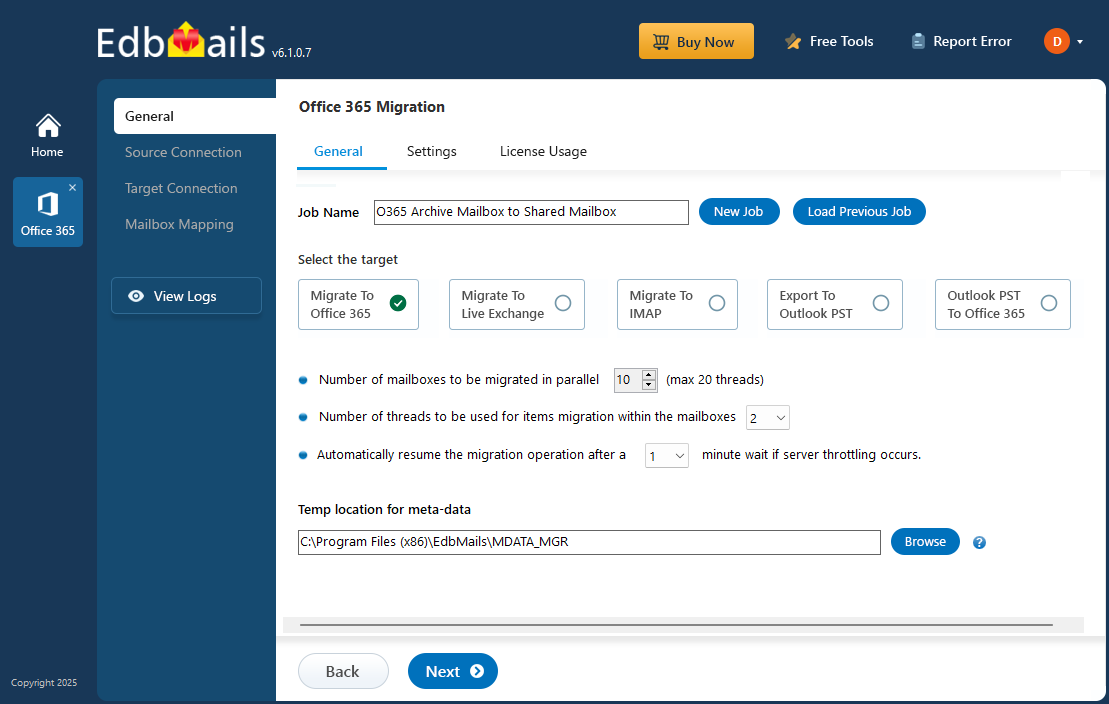
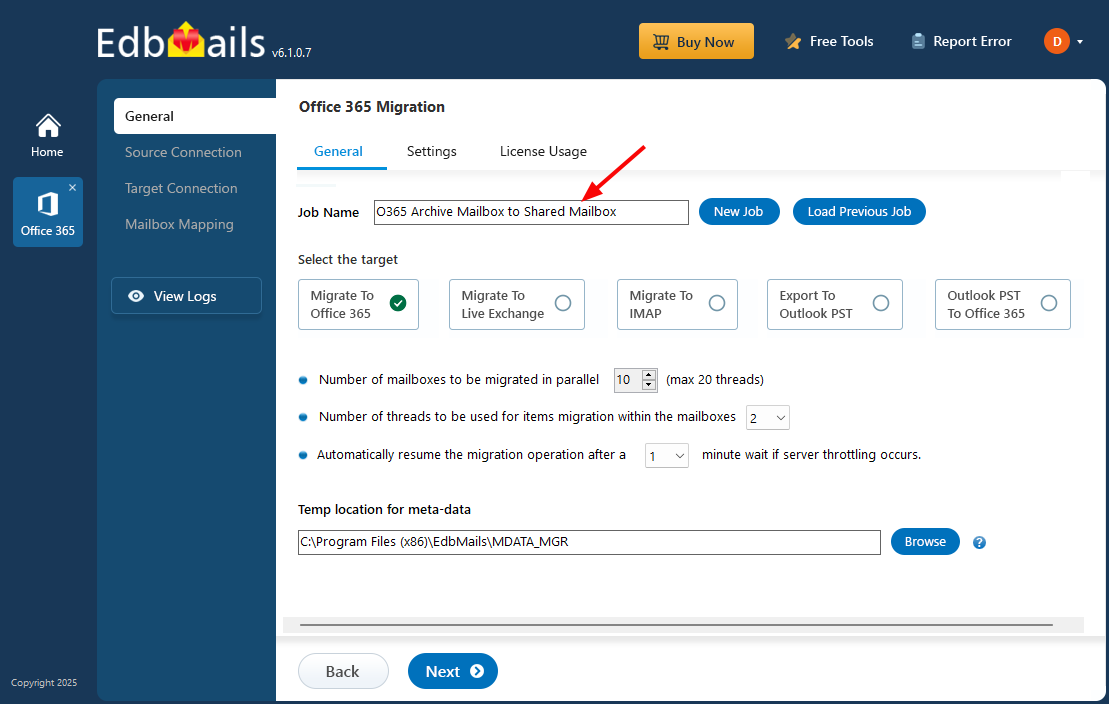
- You can keep the default job name or click the ‘New Job’ button to change it.
- Click the ‘Next’ button.
Step 2: Connect to the source Office 365 server
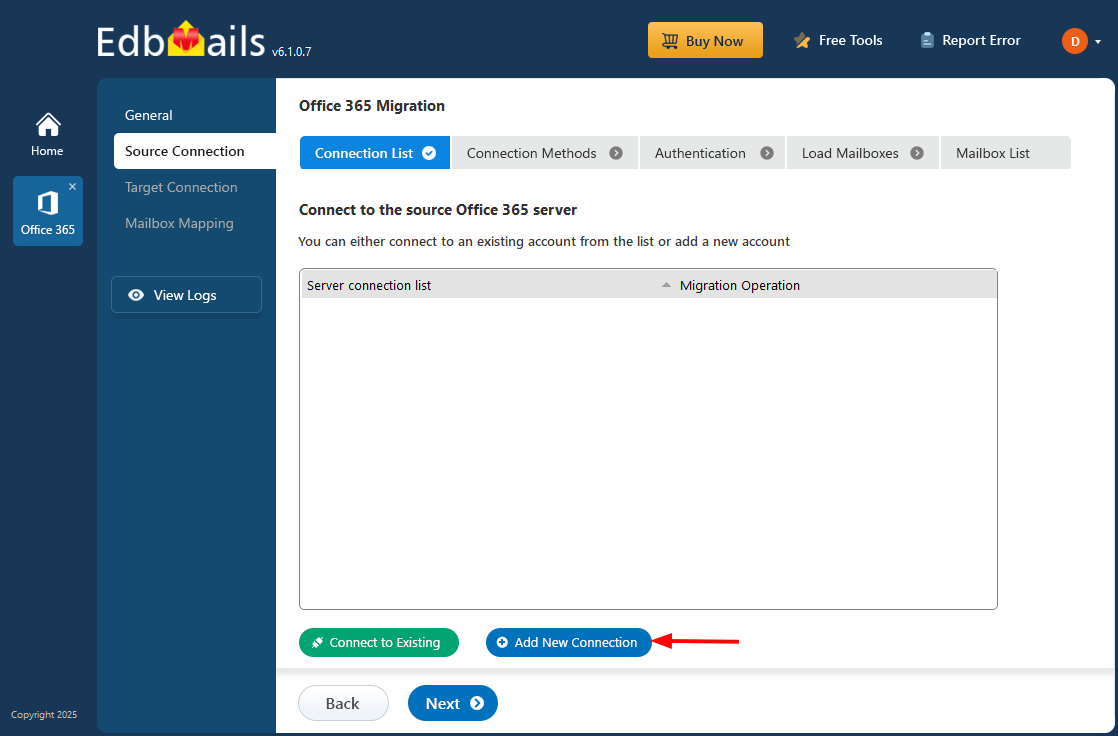
- Click ‘Add New Connection’ to create a new connection to the source Office 365, or select an existing one from the list and click ‘Connect to Existing’ to proceed.
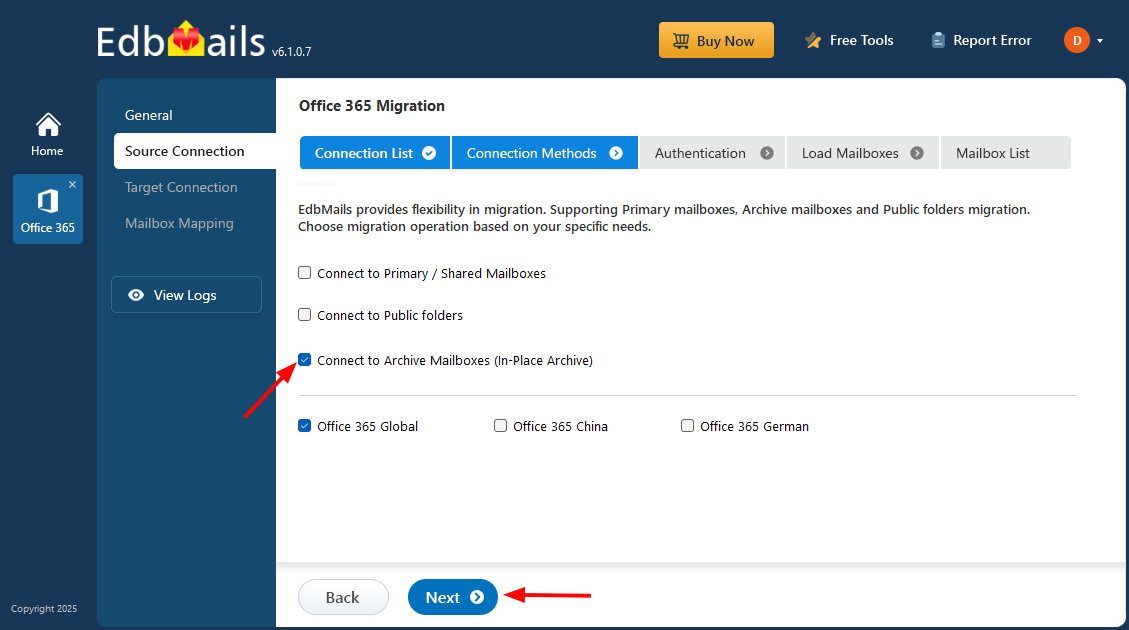
- Choose 'Connect to Archive Mailboxes (In-Place Archive)' and click ‘Next’.
- Select your preferred authentication method and click ‘Next’ to continue
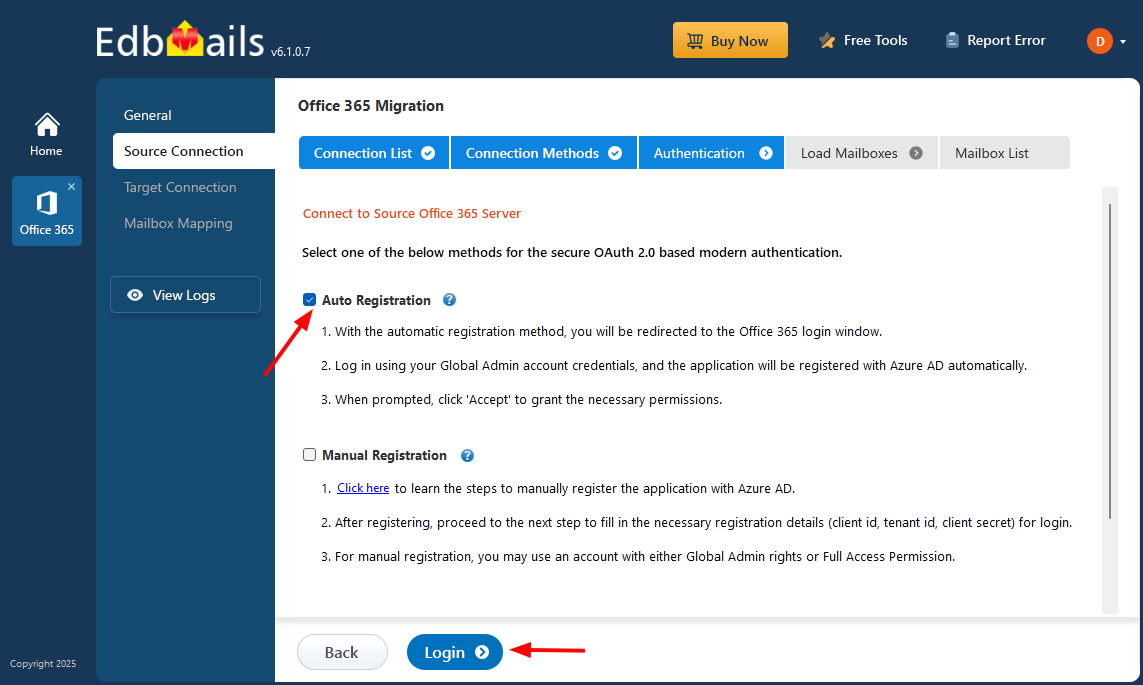
Connect to Office 365 server using secure modern authentication
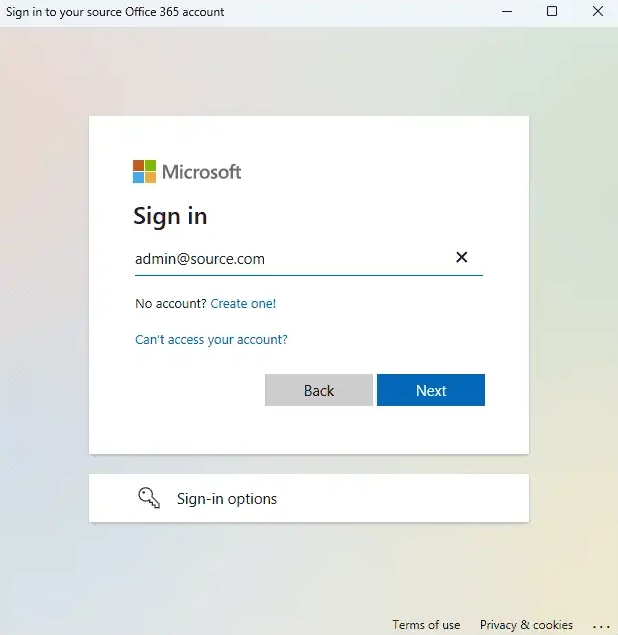
- Authenticate on Microsoft sign-in page
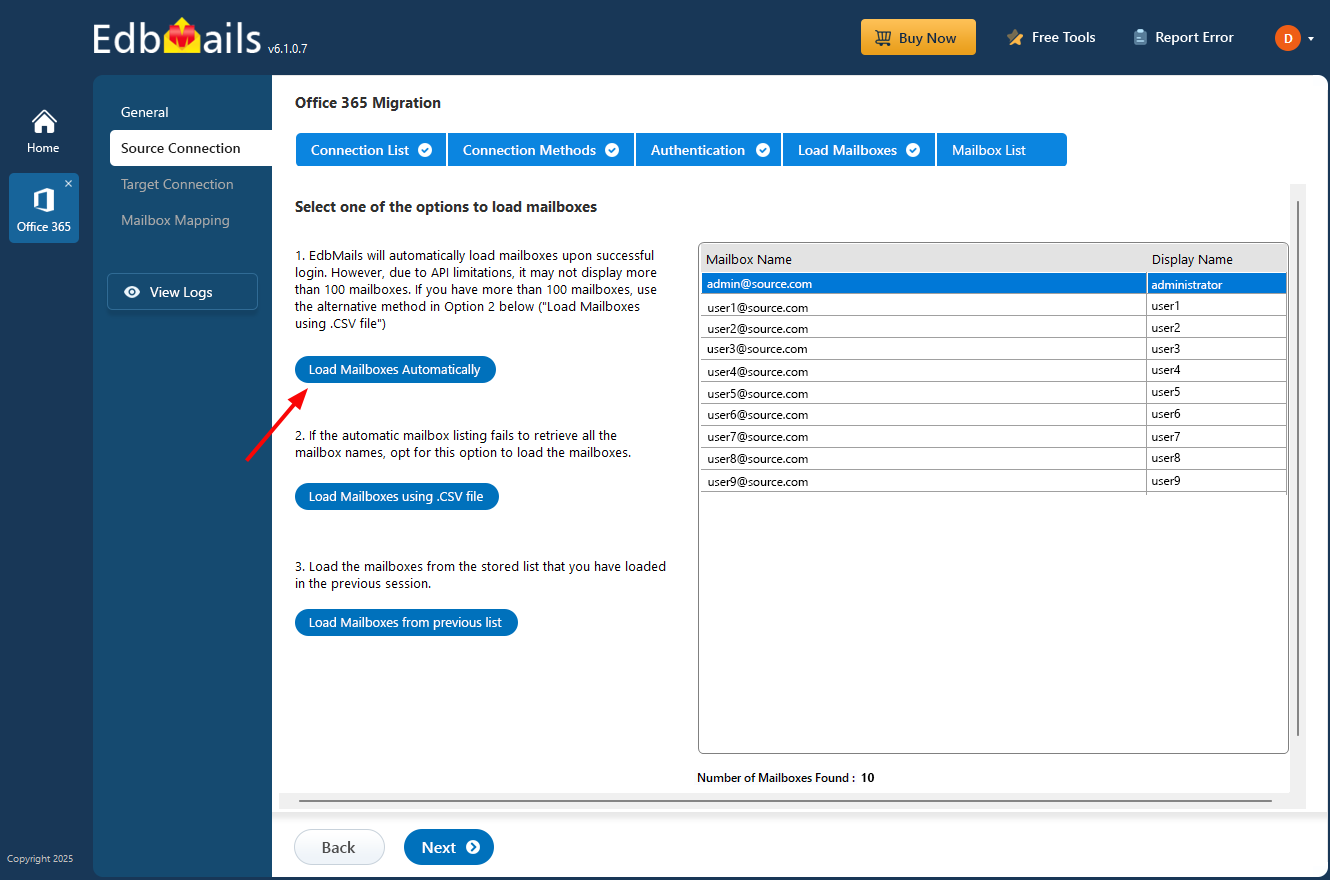
- Select a method to load the mailboxes, or use a CSV file to load and migrate them.
- Click ‘Add New Connection’ to create a new connection to the source Office 365, or select an existing one from the list and click ‘Connect to Existing’ to proceed.
Step 3: Select the Office 365 Archive mailboxes
- Select the archive mailboxes you want to migrate, then click ‘Next’ to connect to the target server.
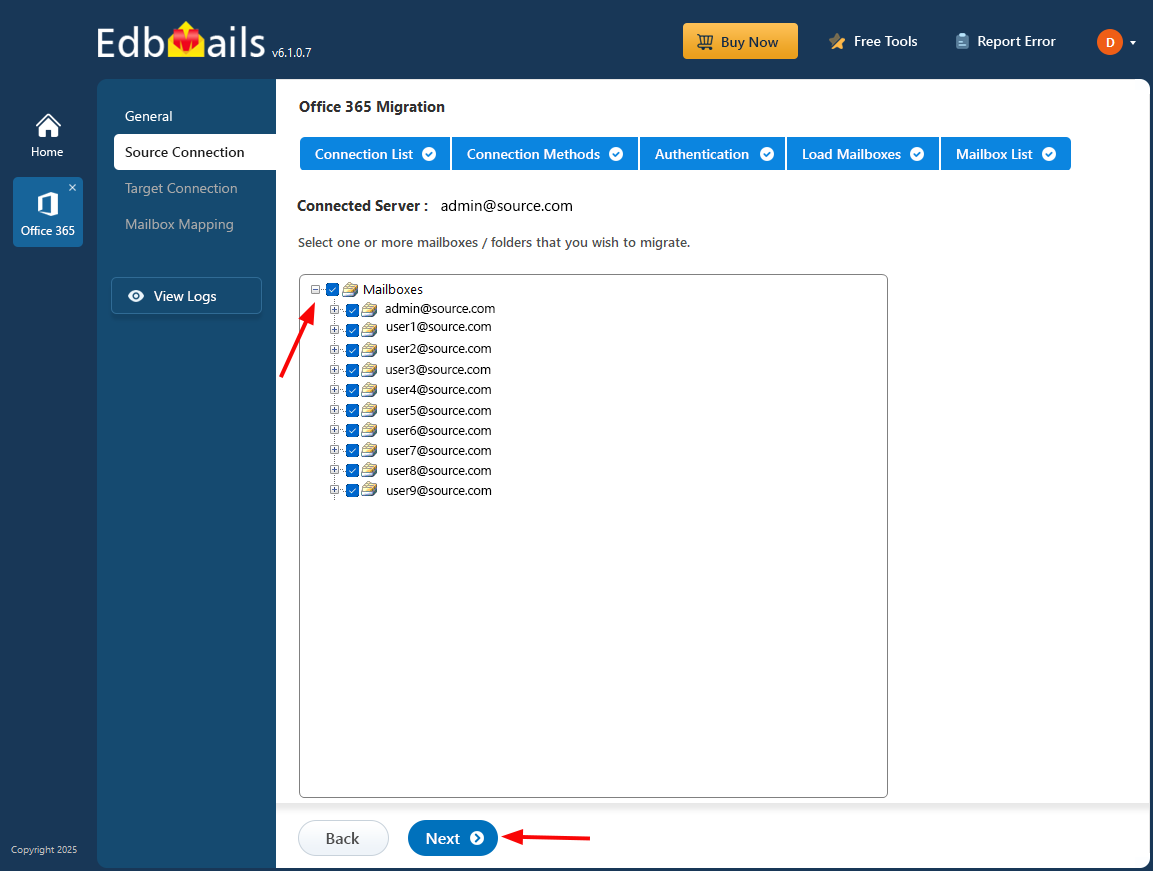
- Select the archive mailboxes you want to migrate, then click ‘Next’ to connect to the target server.
Step 4: Connect to target Office 365 server
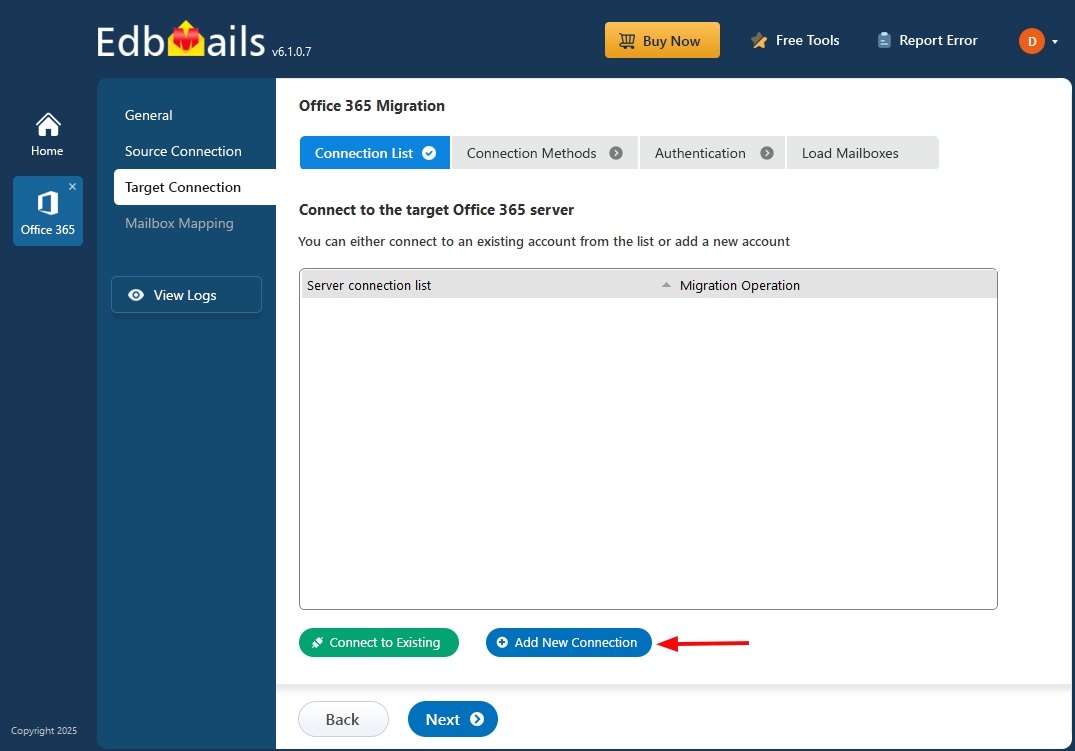
- To set up a new connection to the target Office 365, click ‘Add New Connection.’ If you want to use an existing connection, select it from the list and click ‘Connect to Existing’ to continue.
- Next, select 'Connect to Primary / Shared Mailboxes' and click ‘Next’ to proceed.
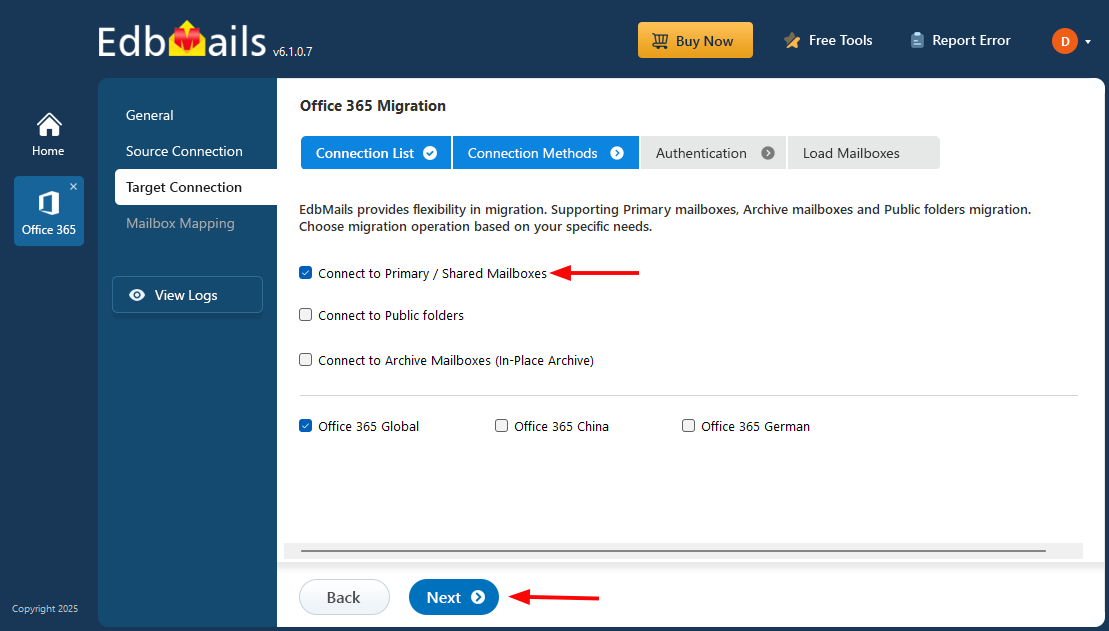
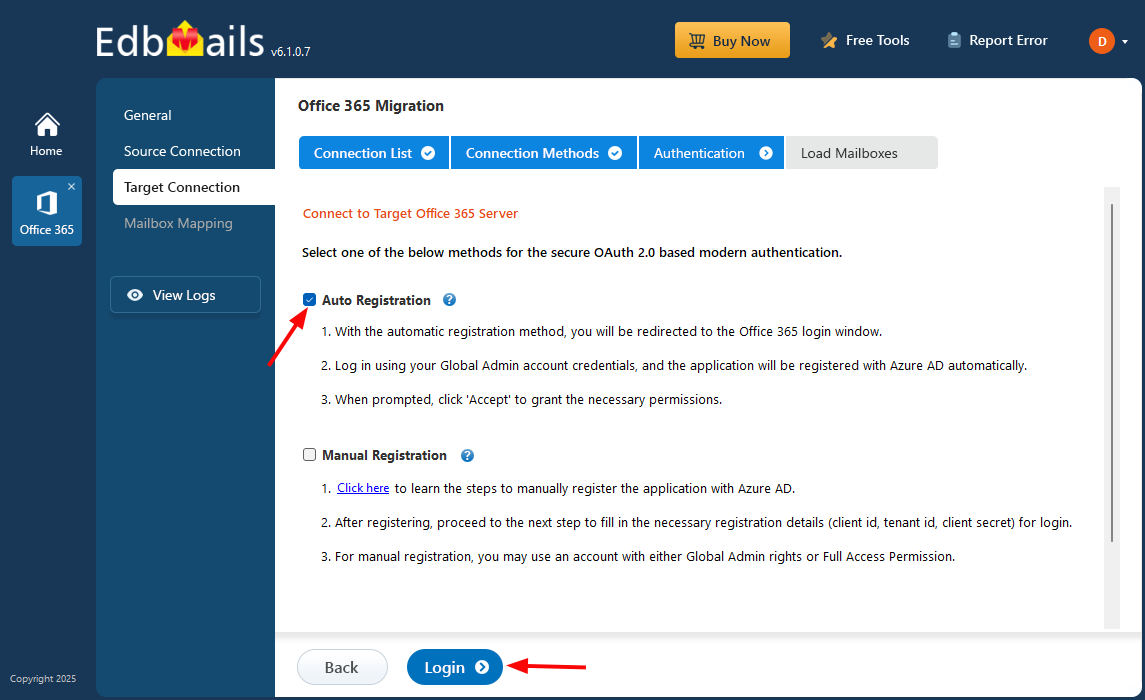
- Select one of the secure OAuth 2.0-based modern authentication methods to connect to the target server, then click the ‘Login’ button to proceed.
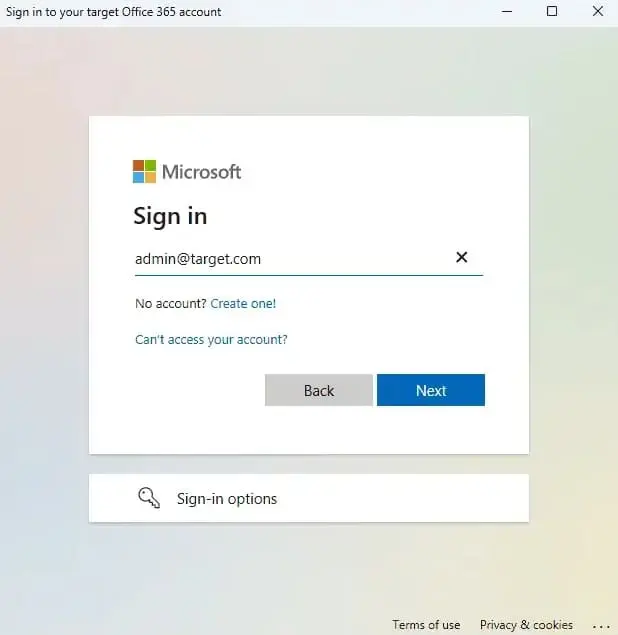
- Authenticate on Microsoft sign-in page.
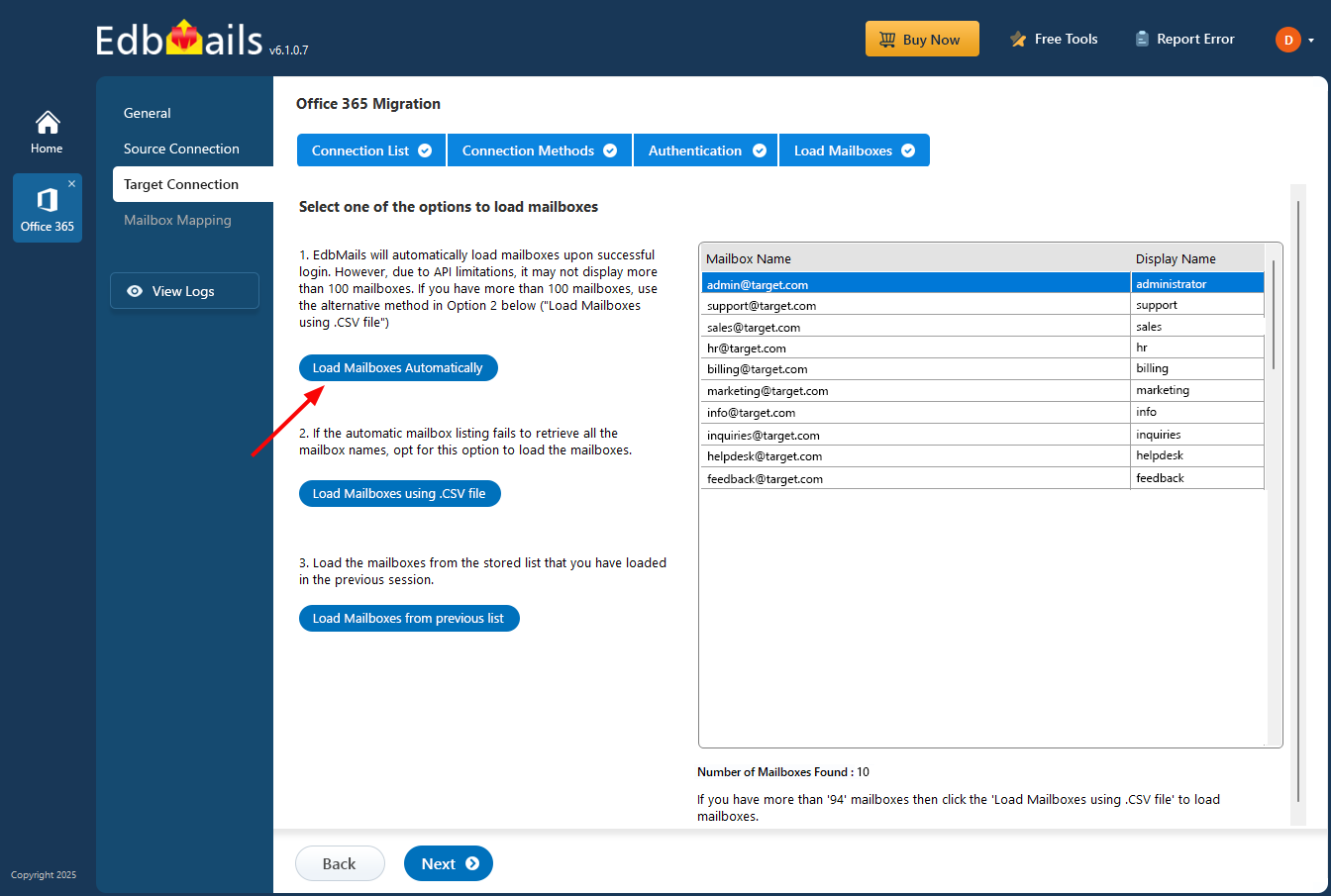
- Select a method to load the mailboxes, or use a CSV file to load them.
- To set up a new connection to the target Office 365, click ‘Add New Connection.’ If you want to use an existing connection, select it from the list and click ‘Connect to Existing’ to continue.
Step 5: Map source and target mailboxes
- Select the mapping option that best meets your needs.
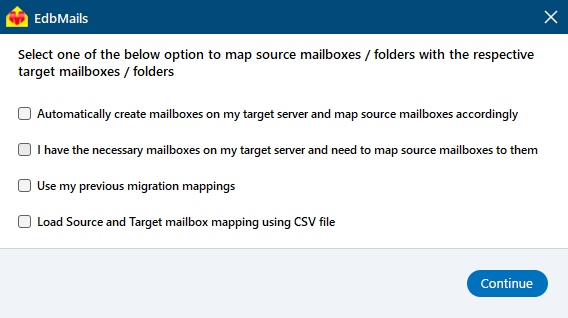
- EdbMails automatically maps mailboxes between the source and the target servers. However, you can also manually map source Archive mailboxes and target shared mailboxes.
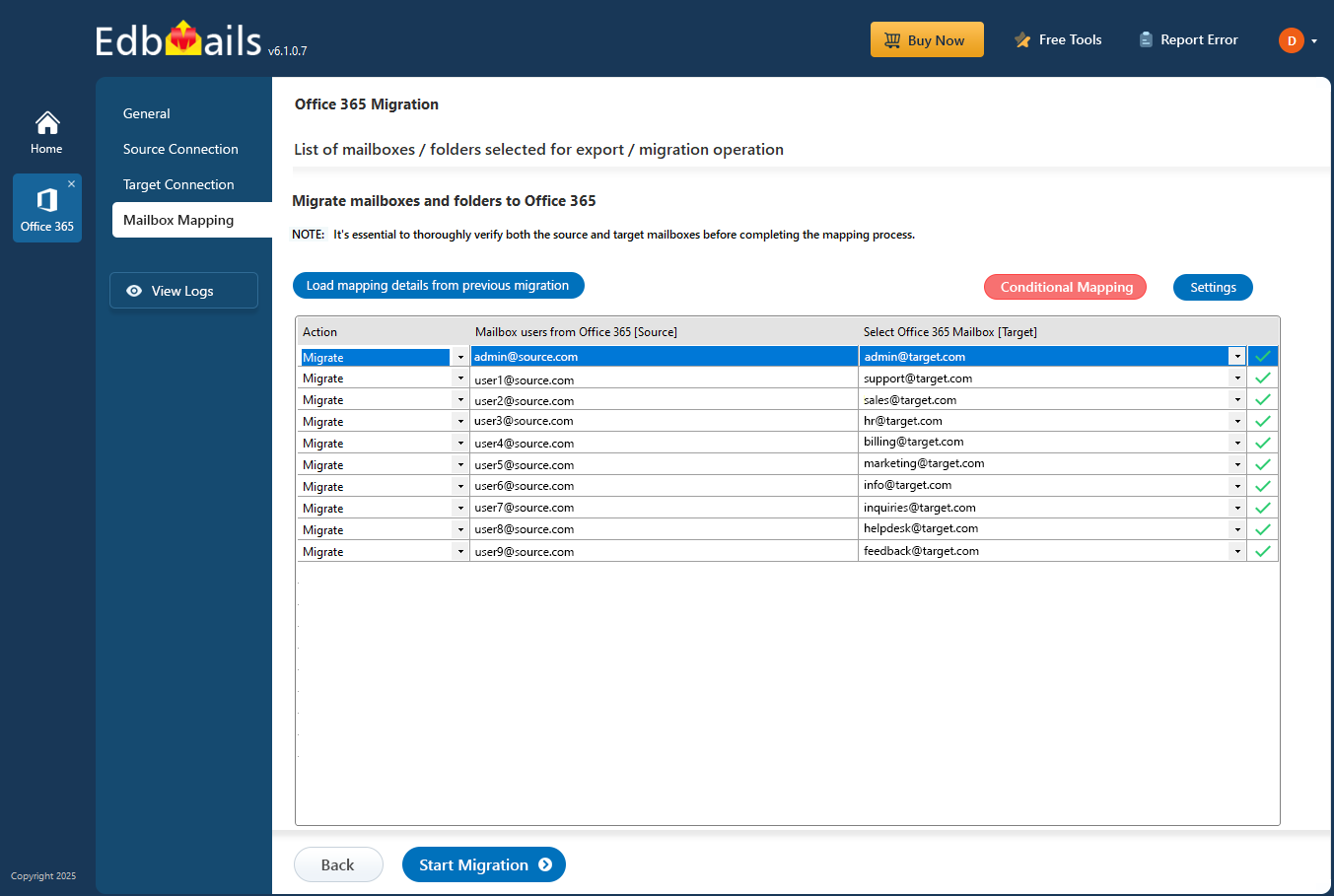
- Select the mapping option that best meets your needs.
Step 6: Start Office 365 Archive mailbox to Shared mailbox migration
- Once the mailboxes are mapped, click ‘Start Migration’ button to begin the migration process.
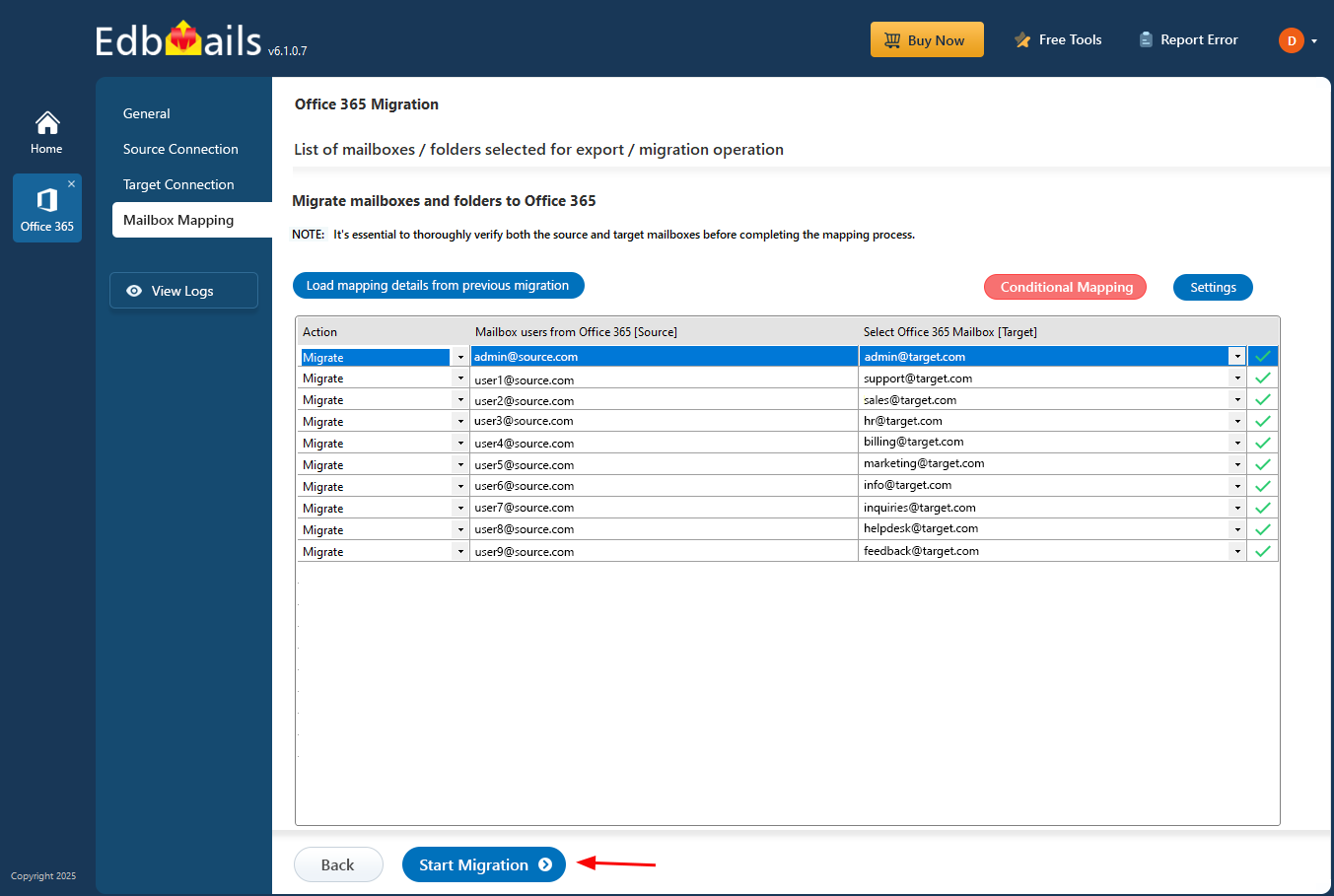
- EdbMails will automatically start the migration and notify you when it's finished. To view the migration report, click the 'View Logs' button which provides a comprehensive report detailing the number of emails, folders, and mailbox items successfully migrated.
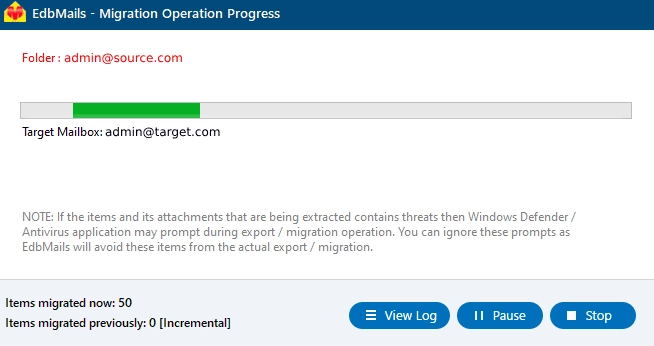
- Once the mailboxes are mapped, click ‘Start Migration’ button to begin the migration process.
Office 365 Archive mailbox to Shared mailbox post-migration activities
Step 1: Update the MX records to point to Office 365
If this step hasn't been done before, change the DNS entries called the MX records in order to send and receive email messages at the target Office 365 server. As well as setting up the above, change the Autodiscover record so Outlook can be set up against the new mailbox.
Step 2: Create a new Outlook profile for users in the new domain
Configure and recreate the Outlook profile for each user in your domain if Outlook has problems connecting to Office 365 mailboxes.
Office 365 Archive mailbox to Shared mailbox migration troubleshooting
See the Archive Migration Troubleshooting Guide for solutions to common migration errors. For additional help and details about EdbMails Office 365 migration, visit the FAQs section.
Benefits of EdbMails for Office 365 Archive mailbox to Shared mailbox migration
- Automatically create target mailboxes
During migration, EdbMails automatically creates destination shared mailbox, hence providing simplified and automated migration process without manual intervention for creating shared mailboxes which is the reason for time and error saving for administrators.
- Migrate with zero downtime
EdbMails can achieve zero-downtime migration of Office 365 archive mailboxes to shared mailboxes. The users will be able to continue their work throughout the migration process without any interruption and the continuity of business remains the same throughout the entire migration.
- Flexible migration scenarios (Cutover, Staged)
EdbMails ensures flexible migration that can be adopted based on the organizational requirements. The cutover migration helps to migrate mailbox immediately to the server or staged migration for gradual migration. Whatever the requirements be EdbMails supports the appropriate migration for a seamless and easy mailbox migration.
- AES 256-bit military-grade encryption
In terms of data safety, EdbMails focuses the first thing for data protection. EdbMails use the strongest AES 256-bit militarily grade encryption to protect email data during the the migration process. With the aid of encryption, your personal data is protected during migrating process.
- Free trial option
EdbMails also gives the free trial for those who want to check the tool before investing in buying. With the free trial of EdbMails, an administrator can have look of migrating features and test the performance to ensure it is suitable for you and you can also migrate the 30 items in free trial and don't need to invest any money at first. Try before buy for stress free work.


