


Selective Mailbox Migration
While migrating from Office 365, it is not necessary to migrate all the mailboxes. At times, only required mailboxes or specific information from the mailboxes can be migrated according to business or regulatory needs. EdbMails Office 365 migration tool is facilitated with granular, selective mailbox and folder migration in such cases where you can only migrate the necessary information. You have the option to select a specific mailbox, folder, or filter mailbox items for precise, clean, no data loss and no business impact migration.
EdbMails Office 365 migration tool will prove to be the most useful tool in all migration scenarios. Unlike time-consuming manual processes, which are risky, the software helps to eliminate all migration risks and perform effortless migration of the Office 365 tenant to Office 365 or Exchange environment.
Besides migration of selected mailboxes, it is used for applying the Include/Exclude filter for Office 365 migration. Set the condition of including/excluding messages in the migration process based on received date after/before the specific date, based on subject, and between migrations.
Exclude Standard Folders:
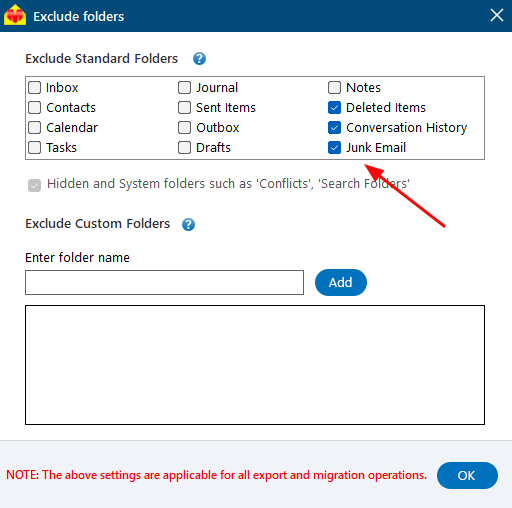
EdbMails allows you to exclude commonly used system folders during migration if they are not required.
- Go to the ‘Settings’ window, then click on ‘Exclude Standard / Custom Folders’.
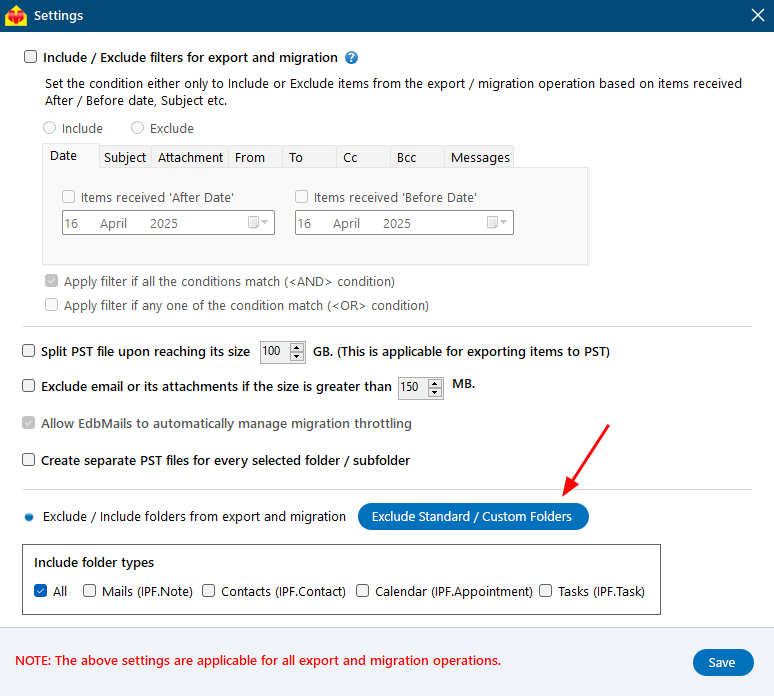
- You can exclude standard folders such as ‘Inbox’, ‘Contacts’, ‘Calendars’, ‘Tasks’, ‘Journal’, ‘Sent Items’, ‘Outbox’, ‘Drafts’, and ‘Notes’ during migration. By default, the ‘Deleted Items’, ‘Conversation History’, and ‘Junk Email’ folders are excluded.
Exclude Custom Folders:
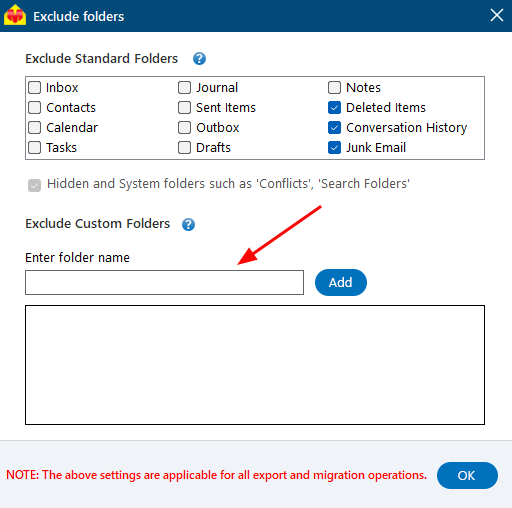
In addition to standard folders, you can also exclude custom folders created by users.
- Enter the folder name manually and click ‘Add’, then click ‘OK’ to save the changes.
- Save the settings by clicking the ‘Save’ button.

