


Bulk Microsoft 365 Mailbox Migration
EdbMails Office 365 Migration Tool migrates large numbers of mailboxes to Office 365 in parallel, so a migration involving hundreds or even thousands of users doesn't turn into hundreds of separate manual jobs. Automatic mailbox mapping pairs each source mailbox with its target counterpart without manual entry, throttling management keeps the migration running steadily within Microsoft's rate limits instead of stalling or requiring restarts, and incremental migration re-syncs only new or changed items on later passes. Together, these run behind the scenes so a large-scale project stays manageable from initial setup through final cutover.
What is Bulk Office 365 Mailbox Mailbox Migration?
Bulk mailbox migration is the process of migrating multiple mailboxes at once. Each mailbox migrates with its emails, calendars, and contacts intact. Common scenarios include tenant-to-tenant consolidation, mergers and acquisitions, moving to an on-premises Exchange server, and moving to an IMAP-accessible server. The target can be Office 365, Exchange, or any IMAP-supported platform.
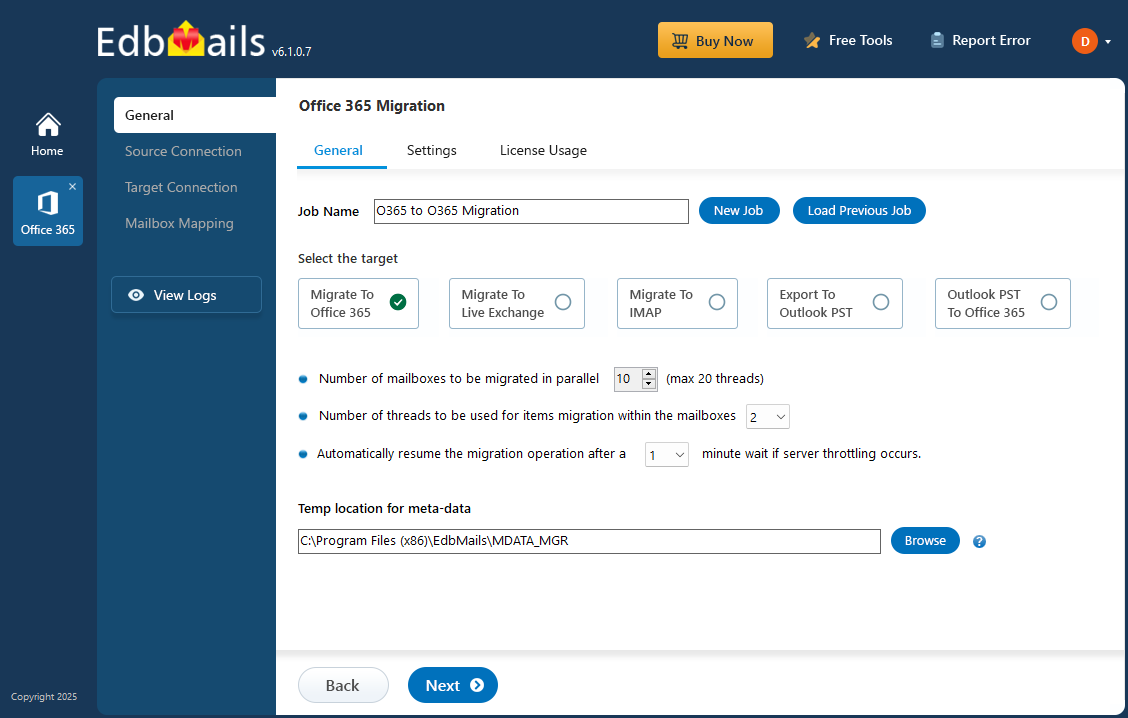
EdbMails runs up to 20 mailboxes in parallel within a migration job, with mailboxes loaded in bulk. For example, in a 100-mailbox migration, 20 mailboxes run at the same time; as soon as one finishes, the next mailbox in the queue takes its place, keeping 20 running continuously until all 100 are done. To scale beyond that, EdbMails can be installed on multiple computers, each handling a different set of mailboxes, so overall throughput increases without any single computer's parallel limit becoming a bottleneck.
See Office 365 migration software page for the full feature set this bulk migration workflow builds on.
Bulk Office 365 Mailbox Migration Lifecycle
A bulk mailbox migration project moves through the same phases regardless of size, but each phase looks different at scale:
- Assess — Confirm mailbox count, sizes, source environment, and available licenses before starting.
- Connect — Authenticate to source and target using modern authentication.
- Map — Load the full mailbox list, then auto-map or manually adjust source-to-target pairs.
- Migrate — Run the batch with parallel processing, monitoring progress across all mailboxes at once.
- Incremental sync — Re-run the batch to pick up new or changed items since the last pass, keeping source and target aligned until cutover.
- Validate — Review the migration report for the full batch and spot-check item counts before decommissioning the source.
- Cutover — Update MX and Autodiscover records once every mailbox in the batch is confirmed complete.
Getting Started with Bulk Microsoft 365 Mailbox Migration
Before starting, confirm the standard prerequisites, admin access, credentials, and network connectivity, covered in the mailbox migration guide. For bulk projects specifically, prepare your mailbox list as a CSV for import rather than loading mailboxes one at a time, and confirm mailbox licenses are available for every mailbox in the batch before starting.
Loading and mapping is what changes at scale. Mailboxes can load automatically from the source and target for smaller counts, or import via CSV for larger organizations. Once loaded, EdbMails automatically maps source mailboxes to target mailboxes by display name, first/last name, and email address, with manual override available for exceptions such as name changes or mailbox consolidation. The connect-map-migrate steps themselves are the same whether migrating five mailboxes or five thousand; see the step-by-step walkthrough for the full process with screenshots.
Once migration completes, follow the standard post-migration checklist: updating MX records, configuring Autodiscover, and setting up Outlook profiles, before decommissioning the source tenant. At bulk scale, confirm every mailbox in the batch is licensed (Microsoft disables unlicensed mailboxes after 30 days) and review the full migration report, not just a sample, before removing the old subscription plan.
Choosing Cutover or Staged for a Bulk Project
Cutover migration suits smaller batches that can complete within a single scheduled window. Staged migration suits larger batches migrated over several passes, with each batch validated before the next begins, which reduces the risk concentrated in any one cutover event. Mailbox count and how much downtime a single window can absorb are usually what decide between the two.
Benefits of EdbMails for Bulk Office 365 Mailbox Migration
A straightforward setup process
Setting up a bulk migration doesn't require scripting or specialized IT training. EdbMails' wizard-driven interface walks through connecting, loading, and mapping mailboxes in a handful of clicks, so a full migration project can be run by whoever's available, not just a dedicated migration specialist.
Three ways to load a mailbox list
Mailboxes can load automatically after signing in, though Microsoft's API limits automatic loading to about 100 mailboxes. For larger batches, import the full list from a CSV file instead, which scales to any batch size. A saved mailbox list from a previous session can also be reloaded directly, so a paused or repeated project doesn't require reselecting mailboxes from scratch.
Steady progress, even at peak hours
EdbMails' automatic throttling management keeps a large batch moving through peak and off-peak hours alike, without manual restarts, dropped items, or duplicate content landing on the target. It works within Microsoft's own rate limits for Office 365, so the migration continues instead of stalling.
Parallel by default, not an add-on
Every migration job runs 20 mailboxes concurrently out of the box, not as an upgrade or configuration step. For projects that need more throughput than one installation can provide, EdbMails can run on multiple computers at once, each working through a separate slice of the mailbox list in parallel.
No gap between old and new mailbox
Users stay on their source mailbox for the entire migration window with full send/receive access, and the switch to the new tenant only happens once their content has fully landed on the target. See the continuity model for how source and target coexist during the transition.
Nothing dropped, nothing altered
Every item type in a mailbox, emails, attachments, calendar entries, and contacts, arrives on the target exactly as it existed on the source. Content is neither lost nor modified in transit at any point in the batch.
Authentication that never touches your credentials
EdbMails connects through Microsoft's own APIs and sign-in flow rather than storing login details on its own servers. Every session uses OAuth 2.0 with TLS encryption, and connections run through modern authentication (MSAL and Microsoft Graph), so credentials are handled the way Microsoft recommends, not through a workaround.
One tool, multiple migration approaches
Whether a project calls for moving every mailbox in one window or spreading the batch across several scheduled passes, EdbMails supports both cutover and staged migration, so the approach can match the size and risk tolerance of the project rather than forcing one method on every migration.
A record of exactly what moved
Each run produces an item-level migration report covering mailbox status, folder counts, and source-to-target mapping, so the outcome of a large batch can be verified mailbox by mailbox rather than taken on faith.
Pricing that scales with the project, not the tool
Pricing is based on the number of source mailboxes being migrated, so cost tracks directly with project size. Lifetime subscription plans adjust as the organization grows, and 24/7 support and software updates are included at no extra cost.
Frequently Asked Questions
How do I perform Office 365 multiple mailbox migration with EdbMails?
Download and install EdbMails, select Office 365 Migration, connect to the source Office 365 server, select the multiple mailboxes for migration, connect to the target server, then select the mapping option and start the migration.
See the complete step-by-step walkthrough to migrate multiple mailboxes.
What are the benefits of multiple mailbox migration for Office 365?
Bulk mailbox migration improves migration efficiency by moving multiple mailboxes at the same time, which reduces overall migration time while mailboxes remain accessible throughout. The approach is scalable and flexible for organizations of any size, and centralizes migration management to simplify administration. It also helps maintain data consistency between source and target environments.
Is there a limit to the number of mailboxes I can migrate?
EdbMails supports parallel migration of up to 20 mailboxes at a time. The actual number that can be migrated in a project depends on the number of mailbox licenses purchased.
Click here to know the details of used and unused licenses in the application.
Does EdbMails provide reporting for migration status?
Yes. Migration reports detail migrated item counts and source-to-target mailbox mapping, with progress updates during the migration and real-time status tracking so issues can be addressed as they arise.
Is EdbMails suitable for businesses of all sizes?
Yes. Small organizations benefit from the interface's simplicity; larger organizations benefit from scale, parallel migration support, and detailed reporting capabilities.
Can I migrate a bulk list of mailboxes to a target other than Office 365?
Yes. The same bulk migration approach applies when the target is an on-premises Exchange server or an IMAP-supported platform; only the target connection step differs.
What kind of support does EdbMails offer during migration?
24/7 free technical support is available through live chat, documentation, guides, email, and the knowledge base.


