


Office 365 migration common use cases and solutions
Migrating to Microsoft 365 has become a strategic move for organizations seeking improved productivity, seamless collaboration, and advanced security. Yet, the process is far from simple. Every migration scenario comes with its own set of technical challenges such as managing mailboxes, ensuring data integrity, and minimizing downtime during the transition. Without the right plan and reliable tools, these obstacles can disrupt workflows and impact overall efficiency.
Understanding the common use cases of Office 365 migration and the right solutions to address them is essential for a smooth and secure move. Whether it’s shifting from on-premises servers, legacy email systems, or cloud platforms, each case demands careful planning and technical precision. With the help of automated solutions such as EdbMails Office 365 migration, organizations can simplify complex processes, maintain data consistency, and achieve a successful transition with minimal effort. In this blog, we’ll explore the most common Office 365 migration use cases, the issues organizations face, and the proven solutions that ensure a secure and seamless migration journey.
- Items are missing in some of the folders in the target server
Causes:
- Office 365 throttling can sometimes interrupt the migration flow, causing certain items to be skipped or left behind.
- Unstable or inconsistent network connections during the migration can lead to incomplete data transfer.
- Predefined filters applied before starting the migration might exclude specific items unintentionally.
Solutions:
- If throttling is identified, contact Microsoft to request temporary relaxation or removal of throttling limits.
- Make sure the internet connection remains stable and has sufficient bandwidth throughout the migration.
- Review and confirm any applied filters such as date range or message type within EdbMails settings before proceeding.
- Re-run the migration by selecting only the folders containing missing items from the same workstation.
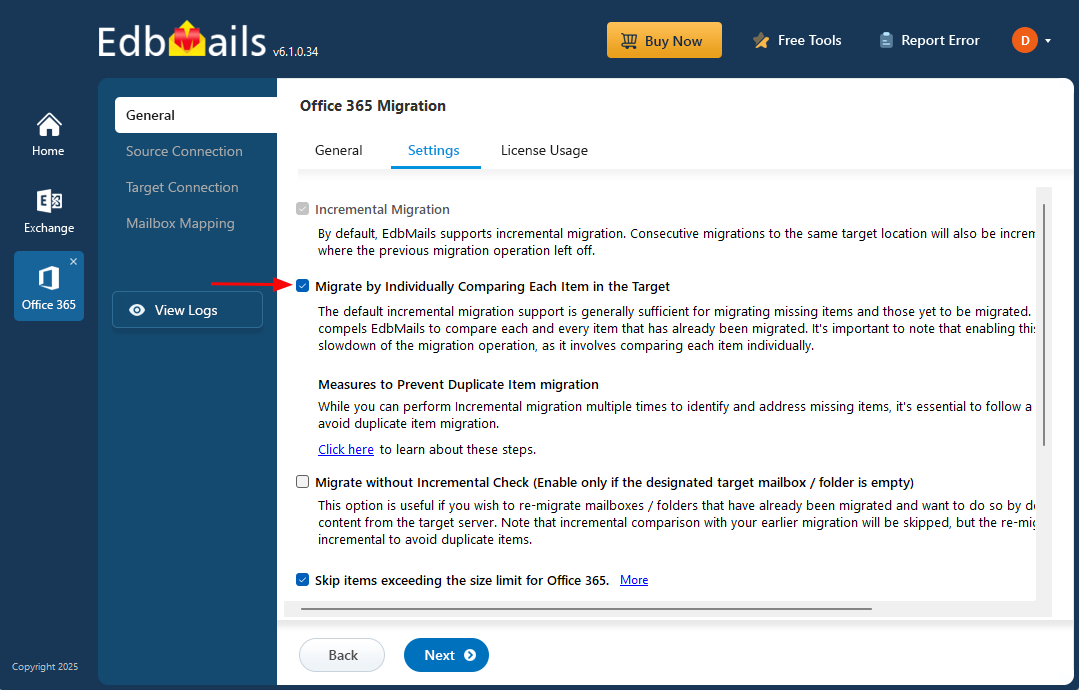
- If data is still missing, enable the ‘Migrate by Individually Comparing Each Item in the Target’ option in EdbMails to ensure every item is transferred accurately.
- Multiple migration attempts have been executed, yet certain items have not been successfully transferred.
Causes:
- Office 365 throttling can restrict data transfer speed, resulting in slow or interrupted migrations that may leave the process incomplete.
- Network instability or congestion, such as packet loss, high latency, or low bandwidth, can disrupt the data transfer and cause migration failures.
- Filters configured under EdbMails migration ‘Settings’ might exclude specific items, preventing a full transfer.
Solutions:
- If throttling occurs, contact Microsoft support to request temporary relaxation of throttling limits.
- Verify that the internet connection is stable and has adequate bandwidth throughout the migration.
- Review the migration Settings in EdbMails to ensure no filters are unintentionally excluding data.
- Clear the target mailbox or folder before retrying the migration.
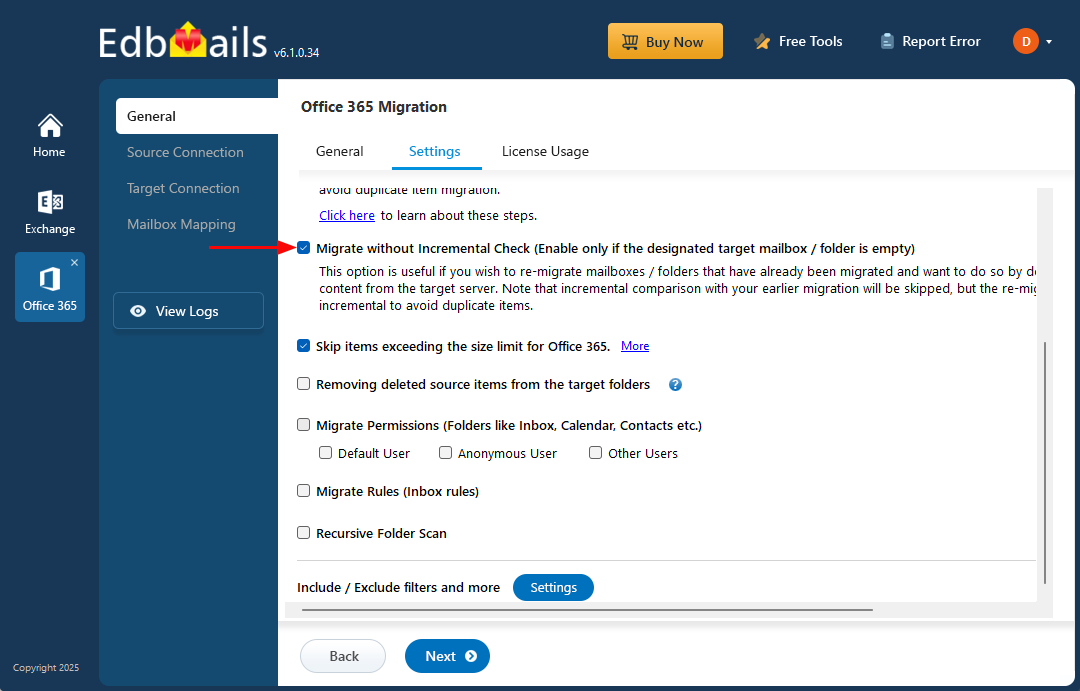
- Re-migrate only the affected mailboxes or folders and enable the option ‘Migrate without Incremental check (Enable only if the designated target mailbox/folder is empty)’ in EdbMails. During resynchronization, keep this option unchecked.
- Perform migration
- Clear deleted items from the target folders.
Causes:
- Ensuring that the source and target mailboxes remain in sync. When items are deleted from the source mailbox after an incremental migration, enabling this option ensures the deletions are mirrored in the target mailbox.
- Helps optimize storage in the target environment by removing unnecessary items.
- Maintaining consistency between source and target mailboxes is crucial for data accuracy and integrity.
Solutions:
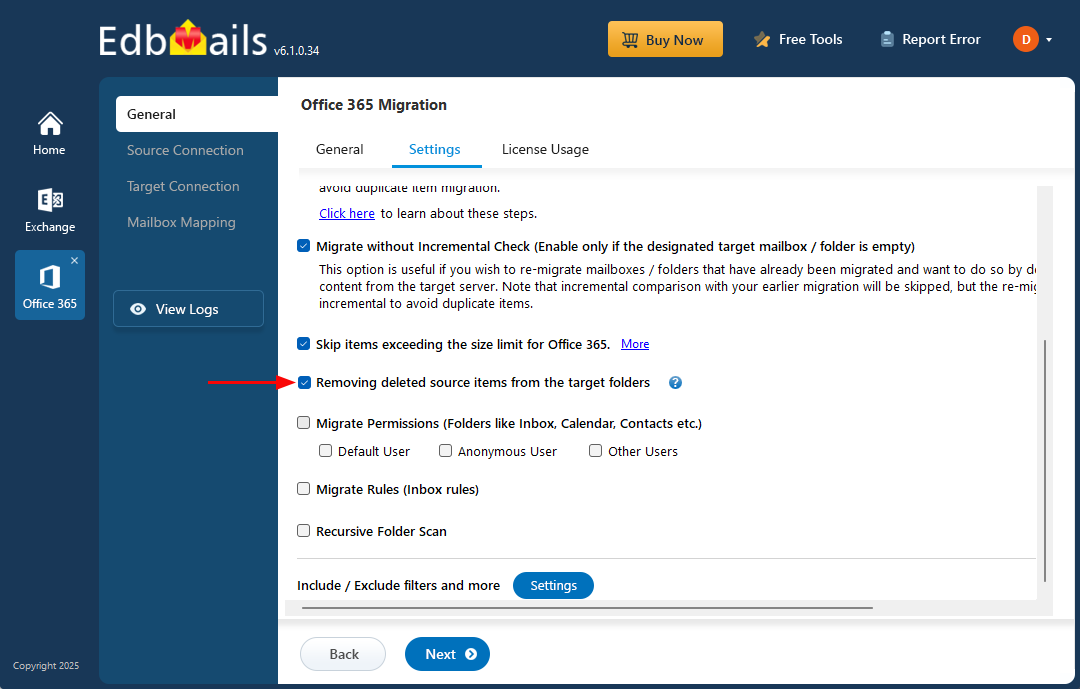
- After completing the initial migration, if items have been deleted from the source mailbox and you want these changes reflected in the target, enable ‘Remove deleted source items from the target folder’ and run the migration again.
- If this option is skipped during incremental migration, deletions made on the source mailbox after the first migration will not be reflected in the target mailbox.
- Increase the performance of the migration
Causes:
- Minimizing downtime during migration is essential to reduce the impact on daily business operations and maintain overall productivity.
- Faster migrations allow users to resume their regular activities sooner, ensuring minimal disruption and higher user satisfaction.
- Accelerated migration helps organizations adhere to project timelines and deployment schedules effectively.
- Optimizing migration speed improves resource utilization, including network bandwidth, server capacity, and staff time.
Solutions:
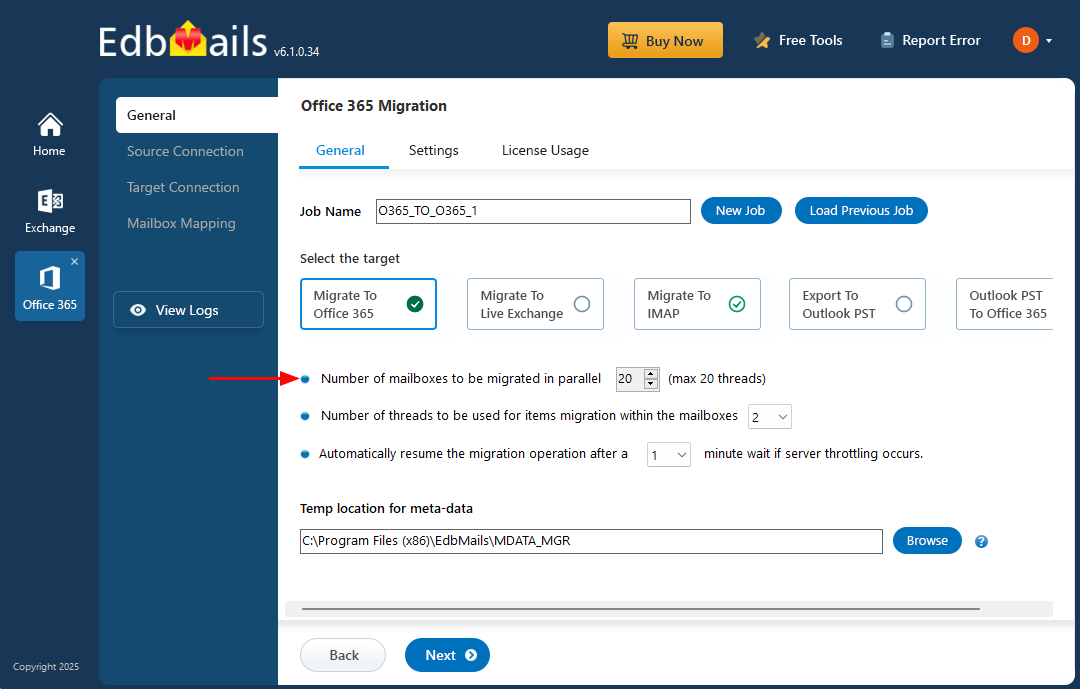
- EdbMails offers parallel mailbox migration, allowing multiple mailboxes to be migrated simultaneously for improved speed and efficiency. By default, 10 mailboxes can be migrated in parallel, which can be increased to 20 for faster processing.
- You can also install EdbMails on multiple computers to migrate different mailboxes concurrently, further accelerating the migration process.
- Use the application settings to adjust the parallel mailbox migration count from 10 to 20 as needed for optimal performance.
- Increase the performance of the individual mailbox migration
Causes:
- Increasing the number of concurrent threads allows multiple tasks to run simultaneously, speeding up mailbox migration by efficiently distributing the workload.
- More threads improve utilization of system resources, such as CPU and memory, boosting overall migration performance.
- Higher thread counts reduce the time needed to migrate each mailbox, ensuring faster completion and adherence to project deadlines.
- Supporting additional threads allows scalability for larger migrations, meeting organizational demands while maintaining optimized performance.
Solution:
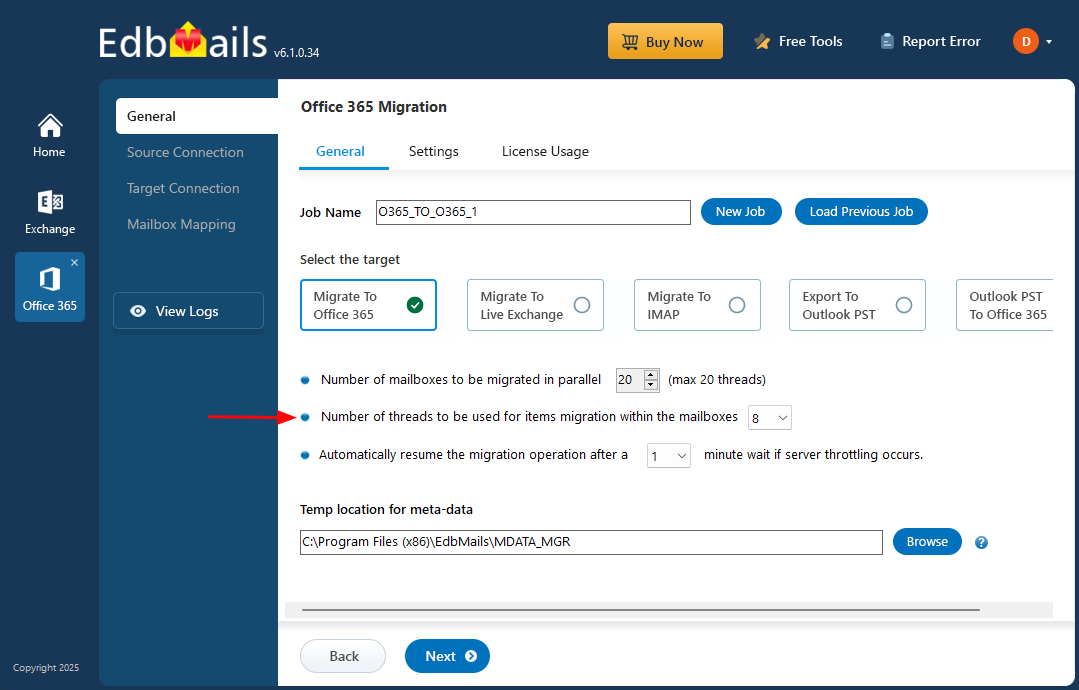
- For individual mailbox migration, EdbMails sets 4 internal threads by default. You can increase this to a maximum of 8 threads to enhance migration speed.
- Keep in mind that increasing threads may trigger throttling during migration or export operations. Refer to the application guidelines to manage and prevent throttling effectively.
- Disconnect the current Office 365 account and reconnect it.
Causes:
- Expired or invalid authentication tokens may prevent access, requiring a fresh connection to establish a new authenticated session with Office 365.
- Extended migration sessions can time out due to inactivity, making it necessary to reconnect to resume and maintain the migration process.
Solution
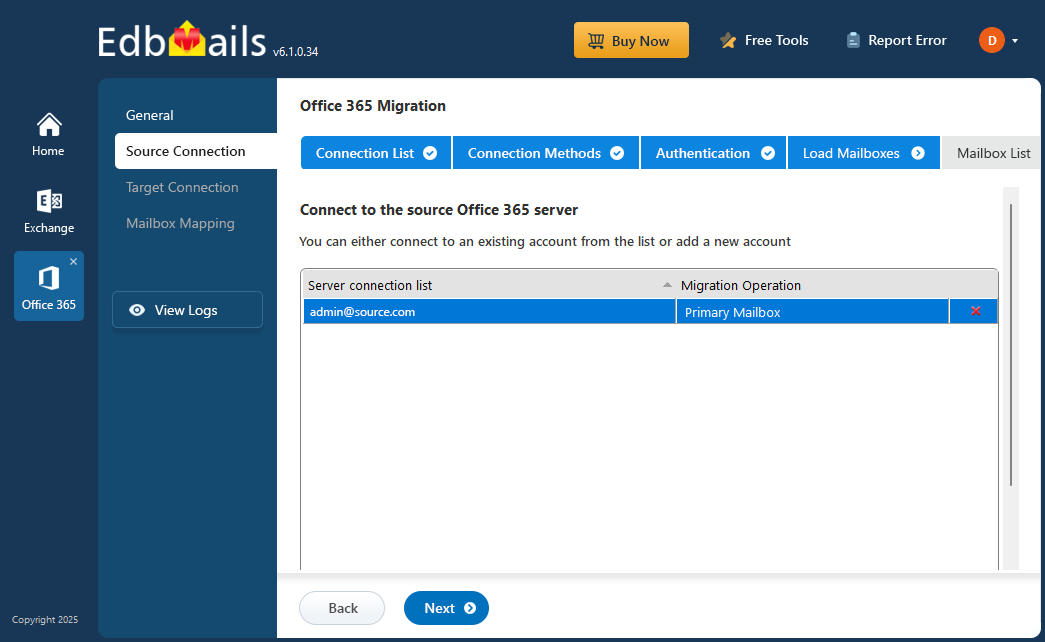
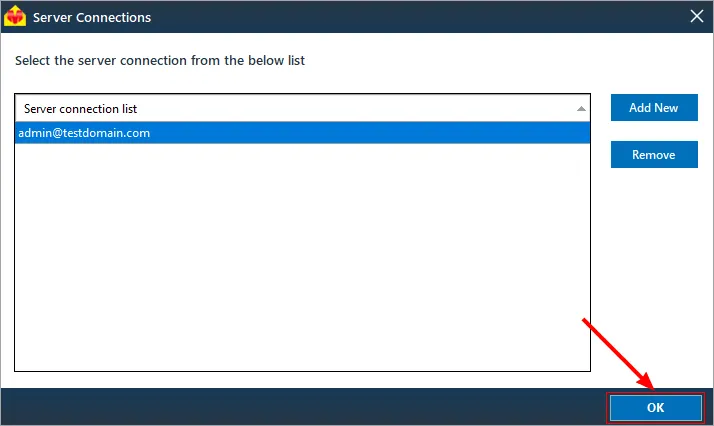
- Choose the account you wish to delete and press the ‘❌’ button.
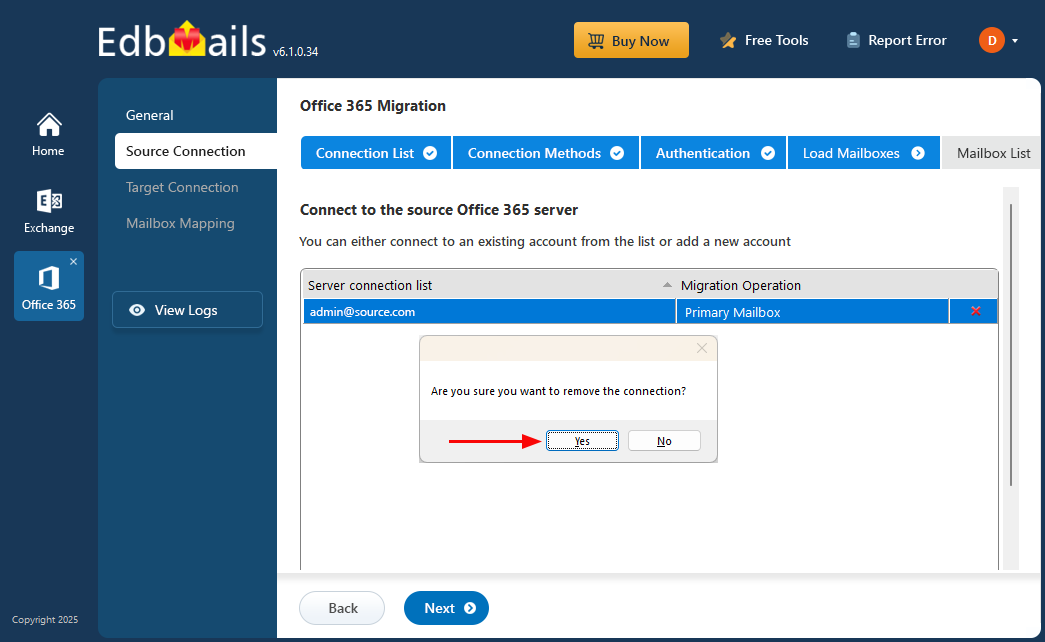
- Click ‘Yes’ for the confirmation
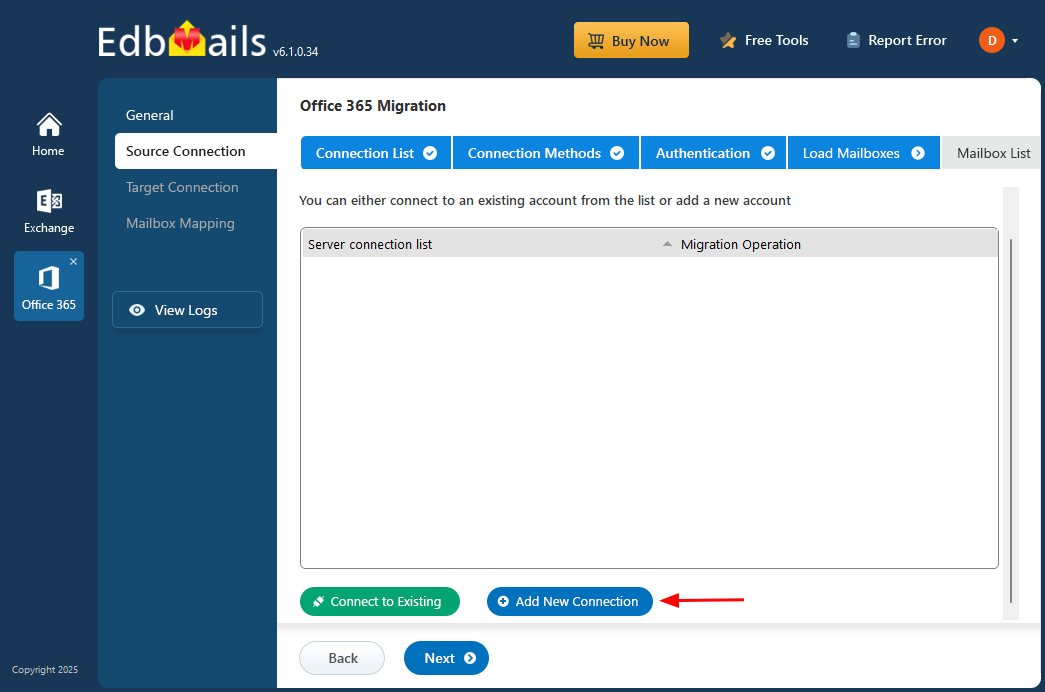
- Press the ‘Add New’ button to reconnect.
- OneDrive Migration Prerequisites
Cause:
Lack of proper permissions on the source sites can result in OneDrive migration errors.
Solutions:
To resolve permission issues for OneDrive migration, follow the steps provided below:
- Set up OneDrive sites on the destination server.
See the ‘Create OneDrive for Business site collections for all users’ section at the following link:
- Include the global admin as a member of the OneDrive for Business site collections on the source server.
See the ‘Grant admin access to all OneDrive for Business site collections’ section in the link below:
- Likewise, assign the global admin as a member of the OneDrive for Business site collections on both the source and target servers.
- Set up OneDrive sites on the destination server.
- Switch the existing connection from automatic mailbox loading to the CSV-based method.
Causes:
- EdbMails automatically loads up to 100 mailboxes. For larger migrations, Microsoft API restrictions may prevent additional mailboxes from loading, making the CSV method a more reliable option.
- If the Global Admin account lacks a mailbox, it cannot load any mailboxes for migration.
Solutions:
To address OneDrive migration permission issues, follow the steps provided below:
- Continue migration using the existing connection.
- Choose the ‘Load Mailboxes using .CSV file’ option and proceed with the on-screen wizard steps.
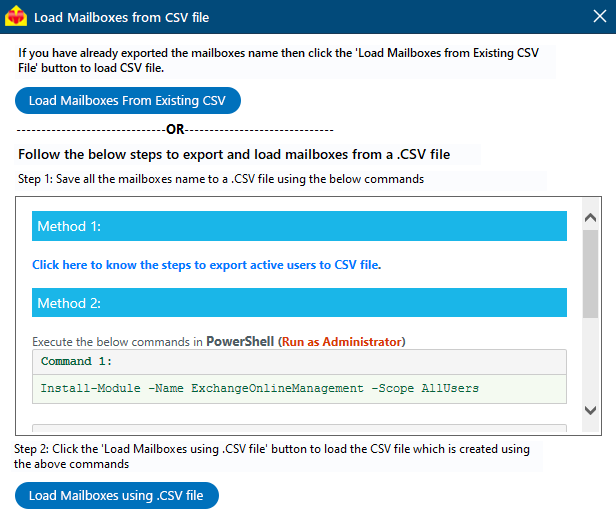
Click here for detailed instructions on loading Office 365 mailboxes using a CSV file.
- Assign a single target mailbox to map all source mailboxes or folders.
Cause:
When multiple mailboxes or folders are intended to be migrated into a single target mailbox, this option simplifies the mapping process and enhances migration efficiency.
Solutions:
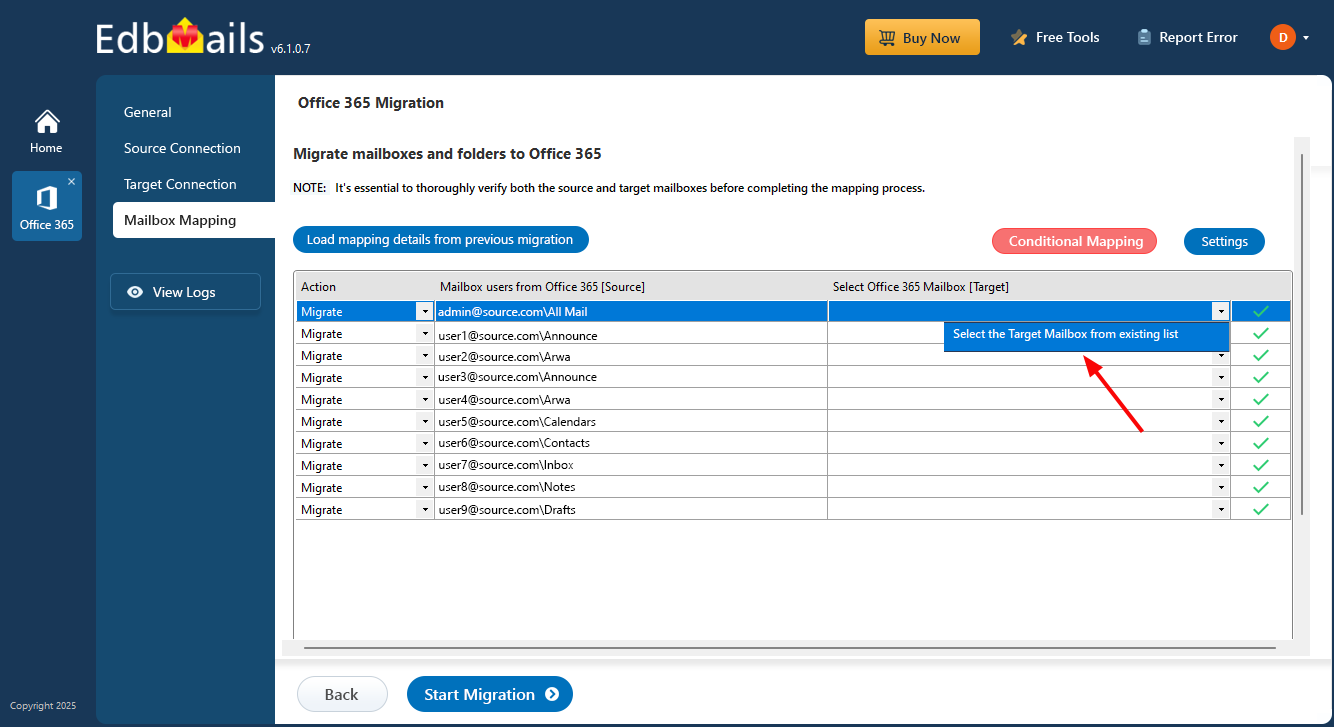
- Open the dropdown menu and choose ‘Select the Target Mailbox from the existing list’ option.
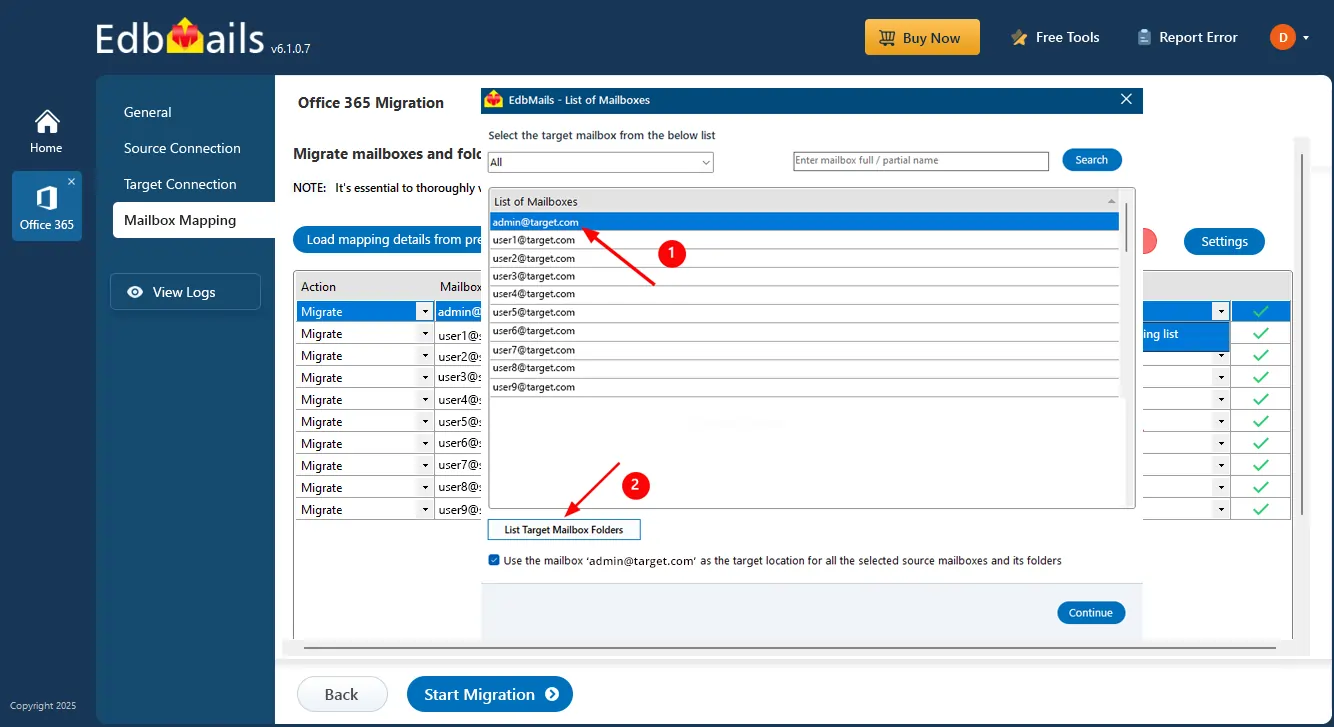
- Select the target mailbox and click the ‘Continue’ button to proceed with the migration operation
- Open the dropdown menu and choose ‘Select the Target Mailbox from the existing list’ option.
- Set up conditional folder mapping to align folders between the source and target servers.
Causes:
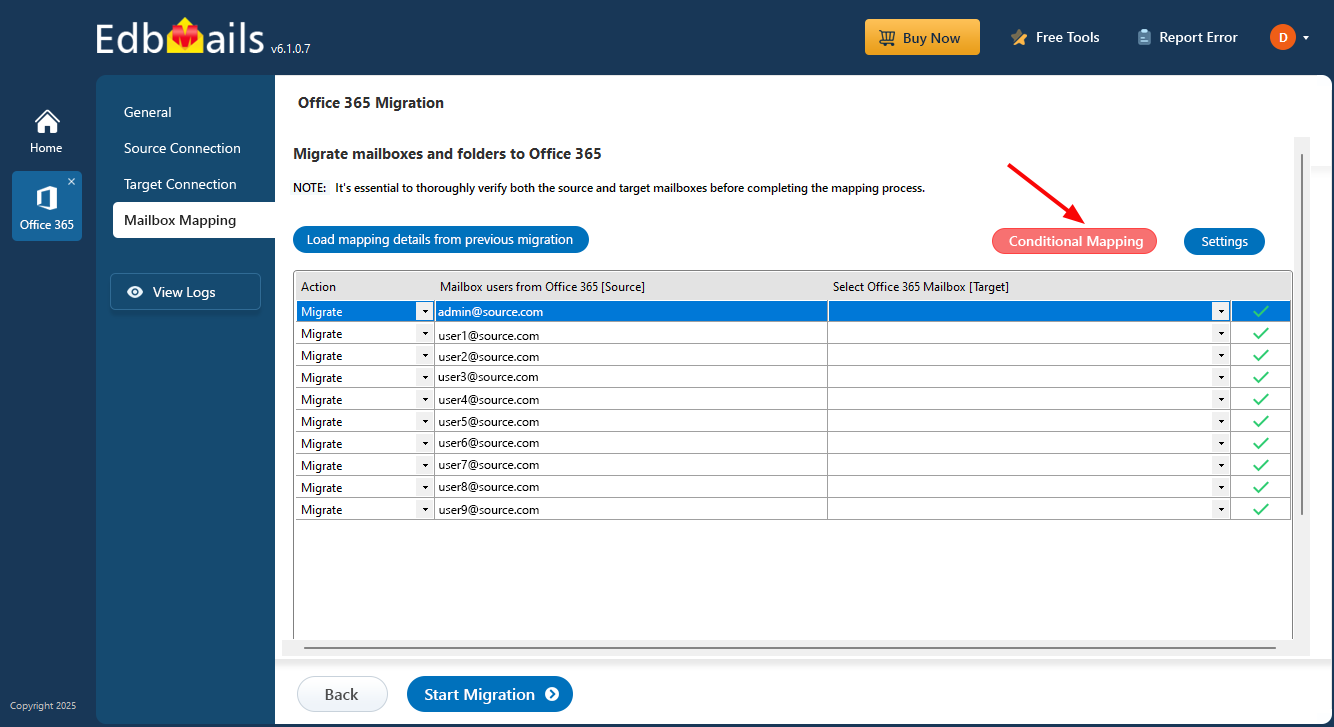
This option enables you to define a custom target folder path, overriding the default source structure. It gives full control over where the source data should be placed in the target mailbox.
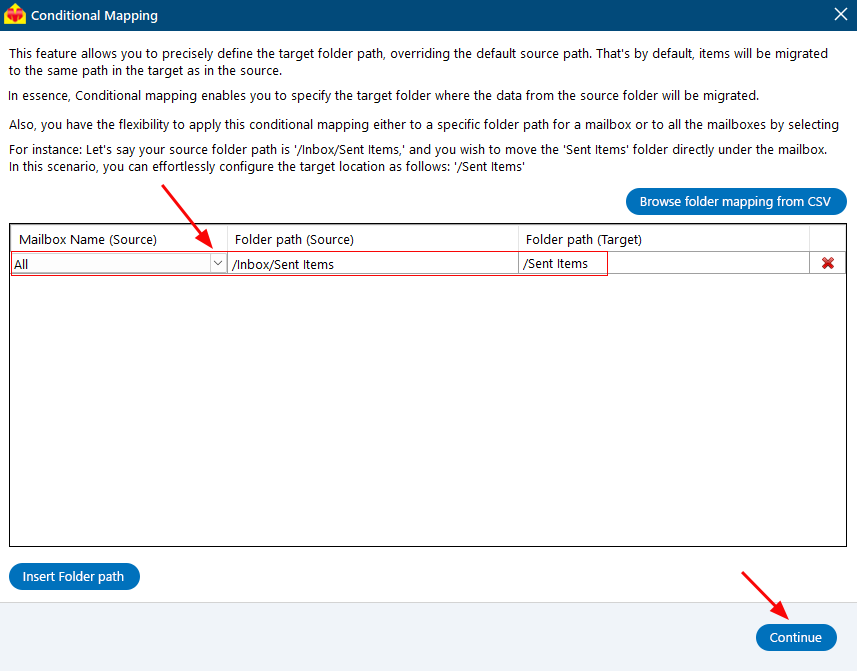
You can apply this conditional mapping to a specific folder within one mailbox or to all mailboxes collectively by selecting the ‘All’ option.
Example: If your source folder path is ‘/Inbox/Sent Items’ and you want the ‘Sent Items’ folder to appear directly under the mailbox instead of inside ‘Inbox’, you can set the target path as ‘/Sent Items’ to achieve that mapping.
Solutions:
- In the mapping window, select the ‘Conditional Mapping’ button
- Select the target mailbox and click the ‘Continue’ button.
- In the mapping window, select the ‘Conditional Mapping’ button
- Customized target mailbox folder listing
Cause:
Custom target folder mapping is required when source folders need to be directed to designated folders on the target servers.
Solution:
- Open the dropdown icon and choose ‘Select the Target Mailbox from the existing list’.
- Choose the target mailbox and press the ‘List Target Mailbox Folders’ button.
- Choose the target folder and click ‘OK’ to continue to the next step.
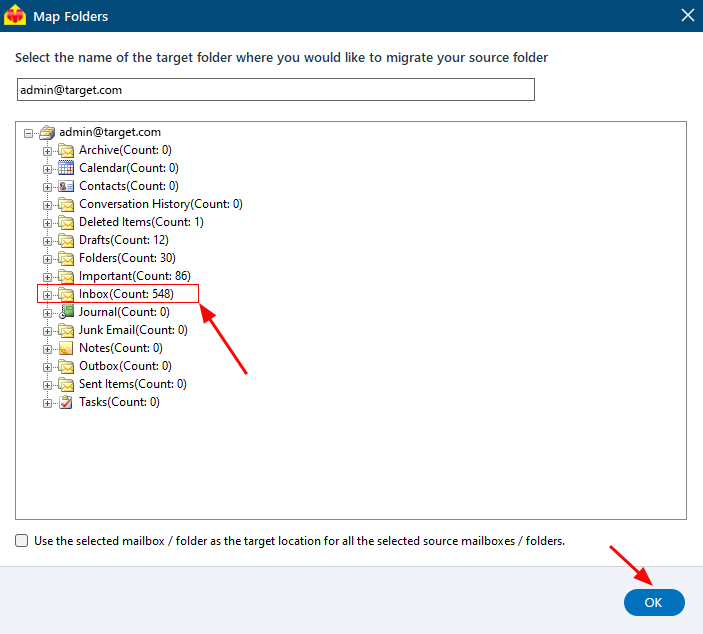
- Open the dropdown icon and choose ‘Select the Target Mailbox from the existing list’.
- PowerShell commands to update the language settings for all mailboxes via the Global Admin account
Cause:
Manually updating language settings for each mailbox can be labor-intensive. Using PowerShell commands with a Global Admin account streamlines the process, allowing consistent language configuration across all mailboxes efficiently.
Solution:
- Create a CSV file containing the columns UserPrincipalName and LanguageTag, then save the file for use in the PowerShell command.
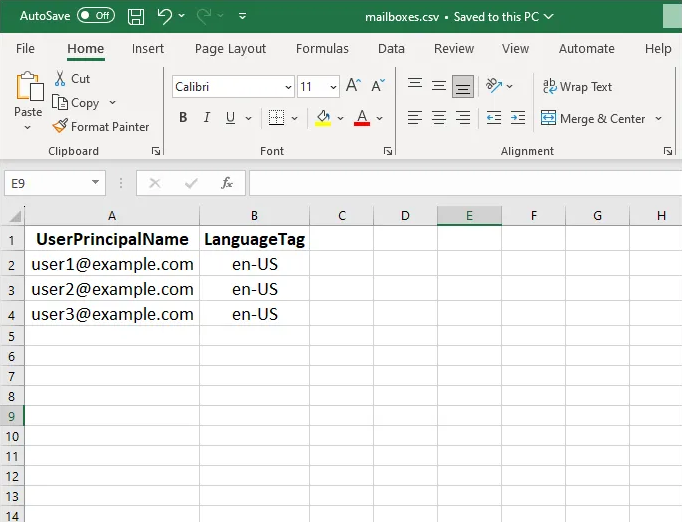
Execute the below PowerShell commands ‘Run as administrator’
Run the below command to import the CSV file
Command: Copy & Paste it on PowerShell$mailboxes = Import-Csv -Path "C:\mailboxes.csv”
Note: Enter the appropriate path of the CSV file.
Run the below commands to connect to Exchange Online
Command: Copy & Paste it on PowerShell$userCredential = Get-Credential
Command: Copy & Paste it on PowerShellConnect-ExchangeOnline -Credential $userCredential
Run the below commands to loop through each mailbox in the CSV and update language settings
Command: Copy & Paste it on PowerShellforeach ($mailbox in $mailboxes) { $userPrincipalName = $mailbox.UserPrincipalName $languageTag = $mailbox.LanguageTag Set-MailboxRegionalConfiguration -Identity $userPrincipalName -Language $languageTag -TimeZone "W. Europe Standard Time" -DateFormat "dd/MM/yy" -TimeFormat "HH:mm" -LocalizeDefaultFolderName Write-Host "Language settings updated for $userPrincipalName" }
Run the below command to disconnect from Exchange Online
Command: Copy & Paste it on PowerShellDisconnect-ExchangeOnline -Confirm:$false
- Create a CSV file containing the columns UserPrincipalName and LanguageTag, then save the file for use in the PowerShell command.
- Error: SMTP Address has no mailbox associated with it
Cause:
This error typically occurs when the Global Admin account used for migration does not have an associated mailbox. Additionally, when loading mailboxes via a CSV file, inaccuracies or outdated information—such as email addresses that do not match active mailboxes—can trigger errors.
Solution:
For source mailbox:
- Expand the mailbox with issues to verify that all folders and subfolders are listed correctly.
- If using a CSV file, double-check that all user details are accurate.
- Ensure the Global Admin account used for Office 365 connection has a valid mailbox and an assigned license.
- Alternatively, assign the Global Admin role to another user who has an active mailbox.
For target mailbox:
- Connect to the target server using source credentials.
- Verify the accuracy of user details in the CSV file if applicable.
- Expand the problematic mailbox to confirm all folders and subfolders appear correctly.
- Ensure the Global Admin account used for connection has a mailbox and a valid Office 365 license.
- You can also assign the Global Admin role to another user with an active mailbox to resolve the issue.
- Duplicate items appearing during migration after updating the DNS record from the source server to the new server
Cause:
Duplicates during migration after switching DNS records from the source server to the new server usually occur due to synchronization conflicts between the old and new servers.
Solutions:
- To prevent duplicates, avoid updating the DNS record until the initial migration from the source to the target server is fully completed. If new emails arrive during migration, perform a re-migration only after finishing the initial migration.
- If source and target email addresses change after the DNS update and additional migration is needed, an extra mailbox license may be required.
- Purchase an additional mailbox license in EdbMails to proceed.
- Use the date filter to migrate only the necessary items.
Click here to set the date filter for Office 365 migration
- Convert the existing mailbox connection into a public folder connection.
Cause:
This is needed when the mailbox migration is complete and you intend to migrate public folders next.
Solutions:
- Choose the account you wish to modify and click ‘❌’ to proceed.
- Click ‘Yes’ for the confirmation
- Press the ‘Add New’ button to reconnect.
- Choose the ‘Connect to Public Folder’ option and click ‘Next’ to authenticate with the Global Admin account on the Microsoft Sign-In page.
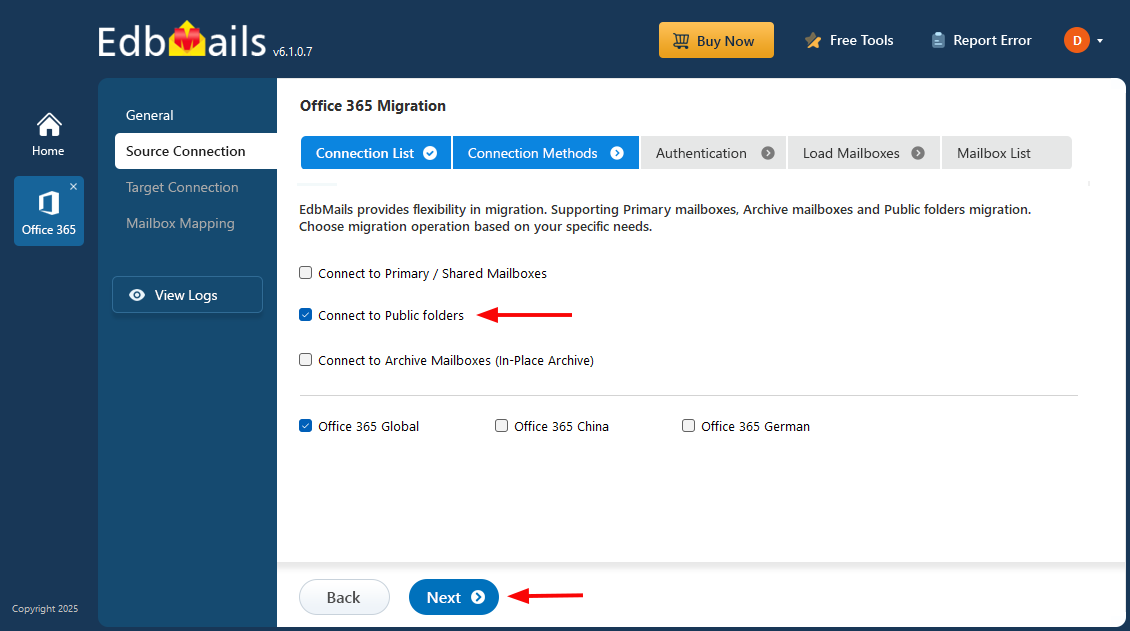
Click here for step-by-step instructions to migrate Office 365 Public Folders.
- Choose the account you wish to modify and click ‘❌’ to proceed.
- Switch the existing mailbox connection to an Archive Mailbox connection.
Cause:
When mailbox migration is complete and the next step involves migrating archive mailboxes, this change becomes necessary.
Solutions:
- Select the account to be modified and click ‘❌’ to update the connection.
- Click ‘Yes’ for the confirmation
- Press the ‘Add New’ button to reconnect.
- Choose the ‘Connect to Archive Mailbox’ option and click ‘Continue’ to sign in using the Global Admin account on the Microsoft authentication page.
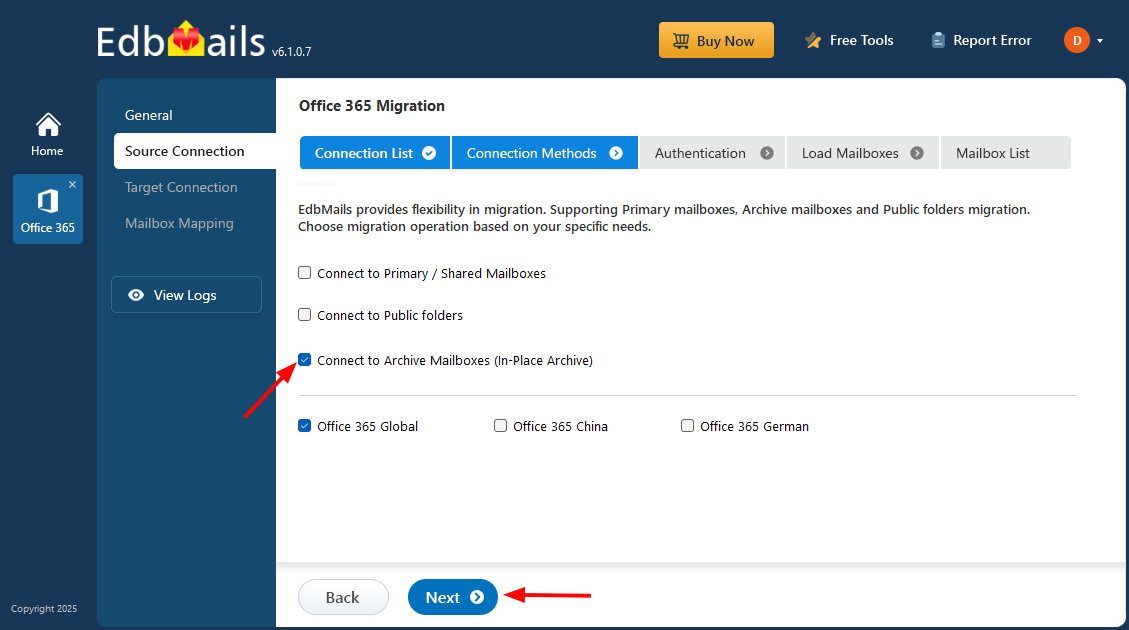
Click here for detailed instructions to migrate Office 365 Archive Mailboxes.
- Select the account to be modified and click ‘❌’ to update the connection.


