


Common Microsoft 365 Migration Problems — and How to Fix Them
Moving mailboxes out of Microsoft 365 to another tenant, on-premises Exchange, PST, or an IMAP server is more involved than most teams expect. The source environment is consistent, but the challenges are real regardless of where you are sending the data.
Throttling is the most common problem. Microsoft applies EWS throttling at the tenant level, which slows migration batches during business hours no matter how much bandwidth you have. Tenant-to-tenant moves add identity matching complexity, where UPN and display name mismatches cause mailboxes to fail or land in the wrong place. Permissions, delegates, and Send As rights set on the source do not carry across automatically. Public folder hierarchies with deep nesting and accumulated permissions frequently surface errors mid-migration that were invisible during planning. Archive mailboxes need to be handled separately from primary mailboxes, and their volume is regularly underestimated.
This guide covers the Office 365 Migration challenges that come up most frequently and offers practical, technically grounded solutions for each.
EdbMails Office 365 migration software addresses these directly. It manages throttling automatically, maps mailboxes based on user attributes without manual effort, runs incremental migrations so re-runs after a failure do not create duplicates, and handles public folders, shared mailboxes, archive mailboxes, and group mailboxes as distinct migration types with permissions intact on arrival.
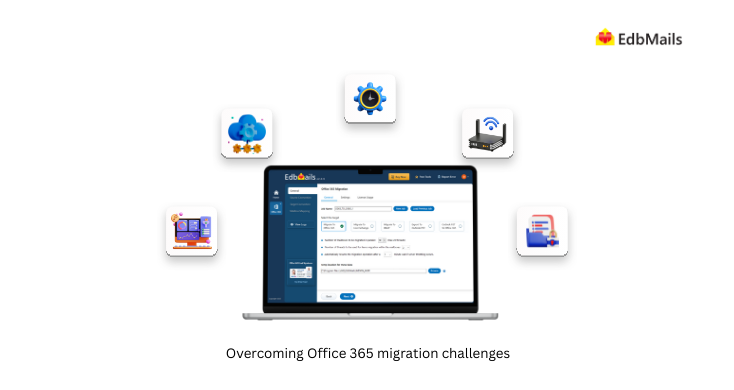
Understanding Office 365 Migration
Microsoft 365 email migration is the structured process of relocating mailbox data, application workloads, and user identities from on-premises infrastructure to the Microsoft cloud. Most projects target a combination of services in the destination tenant: Exchange Online for mailboxes, SharePoint Online for site content, OneDrive for Business for user files, and Microsoft Teams for collaboration. The process is typically organized into three phases:
- Assessment of the current infrastructure
- Planning the migration strategy
- Execution of the migration process
Each phase introduces its own technical considerations, which explains why the failure points addressed below tend to recur across migration projects
Office 365 Migration Challenges
The sections that follow walk through the key challenges in Office 365 migration — the issues that show up across enterprise rollouts of every size — and lay out the practical solutions that resolve each one.
Complex IT Environment
Few enterprise environments look the same from one organization to the next. Most carry a mix of Exchange versions in active use, line-of-business applications developed in-house, third-party mail security gateways acquired at different points in the company's history, and integrations wired into on-premises identities. Moving any of that into Office 365 without first mapping what is in place is the most common source of post-cutover problems — from service disruption to broken application dependencies to mailbox states that no longer behave as users expect.
Technical complications that frequently surface during the assessment phase include the following:
- SMTP relay configured against on-premises Exchange for printers, scanners, or line-of-business apps
- Public folders embedded in shared team workflows, often with permission stacks built up over years
- Distribution groups carrying attributes that exist only in the on-premises directory
- Outlook add-ins that predate Microsoft 365 Apps and were never re-tested against the current build
Solution: Begin with a thorough pre-migration assessment. Microsoft's IDFix tool surfaces attribute issues in Active Directory before they propagate to Microsoft Entra ID, and the SARA toolkit highlights mailbox-level problems that would otherwise stall move requests. Every mail-enabled application and integration point should be cataloged before the cutover scope is locked. Where the in-house team has no prior migration experience to draw on, working with a Microsoft Office 365 migration provider such as EdbMails closes the gap on overlooked dependencies and adds structure to the migration plan.
Communication and Timeline
Office 365 migration projects rarely fail due to tooling. They fail due to coordination. When IT, business units, and external vendors are working from different versions of the schedule, the result is a familiar pattern: conflicting calendars, cutover tasks with no clear owner, and a flood of escalations on the day of the migration window. A cutover that lands in the middle of a board meeting or a payroll run technically succeeded, but the business will not record it that way. This is one of the more common mistakes in Office 365 migration, and it is almost entirely preventable.
Solution: The practices below help reduce coordination risk:
- Define clear migration goals and timelines: Set goals that can be measured, decide batch sizes early, and publish cutover windows that anyone in the organization can find. See Office 365 migration guide.
- Communicate regularly with end-users: Weekly status notes and a clear pre-cutover notification go a long way. Users who know what is coming open far fewer helpdesk tickets once the change lands.
- Provide training and support: Schedule sessions on Outlook on the web, Microsoft Teams, and OneDrive for Business in the weeks before cutover. Even brief, focused training trims the post-migration support backlog noticeably.
- Involve stakeholders in the planning process: Department heads know the dates that matter to the business but rarely make it onto an IT calendar — quarter-end close, regulated reporting cycles, customer-facing product launches, and similar windows where disruption is unacceptable.
- Use project management tools: Tracking migration tasks in Microsoft Planner, Project for the Web, or an Azure DevOps board keeps ownership visible at every stage and removes the "I thought you had that" exchanges that surface at the worst possible moment.
- Conduct a post-migration review: Document what was successful and what was not. The findings carry directly into future tenant-to-tenant moves or subsequent migration waves.
Network Challenges
Network performance directly determines migration throughput. Microsoft's data center endpoints are highly available, and the bottleneck during migration is almost always on the customer side. Outbound bandwidth, internal routing, or upstream ISP capacity are the most common contributors.
- Bandwidth Limitations: Mailbox moves drive long stretches of outbound traffic. Microsoft recommends roughly 1.5 Mbps per concurrent mailbox move as a planning baseline, with extra headroom budgeted for large attachments and archive content. Anyone moving 500 GB or more should size the available bandwidth against the planned migration window before locking in a date.
- Latency: Once round-trip latency to the nearest Office 365 endpoint climbs past 100 ms, EWS-based move performance starts to degrade noticeably. The network connectivity test at connectivity.office.com is the quickest way to measure latency and packet loss from each migration source.
- Network Security: Mailbox content rides public networks during the move. Three controls keep that data safe in transit: TLS 1.2 enforced on every connection, pinned certificates for migration endpoints, and IP allow-listing so the migration only reaches the source from known origins.
- Reliability: Migration batches fail and retry on dropped connections. An unreliable ISP link can extend a planned 48-hour cutover into a week of partial transfers and reconciliation work. See Network and Migration planning for Office 365.
Solution: Run the Microsoft 365 network onboarding tool before any batches are scheduled. The results show whether bandwidth, latency to the closest Microsoft endpoint, and DNS resolution for the required FQDNs are all where they need to be. Where capacity is borderline, the ISP should be looped in early to confirm what is available during the migration window. Encryption in transit should be enforced from the start, and Multi-Factor Authentication (MFA) should be enabled on every migration service account so the credentials carrying the work cannot be reused if exposed.
Choosing the right Office 365 Migration Type
Few decisions in an Office 365 project carry more weight than the choice of migration type. The shortlist usually comes down to five paths: cutover migration, staged migration, Exchange to Office 365 hybrid migration, IMAP migration for non-Exchange sources, and a third-party migration approach. Each path has its own source-system prerequisites, mailbox limits, and operational trade-offs that determine when it fits.
For a full side-by-side breakdown of all four methods, see our Office 365 migration methods guide.
The following table outlines the main migration types and where each is most appropriate:
Once you've picked a method, our Office 365 migration checklist walks through the remaining planning steps.
| Migration Type | Best For | Mailbox Limit | Source Requirement |
|---|---|---|---|
| Cutover | Small organizations, single-weekend cutover | Up to 2,000 (150 or fewer recommended) | Exchange 2003, 2007, 2010, 2013 |
| Staged | Medium to large organizations migrating in batches | More than 2,000 | Exchange 2003 or 2007 only |
| Hybrid | Long-term coexistence and gradual migration | No limit | Exchange 2010 SP3, 2013, 2016, 2019 |
| IMAP | Migrations from non-Exchange systems like Gmail, Zimbra, cPane | Up to 50,000 per batch | Any IMAP-enabled source |
| Third-party (EdbMails) | Tenant-to-tenant moves, complex environments, granular control | No limit | Office 365, Exchange, IMAP, PST, EDB |
Solution: Use the following sequence to align the migration type with what the organization actually needs
- Assess the organization's needs: Start by sizing the work — headcount, mailbox count, total data on the source, average mailbox size, and how tangled the existing IT estate is. See tenant roadmap for Office 365.
- Understand each migration type: A cutover works for organizations under 150 mailboxes that can absorb a single weekend of disruption. Past that point, the risk profile favors a staged or hybrid approach instead.
- Consider hybrid migration: Hybrid lets mailboxes move in phases from on-premises Exchange to Exchange Online. Free/busy lookups continue to work across the boundary, mail flow stays intact, and users see one global address list throughout the move. It is the right model when some on-premises mailboxes have to stay live for the long haul — common in regulated industries, with shared mailboxes tied to legacy systems, and wherever applications still need direct Exchange access.
- Use a third-party migration approach: Where native Microsoft tooling runs out of room, specialized solutions like EdbMails pick up the work. Tenant-to-tenant moves, deeply complex IT environments, very large data volumes, and migrations that need granular mailbox-level filtering are the typical reasons to reach for one. See Exchange to Office 365 migration project plan.
- Test the migration process: Pilot before production. Pick a slice of mailboxes that mirrors what production looks like — varied sizes, at least one public folder, at least one shared mailbox — and run it end to end. The pilot is where throttling thresholds reveal themselves, where permission gaps show up, and where folder-mapping issues get sorted out cheaply.
- Plan for end-user training and support: The measurement that matters after cutover is whether users are productive. A short, focused round of training on the new Outlook, on Teams, and on OneDrive cuts the support volume in the critical first two weeks down to manageable levels.
Exchange Hybrid Environment Challenges
Most organizations that still run on-premises Exchange stand up a hybrid configuration before they begin moving mailboxes. The hybrid layer lets the project move users in phases while mail flow, calendar sharing, and the global address list continue to work uniformly on both sides. The configuration earns its keep but is unforgiving operationally.
Three areas tend to generate the most pain during a hybrid run:
- Directory synchronization: Microsoft Entra Connect, the renamed Azure AD Connect, is what keeps user objects and permissions consistent between on-premises Active Directory and Microsoft Entra ID. When sync drifts, the symptoms in the target tenant range from broken access to missing attributes to duplicated accounts — none of them subtle.
- Mail routing: Mail flow has to find its way between on-premises and cloud mailboxes correctly while both sides are live. Send connectors set up incorrectly, MX records pointing the wrong way, or accepted domains left off the list all produce the same outcome: non-delivery reports (NDRs) piling up in user inboxes.
- Coexistence management: Calendar sharing, delegate permissions, and free/busy across the hybrid boundary all rest on a clean Hybrid Configuration Wizard (HCW) run and a working federation trust. When something here goes wrong, the first signal usually comes from users rather than from monitoring.
Solution: Hybrid migration rewards careful execution. The practices below help keep it on the rails:
- Plan carefully: Build a runbook that captures the Entra Connect topology, every HCW setting, certificate requirements, and the order in which mailboxes move. Hybrid is not a workload that responds well to improvisation.
- Test thoroughly: Stand up the hybrid configuration in a non-production tenant first if at all possible. Microsoft's Remote Connectivity Analyzer is the right resource for confirming autodiscover, free/busy, and EWS endpoints are responding before any production cutover.
- Communicate with end-users: Every mailbox move triggers a one-time Outlook restart prompt. A note out ahead of the move keeps that from generating support tickets that did not need to exist.
- Monitor the migration process: Exchange Online PowerShell cmdlets — Get-MigrationBatch, Get-MoveRequestStatistics, and Get-MailboxStatistics — together cover batch state, replication progress, and the final sync status of each mailbox.
Office 365 Data Migration
Data migration is where most Office 365 projects either succeed or fall apart. Everything has to arrive in the target environment intact — mailbox contents, calendar entries, contact lists, attachments, and folder structures — without duplicating items and without losing permissions along the way. Large mailboxes, archive data, and folder hierarchies grown over many years stretch out the timeline and raise the integrity risk on the way.
Data-related issues that come up often:
- Item-size limits — Exchange Online caps individual messages at 150 MB by default, and oversized items fail unless they are handled explicitly
- MAPI corruption built up on source mailboxes after years of active use
- Recoverable Items folders that have grown past the 100 GB litigation hold ceiling
- In-place archives, which need to be migrated separately from the primary mailbox they belong to
Solution: EdbMails handles Office 365 data migration with incremental sync, integrity verification on every item, and audit logs detailed enough to trace any object to its source. Incremental runs are the reason retries do not produce duplicates, and the item-level reports leave nothing to guess at when confirming a mailbox arrived complete. See Office 365 migration features.
Public folder and Shared mailbox migration
Public folders and shared mailboxes are typically the most complex objects in an Office 365 migration. They accumulate the longest-running permission models, the deepest folder hierarchies, and the most mail-enabled dependencies. Migrating public folders and shared mailboxes reliably requires explicit planning that is separate from primary mailbox migration.
Solution: The following practices apply when public folders and shared mailboxes are in scope:
- Plan carefully: Capture the public folder hierarchy in writing, along with mail-enabled folder addresses, every permission entry at the folder and root level, and the total footprint. Get-PublicFolderStatistics and Get-PublicFolderClientPermission in Exchange PowerShell will pull the current state for that record.
- Identify and prioritize public folders and shared mailboxes: Look at usage before deciding what to bring forward. A surprising share of public folders carry content nobody has touched in years; that content is often a better fit for a SharePoint Online archive or a PST file than for Exchange Online.
- Migrate public folders and shared mailboxes separately: Keep Exchange public folders to Office 365 in batches of their own, separated from the primary mailbox waves. Shared mailboxes likewise belong in a dedicated batch, with Send As and Full Access permissions verified before the batch starts.
- Use the right migration method: For smaller, shallower public folder structures, a cutover or batch method does the job. Larger or deeply nested hierarchies need a staged or batched approach so size and permission complexity stay manageable along the way.
- Test the migration process: A pilot covering one representative public folder and one representative shared mailbox is enough to confirm that folder-level permissions, mail-enabled addresses, and Send As rights all survive the move before scaling up.
Office 365 Throttling
Tenant-level throttling is how Office 365 keeps service quality consistent across every customer on the platform. During a migration, throttling shows up as throughput falling off, batches taking longer to complete than the plan said they would, and intermittent failures on EWS operations. Migration approaches that do not respect the throttling signals end up burning cycles on retries and pushing the project completion date out.
Throttling tends to surface as one of these error patterns:
- ErrorServerBusy responses that carry a back-off interval the client is expected to honor
- MigrationPermanentException entries with throttling cited in the failure details
- HTTP 503 returns from EWS when high-rate operations have been running for a sustained period
Solution: The following practices help keep throttling from becoming a project-level problem:
- Schedule migrations during off-peak hours: Heavy batches finish more predictably on weekends and overnight, when both tenant-side load and source-side network utilization are running lower.
- Monitor throttling during the migration process: The migration dashboard in the Office 365 Admin Center, together with PowerShell cmdlets like Get-MigrationBatch, Get-MoveRequestStatistics, and Get-ThrottlingPolicy, catches throttling as it starts rather than after the batch has already slipped. See message rate limits and throttling for Office 365.
- Break migration into smaller batches: A batch size of 20 to 50 mailboxes works well in practice. Batches in that range absorb throttling pauses without the cascading slowdowns that hit oversized batches.
- Contact Microsoft support: When a migration is up against a firm deadline, Microsoft Support can review the tenant's throttling profile and, in cases that qualify, grant a temporary EWS throttling adjustment for the length of the project.
Security Concerns
Data security stays a priority from the first day of the project through the cleanup that follows cutover. Mailbox content runs the full sensitivity range — contracts, financial records, HR correspondence, customer data — and all of it needs protection while it is in transit, after it lands at rest in the target tenant, and at any point in between where staging is involved. Security gaps here are among the most common Microsoft 365 migration issues observed in audit findings.
The following security controls are worth validating before, during, and after the migration runs:
- TLS 1.2 enforced on every migration endpoint and SMTP connection in scope
- Conditional Access policies that recognize and accommodate the migration service accounts
- Audit logging turned on through the Microsoft Purview compliance portal
- Mailbox auditing enabled by default on every migrated mailbox, not selectively
Solution: Use Microsoft's Secure Score tool to take a baseline reading of the target tenant before cutover. From there, layer in Multi-Factor Authentication (MFA), data loss prevention (DLP) policies, encryption at rest as well as in transit, and Conditional Access rules shaped to the post-migration environment rather than copied across from somewhere else.
User Adoption
User adoption determines whether the technical success of a migration translates into business value. A successful cutover that leaves users unable to navigate Outlook on the web, locate their files in OneDrive, or join a Teams call delivers no measurable productivity gain. Resistance is most often the result of inadequate training, poor change communication, or a workflow disruption that was not anticipated during planning.
Solution: Run the user-adoption program on a parallel track to the technical work, not after it. Frame the benefits of Office 365 in language the business already uses, line up training by role rather than treating everyone the same, and put a clear feedback channel in place so issues from the first weeks after cutover get surfaced quickly and fixed.
Licensing and Cost Management
Office 365 offers a broad range of licensing and subscription options. Business Basic, Business Standard, Business Premium, Microsoft 365 E1, E3, E5, F3, and an extensive set of add-ons for archiving, compliance, and advanced security all require evaluation. Selection and management of these licenses across a large user base introduces real cost-management complexity. See Office 365 business plans and Office 365 enterprise plans.
Solution: License SKUs should map to the workloads a user actually touches, not to the title on their badge. A quarterly audit catches licenses sitting unused, which frees them up for reassignment. Microsoft Cost Management in the Azure portal is the right resource for keeping consumption patterns visible over time so spend stays aligned with what is actually being used.

