Understanding the upgrade process and version changes
Keep EdbMails up-to-date and always get the latest features and performance improvements as soon as they are released. Unlike other migration tools that require a paid upgrade to move to a major version, every EdbMails version upgrade is free for licensed users, big or small. This guide explains the version numbers and how to update safely.
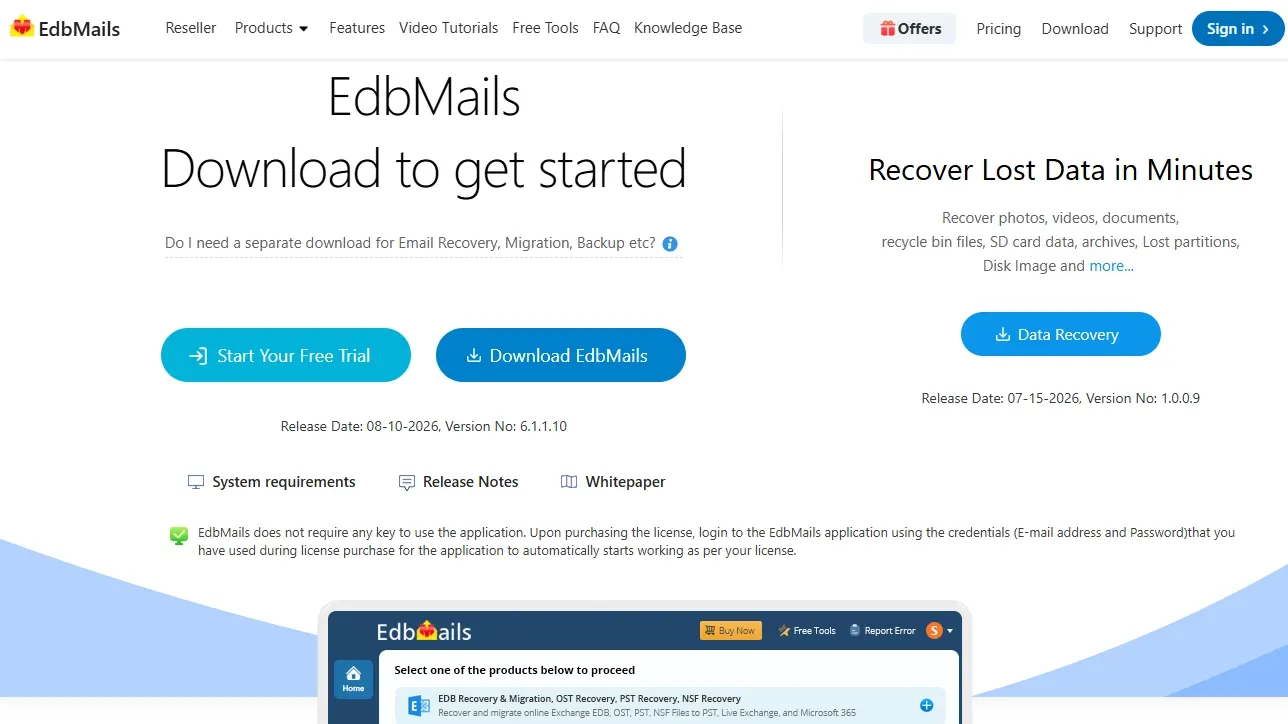
Version Numbers
You'll find the current version at the top of the main EdbMails window, in this format:
Example: 6.1.1.10 → [major].[minor].[maintenance].[build]
What each number actually tells you:
- Major: Changes when something significant happens to the software. Doesn't happen often.
- Minor: Moves up with planned releases, new features, real enhancements. Worth checking the release notes when this one changes.
- Maintenance: Bumps for unplanned fixes, usually something urgent that couldn't wait.
- Build: The smallest changes live here: bug fixes, small UI tweaks, performance tuning.
Doesn't matter which number moves, the update process is the same either way, and it's free.
How to Update EdbMails
- Download EdbMails application.
- Run it on the computer where EdbMails is already installed.
- EdbMails closes automatically once the installer starts. Got a migration running? It'll pause, and you'll need to restart it yourself after the update.
- Running EdbMails on more than one machine? Repeat this on each one.
- Open the updated version. Your settings are all still there, but paused migrations won't resume on their own, you'll need to start them again.