


Reinstall EdbMails or Move the Application to Another Computer
EdbMails allows you to safely reinstall the application or move it to a different computer without losing your migration configuration settings. The software stores migration metadata separately from the installation files, enabling administrators to continue migration projects without recreating configurations from the beginning.
How to Reinstall EdbMails
Follow these steps to reinstall the software:
Step 1: Uninstall the Existing Installation
- Open the Control Panel on your Windows computer.
- Navigate to Programs and Features.
- Locate EdbMails in the installed applications list.
- Select Uninstall and complete the removal process.
Step 2: Download the Latest Version
Download the latest EdbMails setup package from the official EdbMails website.
Step 3: Install EdbMails
- Run the installation package with administrative privileges.
- Follow the installation wizard.
- Complete the installation and launch EdbMails.
Configuration Retention After Reinstallation
EdbMails is designed to retain migration settings and project metadata during a standard uninstall-and-reinstall process. In most cases:
- Existing migration configurations remain available.
- Previously configured source and target connections are preserved.
- Migration project information remains intact.
- Migration history and metadata continue to be accessible.
This allows administrators to resume ongoing projects without reconfiguring the entire environment.
ImportantIn the case you wish to reinstall the software completely, including deleting all settings files, you need to remove the software completely first and install it from scratch. Be aware that such an operation may result in unforeseen data loss and other problems, such as item duplication on the target server. We strongly recommend consulting with EdbMails Support before rushing into this decision.
Move EdbMails to Another Computer
EdbMails supports transferring an existing migration project to another Windows computer. This is useful when upgrading hardware, replacing a workstation, or continuing a migration project from a different system.
Transfer the Migration Metadata
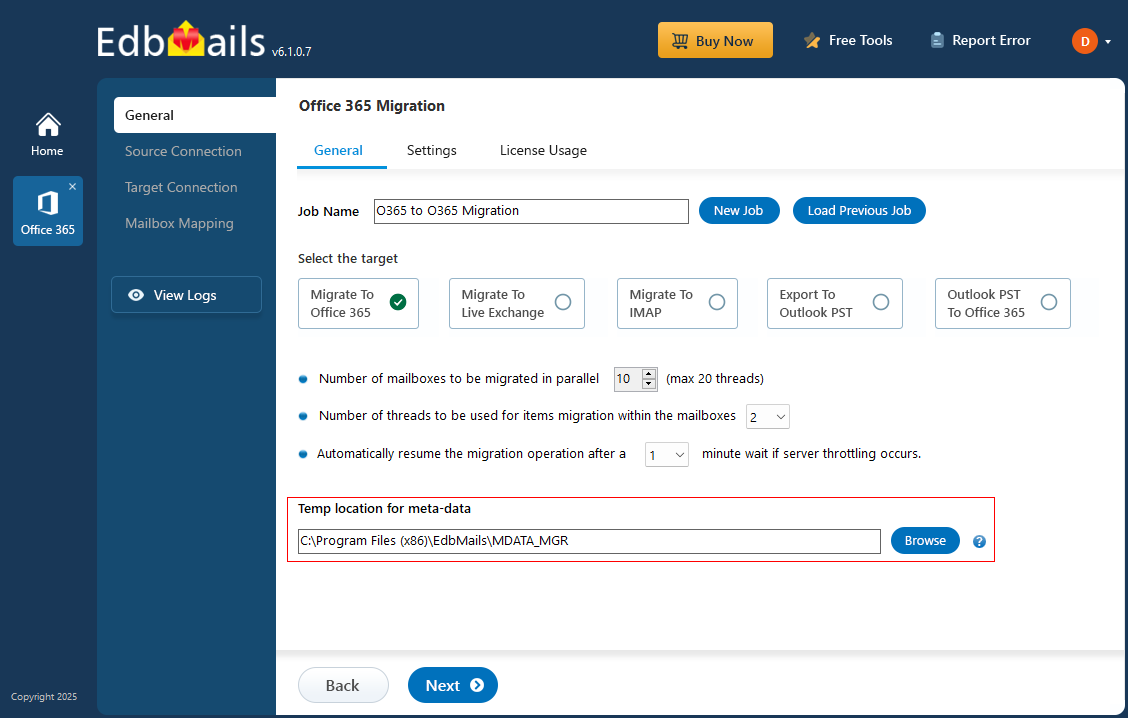
- On the original computer, locate the metadata folder: C:\Program Files (x86)\EdbMails\MDATA_MGR
- Copy the entire MDATA_MGR folder to the destination computer.
Configure the Metadata Location
- Launch the EdbMails application and select the Office 365 operation.
- Locate the Temp Location for meta-data. Click the Browse button, and then select the copied MDATA_MGR folder.
- Save the configuration changes.
Once configured, EdbMails can access the existing migration metadata, allowing you to continue working with previously configured migration projects from the new machine. Refer to the screenshot below.
Frequently Asked Questions
Will I lose my migration settings if I uninstall and reinstall EdbMails?
Do I need to reactivate my license after reinstalling or moving to a new computer?
Should I pause ongoing migrations before reinstalling or moving EdbMails?
Do I need to reconfigure my source and target connections after moving to a new computer?


