


Office 365 Pre-Migration Checklist for Administrators
Planning a successful migration to Office 365 requires careful preparation before mailbox data is moved to the target environment. An Office 365 pre-migration checklist helps administrators assess the existing infrastructure, validate domain and DNS configurations, review licensing requirements, evaluate mailbox inventories, and identify potential migration risks. Following a structured checklist minimizes migration failures, reduces downtime, and ensures a smooth transition to Office 365.
Whether you are performing an Office 365 tenant to tenant migration, Exchange migration, or mailbox migration project, completing the necessary preparation tasks is critical for success. After validating your environment, you can use the Office 365 Migration Software from EdbMails to securely migrate mailboxes, shared mailboxes, archive mailboxes, public folders, and other Office 365 workloads with complete data integrity.
For the complete walkthrough — planning, prerequisites, and post-migration steps — see our full Office 365 to Office 365 migration guide.
- Determine what your migration needs and goals are: The most important task is to clearly determine your reasons for moving to Office 365 and the benefits you hope to achieve. This is important so that you have a migration plan that meets your business needs.
- Assess your current environment: You need to understand your current infrastructure, network, and software applications, which helps you to identify any compatibility issues that may arise during the migration process.
- Identify the data to be migrated: You should determine what data you want to migrate into Office 365, which may include email, contacts, calendars, files, permissions, or any associated applications.
- Calculate what licenses are needed: Ensure that you have the right licenses to migrate your data to Office 365. This could involve purchasing additional licenses to cover all your users.
- Create a comprehensive project plan: Create a comprehensive project plan, detailing the migration, timeframes and responsibilities. This allows you to keep your migration project on track.
Not sure which one fits your organization? Compare all four Office 365 migration methods side by side before deciding.
From Exchange to Microsoft 365 Migration Checklist
- Check your Exchange Server version: Make sure your Exchange Server version is supported for migration to Exchange Online. You will have to upgrade your version to be able to perform the migration.
- Prepare your Exchange Server: Get the hybrid deployment configured and make sure updates and service packs are fully installed. See the Exchange to Office 365 migration plan.
- Verify the domain name: The domain name you're using for Office 365 needs to be verified well before the migration wraps up. This confirms that your users will be able to access their email once it has been migrated.
- Configure the mail flow: Mail flow configuration between your on-premises Exchange Server and Exchange Online. Set up mail flow is important for correctly routing your email messages during migration.
- Migrate your mailbox data: Run the migration through EdbMails Exchange migration software. Larger environments usually benefit from a batched approach, while smaller ones can often handle a single pass without issues.
Office 365 Implementation Checklist
First time setting up Office 365 for your organization? Here are some essential steps to follow:
- Verify your domain name: Your domain needs to be verified with Office 365 before it can be used with email accounts and other applications. The steps to verify and add your domain lay out exactly how to do it.
- Create your user accounts: Add users to Office 365 and make sure each one gets the correct license assigned.
- Configure your DNS settings: Wrong DNS settings will stop users from reaching Office 365 applications altogether. Follow the steps to add DNS records and connect your domain to get this right.
- Set up your email: Sort out your email domains, forwarding rules, and spam filters early. Leaving these until after the rollout creates unnecessary cleanup work later.
From IMAP to Office 365 Email Migration Checklist
Moving email accounts from IMAP to Office 365 — here's what needs to be handled before and during the migration:
- Determine your migration method: You have different types of email migration in Office 365, such as cutover migration, staged migration and hybrid migration. Decide what will be appropriate for your environment.
- Verify your domain name: Check your domain name in Office 365 to confirm that you will be able to use it for email accounts.
- Prepare your email accounts: Go through your mailboxes before anything moves — clean up the data and archive old messages.
- Migrate email accounts: Migrate email accounts to Office 365 in the way that works for you. Use the migration method of your choice. Migrate in batches or all at once, it's up to your environment.
- Check user access: Verify that users are able to access their email account in Office 365, and send and receive emails.
Recommended Migration Solution
After completing the planning and preparation activities outlined in this checklist, the next step is to perform the actual migration. EdbMails Office 365 Migration Software helps organizations migrate mailboxes, archive mailboxes, public folders, and Office 365 tenant data while maintaining mailbox structure, folder hierarchy, and data integrity.
Before starting the migration, ensure that licensing requirements, mailbox permissions, DNS records, domain verification, and network readiness have been validated. Proper preparation minimizes migration risks and helps ensure a smooth transition to the target Microsoft 365 environment.
For detailed migration procedures, download the EdbMails application and follow the Office 365 migration guide.
For the strategic reasoning behind each step, see our Office 365 migration best practices guide.
Running into snags along the way? See our guide to common Office 365 migration challenges.
How to Perform Mailbox Migration to Office 365?
Once the pre-migration planning and validation tasks are complete, you can proceed with the mailbox migration process. The following steps provide an overview of migrating mailboxes to Office 365 after verifying your environment, permissions, licensing, and connectivity requirements.
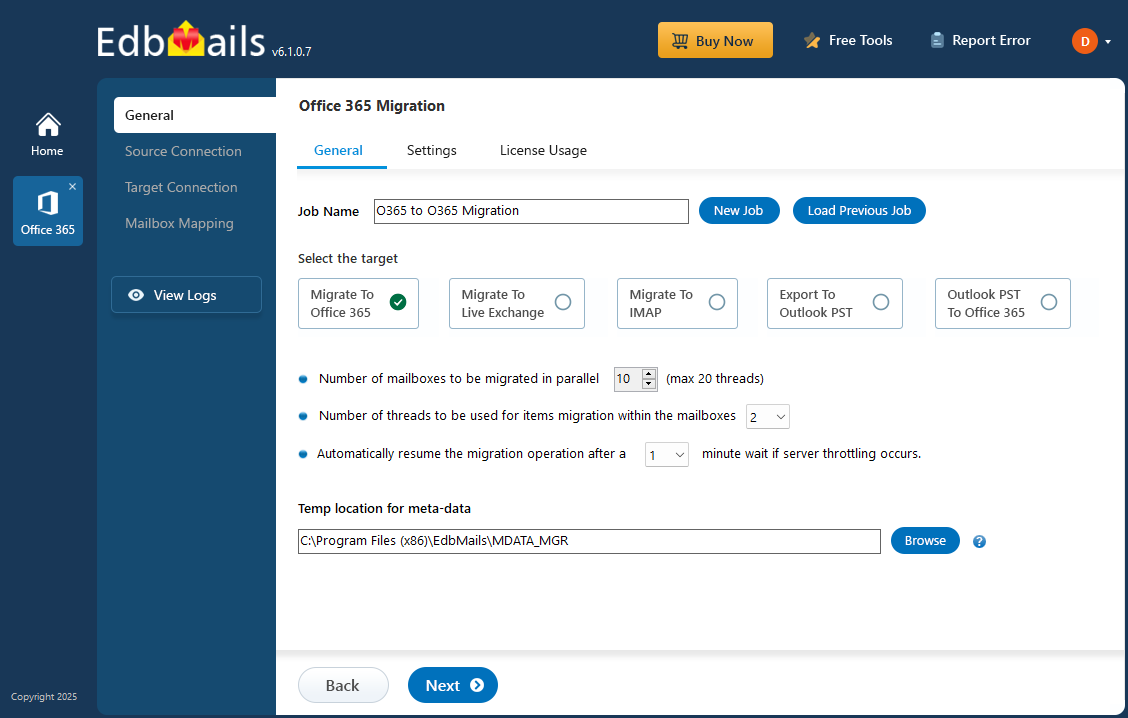
Steps to migrate your mailboxes to Office 365
- Step 1: Download and install the EdbMails migration tool
- Step 2: Select the Office 365 migration option
- Step 3: Connect to your Exchange or Office 365 source server
- Step 4: Pick the mailboxes you want to move to the target server
- Step 5: Connect to the target Microsoft 365 server
- Step 6: Map the source and target servers
- Step 7: Kick off the mailbox migration to Office 365
- Step 8: Once done, verify the migrated folders and mail items
Click here for a comprehensive guide for Microsoft 365 migration
Office 365 post-migration checklist
After migration is completed, some tasks need to be performed to get the user data and applications accessible.
- Check the user access: You need to verify that all users can access their email account, files and applications in Office 365. This would involve verifying their login credentials and their access to all data and applications.
- Configure user profiles: Configure the user settings such as email signatures in Office 365, distribution lists and other configurations.
- Test the applications: Test your applications to verify that they are functioning correctly in Office 365. This can involve the testing of any custom applications as well as any third-party applications.
- Configure your security settings: Configure your security settings in Office 365, which will involve setting up your password policy, your multi-factor authentication settings, and other security settings.
- Train your users: Provide users with training for Office 365 application usage to enhance their productivity.
Getting the Office 365 migration right comes down to preparation and follow-through. Work through the Microsoft 365 migration checklist in this article, test at every stage, and make sure users know what to expect before the cutover. Most post-migration problems trace back to skipped steps or users caught off guard — both are avoidable.
Quick Links
Export Office 365 mailbox to PST
Office 365 migration with the same domain

