


Export Office 365 Shared mailbox to PST
Office 365 shared mailboxes provides effective way for multiple users to access and share a single mailbox without individual credentials. As it gives you a massive 50GB storage without any charges, it is a very suitable option for businesses or teams. Data backup, data migration and compliance requirements are some of the situations where it would be necessary to export a shared mailbox to PST file. A number of Office 365 customers seem to believe that Microsoft is taking responsibility for backing up all their data in the cloud. If you read the Microsoft SLA, you will notice they are not taking responsibility for data retention. For these reasons it is important that organizations regularly back up shared mailbox data to their local system to avoid accidental deletion or corruption. By exporting the mailbox data to PST a offline copy can be saved locally and made accessible if a Microsoft 365 service disruption occurs.
There are several ways you could export an Office 365 shared mailbox to a PST, you could use the eDiscovery method but this is rather involved and requires a bit more knowledge of the system and also require knowledge of PowerShell. Although this method may function for some it is also quite complicated and time consuming. For users who would prefer to opt for a more simple solution, one way is to make use of third party software or Microsoft's own Outlook email client.
EdbMails Office 365 migration software greatly simplifies the export task with efficient and easier means than eDiscovery. Unlike the complicated technical processes of eDiscovery, EdbMails requires absolutely no technical assistance and it is quite easy to perform the task with step-by-step wizard interface that works for any user, regardless of their technical skill. It also possesses extra and more enhanced options like comprehensive language support, so it is convenient for worldwide usage. No other third party support needed, which adds security and easier work flow for EdbMails. Also, EdbMails offers Delta Migration that migrates only new and modified data hence reducing the time to migrate and ensure data integrity. It supports migration at a very large scale without affecting the performance which is ideal for any business of any size.
Why do users prefer to export Office 365 Shared mailbox to PST?
- Recovery capability: When exporting the shared mailbox to PST format, users can recover data if lost (accidental delete, corrupted or service down) at any point of time. The PST acts as a local backup for the mailbox, no mail can be lost and recovered readily.
- Offline access: A PST file gives the user offline access to their mailbox. Working without a live internet connection, the user can read, search, or otherwise manage their emails. This is particularly advantageous to users located in areas with either poor or unreliable connectivity.
- Reducing mailbox size: Shared mailbox size is prone to exceed its storage quota, thus resulting in poor performance. Exporting the older mails to PST file will decrease the mailbox size and increase email client performance and control over the mailbox storage.
- Compliance: Exporting mailbox to PST helps to meet data retention policies and regulations for any organizations. PST files enable organization to store and archive emails to meet the rules.
- Backup: While cloud storage is a feature available through Microsoft, your data ultimately remains your responsibility. By exporting shared mailbox data to PST, you get a reliable local backup which can then be restored in the event that a cloud service fails or some unexpected events happen.
Prerequisites to export Office 365 Shared mailbox to PST
- Install Microsoft Outlook profile on the computer where export needs to be carried out.
- Ensure you have enough space on the computer drive, to store the output PST file.
Steps for Office 365 export Shared mailbox to PST using EdbMails
Step 1: Download and Install EdbMails application
- Download and install the EdbMails application on your computer running on Windows OS.
- Start the application and enter the required details and click the ‘Login’ button or click the ‘Start Your Free Trial’ button to continue.
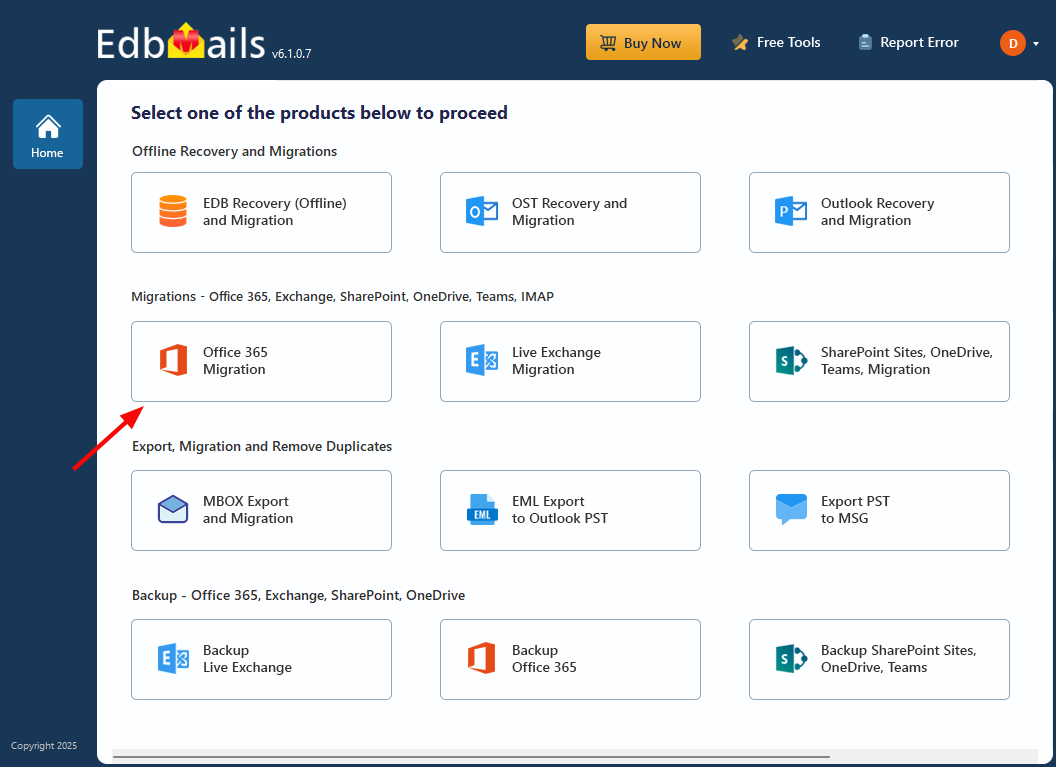
- Select the ‘Office 365 Migration’ option.
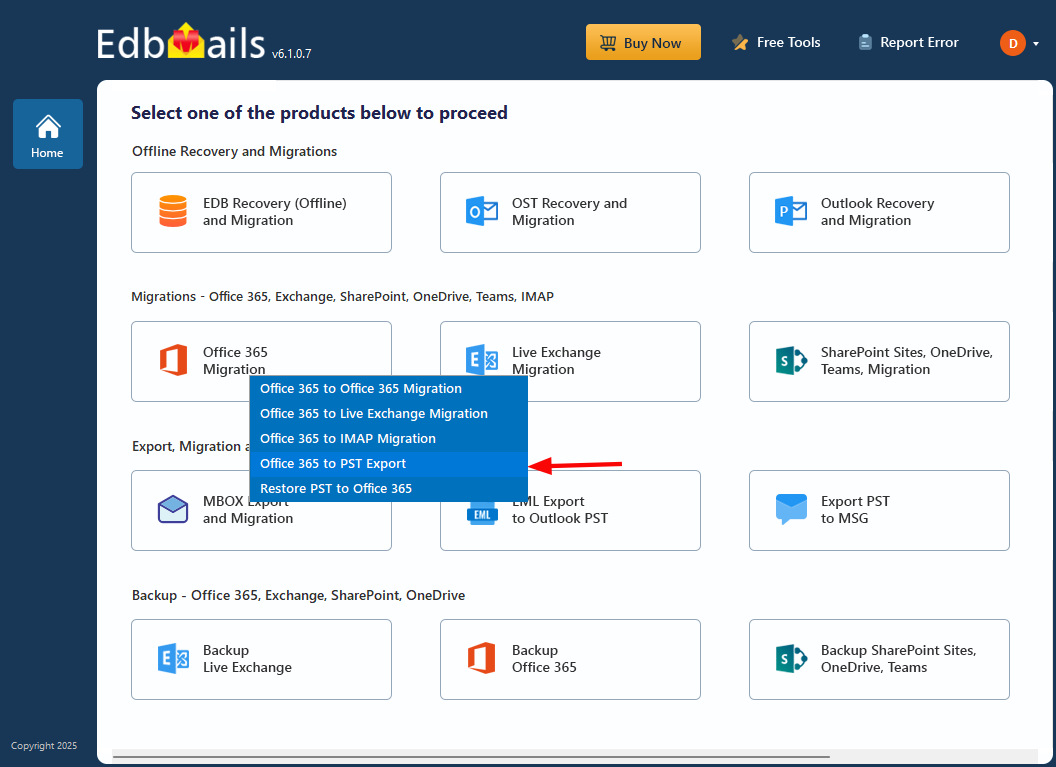
- Select ‘Office 365 to PST Export’ option
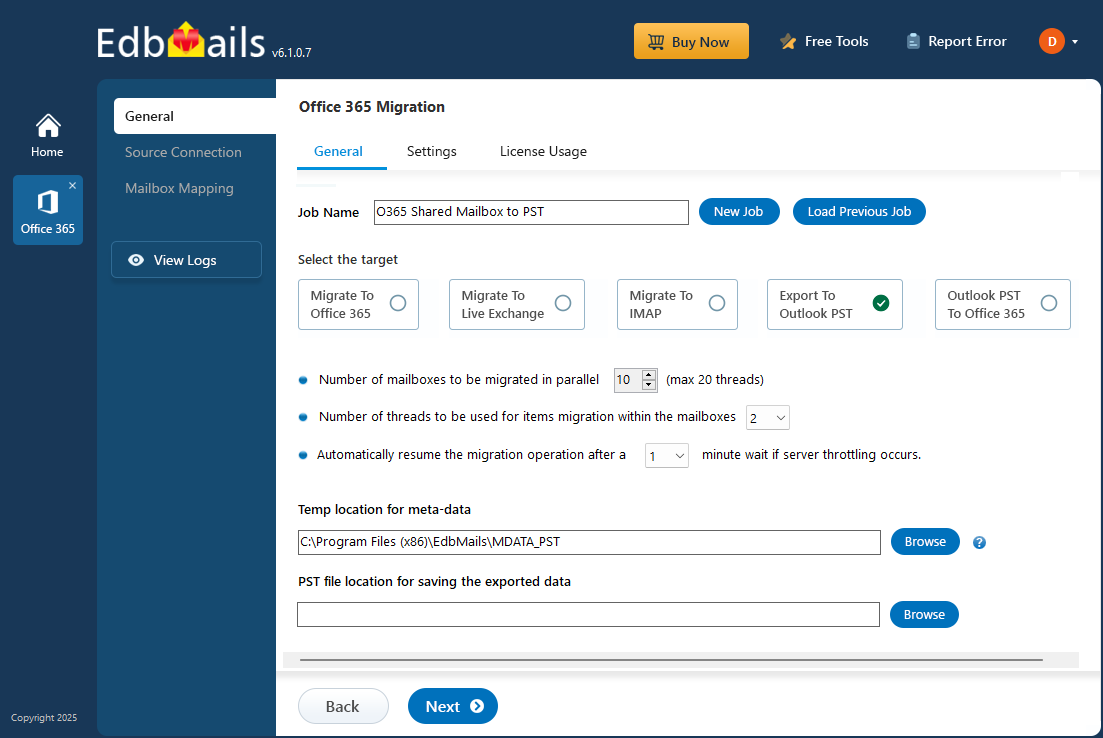
- Opt for the default job name, or click the 'New Job' button to enter a custom name that suits your export.
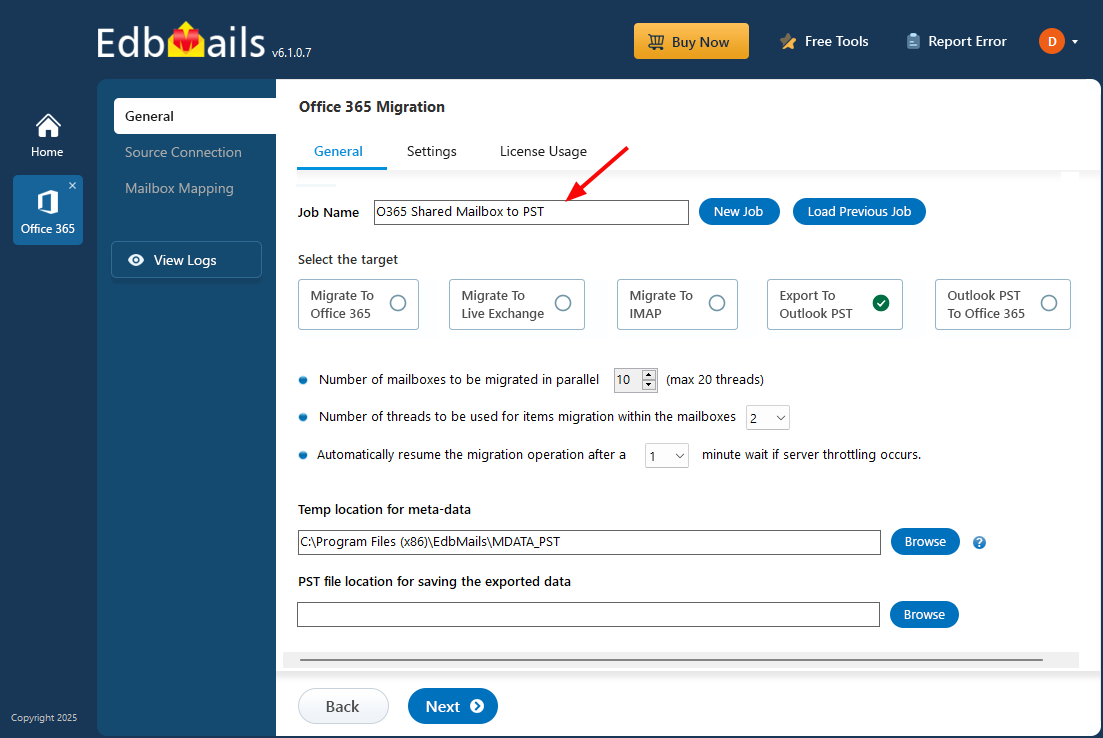
- Click ‘Browse’ button.
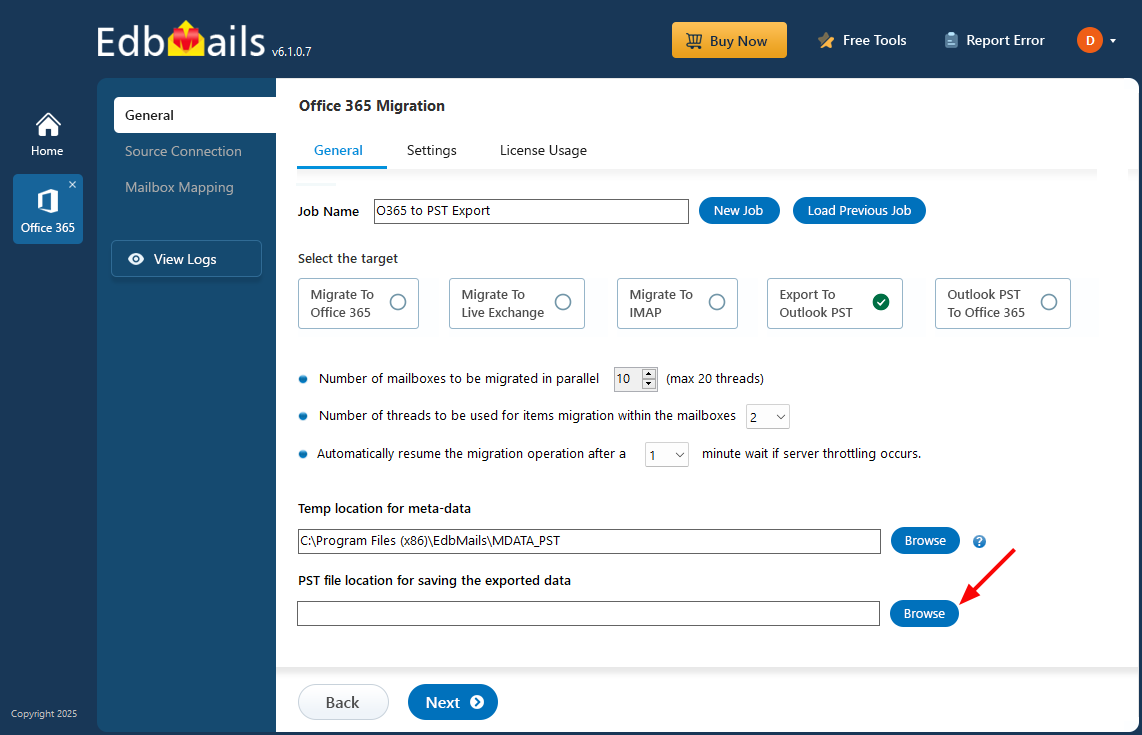
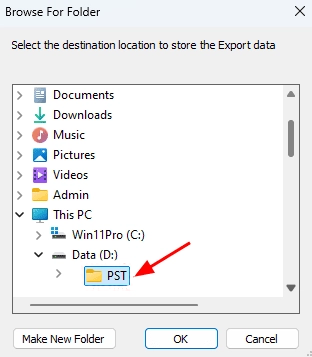
- Choose the destination folder to save the exported PST files and ensure sufficient disk space is available for storage.
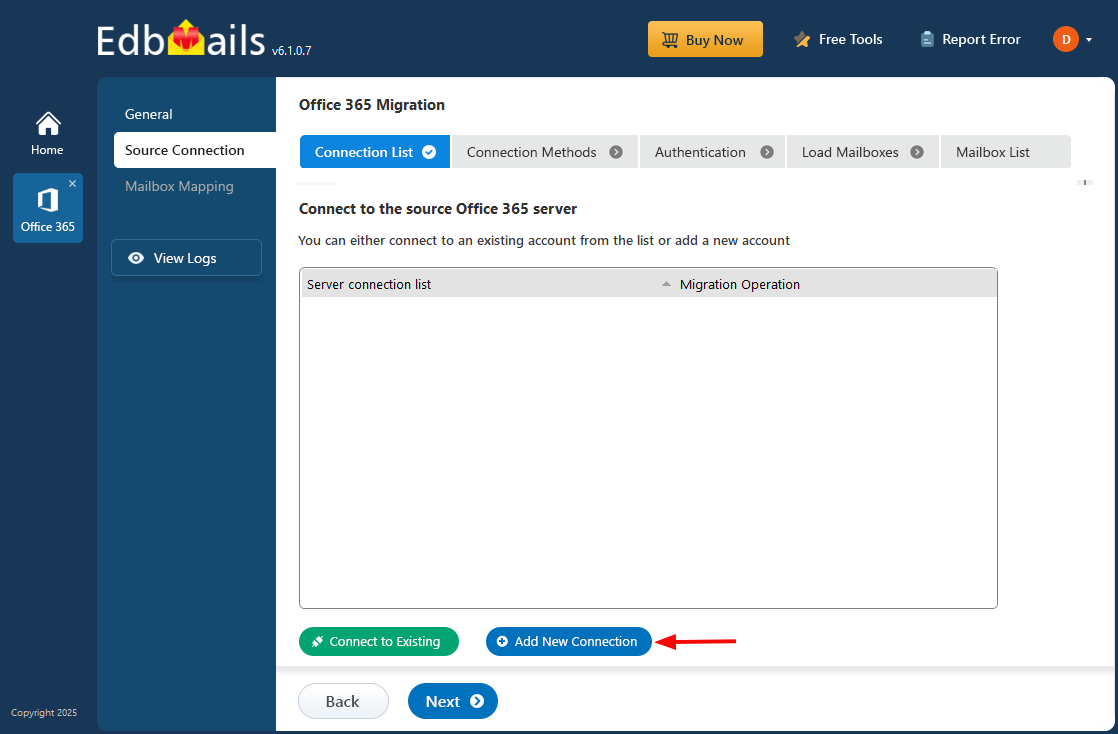
Step 2: Connect to source Office 365 server
- To create a new connection to the source Office 365, click the ‘Add New Connection’ button.
- If you want to use an existing connection, select it from the list and click ‘Connect to Existing’ to proceed.
- Choose the ‘Connect to Primary/Shared Mailboxes’ option and click the ‘Next’ button.
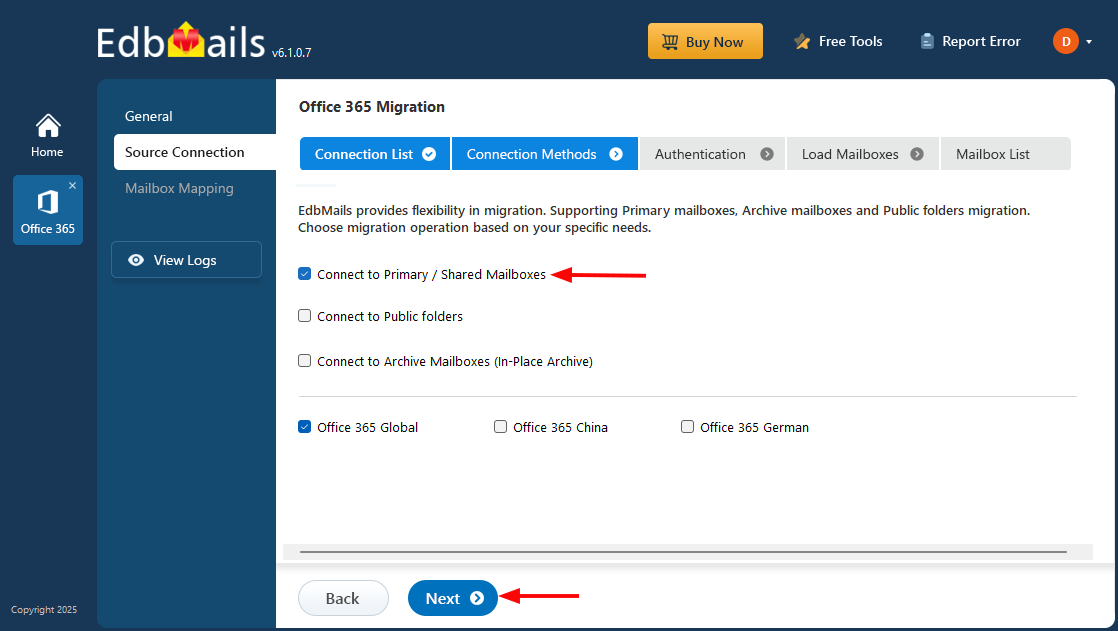
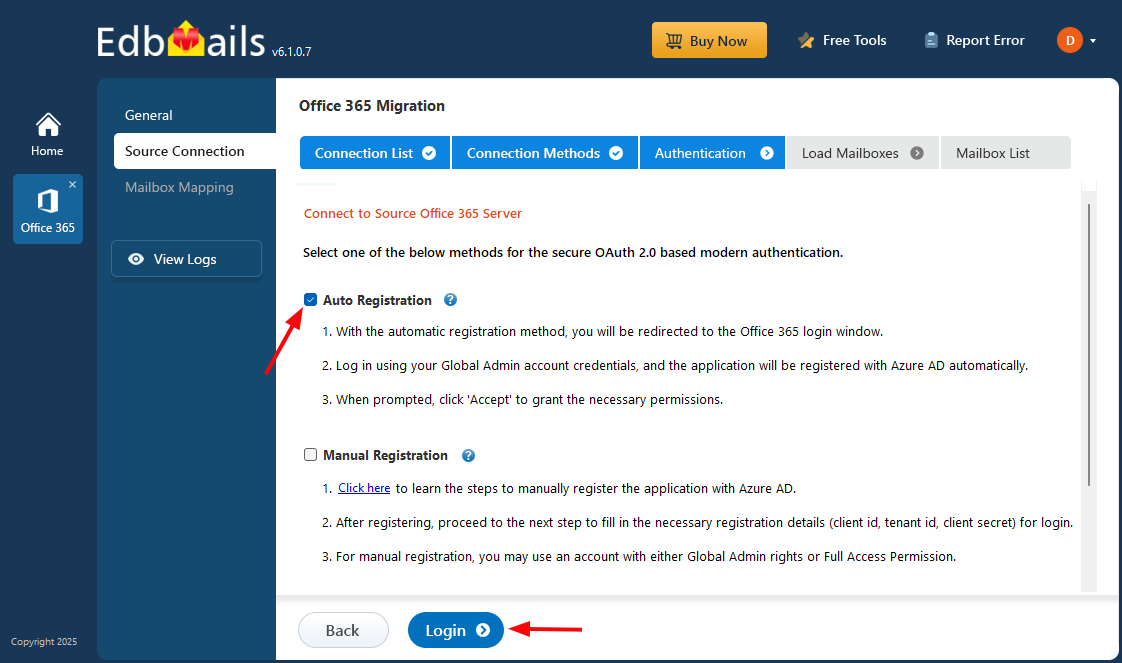
- Select the appropriate authentication method and click the ‘Login’ button to proceed.
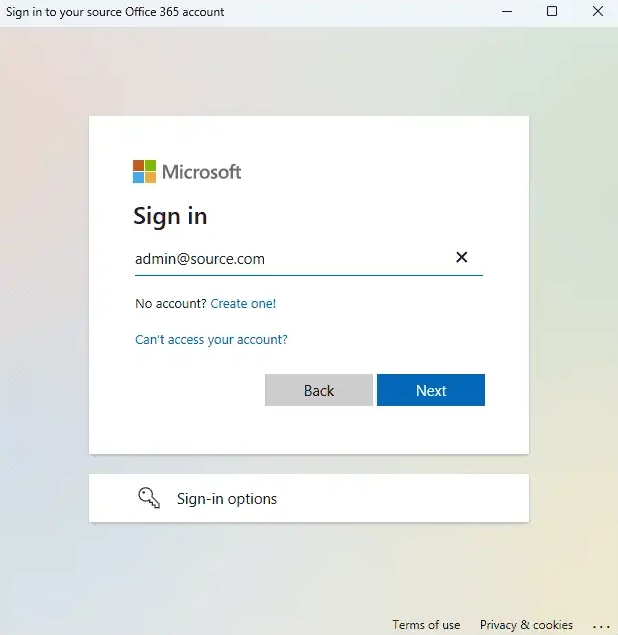
- Authenticate on Microsoft sign-in page.
Connect to Office 365 server using secure modern authentication
- After successfully connecting to your Office 365 server, select an option to load the shared mailboxes. Alternatively, you can also load the mailboxes using a CSV file.
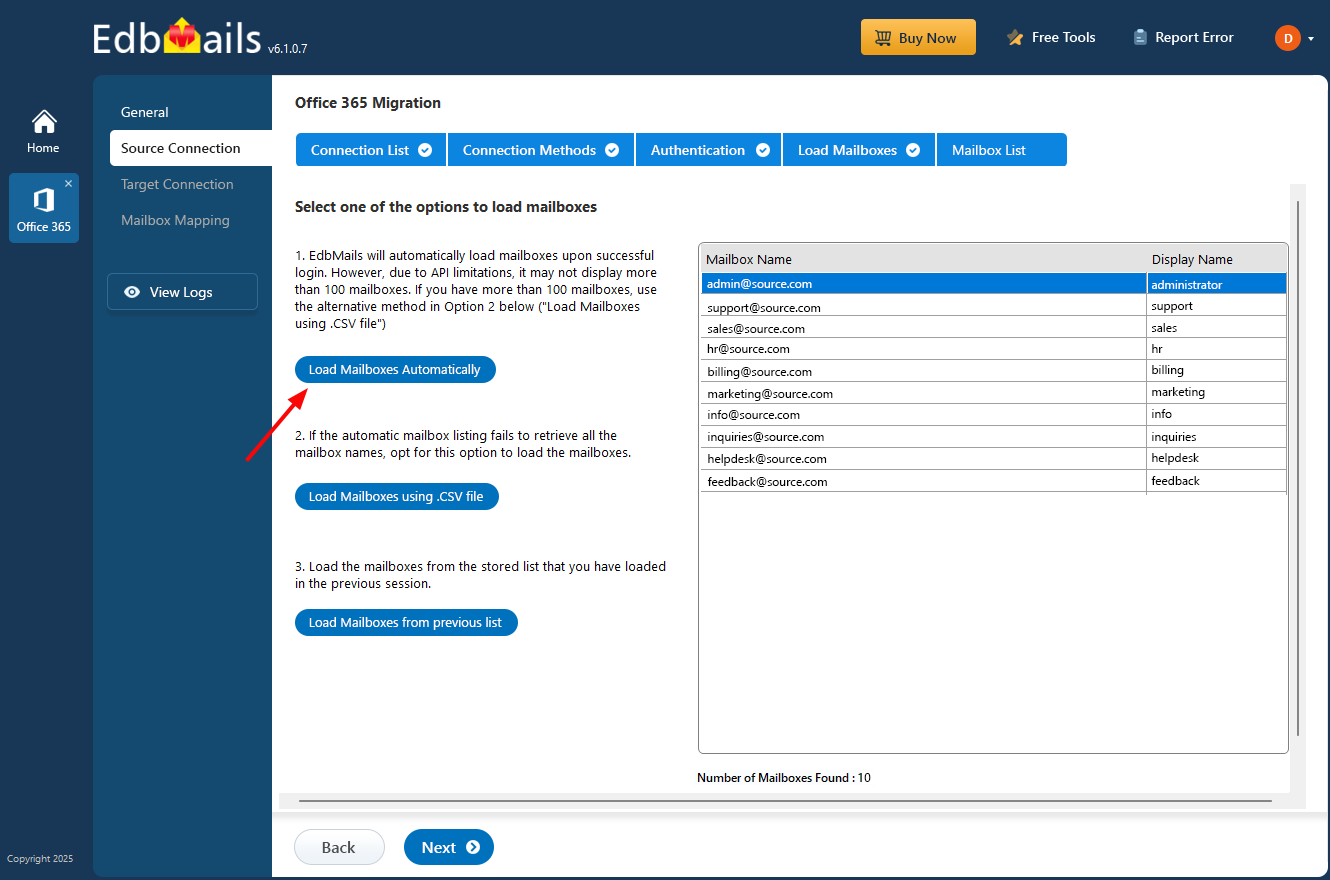
Step 3: Select Office 365 Shared mailboxes
- Select the Shared mailboxes from the left pane and click ‘Next’ button to proceed.
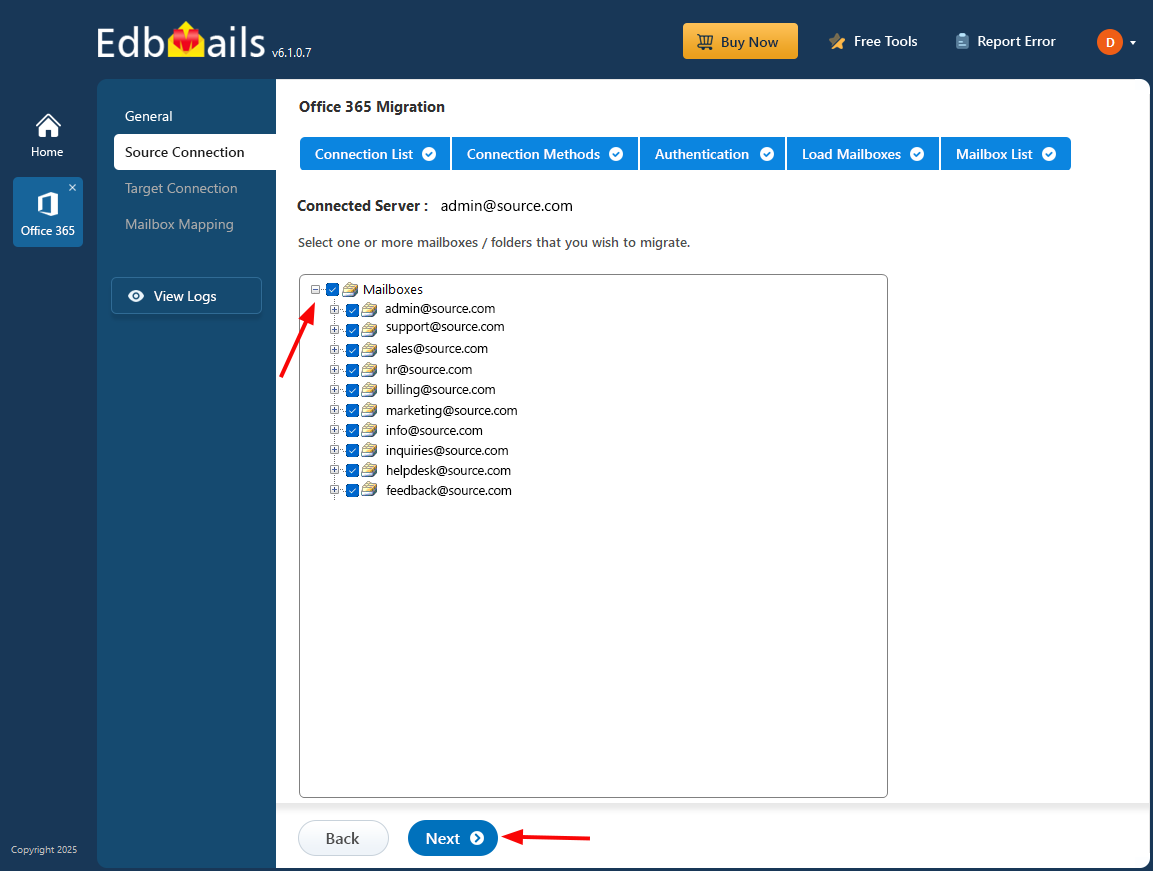
With EdbMails, you can apply filters to customize your export process, such as using date filters to export items within a specific date range.
- Select the Shared mailboxes from the left pane and click ‘Next’ button to proceed.
Step 4: Start Office 365 Shared mailbox to PST export operation
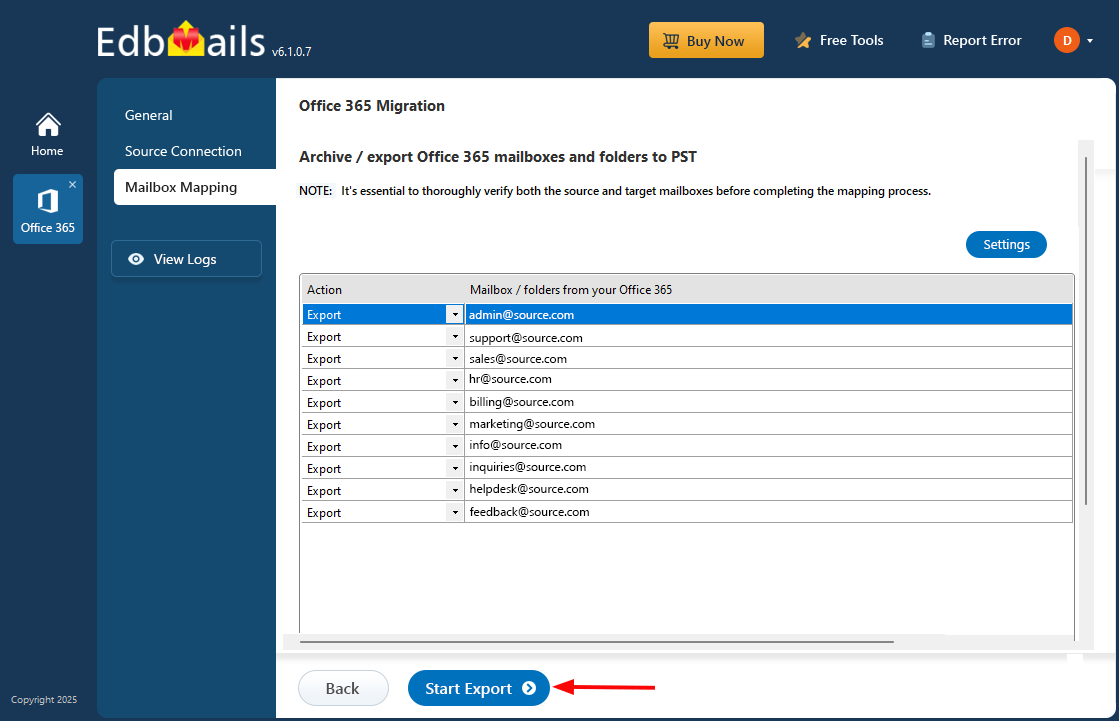
- Verify the Shared mailboxes for the export operation and ensure to Set the ‘Action’ as ‘Export’.
- Click the ‘Start Export’ button to initiate the export process
- That's it! During export operation, you can view the progress as shown below.
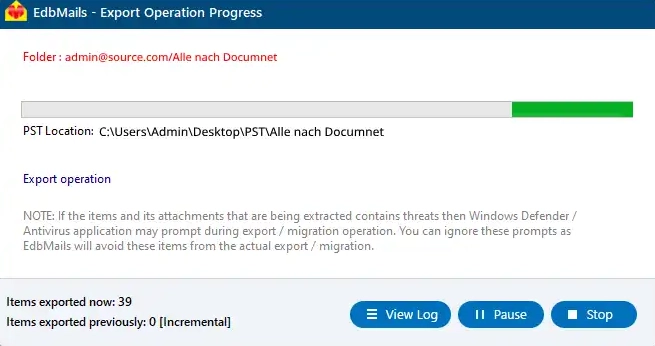
- You will get a confirmation message once the export operation is completed. EdbMails generates the detailed export operation reports, you can get access to that by clicking the ‘View Log’ button .
- After completing the export operation, open the PST file on your Outlook and verify the items such as emails, calendars, contacts, etc.
Robust features of EdbMails to export Office 365 Shared mailbox to PST
- Multiple mailbox migration
Migration of multiple Office 365 Shared mailboxes to PST files is simplified with EdbMails at one go. You will no longer have to carry out the operation for each mailbox, hence reducing the effort and time consumed. Multiple mailboxes can be easily migrated at a time without any loss of data.
- Overall migration summary
The EdbMails migration includes a comprehensive migration summary report. This feature will enable users to get an overview of the entire migration, which will include status for each mailbox. It ensures users can track the progress and verify successful completion.
- Preserving data integrity
EdbMails provides full data integrity during Office 365 Shared mailbox to PST export. It maintains every part of mailbox data that includes E-mails, attachments, calendars and contacts so that no data is lost or altered during migration.
- Pause and resume migration
With EdbMails you can pause and resume the migration anytime. This is very useful when there are very large data file to transfer or there is any interruption to the migration process. You can start, stop and restart the migration without the risk of losing progress.
- Script-free migration
EdbMails provides an automatic solution during the migration process without the need for complicated scripts. The simple and user-friendly interface helps every non-technical user to complete the migration easily. The entire process is handled by the tool itself making it a perfect choice for organizations that do not have an experienced IT staff.


