EdbMails EDB Recovery and Migration software
  • Products
    EdbMails
    All-in-one Recovery and Migration
    Explore our products
    • EDB recovery and Migration
    • OST, PST, MBOX, NSF, EML, MSG
    • Office 365, Exchange Migration
    • SharePoint, OneDrive & Teams
    • G Suite Migration
    • IMAP Migration
    • Duplicate Remover
    • Windows Data Recovery
    • Backup Solutions

    EDB Recovery and Migration

    EdbMails lets you recover corrupted, damaged, and offline Exchange EDB files, convert EDB mailboxes to PST format, and directly migrate mailbox data to Office 365 and live Exchange Server.

    EDB to PST
    Recover corrupted, damaged, offline EDB files and convert Exchange EDB mailboxes to PST file format
    Public Folder to Exchange
    Migrate public folders from an Exchange offline EDB file to live Exchange Server
    EDB to Live Exchange Migration
    Directly migrate offline Exchange database (EDB) files to live Exchange server
    Archive Mailbox to Office 365
    Migrate archive mailboxes from offline EDB files directly to Office 365
    EDB to Office 365 Migration
    Directly migrate offline Exchange database (EDB) files to Office 365
    Public Folder to Office 365
    Migrate public folders from an offline Exchange EDB file to Office 365

    OST, PST, MBOX, NSF, EML, MSG Export and Migration

    EdbMails lets you to recover OST and PST files, export OST, PST, MBOX, NSF, EML, and MSG files to PST files, and directly migrate OST, PST, MBOX, and NSF mailbox data to Office 365 and live Exchange Server.

    OST Recovery and Migration
    Recover offline OST files, convert OST to PST, and migrate OST to Office 365 and Exchange Server
    PST Recovery and Migration
    Recover Outlook PST files , Export PST to PST, migrate PST to Office 365 and Exchange Server
    MBOX Export and Migration
    Export MBOX to PST, migrate MBOX to Office 365 and Exchange Server
    NSF Export and Migration
    Export NSF to PST, migrate NSF to Office 365 and Exchange Server
    EML to PST Export
    Convert EML files to Outlook PST files
    PST to MSG Export
    Convert Outlook PST file to MSG file format
    MSG to PST Export
    Export MSG files to Outlook PST files

    Office 365, Exchange Migration

    EdbMails lets you securely migrate mailboxes across Microsoft 365, Exchange, Google Workspace (G Suite), and IMAP-supported servers such as Outlook, Gmail, Zimbra, Zoho Mail, and cPanel, ensuring zero downtime.

    Office 365 Migration
    Migrate between Office 365 tenants, Office 365 to Exchange, Office 365 to PST, PST files to Office 365.
    Exchange Migration
    Migrate between any Exchange Servers, Exchange to Office 365, Exchange to PST, PST files to Exchange.
    Tenant to Tenant Migration
    Migrate Mailboxes, Public Folders, Archive Mailboxes between Office 365 Tenants.
    Exchange to Office 365
    Migrate Mailboxes, Public Folders, Archive Mailboxes from live Exchange server to Office 365.
    Office 365 to IMAP
    Migrate Office 365 to IMAP, Office 365 to Gmail, Office 365 to Outlook, Office 365 to Zoho etc.
    Exchange to IMAP
    Migrate from live Exchange Server to IMAP servers such as Gmail, Outlook, and Zoho Mail.
    Public Folder to Office 365
    Migrate Public Folders between Office 365 tenants with complete folder hierarchy and mailbox data integrity.
    Exchange to PST
    Export live Exchange Server mailboxes, public folders, and archive mailboxes to Outlook PST files.

    SharePoint, OneDrive & Microsoft Teams Migration

    EdbMails lets you migrate SharePoint sites, OneDrive data, Microsoft Teams, teams, channels, chats, permissions, and documents between Microsoft 365 tenants while maintaining the existing folder structure and data integrity.

    SharePoint Online Migration
    Migrate documents, lists, files and folders from SharePoint sites.
    OneDrive for Business Migration
    Migrate documents, lists, files, folders, private chats from OneDrive.
    Microsoft Teams Migration
    Migrate Teams, chats, channels, documents, files and folders etc.

    Google Workspace / G Suite Migration

    EdbMails G Suite Migration Tool lets you easily migrate emails, calendars, contacts, tasks, and more from G Suite to Office 365, Exchange Server, and IMAP servers using a Google Admin account without requiring individual user credentials.

    G Suite Migration
    Migrate emails, calendars, contacts, tasks from G Suite to Office 365, G Suite to Exchange, G Suite to IMAP Servers
    G Suite to Office 365
    Migrate emails, calendars, contacts, tasks from Google Workspace / G Suite to Office 365
    G Suite to Exchange Server
    Migrate emails, calendars, contacts, tasks from Google Workspace / G Suite to on-Premise Exchange Server
    G Suite to IMAP
    Migrate emails, calendars, contacts, tasks from Google Workspace / G Suite to IMAP, Outlook, Zimbra, Zoho etc.

    IMAP Migration

    EdbMails IMAP Migration tool lets you easily migrate emails from IMAP servers such as Outlook, Gmail, Zoho Mail, Zimbra, cPanel, and more. Supports IMAP to IMAP, Office 365, Exchange Server, PST, and bulk PST to IMAP migration.

    IMAP Email Backup & Migration
    Backup and migrate emails from IMAP servers to PST, Office 365, and On-Premises Exchange Server
    IMAP to Office 365
    Migrate emails, folders, and attachments from IMAP servers to Office 365
    IMAP to Exchange
    Migrate emails, folders, and attachments from IMAP servers to on-premises Exchange Server
    IMAP to PST
    Export emails, folders, and attachments from IMAP servers to Outlook PST files for backup
    PST to IMAP
    Migrate emails, folders, and attachments from bulk PST files to IMAP servers

    Duplicate Remover

    EdbMails Duplicate Remover lets you easily remove duplicate items from Office 365 and Exchange Server, and from IMAP, Outlook, Gmail, Zimbra, Zoho Mail, etc., ensuring a clean and organized mailbox.

    Remove Duplicates
    Easily clean up your Office 365, Exchange, Outlook and IMAP accounts by removing duplicate emails.
    Remove Duplicates from Office 365
    Remove duplicate emails, calendars, contacts, journal tasks, etc. from Office 365.
    Remove Duplicates from Exchange Server
    Remove duplicate emails, calendars, contacts, journal tasks, etc. from live Exchange Server.
    Remove Duplicates from IMAP, Outlook
    Remove duplicate emails, attachments from IMAP, Outlook, Gmail, Zimbra, Zoho Mail etc.

    Exchange, SharePoint, OneDrive, Teams and Office 365 Backup

    EdbMails enables secure, automated backup and recovery for Microsoft 365 services including Exchange Online, SharePoint, OneDrive, Teams, and Live Exchange Server with complete data protection and restore flexibility.

    Office 365 Backup
    Incremental, Granular, Encrypted and Compressed Office 365 Mailboxes Backup
    Exchange Server Backup
    Incremental, Granular, Encrypted and Compressed Exchange Mailboxes Backup
    SharePoint, OneDrive & Teams Backup
    Backup Online site collections, Team sites, Office 365 groups, all documents etc.

    Windows Data Recovery

    EdbMails Windows Data Recovery Software lets you recover permanently deleted data, including photos, videos, documents, and archived files, from partitions on hard drives, SSDs, USB drives, SD cards, and external storage devices.

    Windows Data Recovery
    Recover and restore permanently deleted data from hard drives, SSDs, USB drives, SD cards, and etc.
    Whitepaper
    Request a Demo
    Sign Up
  • Features
  • FAQ
  • Pricing
  • Download
  • Support
  • Sign in
User’s Manual
Office 365 Migration

User Manual

User Manual

  • Office 365 Migration Overview
  • Initial setup
  • System Requirements
  • Migration Scenarios
  • Software Setup
    • EdbMails Installation Process
    • Upgrading the Software
    • How to uninstall
    • Reinstallation
  • Understanding the Application
    • Software's Main Components
    • Understanding the Migration
  • FAQ
    • General
    • Migration Free Trial / Demo
    • Migration License
    • Before Migration
    • Migration - Steps
    • After Migration
  • Videos
    • Office 365 to Office 365
    • Office 365 to Exchange
    • Office 365 to IMAP
    • Office 365 to PST
    • Public Folder to Office 365
    • Archive Mailbox to Office 365
    • Public Folder to Exchange
    • Archive Mailbox to Exchange
    • Restore Bulk PST files to Office 365
    • Automatically Create Office 365
    • Export Office 365 user to CSV file
  • Screenshots
    • Office 365 to Office 365
    • Office 365 to Exchange
    • Office 365 to PST
    • Office 365 to IMAP
  • How it works?
    • Office 365 to Office 365
    • Office 365 to Exchange
    • Office 365 to IMAP
    • Office 365 to PST
    • Public Folder to Office 365
    • Public Folder to Exchange
    • Public Folder to Shared Mailbox
    • Archive Mailbox to Office 365
    • Archive Mailbox to Exchange
    • Office 365 to Hosted Exchange
    • Multiple PST to Office 365
    • Office 365 to Gmail Migration
    • Office 365 Shared mailbox to Exchange
    • Office 365 Public folders to PST
    • Office 365 archive mailbox to PST
    • Office 365 Shared mailbox to PST
    • Office 365 shared mailbox to Public folder
    • Office 365 Archive mailbox to Shared mailbox
    • Office 365 Shared mailbox to Archive mailbox
    • Office 365 to Zoho migration
    • Office 365 group mailbox to shared mailbox
    • Shared mailbox to Office 365 Groups mailbox
    • Office 365 Groups mailbox to Regular mailbox
  • Connect to source Office 365
  • Connect to target Office 365
  • Modern Authentication Using OAuth 2.0
    • Microsoft 365 modern authentication
    • Automatic Registration
    • Manual Registration
  • Connect to Exchange server
  • Knowledge Base
    • Migrate between Office 365 tenants
    • Migrate Office 365 mailbox
    • Public folder migration
    • Office 365 to Exchange Migration
    • Office 365 Migration with same Domain
    • Office 365 Group Migration
    • Selective Mailbox Migration
    • Migration to Exchange 2007, 2010, 2013, 2016 and 2019
    • User-Defined Mailbox/Folder Mapping
    • Export Office 365 users to CSV
    • GoDaddy to Microsoft 365 migration
    • Rackspace to Office 365 migration
    • Office 365 migration methods
    • Office 365 migration checklist
    • Migrate Shared mailbox to Office 365
    • Office 365 migration best practices
    • Office 365 migration challenges
    • Convert shared mailbox to regular mailbox
    • Office 365 to Exchange 2019 migration
    • Office 365 multiple mailbox migration
    • Office 365 Server to Server Migration
    • Cross-Tenant Office 365 migration
    • EWS throttling in Exchange Online
    • Office 365 migration common use cases and solutions
    • Language settings on Office 365 Server
    • Office 365 to iCloud migration
    • Office 365 to Yahoo Mail migration
    • Microsoft 365 sign-in issue
    • Batch create Outlook profiles Intune
  • Set Office 365 Impersonation rights
    • Using PowerShell commands
    • Using Office 365 GUI
  • Migration Types
    • Cutover Migration
    • Staged Migration
  • Set Exchange Server Impersonation rights
  • Map the Mailboxes
  • Migration Walkthrough
    • Office 365 tenant to tenant migration
    • Office 365 to Exchange migration
    • Office 365 to PST Export
  • Multifactor Authentication
    • Enable MFA in Office 365
    • Create App password for MFA
    • Disable Security Defaults
  1. Home
  2. Product
  3. How to migrate Office 365 server with the same domain name?
Download Buy Now

Office 365 Migration Keeping the Same Domain Name

Office 365 to Office 365 migrations with the same domain name differ from standard migrations because Microsoft only allows a domain to reside in one tenant at a time. To perform a same-domain migration, user addresses on both the source and destination tenants must be switched to 'onmicrosoft.com' domain names instead of the vanity domain names. Adding the domain to the destination tenant will cause brief downtime for this reason.

Some email downtime is unavoidable during this process, which occurs in the window between removing the domain from the source tenant and adding it to the destination tenant.
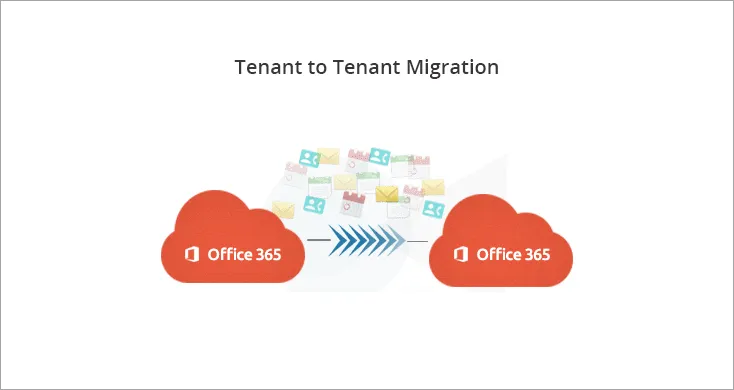
Office 365 to Office 365 Migration with same domain

  1. Reason for moving the Office 365 tenants with same domain

    • You may need to move away from Office 365 providers like GoDaddy, Rackspace, or Comcast to manage the tenant directly under Microsoft.
    • To reduce email latency, you may want to shift your Office 365 servers from Germany to the USA, from China to the USA, or the reverse.
    • During business acquisitions and mergers, companies often need to consolidate into a different Office 365 tenant while retaining the existing domain name.
    • Migrating with the same domain means users keep their current email addresses, which eliminates confusion and minimizes disruption to day-to-day operations.
    • Retaining the domain also preserves brand consistency, email addresses and website URLs stay the same for customers, suppliers, and partners.
    • A domain name change also introduces deliverability risks. Emails sent from a new domain are more likely to be flagged as spam or blocked outright. Keeping the same domain sidesteps those issues entirely.
  2. Steps involved before migrating Office 365 in the same domain

    Step 1: Move the users of source Office 365 to another domain

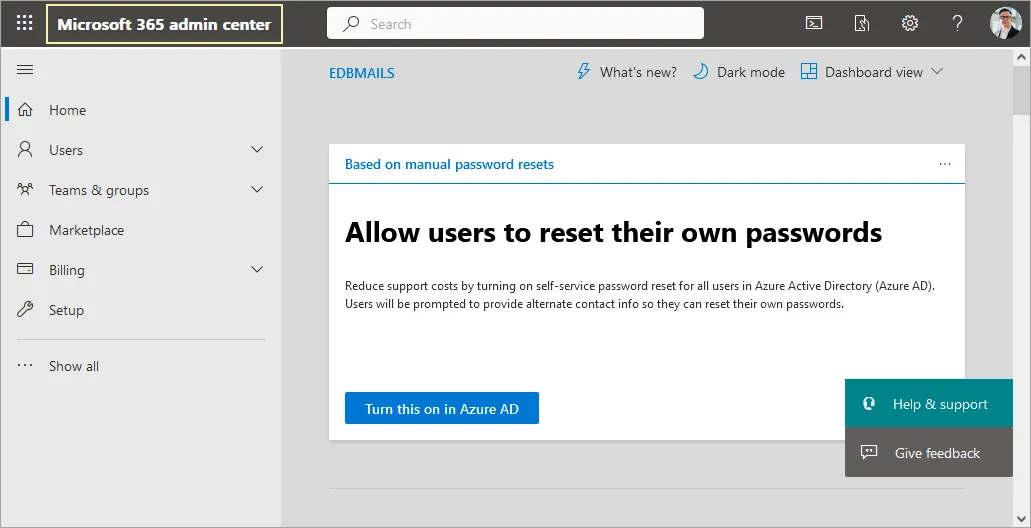
    • Open the Microsoft 365 Admin Center.

      Open Microsoft 365 admin center

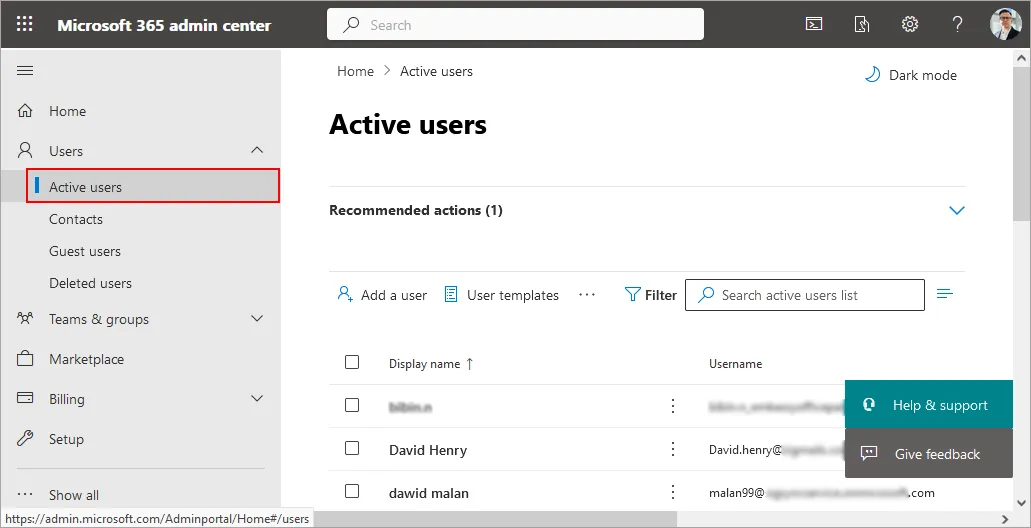
    • Select ‘Users’ > ‘Active users’.

      Navigate to Active users

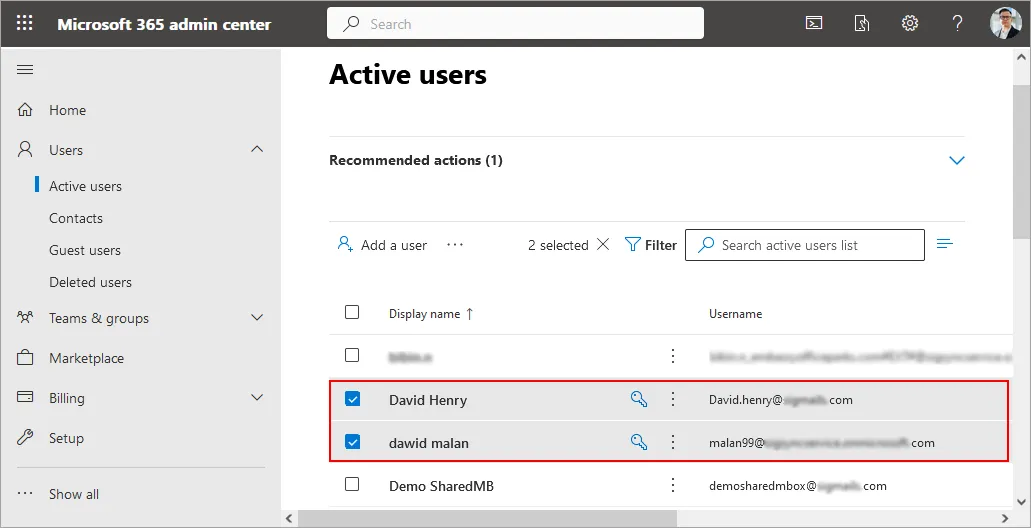
    • Choose the users you want to move by selecting their corresponding checkboxes.

      Check the user names

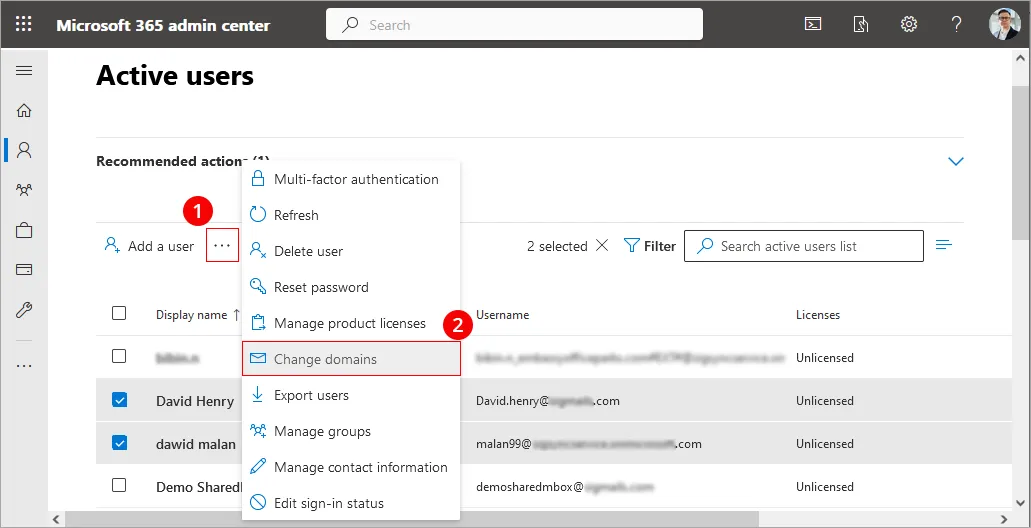
    • Select ‘More options (…)’, at the top of the page, and then choose ‘Change domains’.

      Change domains

    • In the Change domains section, switch your current domain to something like xxx.onmicrosoft.com.

    If your admin account is also using the domain you plan to remove, update your account’s domain as well. After making the change, you’ll be signed out and must log back in using the newly assigned domain.

    Step 2: Remove the domain from source Office 365 server

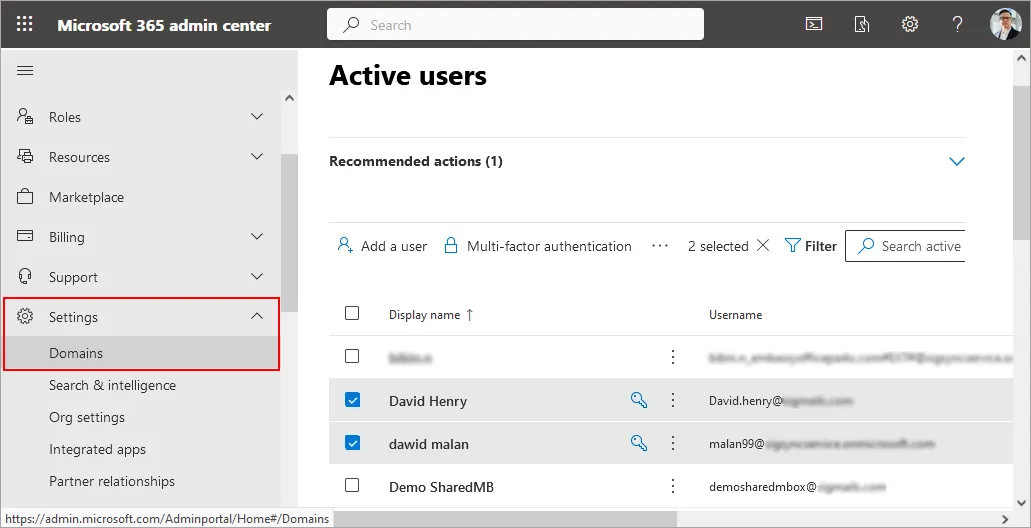
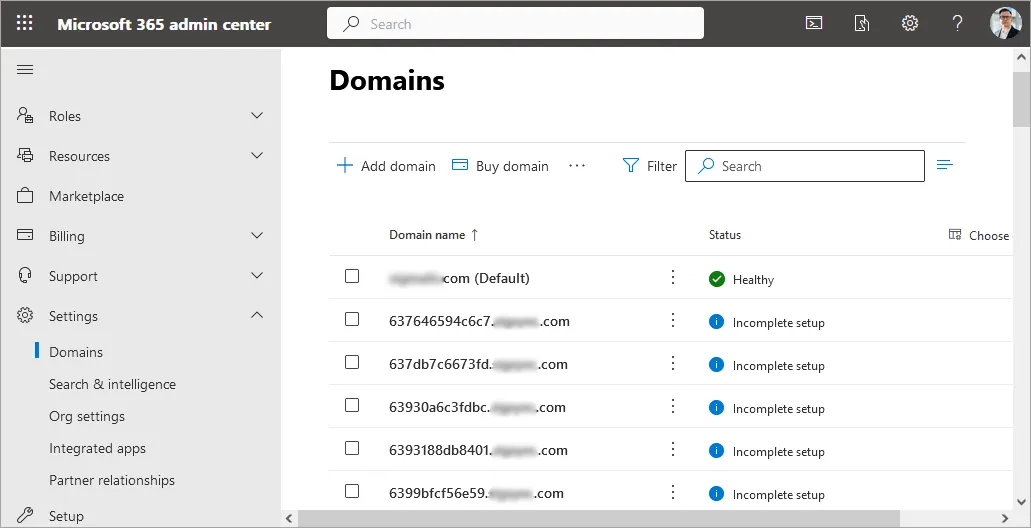
    • In the admin center, go to ‘Settings’ > ‘Domains page’

      Check domains

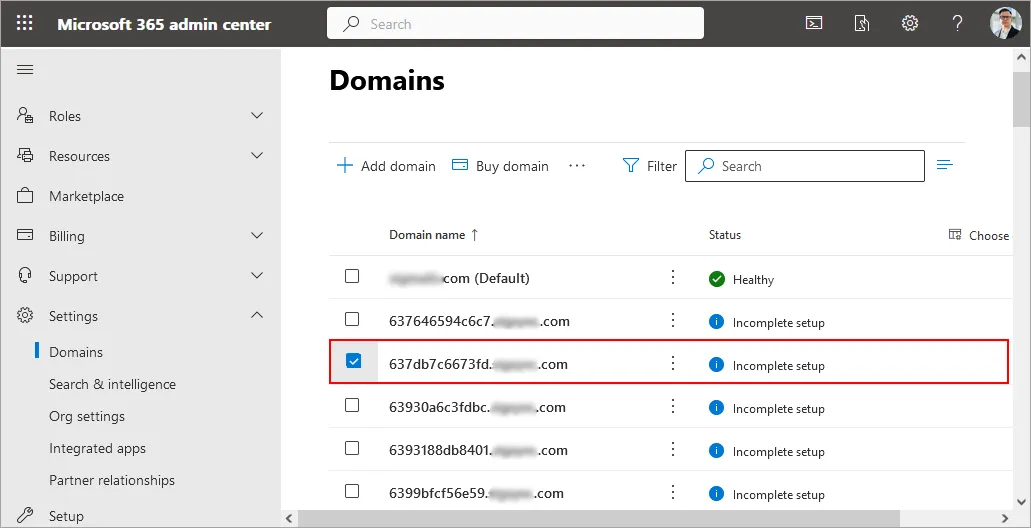
    • On the Domains page, select the domain that you want to remove

      select the domains

    • In the toolbar pane, select ‘Remove domain’

      select remove domain

    • Follow any additional prompts, and then select Close

    Note: Removing a domain from Office 365 can take as little as 5 minutes when it has few references, security groups, distribution lists, users, and Office 365 groups. If the domain appears across many of these objects, the removal process can stretch to several hours or, in some cases, an entire day.

    After the domain removal is complete, users will not be able to access their email, unless they know their tenant name and log in with their tenantname.onmicrosoft.com email addresses.

    Step 3: Prepare administrator account on source tenant for migration

    • In the Office 365 admin portal, change the UPN of the admin account to the onmicrosoft.com address.
    • Create an administrator account (Global admin) in Office 365 to be used for migration.
    • Test the mailbox and email access by logging into the tenant

    Note: Test the access to the tenantname.onmicrosoft.com addresses, not to the domainname.com addresses. Make sure that the tenantname.onmicrosoft.com account is attached to each mailbox in Office 365. By default, it should be attached.

    Step 4: Verify the domain on destination Office 365 server

    • Verify the domain in the Destination Office 365 account. We recommend the use of the wizard in Office 365 for this operation, because after the domain is verified with the Text record, it offers to change all the users to the new Default Domain.

    Note: Since the domain was previously added to the account, all that needs to be done is to click the Verify button. If the domain is unable to be verified, and there is an error saying the domain already exists on another account, contact Microsoft and inform them that the domain needs to be manually deprovisioned.

    • Create an administrator account in Office 365 to be used for migration
    • Set up accounts on Office 365 and assign licenses. These can be created in several ways:
      • Manually create the mailboxes, one at a time.
      • By bulk import, via CSV file. Import the CSV file and create the mailboxes.
      • By DirSync, AAD Sync or AAD connect.
    • Confirm that every user has the Destination ‘domain.com’ domain name added to their mailbox. Add manually if necessary.
    • Prepare the tenant to send and receive large mail items in Office 365.

    Step 5: Update your DNS records

    MX Record update: On the DNS provider's portal, change the primary MX record to reflect the DNS settings for the new Office 365 organization. The DNS settings to change include Autodiscover, MX, and SPF records. Also, remove the old settings.

    These settings can be found in the Office 365 admin portal,

    • Inside Office 365, click Admin in the header.
    • On the Admin page, click Domains in the left pane.
    • Click the domain name to be set up, and then click DNS Settings. 
    • This page lists the DNS records necessary to set in order to use the Office 365 services. Steps to add DNS records to connect to your domain.

    Step 6: Migrate your Source Office 365 to the target Office 365

    Finally, migrate mailboxes from one tenant to another with EdbMails migration tool.

Frequently Asked Questions (FAQs)

  1. Can I migrate Office 365 mailboxes to another tenant while keeping the same domain name?

    Yes. EdbMails fully supports Office 365 tenant to tenant migration same domain name. You must temporarily switch users to the onmicrosoft.com domain on the source tenant, remove the domain, verify it on the new tenant, and then migrate using EdbMails.

  2. Can I migrate shared mailboxes, public folders, and archive mailboxes between two Office 365 tenants?

    Yes. EdbMails supports migration of Primary mailboxes, Shared mailboxes, Archive (In-Place Archive) mailboxes, Public folders.

  3. What happens if the migration is interrupted during tenant transfer?

    If your Office 365 tenant to tenant migration is interrupted due to network issues, throttling, or system shutdown, EdbMails automatically resumes the migration from the exact point of failure when you restart the process.

    It does not duplicate or re-copy previously migrated items, because EdbMails uses a built-in incremental / delta migration engine that tracks what has already been migrated and only transfers the remaining data.

    This ensures zero data loss, faster recovery after interruptions, and a smooth tenant transfer even in unstable network environments.


Additional resources:

  • Selective Mailbox Migration
  • Migration to Exchange 2007, 2010, 2013, 2016 and 2019
  • User-Defined Mailbox/Folder Mapping
  • Export Office 365 users to CSV
lady image

 In this manual

IntroductionReason for O365 tenantsO365 migrating same domain

Office 365 Migration

100 Mailboxes $299 Only

Buy Now

Need help?

24/7 Customer support

Contact us on Live chat

Personalized Demo

Book a personalized demo

Still need help?

Email us / Call us

© 2026 Shifttocloud Inc. Privacy Policy | Terms of Use | GDPR | Security | Press Releases

hidden msg
Live Chat

Hi, May I help you?

Hide Chat Now