


Create a new Outlook profile for a single user
An Outlook profile controls the way application runs on the computer for a particular user, and saves per-user settings that include account information and data files, user preferences and connection configurations. Every time Outlook starts, it loads this profile and takes over management of mail, calendar, and contacts. It will be necessary to create a new profile if there are startup problems, or corrupt data files or syncing issues. Also useful for handling more than one account or setting up a new workplace. Starting with a new Outlook profile keeps everything working smoothly, preventing configuration errors. The following part would illustrate, under which circumstances a new profile is required and how to set it up efficiently for a single user.
Why Create a New Outlook Profile?
There are several technical and operational reasons to create a new Outlook profile. Here are the main circumstances in which creating a new profile is useful:
1. Fixing corrupted or slow Outlook profiles
When Outlook becomes slow, crashes often, or if emails are failing to sync, it is usually due to corruption of the Outlook profile. A new profile resets configurations, removes damaged data connections and brings stability and performance to Outlook without corrupting your mailbox.
2. Managing the multiple email accounts
Users with personal and business accounts can use separate profiles for each. This method helps avoiding any configuration conflicts and maintains all the data, has each rule set, signature and folder structure isolated to each account.
3. Customizing settings for projects or teams
Sometimes unique configurations will be needed, such as for a custom add-in, folder views, and signature templates. Use a separate Outlook profile for each project, to allow a tidy, more focused and productive working environment.
4. IT testing and development environments
IT professionals, as well as developers, frequently test new updates, add-ins, or migration setups. A new profile allows for creating a sandbox environment where you can play around without affecting your original Outlook setup and data.
5. Resetting Outlook for troubleshooting
When troubleshooting stubborn problems such as startup failures, credential loops or send/receive errors, establishing a new profile will determine the root cause. This gives you a clean setup to test Outlook functionality and see if it relates to the old profile.
A new Outlook profile is thus not simply a repair but a useful way to ensure efficiency, data separation, and consistent performance in all applications.
How to create a New Outlook profile
Method 1: Create a new Outlook profile via control panel
Follow these steps to set up a new Outlook profile for an individual user.
Step 1: Close Outlook completely.
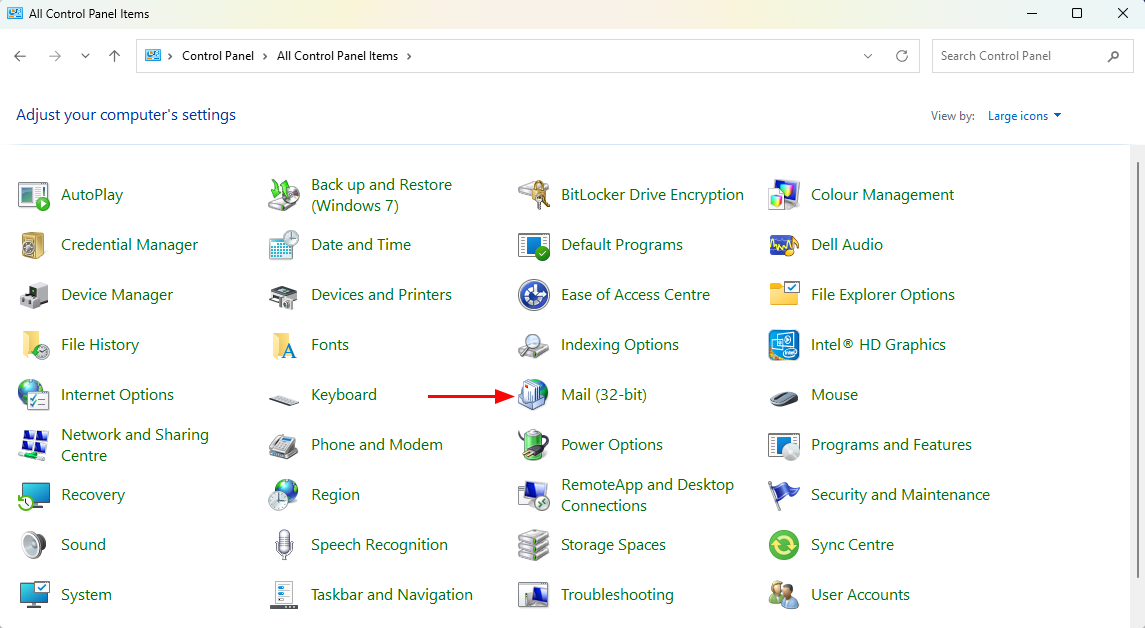
Step 2: Open 'Control Panel' → select 'Mail (32-bit)' (Microsoft Outlook).
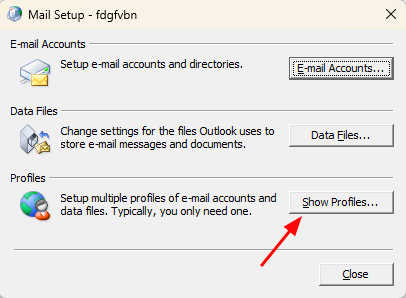
Step 3: In the Mail Setup window, click 'Show Profiles'.
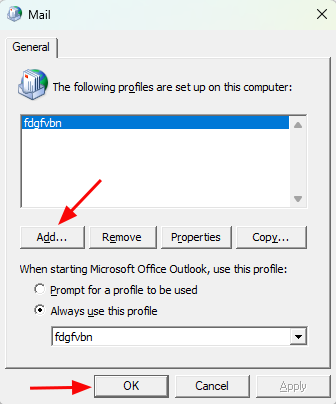
Step 4: Click 'Add', enter a name for the new profile, and click 'OK'.
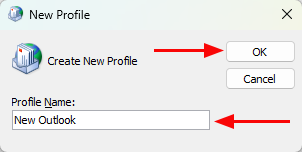
Step 5: Select a name and click on ‘OK’.
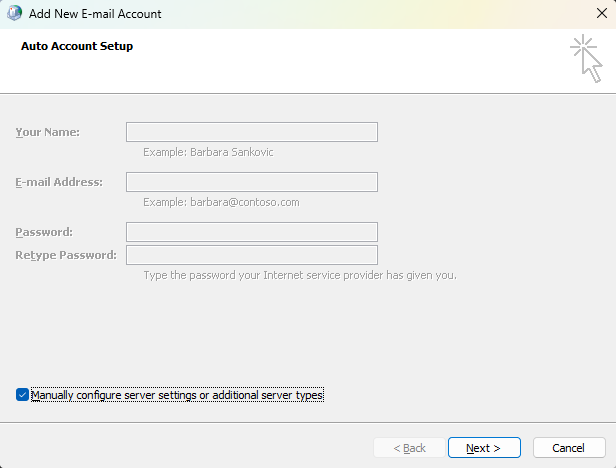
Step 6: Follow the Add Account wizard to configure your email account:
- Enter your name, email address, and password.
- Choose ‘Manually configure server settings or additional server types’ if needed for IMAP, POP, or Exchange.
- When you have finished, click ‘Next’.
Step 7: Once setup is complete, choose:
‘Prompt for a profile to be used’, or ‘Always use this profile’, and select the new one.
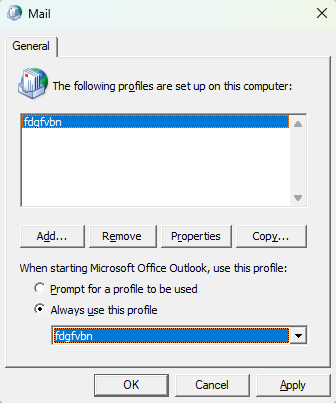
Step 8: Click 'Apply' → 'OK', then reopen Outlook using the new profile.
Method 2: Create a New Profile Using Outlook App Settings (Windows 10/11)
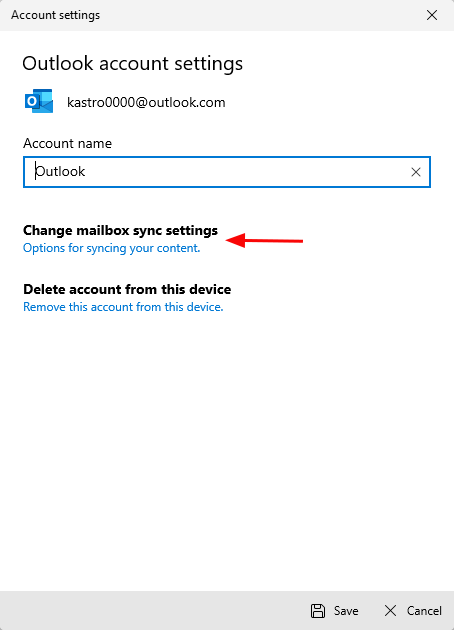
Step 1: Open Settings → Accounts → Email & accounts.
Step 2: Select the email account and choose Manage → 'Change mailbox sync settings' if needed.
Step 3: Open Outlook → go to File → 'Account Settings' → 'Manage Profiles'.
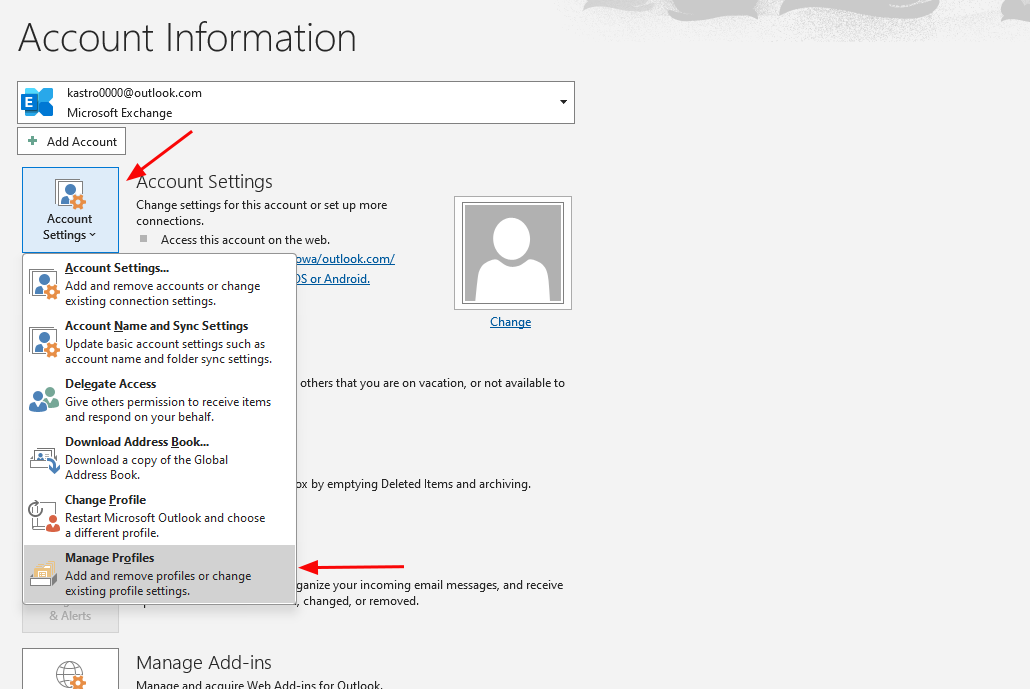
Step 4: Click Show Profiles → Add, and proceed with account setup as described above.
Method 3: Using Command line (Advanced users)
For automation or troubleshooting scripts:
- Open Run (Windows + R) → type: outlook.exe /manageprofiles
- Press 'Enter' to open the Mail Setup window directly.
- Follow the same steps as in Method 1 to create and configure the new profile.
Conclusion
The reliable management of email and good performance are obtained by making a new Outlook profile. It is useful for corrupt profiles, manage various accounts, or set up customized settings. IT professionals can use it to safely test things without affecting with their actual settings. By completing the steps mentioned above, you restore functionality to Outlook, maintain productivity and a clean, organized workspace.


